Assignment activity

Moodle is just one of the assignment submission options available at Warwick. See the Tabula pages for more information on Tabula.
In this guide:
Table of contents
Features
- Accepts multiple file types, direct text, video and Mahara eportfolio submission
- Integrates with Turnitin for similarity checking
- The option of blind/anonymous grading
- Allows multiple grading methods such as:
- Rubrics
- Grading forms
- Annotations
- Feedback files
- Marking workflow for managing multiple markers and grading stages
- Enables group submission for efficient management of groupwork
Benefits
- Streamlines submission, marking, and feedback in one place
- Enables students to submit and access feedback from anywhere, accommodating different needs and promoting accessibility.
- Allows students to submit work in the same place as their other course activities and resources, supporting a consistent and streamlined approach to learning and assessment.
- Supports efficient marking and coordination among multiple tutors while keeping full oversight.
- Teacher can tightly control release of feedback to students.
FAQs
- Why would I use Moodle assignment rather than Tabula or Wiseflow? Moodle supports a wider range of submission types compared to Warwick’s other assessment tools, which typically only allow file uploads. For example, Moodle enables submissions via Mahara eportfolios and EchoVideo recordings.
- Can assignment grades be exported to Tabula? Unfortunately not. There is no direct integration between Moodle and Tabula for submission of grade but you can export assignment grade to a spreadsheet.
- Can external examiners access assignments? Yes, if they have a Warwick IT account and are enrolled on the relevant course in Moodle as a teacher or non-editing teacher.
Follow the usual steps to add an activity and choose Assignment. Read through and choose your settings as you work down the page.
In this section:
- General
- Availability
- Submission types
- Feedback types
- Submission settings
- Group submission settings
- Notifications
- Grade
- Turnitin plagiarism plugin settings
General
- Here, add the Assignment name and add any instructions or additional information to the Description.
- In Activity instructions, explain in greater detail what students must do. This is displayed when they edit and submit their assignment.
- Upload any Additional files students might need to help them complete the assignment.
Availability
- The Due date should be the assignment submission deadline but you can also set a date from when students can start submitting using the Allow submissions from date. Until that point, the assignment can be viewed but not submitted to.
- If you would like to allow students to submit late you can enable and set a Cut-off date. Submissions will be highlighted as late. They will not be able to submit at all after the cut-off date.
Submission types
- File submission is the most common submission type. In this case you can specify how many files students may submit at once. It is recommend that if you only want a single file or other number that you set this restriction.
- To allow video submission via EchoVideo, enable the Online text submission option. See the student guide on how they submit videos to an assignment.
Feedback types
- Feedback comments and Annotate PDF are enabled by default but change as you wish. The options can be enabled or disabled at any point.
- Feedback comments - A single box to leave general comments on the assignment.
- Feedback files - Allows you to upload your feedback in a separate file. This is helpful if you prefer to download the student's file and annotate it in Word, for example.
- Offline grading worksheet - Download a spreadsheet where you can insert grades and overall feedback comments offline for later upload.
- Annotate PDF - load and annotate a PDF version of the student's submission within the Moodle interface. No download or upload required.
Submission settings
- Require students click submit button - Set to Yes if you want students to confirm their submission as final. Students can upload, check, and replace files before finalising.
- Ensure students are clear that they must upload AND submit their assignment. If they do not click the submit button, it will remain in a draft state.
Group submission settings
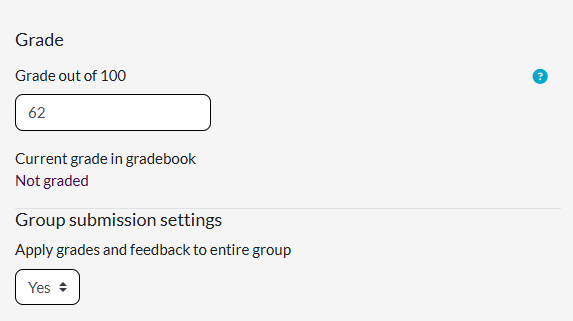
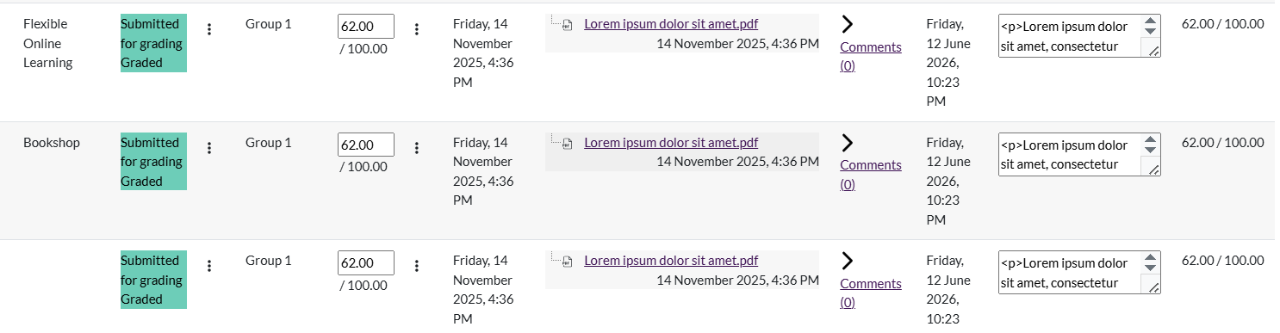
- Assignments in Moodle can be set up to allow groups of students to work collaboratively on a single assignment. One student submits on behalf of their group and the grader can either give all the group members the same grade and feedback or choose to give individual grades and feedback.
A prerequisite for enabling group submission is to have groups already set up and populated with participants within the course. See how to create groups in the Groups and groupings guide.
- To enable group submission:
- Set Students submit in groups toYes.
- Click the Show more...link.
- Set Require group to make submission to Yes. This is important in preventing complications caused by students who haven't been allocated to a group submitting on behalf of others who also aren't in a group.
- The Require all group members submit setting is locked to No. Only one member of the group is required to submit the assignment on the group's behalf.
- It is recommended that the groups you have set up in the course belong to a dedicated grouping for this assignment. See the Groups and groupings guide for more information.
- Select the Grouping for student groups that will be submitting this assignment.
Notifications
- Ensure that Default for 'notify student' is set to No. This reduces the risk of students being alerted before feedback is complete or visible, and helps preserve anonymity in marking workflows. It ensures that notifications are sent intentionally, at the correct point, once grading and feedback are fully ready to release.
Grade
- The default grading method is set to simple direct grading using a 100 point mark. You may change this to either:
- Another numerical point value (change the maximum value)
- None - qualitative feedback only
- Scale - there are some grading scales available to choose from, including the Warwick 20-point qualitative scale, but you can create your own within the course.
- An advanced grading method such as a rubric or marking guide that will calculate the grade for you.
- If you enable Anonymous submissions, students will be assigned a random Participant ID number so teacher will not be able to identify them. It is also possible to make the graders anonymous to the students.
-
Only users with the Manager role will still be able to see personally identifiable information. Using anonymous marking can improve fairness and equal treatment of students in the assessment process.
-
Let students know that the assessment is blind marked and that they should not include any personally identifying information in the submission itself or its metadata (e.g name of the file). You can do so in the description of the assignment.
Anonymous submissions cannot be enabled once submissions have been made. It must be enabled during the assignment setup or before the first student submits.
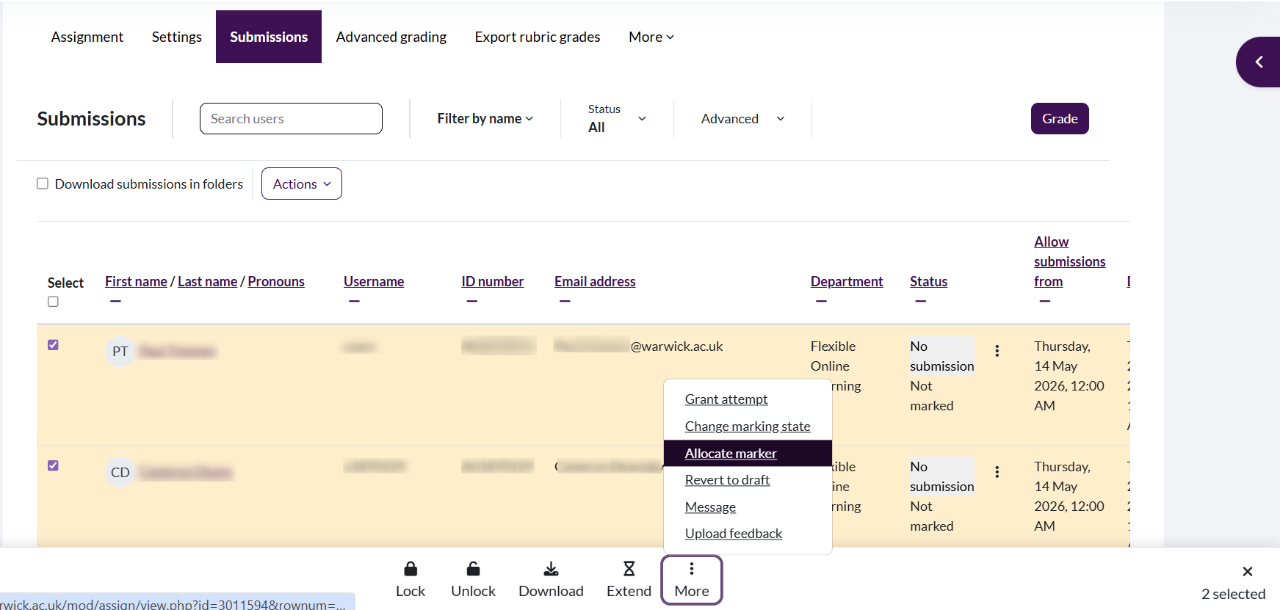
- Once you enable marking workflow, an option to Use marker allocation becomes available so teachers enrolled on the course can be assigned submissions to mark later on. If there is only one marker for the assignment, this is not necessary.
Grading methods
There are various types of grading and feedback that can be used alone or in combination with others.
Simple direct grading
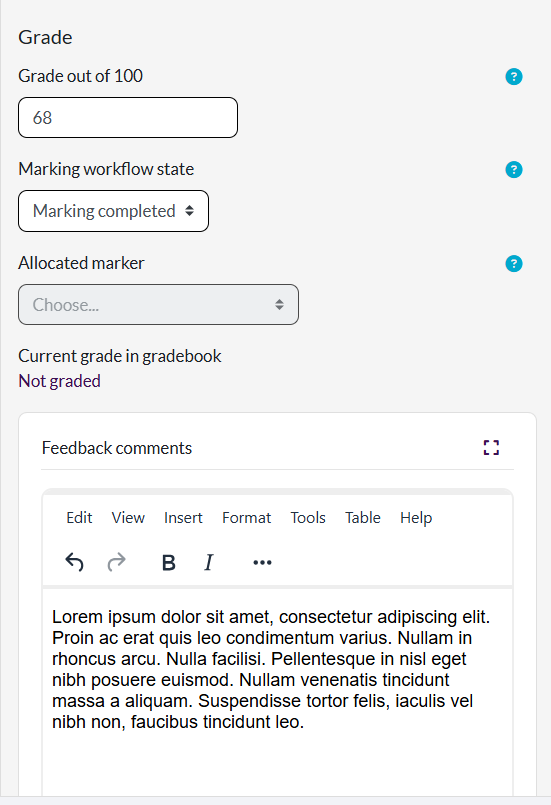
The most basic form of grading possible in Moodle assignment is to enter a single overall mark (or scale item) for the work. You can also add an overall written comment.
Grade type: Point; Feedback types: Feedback comments
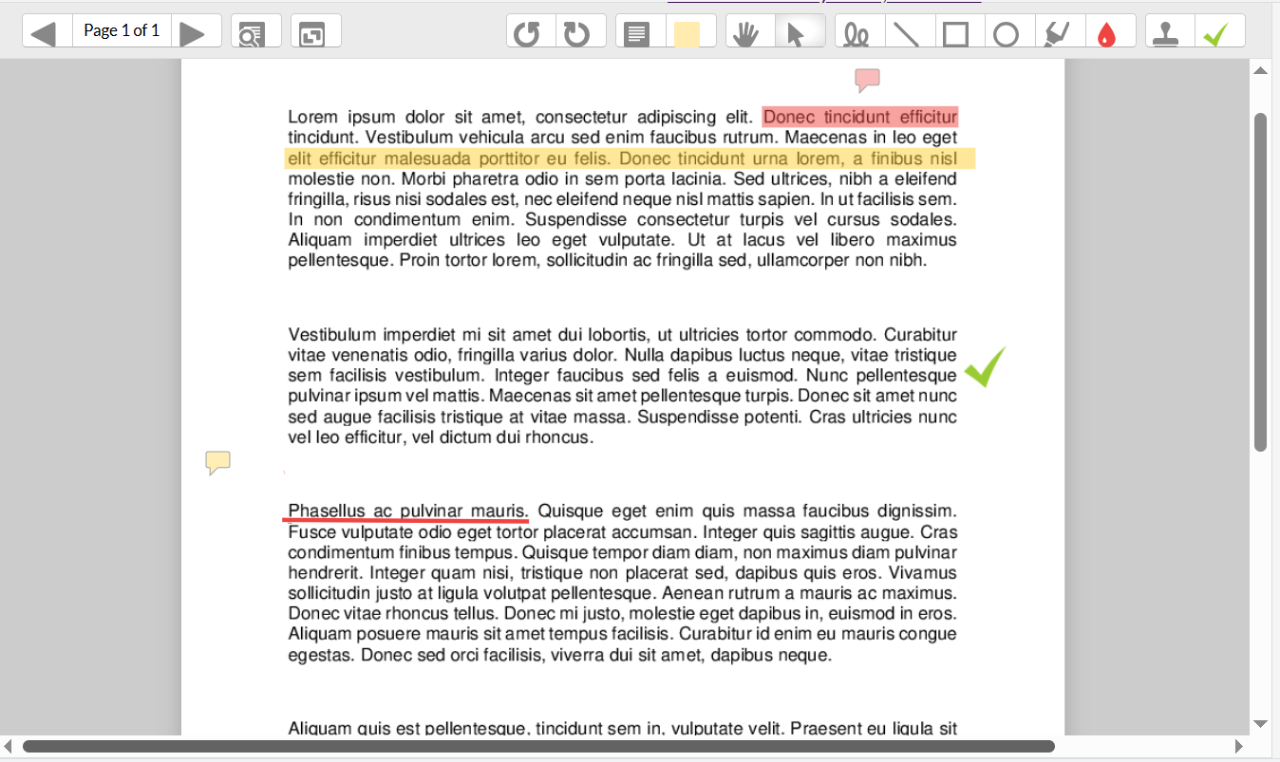
In addition you can add annotations to the students' papers provided they have submitted a compatible file type. Moodle will automatically convert popular file types to PDF. Supported file types are .doc ,.docx, .odt, .rtf, .ppt, .pptx, .odp (and, of course, PDF itself).
Feedback types: Annotate PDF
Advanced grading methods
Rubrics and marking guides are advanced marking methods that allow you to provide more detailed feedback against specified criteria.
Rubric
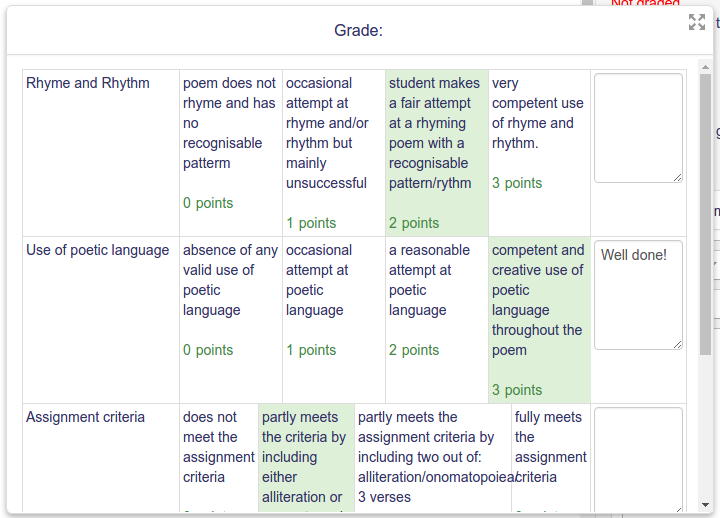
Marking guide

They can be selected and defined either via the Grade section when setting up the assignment, or via the Advanced grading tab of an existing assignment.
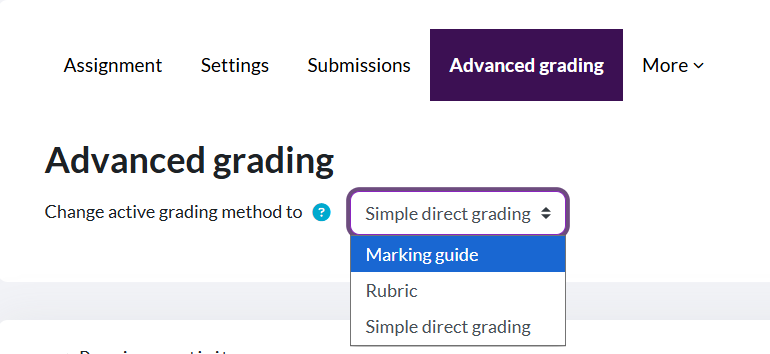
To help you decide which method of advanced grading is more appropriate, see the table below.
| Rubric | Marking guide | |
|---|---|---|
| Structure | Grid with criteria + fixed performance levels | List of criteria with free scoring and comments |
| Marking method | Select a predefined level | Enter marks manually |
| Feedback style | Descriptor-based (per level) | Open, written feedback per criterion |
| Consistency | High (standardised) | Medium (more variation possible) |
| Flexibility | Limited | High |
| Speed of marking | Faster once built | Slower but more detailed |
| Best for | Large cohorts, summative work, moderation | Complex work, smaller groups, formative feedback |
More guidance on setting up rubricsLink opens in a new window and marking guidesLink opens in a new window is available at Moodle Docs.
Turnitin plagiarism plugin settings
- Turnitin is disabled by default so submissions will not be checked for similarity with other sources. Change Enable Turnitin to Yes if required.