
Add a search box
You can add a search box to the centre or right-hand content to enable visitors to search your website or a section of it. For example, there is a Search help box at the right-hand side of all pages in SiteBuilder help, which returns results from any page under:
/services/idg/services-support/web/sitebuilder2/manual
Search queries do not return results from the rest of the IDG website or SiteBuilder section. You see matching results as you enter your query – we refer to this as ‘live search’.
-
Browse to the page where you want to add a search box.
-
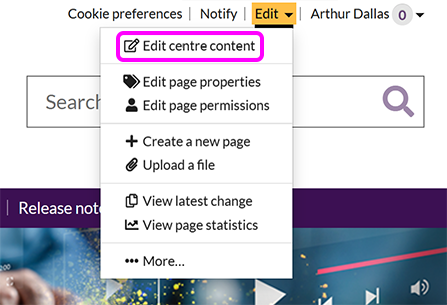
Go to Edit > Edit centre content:
-
Position the cursor where you want to add the search box.
-
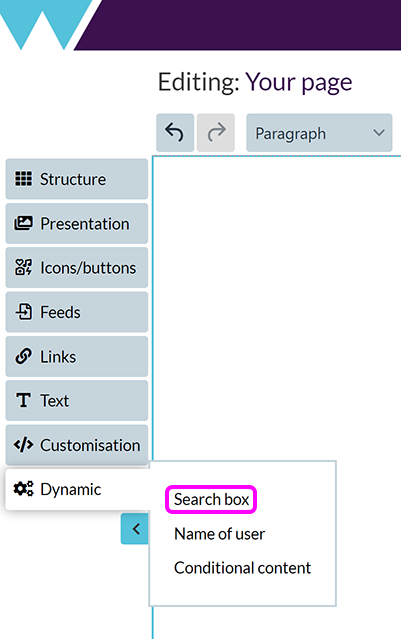
Select Dynamic > Search box:
-
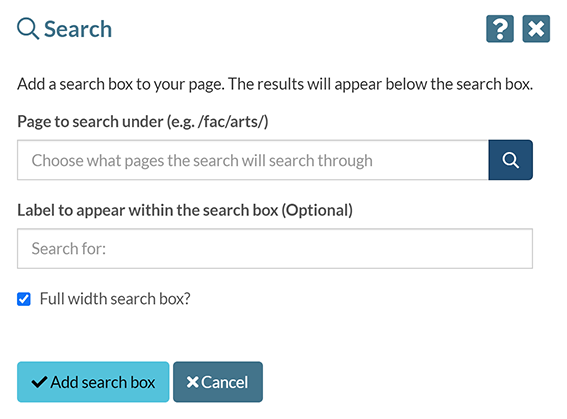
The Search pop-up appears:
-
Enter the path for the topmpost page for your search in the Page to search under box (this is the part of the URL after
https://warwick.ac.uk). Results for the search will be restricted to that pages and any pages or files under it. -
Optionally, enter a Label to appear within the search box. This is the text that will appear greyed out in the search box before visitors enter their own search terms.
-
If you leave the Full width search box checkbox selected, the search box will stretch to fill the available horizontal space. If unselected, the box will appear at a standard size.
-
Select Add search box.
-
Once it's been added to the page, you can reposition the search box like any other component.