
Site Owners
Users with the Site Owner role are granted admin permissions across the entire site, and act as the main point of contact for the site and its content. They also have responsibility for managing permissions (including nominating additional Site Owners) and auditing content to keep the site up to date and accessibility-compliant.
Additional abilities and responsibilities will be added in future SiteBuilder updates, including access to a Site Owner dashboard and content notifications to make site management easier.
In this article:
Accept a Site Owner nomination
The first group of Site Owners will be nominated by heads of department. Once these users have accepted the position, they will be able to nominate and manage other Site Owners.
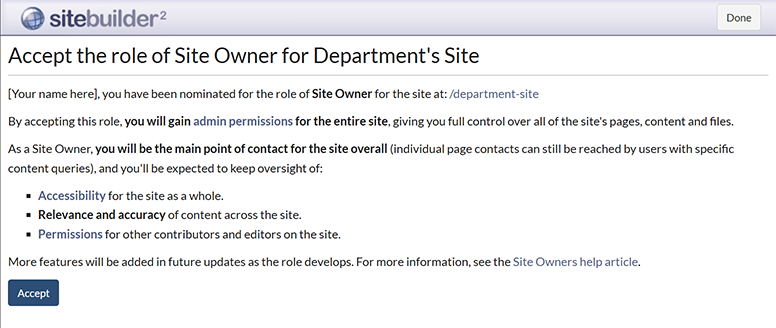
Important: When you accept the position of Site Owner, you'll gain admin permissions for the entire site, giving you full control over all the site's pages, content and files.
The role also comes with some additional responsibilities, including:
- Acting as a point of contact for queries about the site overall. Note that individual page contacts can still be reached by users with specific content queries.
- Overseeing the accessibility of the site as a whole and ensuring that content is relevant and accurate.
- Ensuring that permissions for other contributors and editors on the site are appropriate.
We'll be adding further features as the role is developed, such as a Site Owner dashboard to give you an overview of the site, workflow tools to approve content changes, and additional site metrics.
When nominated as a Site Owner, you receive an email notification with a link to accept the nomination. In addition, a banner appears at the top of the Editing screen for any page on the site you've been nominated for:
You have been nominated for the role of Site Owner on this site. View details
-
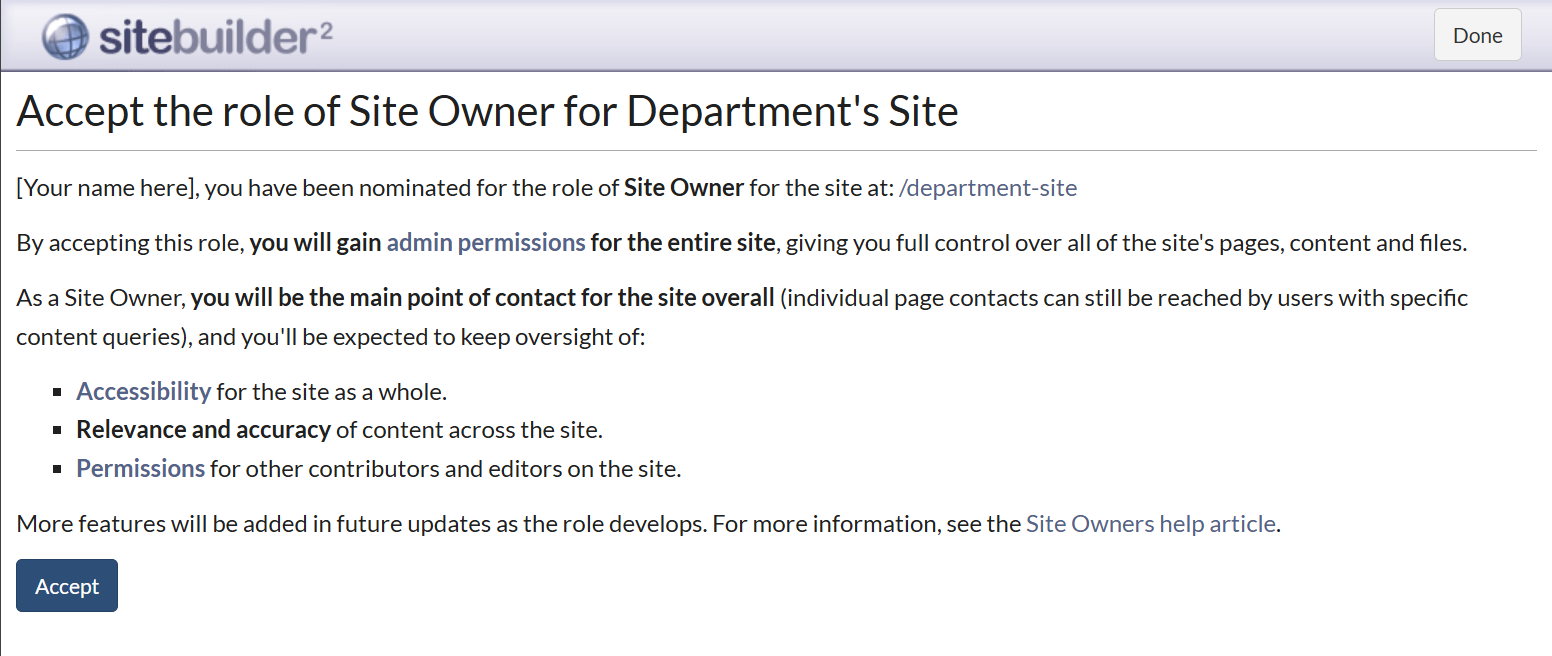
Follow the View details link to view a summary of the site you've been nominated as Site Owner for:
-
To accept the nomination and agree to the responsibilities and terms of site ownership, select Accept.
-
You're taken to the Site Owners screen:
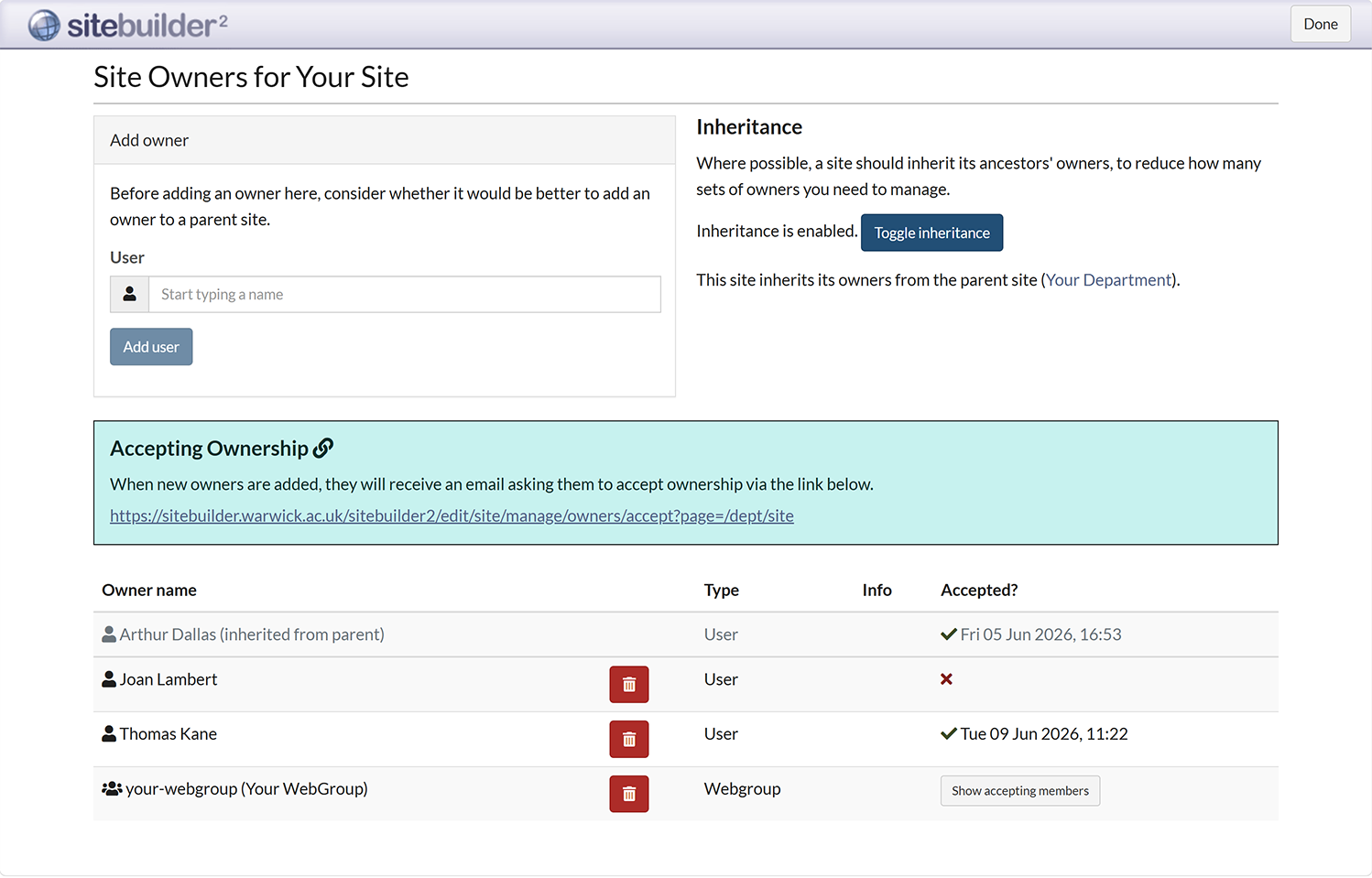
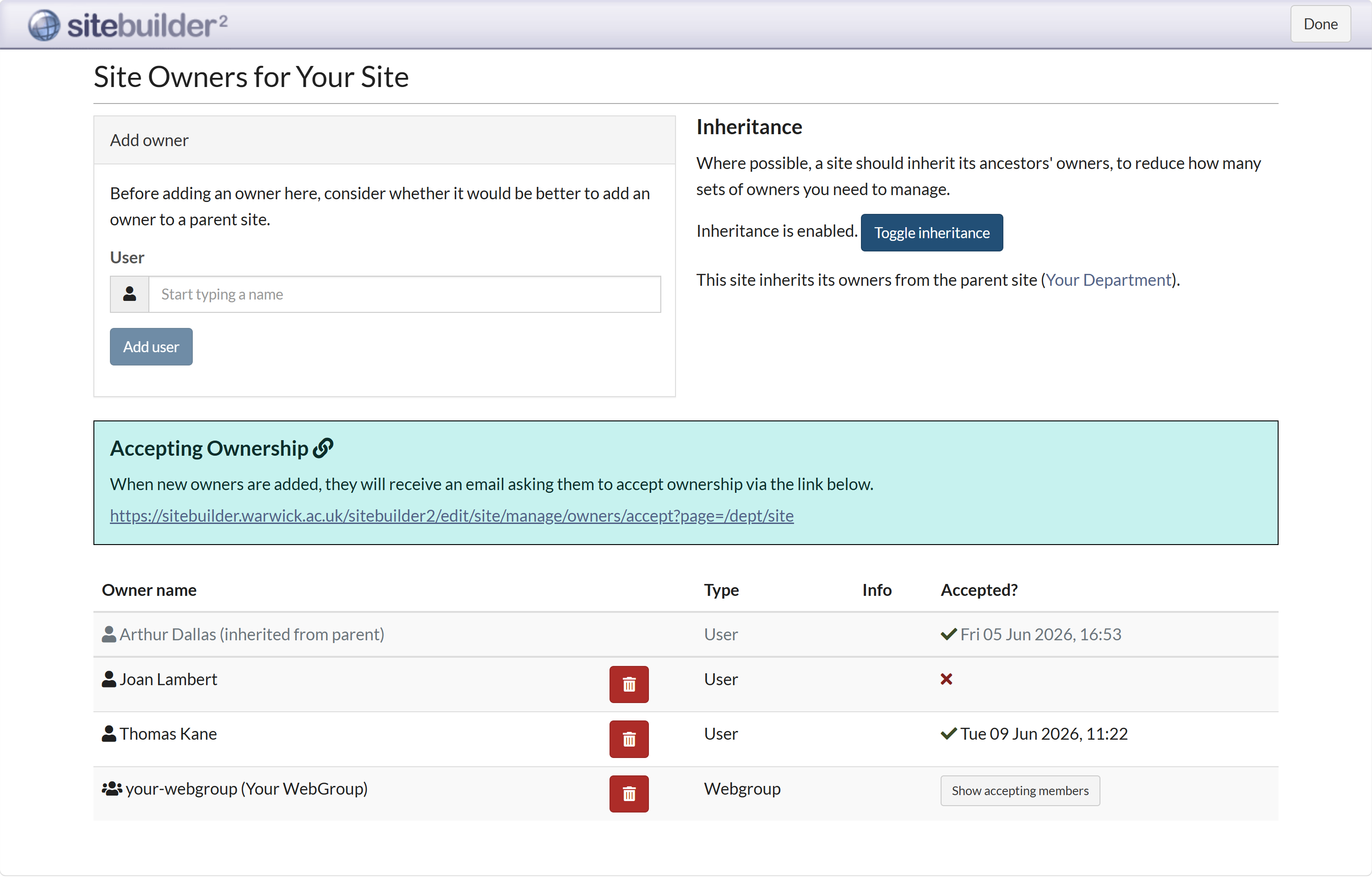
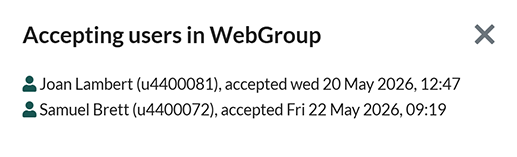
If you've been nominated as part of a WebGroup, you'll see the group name in the list, rather than your own; select the Show accepting members button to see a list of WebGroup users who've accepted the nomination.
Nominate an individual as a Site Owner
Any existing Site Owner has the ability to nominate other users to the role, who - if they accept the nomination - will receive the same level of control over the site, and the associated responsibilities.
-
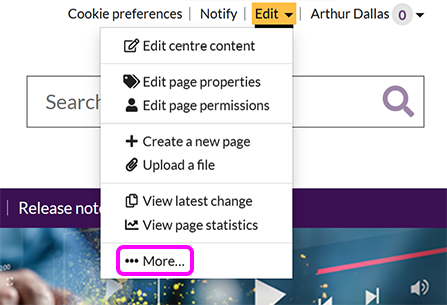
Go to a page on the site you're a Site Owner for, and select Edit > More:
-
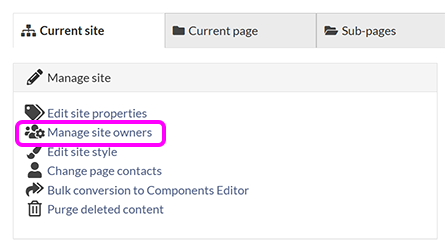
On the Current Site tab, select Manage site owners:
-
You see the Site Owners screen:
-
Under Add Owner, enter the name or user ID of the person you want to appoint as a Site Owner in the User box. You can also use a WebGroup to quickly nominate multiple Site Owners.
-
Select Add user.
-
The nominated user(s) receives an email with details of how to accept the Site Owner nomination.
Nominate multiple Site Owners via a WebGroup
Any existing Site Owner has the ability to nominate other users to the role, who - if they accept the nomination - will receive the same level of control over the site, and the associated responsibilities.
-
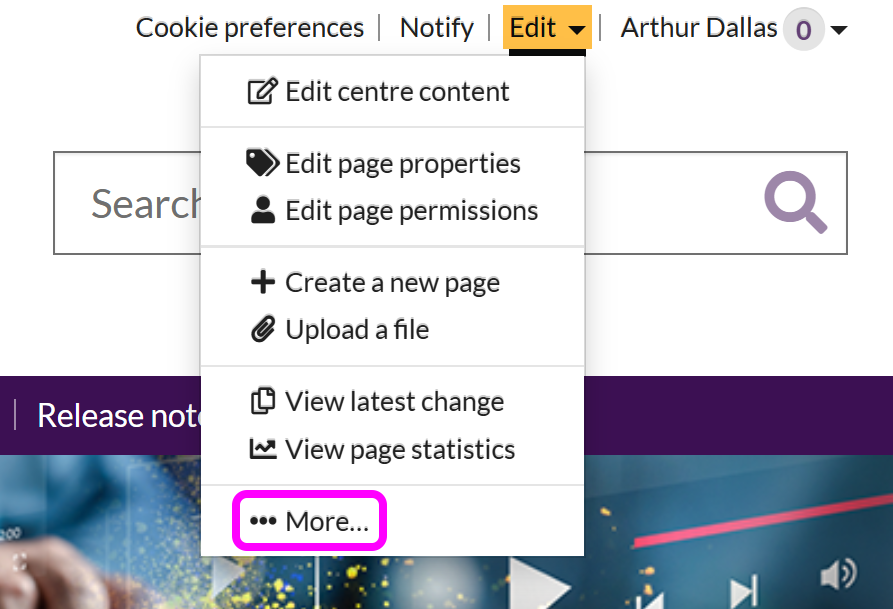
Go to a page on the site you're a Site Owner for, and select Edit > More:
-
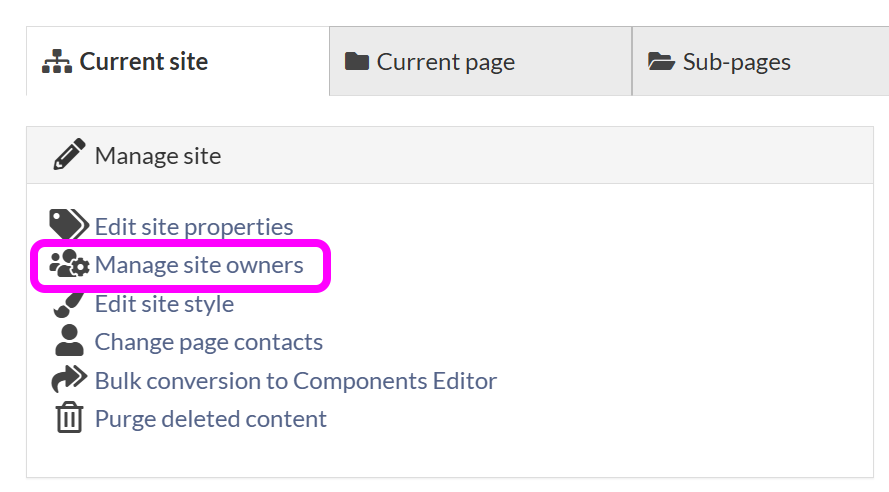
On the Current Site tab, select Manage site owners:
-
You see the Site Owners screen:
-
In the User box, enter the name of the WebGroup whose members you want to appoint as Site Owners. You can alternatively nominate an individual as Site Owner.
-
Select Add user.
-
All members of the WebGroup receive an email with details of how to accept the Site Owner nomination.
Note: Individuals who are added to a WebGroup after that group has been assigned Site Owner status do not receive an email notification about their nomination. These users can accept the Site Owner nomination via the banner on the Editing screen, or you can share the Accepting Ownership link from the Site Owners screen via the communication channel of your choice.
If a user is removed from a WebGroup assigned as Site Owner, they will lose their Site Owner role if that is their sole source of access. Should they be re-added to the WebGroup in future, their Site Owner status will also be reinstated, with the original acceptance date.
Manage Site Owners
Note: It is not possible to remove your own Site Owner access, either as an individual or by deleting a WebGroup that grants you Site Ownership.
-
Go to a page on the site you're a Site Owner for, and select Edit > More:
-
On the Current Site tab, select Manage site owners:
-
You see the Site Owners screen:
From here, you can view existing site owners, nominate additional Site Owners and change whether the site inherits Site Owners from its parent site.
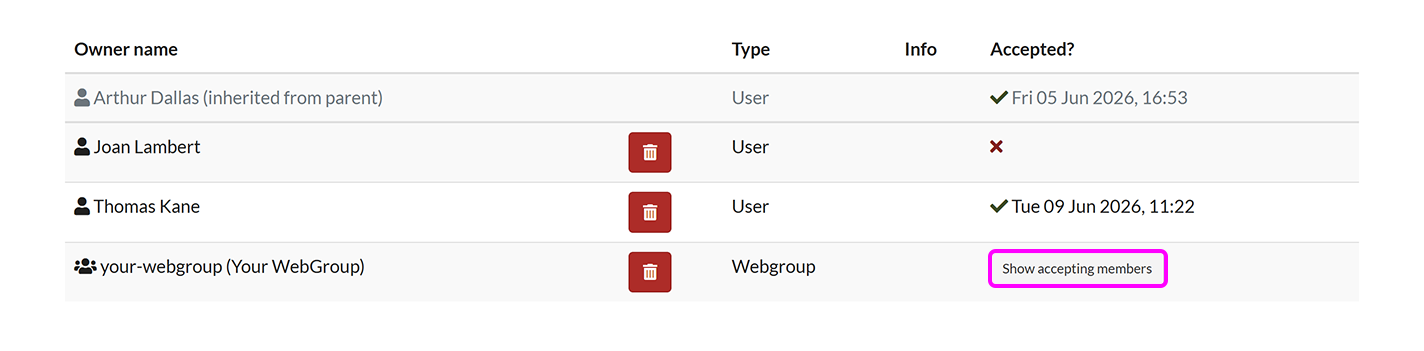
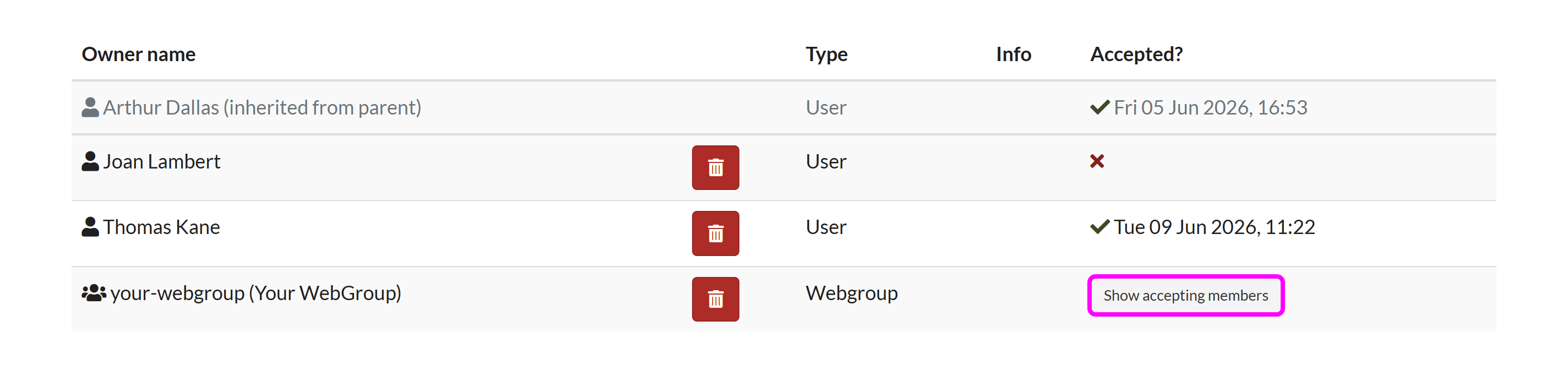
- The table at the bottom of the screen displays:
- The Owner name for each individual and WebGroup that has been nominated as Site Owner
- The Owner Type (User or WebGroup)
- Any additional Info
- Whether or not they've Accepted the role, and the acceptance date
Note: Instead of Accepted? status, WebGroups have a button to Show accepting members:
Select the button to view which members of the WebGroup have accepted the Site Owner role:
-
To remove a Site Owner, select the Delete icon for the individual or WebGroup you want to remove, then select OK in the confirmation pop-up to finalise removal.
Important: Deleting a WebGroup from the Site Owners list will also remove Site Owner status from anyone who relies on that group for access. Members of a deleted WebGroup who are also listed as an individual, or are members of another WebGroup with Site Owner access, will retain the Site Owner role while at least one source of access remains.
It is not possible to remove your own sole source of access to the Site Owner role.
Inheriting site ownership
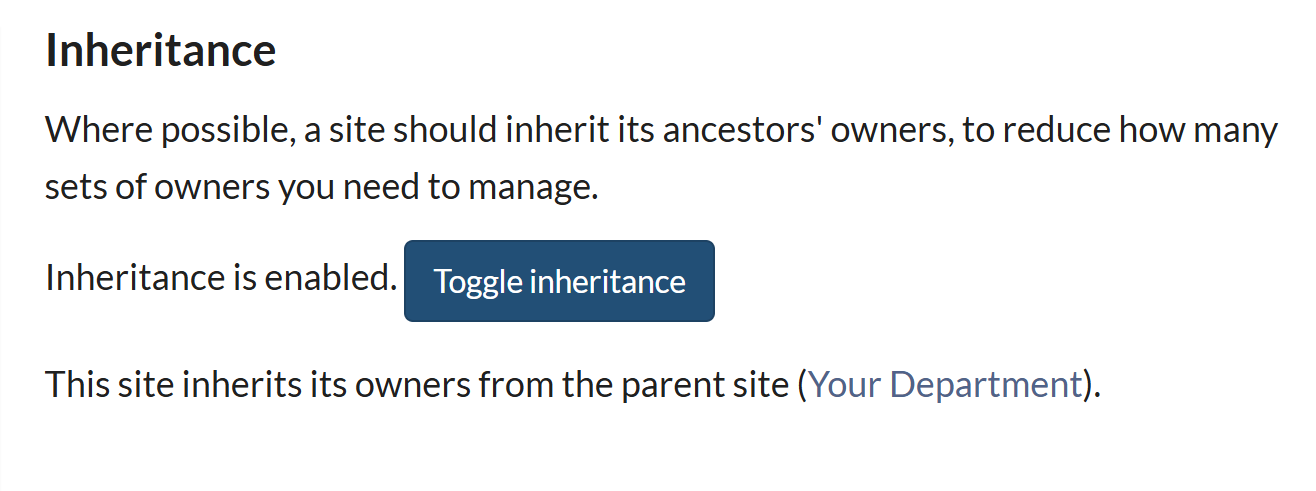
By default, a subsite inherits the Site Owners of its parent site.
The current inheritance status and a link to the location of the parent site are displayed in the Inheritance panel of the Site Owners screen:
Note: Depending on how a subsite has been configured, the parent site may not be immediately above the subsite in the structure.
To restrict Site Ownership to only those users assigned the role for that specific site, select the Toggle Inheritance button to disable inheritance.
Note: It is not possible to disable inheritance if that is your only source of site ownership. You must first nominate yourself as a Site Owner for the site specifically before you can toggle inheritance off.
Select the Toggle inheritance button again if you want to re-enable inheritance.