
Add conditional logic to a form
Conditional logic enables you to show or hide a field group based on a respondent's answers to other questions.
Important: We recommend you thoroughly test any conditional logic functionality to ensure that your form works as expected before advertising your form to potential respondents.
In this article:
Enable conditional logic
-
Browse to your form and add or edit a Field group.
-
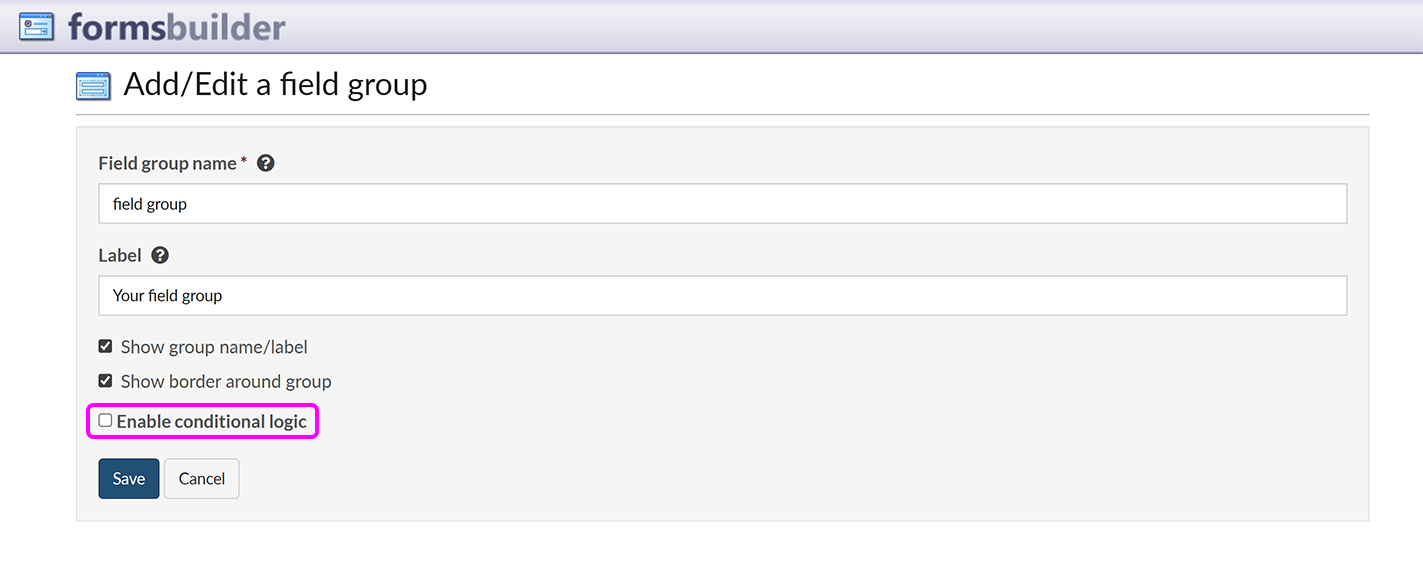
On the Add/Edit a field group screen, select the checkbox to Enable conditional logic:
-
You see the initial conditional logic options:

-
Select whether you want to use conditional logic to Show or Hide the field group when the conditions are met.
-
Use the drop-down list to choose whether the requirements are fulfilled when all of the conditions are true, or if any of the conditions are true.
-
Select the Add condition button to check for the response to a single question, or the Add condition group button to verify multiple responses at once.

Add a condition
-
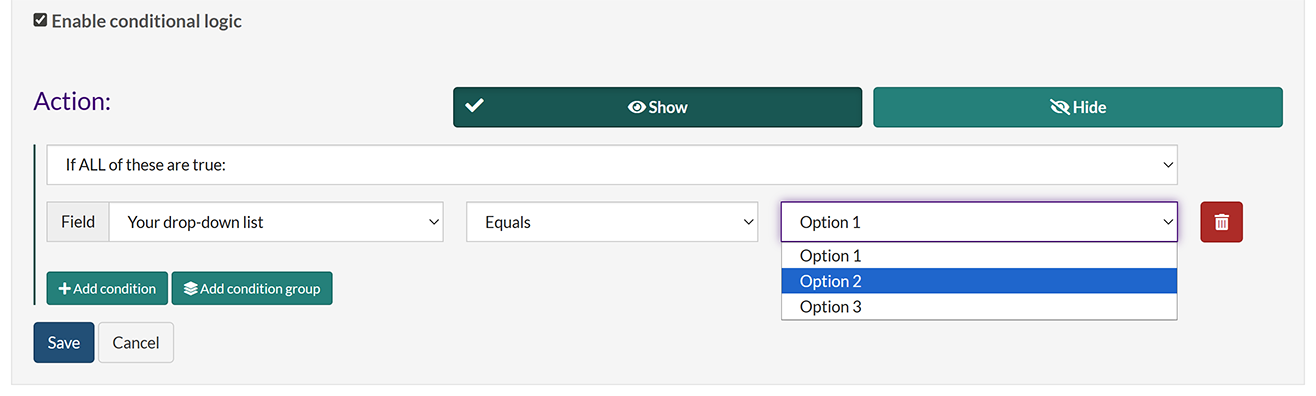
Select the Add condition button.
-
In the Field drop-down, select which question on the form this condition is checking.
-
If you're looking for a response that Equals one of the preset responses to the question, select which of the answers you're checking for. Alternatively, you can use the middle drop-down list to check for a response that Is blank, Is not blank, or Is "other", depending on the question type.
-
Select the Add condition button to add more conditions, or Add condition group to verify multiple responses as if they were a single condition.
-
When you're finished setting up conditional logic for this field group, select Save.
Add a condition group
Condition groups enable you to verify multiple responses at once as part of a single condition check.
For example, the rules below mean that the field group is displayed only if all of the following are true:
- On Question 1, the respondent answered "Yes";
- For Question 2, the respondent selected Option 2;
- For Question 3, the respondent's answer included Option 1, Option 3, or both.

-
Select the Add condition group button.
-
Select whether to return a
trueresult to the main check if all the group's conditions are met, or if any of the conditions are met. -
Use the Add condition button to specify each valid response.
Tip: Although it is possible to nest multiple condition groups, this may result in complex logic that is difficult to test; we recommend keeping conditional logic as simple as possible.
Remove conditional logic
Important: Removing conditions or condition groups from existing logic will change your form's behaviour. We recommend re-testing a form after making changes to ensure it functions as expected for respondents.
To disable conditional logic for a group entirely, deselect the Enable conditional logic checkbox:
To remove a specific condition or condition group, select the 'Remove condition' or 'Delete condition group' button for that condition/group.
