
Download a site content report
You can download a report of all pages, images and files on your website to a CSV file. To do so, you need admin or edit permissions for your site's home page. The report can help you with content management tasks such as:
- Identifying pages or files that have not been updated or changed in a long time
- Identifying obsolete parts of your site that are accessible to the public
- Identifying pages that do not comply with accessibility legislation
- Identifying pages that are editable using the Components Editor
- Optimising page titles and descriptions for search engines
- Ensuring view, edit and admin permissions are appropriate and up to date
-
Browse to your site's home page.
-
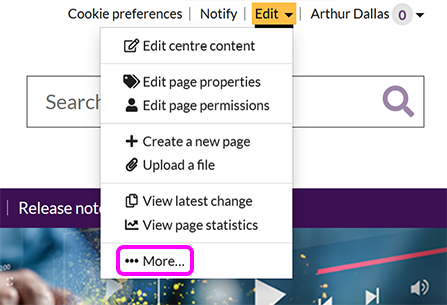
Go to Edit > More:
-
Select the Current site tab:

Note: You need admin or edit permissions on the site homepage to see this tab.
-
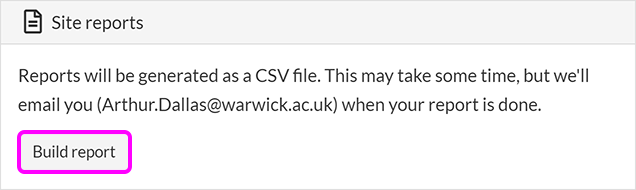
Under the Site reports section, select Build report:
-
The Report options pop-up is displayed:

-
The report can include any or all of the following information for each page and file on your site:
-
The item's URL (web address)
-
The file Type - HTML page, image, PDF document, for example.
-
The Page heading, Title bar caption and Link caption if applicable.
-
Any Keywords or Description assigned to the page or file.
-
The Page contact.
-
The date the content was Last modified.
-
Who the page or file was last Modified by.
-
Admin, Edit, Contributor, and View permissions.
-
Whether the page or file is Live or deleted.
-
Search Engines Allowed: Whether the page is hidden or visible to search engines.
-
Whether the page is set to Show in local navigation.
-
If the page is a forwarding page, the URL it Redirects to.
-
If the page is the target of a forwarding page, the URL of any page that Redirects here.
-
Page visibility: Whether the page can be viewed by the public, University members or is hidden.
-
Whether or not the page Needs to comply with accessibility legislation.
-
Whether or not the page uses the Components Editor.
-
The Accessibility audit result, and the Accessibility audit date.
-
The page Template in use, if applicable.
-
If the item is a Components Editor page, a list of the Components used.
Select the checkbox for each column you'd like your report to display. You can optionally choose to Select all columns, or Select none and then check only the columns you want to include.
-
-
When SiteBuilder has finished compiling the report, you receive an email containing a link to download the generated CSV file. Be aware that it may take some time to generate the report, depending on the size of your site.
