
Wireless Casting
Cynap Wireless Casting
Ensure you are on the Eduroam Wi-Fi. Cynap wireless casting does not require any additional software.
Connect with Windows
and K
Press the Windows and K keys at the same time to open the Cast menu. Select your chosen room display and type in the four digit PIN that appears onscreen when prompted.
To stop sharing, open the Cast menu again and click disconnect.

Connect with Apple
andOpen the Control Centre from the menu bar and then select Screen Mirroring to see the available connections. Select your chosen room display and type in the four digit PIN that appears onscreen when prompted.
To stop sharing, open Screen Mirroring again and click on the connected display.


Solstice Wireless Casting
The Solstice Client application needs to be installed on your device to connect.
(Linux, ChromeOS and Windows mobile devices are not supported.)
To ensure the Solstice app can see devices on the University network, click on 'Settings' in the app and input 'solstice.warwick.ac.uk' in the 'Solstice Discovery Service' address box if it is not already there. Click 'Back' and the main page should now display all the devices seen by the discovery service.
With the system on, select "Solstice" on the input control panel, and the screen will display the Solstice Home screen shown below.
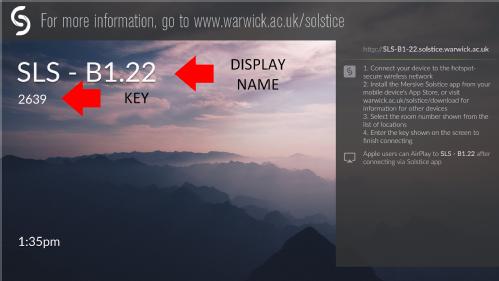
Find the DISPLAY NAME/room number on the Solstice Client app.
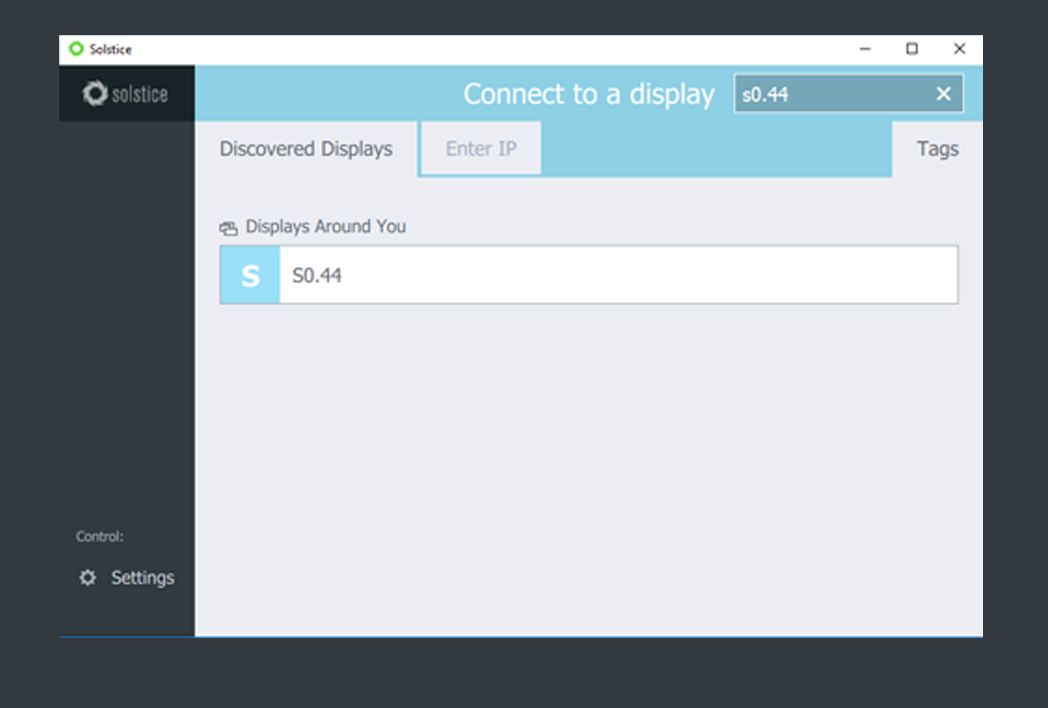
When prompted for a screen key, enter the four-digit KEY shown on the room's display screen, and then click OK to finish connecting wirelessly to the display.
If the Solstice name is not listed in the app, it should be possible to connect by typing the IP address displayed onscreen into a browser and following the connection instructions it provides.