
Getting started with Lecture Capture

Lecture capture enables teaching sessions to be automatically recorded and made available to students for review after the event. Recordings can include the presenter's voice, presentation materials, and, where available, video from a lecture capture camera.
At Warwick, lecture capture is delivered through EchoVideo and is available in equipped teaching spaces. Once a recording has been scheduled, the system automatically starts and stops recording at the scheduled times.
Quick-start guide to Lecture Capture
Step 1: Consent
A schedule cannot be created unless a consent form has been submitted.
You are only required to submit this form once.
Step 2: Schedule
Check the room booking details are correct for module recordings.
Complete the recording booking form.
Step 3: Deliver
Recording will begin automatically.
Wear the microphone provided in the room.
Warwick's lecture capture policy is opt-in, which means recordings are only made where recording has been actively requested. See the full current Lecture Capture Policy here.
In this guide:
Table of contents
EchoVideo can record one or two sources, or inputs, in addition to the audio during a lecture. A source is anything you want students to see, such as:
- the lecturer or audience on the camera
- presentation slides or other content from the connected computer
- a document camera (visualiser)
Every teaching room is different in its configuration so what you can record will depend on the room you are in. It is useful to know what you can do in any room where you will be teaching so that you can plan accordingly - move rooms, use the visualiser instead of the whiteboards, or think about software alternatives like Teams whiteboard.
Capture essentials
- EchoVideo lecture capture can only record two inputs at a time.
- Rooms may have one, two or three input(s).
- Inputs can be changed on the touchpanel. Choose between:
- teaching PC
- document visualiser
- Solstice
- HDMI connections for laptops
- lecture capture camera (where available).
- Any lecture capture-enabled room can also be used for live streaming (with a short delay) to Warwick staff and students, or publicly.
We have identified 5 ways in which teaching rooms can be used with lecture capture based on the room equipment.
Requirement: 1 display screen i.e. any room with Lecture Capture
This is the default option. It will capture what is displayed on the connected computer and your voice. You will need to use the radio mic provided in the room. This is the most common type of recording.
The final lecture recording may look like this:

Requirement: 2 display screens
This captures the connected computer AND a second input such as the document camera, Solstice or your laptop. This makes it possible to switch between different aspects of teaching without having to change the inputs. This is only available in rooms with 2 projectors.
You might choose Presentation + Other if you want to capture:
- a PowerPoint presentation on the lectern PC AND the document camera
- the lectern PC AND your laptop
The final lecture recording may look like this:
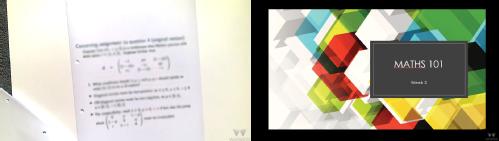
In rooms with cameras, the presenter must check that camera capture is OFF if they want to capture content from both display screens.
Requirement: 1 display screen and a camera (rooms may have 2 displays, but only 1 display can be captured in conjunction with the camera)
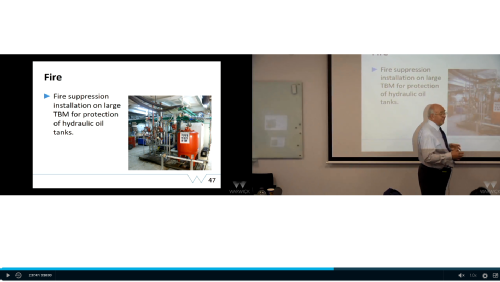
This captures the connected computer AND the video captured by the room camera, which appears alongside your presentation in the recording.
You might choose Presentation + Video if you want to capture:
-
presentation on the Teaching PC AND video of the presenter(s)
-
a guest speaker via Teams on the Teaching PC, or on a laptop via HDMI AND video of the presenter in the room.
The final lecture recording may look like this:
Requirement: Any Lecture Capture room with Camera
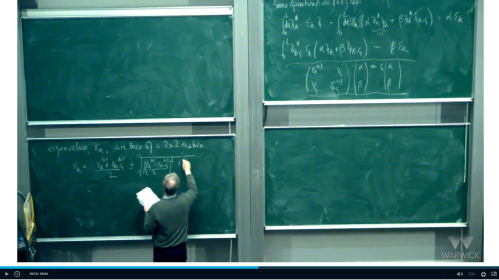
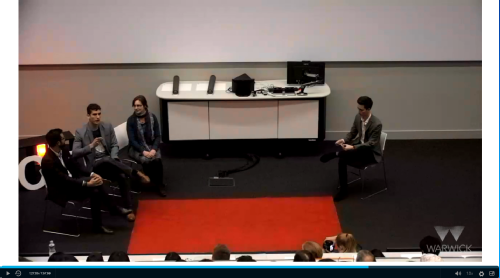
This option records the feed from the in-room camera and, depending on the presets available, enables you to zoom into the presenter area or to record the chalk or whiteboard area. This is also useful for panel discussions etc. where presentations do not need to be captured.
You might capture video only to record:
- whiteboards or chalkboards where the focus is on the written materials
- panel discussions without a presentation
- performances (or presentations) that do not require a computer
The final recording may look like this:
or this:
Requirement: Any room with Lecture Capture
This option records only the audio in the room and can be used for producing podcasts or audio-only webinars. You can still use the teaching PC and other equipment whilst recording, but they will not be captured.
For information about equipment and capacity in teaching rooms, along with a 360° tour and interactive image of the lectern equipment visit the following pages and search for Lecture Capture-enabled rooms.
Search the room list below to see how a room is equipped for lecture capture. Due to the complexity of the rooms at Warwick, whilst we are confident that the majority of this information is correct, it may be that a room will differ slightly and that it has additional modes we have not listed (e.g. a room which has a single projector, but uses 'window in window' technology will allow P | O as an option).
* denotes a room that is not managed by central IT and therefore we cannot guarantee the accuracy of this information
| Building | Room | Type | Audio Only | Presentation Only | Presentation | Other | Presentation | Video | Video Only |
|---|---|---|---|---|---|---|---|
| Arts Centre | National Grid Room | ||||||
| Arts Centre | Woods-Scawen | ||||||
| Avon | Avon Drama Studio | ||||||
| Avon | WA0.15a | ||||||
| Avon | WA0.15b | ||||||
| Avon | WA0.23 | ||||||
| Avon | WA0.24 | ||||||
| Avon | WA1.01 | ||||||
| Avon | WA1.09 | ||||||
| Avon | WA1.10 | ||||||
| Avon | WA1.15a | ||||||
| Avon | WA1.15b | ||||||
| Avon | WA1.20 | ||||||
| Computer Science | CS1.04* | ||||||
| DAC | 1.009* | ||||||
| DAC |
1.01* | ||||||
| DAC |
1.011* | ||||||
| DAC |
1.023* | ||||||
| DAC |
1.024* | ||||||
| DAC |
1.025* | ||||||
| DAC | 2.008* |
||||||
| DAC | 2.009* |
||||||
| DAC | 2.010* |
||||||
| DAC | 2.022* | ||||||
| EMB | EMB0.07* | ||||||
| EMB | EMB0.09* | ||||||
| EMB | EMB0.10* | ||||||
| EMB | EMB0.11* | ||||||
| EMB | EMB0.12* | ||||||
| EMB | EMB1.03* | ||||||
| EMB | EMB1.11* | ||||||
| Engineering | A2.05A* | ||||||
| Engineering | A2.05B* | ||||||
| Engineering | A4.01* |
||||||
| Engineering | D2.02* | ||||||
| Faculty of Arts | FAB0.03 |
||||||
| Faculty of Arts | FAB0.08 |
||||||
| Faculty of Arts | FAB0.23 |
||||||
| Faculty of Arts | FAB1.05 |
||||||
| Faculty of Arts | FAB1.06 |
||||||
| Faculty of Arts | FAB1.07 |
||||||
| Faculty of Arts | FAB1.08 |
||||||
| Faculty of Arts | FAB1.09 |
||||||
| Faculty of Arts | FAB1.10 |
||||||
| Faculty of Arts | FAB1.11 |
||||||
| Faculty of Arts | FAB1.12 |
|
|||||
| Faculty of Arts | FAB1.13 |
||||||
| Faculty of Arts | FAB1.14 |
||||||
| Faculty of Arts | FAB1.15 |
||||||
| Faculty of Arts | FAB2.31 |
||||||
| Faculty of Arts | FAB2.32 |
||||||
| Faculty of Arts | FAB2.34 |
||||||
| Faculty of Arts | FAB2.35 |
||||||
| Faculty of Arts | FAB2.36 |
||||||
| Faculty of Arts | FAB2.43 |
||||||
| Faculty of Arts | FAB3.25 |
||||||
| Faculty of Arts | FAB3.26 |
||||||
| Faculty of Arts | FAB3.28 |
||||||
| Faculty of Arts | FAB3.29 |
||||||
| Faculty of Arts | FAB3.30 |
||||||
| Faculty of Arts | FAB3.31 |
||||||
| Faculty of Arts | FAB3.32 |
||||||
| Faculty of Arts | FAB3.33 |
||||||
| Faculty of Arts | FAB4.52 |
||||||
| Faculty of Arts | FAB4.73 |
||||||
| Faculty of Arts | FAB.4.74 |
||||||
| Faculty of Arts | FAB.4.78 |
||||||
| Faculty of Arts | FAB.4.79 |
||||||
| Faculty of Arts | FAB4.80 |
||||||
| Faculty of Arts | FAB5.01 |
||||||
| Faculty of Arts | FAB5.02 |
||||||
| Faculty of Arts | FAB5.03 |
||||||
| Faculty of Arts | FAB5.07 |
||||||
| Faculty of Arts | FAB5.52 |
||||||
| Faculty of Arts | FAB6.01 |
||||||
| Faculty of Arts | FAB6.02 |
||||||
| Faculty of Arts | FAB6.04 |
||||||
| Faculty of Arts | FAB6.05 |
||||||
| Faculty of Arts | FABM0.07* |
||||||
| Faculty of Arts | FABM0.09* |
||||||
| Faculty of Arts | FABM0.10* |
||||||
| Faculty of Arts | FABM0.11* |
||||||
| Humanities | H0.02 | ||||||
| Humanities | H0.03 |
||||||
| Humanities | H0.42 | ||||||
| Humanities | H0.43 | ||||||
| Humanities | H0.44 | ||||||
| Humanities | H1.48 |
||||||
| Humanities | H1.49a | ||||||
| Humanities | H2.03 | ||||||
| Humanities | H3.02 | ||||||
| Humanities | H3.44 | ||||||
| Humanities | H3.55 | ||||||
| Humanities | H3.56 | ||||||
| Humanities | H3.57 | ||||||
| IBRB | IBR0.01 | ||||||
| IDL | IDL Auditorium* | ||||||
| IMC | Dyson 1 - Training Room* | ||||||
| IMC | Dyson 2 - Lab* | ||||||
| IMC | Dyson DIET LT2* | ||||||
| IMC | DYSON LAB - D5* | ||||||
| IMC | Dyson LT3 - D5* | ||||||
| IMC | IMC0.02 | ||||||
| IMC | IMC0.04* | ||||||
| IMC | IMC1.04* | ||||||
| IMC | IMC1.06* | ||||||
| IMC | IMC1.15* | ||||||
| IMC | IMC1.21* | ||||||
| Junction | JX0.03 | ||||||
| Junction | JX2.02 | ||||||
| Junction | JX2.03 | ||||||
| Library | Creative Community Place |
||||||
| Library | Experimental Teaching Space* |
||||||
| Library | LIB2 | ||||||
| Library | L2.07* | ||||||
| Library | Wolfson Research Exchange 1* | ||||||
| Library | Wolfson Research Exchange 2* |
||||||
| Library | Wolfson Research Exchange 3* |
||||||
| Life Sciences | BSR1 | ||||||
| Life Sciences | BSR2* | ||||||
| Life Sciences | BSR3 | ||||||
| Life Sciences | BSR5 | ||||||
| Life Sciences | ICLS* | ||||||
| Mathematical Sciences | MB0.01* | ||||||
| Mathematical Sciences | MB0.02* | ||||||
| Mathematical Sciences | MB0.07 | ||||||
| Mathematical Sciences | MB0.08 | ||||||
| Mathematical Sciences | MB3.17* | ||||||
| Maths | A0.01 | ||||||
| Maths | A0.02 |
||||||
| Maths | A1.01 | ||||||
| Maths | B1.01* |
||||||
| Maths | B3.01* |
||||||
| Maths | B3.02* | ||||||
| Maths | MS.01 | ||||||
| Maths | MS.02 | ||||||
| Maths | MS.03 | ||||||
| Maths | MS.04 | ||||||
| Maths | MS.05 | ||||||
| Maths | B3.03 | ||||||
| Maths | D0.06 | ||||||
| Maths | D1.07* | ||||||
| MEC | 101* | ||||||
| MEC | 102* | ||||||
| MEC | 216* | ||||||
| MEC | 217* | ||||||
| MEC | 218* | ||||||
| MEC | 219* | ||||||
| Medical School | A0.30 | ||||||
| Medical School | A0.39 | ||||||
| Medical School | A0.41 | ||||||
| Medical School | A0.42 | ||||||
| Medical School | A1.50 | ||||||
| Medical School | A1.51* | ||||||
| Medical School | GLT1 |
||||||
| Medical School | GLT2 |
||||||
| Medical School | GLT3 |
||||||
| Medical School | GLT4 |
||||||
| Medical School | L2.23* | ||||||
| Medical School | MD0.01 | ||||||
| Millburn House | A0.26 |
||||||
| Millburn House | A0.28 |
||||||
| Millburn House | A1.25 | ||||||
| Millburn House | A1.27 | ||||||
| Millburn House | A1.28 | ||||||
| NAIC | NAICLectureRoom1* | ||||||
| NAIC | NAICLectureRoom2* |
||||||
| NAIC | NAICLectureRoom3* |
||||||
| Psychology | Clinical Teaching Room | ||||||
| Psychology | Computing & Teaching Lab | ||||||
| Ramphal | R0.03 | ||||||
| Ramphal | R0.04 | ||||||
| Ramphal | R0.12* | ||||||
| Ramphal | R0.14 | ||||||
| Ramphal | R0.21 | ||||||
| Ramphal | R1.03 | ||||||
| Ramphal | R1.04 | ||||||
| Ramphal | R1.13 | ||||||
| Ramphal | R1.15 | ||||||
| Ramphal | R2.41 | ||||||
| Ramphal | R3.25 | ||||||
| Ramphal | R3.41 | ||||||
| Rootes | Chancellors 1 | ||||||
| Rootes | Chancellors 2 |
||||||
| Rootes | Chancellors 3 |
||||||
| Sciences | B2.02 (Sci Conc) |
||||||
| Sciences | B2.03 (Sci Conc) |
||||||
| Sciences | B2.04/5 (Sci Conc) |
||||||
| Sciences | C5.21* | ||||||
| Sciences | L3 | ||||||
| Sciences | L4 | ||||||
| Sciences | L5 | ||||||
| Sciences | MAS2.06* | ||||||
| Sciences | P5.21 | ||||||
| Sciences | PLT | ||||||
| Sciences | PS1.28 | ||||||
| Senate House | M3.01* | ||||||
| Senate House | M3.05/6* | ||||||
| Senate House | SH0.06* | ||||||
| Senate House | SH2.05 | ||||||
| Shard | L13* | ||||||
| Shard | WBS-Shard-East* | ||||||
| Shard | WBS-Shard-South* | ||||||
| Social Sciences | A0.05 |
||||||
| Social Sciences | A0.14 |
||||||
| Social Sciences | A0.23 (Soc Sci) |
||||||
| Social Sciences | A1.05 | ||||||
| Social Sciences | A1.11 | ||||||
| Social Sciences | C1.11/1.15 | ||||||
| Social Sciences | E0.23 | ||||||
| Social Sciences | S0.08 | ||||||
| Social Sciences | S0.09 | ||||||
| Social Sciences | S0.10 | ||||||
| Social Sciences | S0.11 | ||||||
| Social Sciences | S0.13 | ||||||
| Social Sciences | S0.17 | ||||||
| Social Sciences | S0.18 | ||||||
| Social Sciences | S0.18 | ||||||
| Social Sciences | S0.19 | ||||||
| Social Sciences | S0.20 | ||||||
| Social Sciences | S0.21 | ||||||
| Social Sciences | S0.28 | ||||||
| Social Sciences | S0.50 | ||||||
| Social Sciences | S0.52 | ||||||
| Social Sciences | S1.141 | ||||||
| Social Sciences | S1.39 | ||||||
| Social Sciences | S1.66 | ||||||
| Social Sciences | S1.69 | ||||||
| Social Sciences | S2.79* | ||||||
| Social Sciences | S2.81 | ||||||
| Social Sciences | S2.81a* | ||||||
| Social Sciences | S2.84 | ||||||
| The Oculus | OC0.01 | ||||||
| The Oculus | OC0.02 |
||||||
| The Oculus | OC0.03 |
||||||
| The Oculus | OC0.04 |
||||||
| The Oculus | OC0.05 |
||||||
| The Oculus | OC1.01 |
||||||
| The Oculus | OC1.02 | ||||||
| The Oculus | OC1.03 | ||||||
| The Oculus | OC1.04 | ||||||
| The Oculus | OC1.05 | ||||||
| The Oculus | OC1.06 | ||||||
| The Oculus | OC1.07 | ||||||
| The Oculus | OC1.08 | ||||||
| The Oculus | OC1.09 | ||||||
| WBS Scarman | 0.004* | ||||||
| WBS Scarman |
0.006* | ||||||
| WBS Scarman |
0.009* | ||||||
| WBS Scarman |
0.011* |
||||||
| WBS Scarman |
0.013* | ||||||
| WBS Scarman |
0.102* | ||||||
| WBS Scarman |
0.103* | ||||||
| WBS Scarman |
0.301* | ||||||
| WBS Scarman |
1.003* | ||||||
| WBS Scarman |
1.005* | ||||||
| WBS Scarman |
1.006* | ||||||
| WBS Scarman |
1.007* | ||||||
| WBS Scarman |
1.009* |
||||||
| WBS Scarman |
1.015* | ||||||
| WBS Scarman |
1.301* | ||||||
| WBS Scarman | 2.003* | ||||||
| WBS Scarman | 2.004* | ||||||
| WBS Scarman | 2.005* |
||||||
| WBS Scarman | 2.006* |
||||||
| WBS Scarman | 2.007* |
||||||
| WBS Scarman | 3.006* | ||||||
| WBS Teaching Centre | M1* | ||||||
| WBS Teaching Centre | M2* | ||||||
| WCE Building | WCE0.10 | ||||||
| WCE Building | WCE0.9a | ||||||
| WCE Building | WCE0.9b | ||||||
| WW Teaching Centre | WLT | ||||||
| WW Teaching Centre | WT0.01 | ||||||
| WW Teaching Centre | WT0.02 | ||||||
| WW Teaching Centre | WT0.03 | ||||||
| WW Teaching Centre | WT0.04 | ||||||
| WW Teaching Centre | WT0.05 | ||||||
| WW Teaching Centre | WT0.06 | ||||||
| WW Teaching Centre | WT1.01 | ||||||
| WW Teaching Centre | WT1.03 | ||||||
| WW Teaching Centre | WT1.04 | ||||||
| WW Teaching Centre | WT1.05 | ||||||
| WW Teaching Centre | WT1.06 |
Lecture Capture cannot be started on-demand; it must be scheduled in advance. Some departments have dedicated scheduling teams who will schedule lecture capture recordings (WBS, WMS and SLS). Other departments have administrators who will request lecture capture on behalf of teaching staff and in others, module leaders request it themselves.
Department schedulers
Representatives within a department undergo training and are able to schedule lecture capture themselves for modules/ ad hoc events in their own department only.
Via department admins or technologists
In some cases, department administrators or academic technologists will request lecture capture scheduling for a number of modules/events on behalf of the module leaders/presenters.
Direct request
The lecturer submits a request directly to the Digital Learning team to record their module's lectures and/or seminars or ad hoc events.
Consent
Regardless of your department's process, each person delivering a lecture that will be recorded must provide consent. Without this, lectures will not be captured. You are only required to submit this form once.
Whether the request is for an individual recording with multiple presenters, or for a module taught by more than one member of Academic staff, it is essential that consent is given by all speakers who are to be recorded.
- Other Warwick staff members presenting must complete the consent form (or these sessions excluded when requesting a module or event be recorded).
- For external guest speakers and students, you should ensure you have a written copy of their consent (for example an email) before you request a recording.
Scheduling
Given the complexities involved, details on scheduling lecture capture are provided in a separate guide.
Once your schedule has been created, your session will be recorded automatically. Most rooms are equipped with indicator lights on the lectern to show the recording status.
If the room for your session changes, it should update the schedule automatically if you have used the 'record all lectures/seminars' booking option. If you have requested using other methods, you must inform us as soon as possible so that the location of the recording can be updated. If in doubt, email lecturecapture@warwick.ac.uk. In case of an emergency room change, please contact Audio Visual on 024765 22463.
What to expect in the rooms
You may want to familiarise yourself with a room's setup before you teach there.Link opens in a new window This is also useful in terms of booking a lecture capture recording so that you aware of the room capabilities.
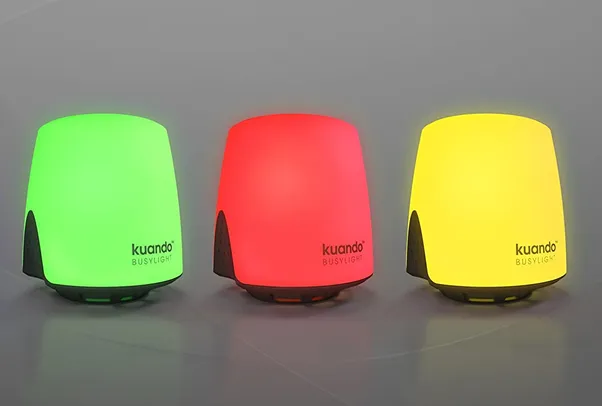
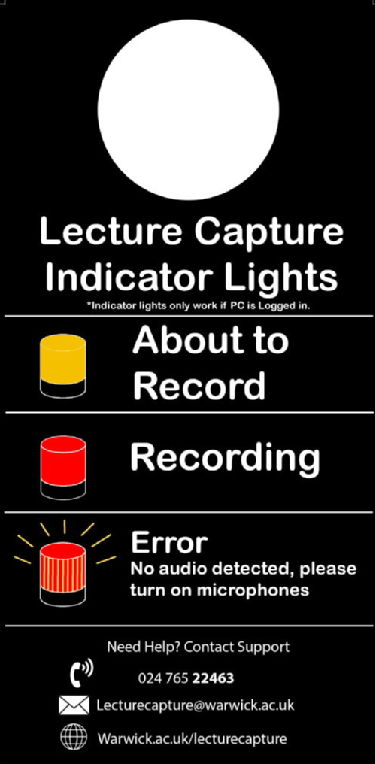
Lecture Capture Indicator Lights have been installed on the lecterns in many rooms. These lights signal the status of the recording:
- Green - Lecture Capture hardware is online but is not recording, capturing or monitoring speech.
- Yellow - About to record: This light will glow amber 3 minutes before the recording is about to start.
- Red - Recording: The light will turn red when you are recording.
- Red/Yellow - Error: If the light starts flashing red and yellow, no audio has been detected. Please check your microphone is turned on.
To ensure you get the best audio quality when recording your lecture use the in-room wireless microphones known as lapel mics. There are two types of microphone and the video below details how to use both types.
We recommend that you:
- attach the microphone to the center of your chest on a collar or lapel, avoiding anything that might rub or knock on it.
- perform a sound-check to ensure everything is working and that your students can hear you.
In the event that the microphones are not working, most rooms are equipped with a microphone on the lectern which will pick up your voice albeit at a lower quality and volume than the lapel microphones. Please note that microphones in the room will pick up student questions and other audio.
Many rooms are equipped with an AV touch panel in the room to select the source you want to display. Whatever source is active can be captured by EchoVideo Lecture Capture.
You can switch sources during a teaching session. For example, you might begin with presentation slides on the teaching PC, then switch to the document visualiser to demonstrate a physical object or handwritten notes.
For more information on the inputs available, please see the rooms information on the Audio Visual website.
Watch the video below to see how the control panels are used at Warwick.
Some lecture capture spaces are equipped with a camera that can be included in EchoVideo recordings.
Before you begin
- Confirm your room is equipped with a Lecture Capture camera.
- Ensure that the booking request included video i.e. Video only or Presentation | Video
Turning on Camera Capture
In single display rooms, if video has been requested it will capture automatically. If the Camera Capture On/Off buttons are not present, the camera is wired directly to the EchoVideo equipment as the second input.
- Press Touch Screen to Begin on the AV touch panel.
- Select Single Display (recommended) or Dual Display*, as appropriate for your session.
- Select Camera Control from the touch panel.
- Choose a camera preset or adjust the camera position manually.
- Press Camera Capture On.
- If you have requested Presentation | Video capture, close the camera controls screen and select your preferred source to capture in addition to the camera e.g. Teaching PC (for presentations or Teams), document visualiser (for handwritten content), HDMI (to connect a laptop) etc.
- Deliver your session.
The camera controls section will list a number of presets for the room you are teaching in. Typically these will be one or more of the following:
- Wide shot of the front of the room
- Close up shot of the lectern
- Medium close up shot of white or chalkboards (left)
- Medium close up shot of white or chalkboards (right)
To select a preset, tap on the relevant button. If there is a preview on the teaching PC, you will see this change to match the new preset. Not all rooms with cameras have a preview.
You can fine-tune the camera focus using the arrow and zoom keys. These should be self-explanatory but essentially they allow the camera to be panned left and right, up and down, and to be zoomed in and out so that you can be sure the camera is focused on the area you will be teaching in, or that you want to focus on. This option is only useable in rooms that have a preview mode via the monitor.
*In Dual Display rooms, EchoVideo can record the content shown on the left and right projectors. However, if you turn on Camera Capture, the lecture capture camera replaces the right projector as the second recorded input.
This means:
- The left projector content is always recorded.
- The camera is recorded as the second input when Camera Capture is enabled.
- Content shown on the right projector remains visible in the room but will not be included in the recording.
You can change what is shown on the left projector during the session using the room touch panel, and EchoVideo will continue to record it.
During the session
- Ensure the presenter remains within the camera's field of view.
- If necessary, use the Camera Control menu to change presets or reposition the camera.
- In some rooms, a camera preview may appear on the teaching PC monitor. This functionality is not available in all spaces.
- If you decide you not longer want to capture video or it has been requested by mistake either go to Camera Controls and Camera Capture Off or, if this isn't available, adjust the camera angle to point it away from the teaching environment to ensure nothing is recorded. Once the recording has been processed you can delete the video channel from it.
Finishing the session
At the end of the session:
- Select Camera Capture Off, or
- Power down the AV system.
This prevents camera settings from affecting subsequent recordings in the room.
Using the lecture capture camera with Teams (Hybrid or dual-mode teaching)
Many of the lecture capture cameras can also be used with Teams for teaching to a local and remote audience simultaneously - commonly referred to as hybrid or dual-mode teaching. You can find details for how to set this up on the AV websiteLink opens in a new window but in summary:
- Use the camera controls (see above) to select the relevant pre-set or manually choose the focal point.
- Open Teams on the Teaching PC and select the "...inogeni..." option for video. (Room audio is already enabled for Teams).
- Use the preview in Teams and the camera controls to adjust the camera focal point if required.
- If required open your presentation on the Teaching PC and share the Teaching PC screen so that this is visible both in Teams and on the projector, and recorded by EchoVideo lecture capture if enabled for this session.
For more help with hybrid / dual-mode teaching please contact the Digital Learning and/or Audio Visual Services team.
If you need to pause the recording to remove a gap in the presentation, have a private discussion, discuss sensitive topics or to invite student questions that should not be recorded, this can be done via the AV touch panel.
- Tap the flashing Rec button found on the top left of the touch panel, this will open the recording details.
- Tap the Pause Capture button, found at the bottom of the recording details. The lectern indicator light will flash yellow.
- You must resume recording by tapping the Resume Capture button which will have replaced the Pause Capture option found in the recording details. If you do not, then the remainder of the lecture will not be recorded.
Recordings can be edited after completion to remove any sections that are not required.
Once your recording has finished, it will take some time for the system to process it. It will then be published to the relevant section in EchoVideo, usually a section dedicated to your module cohort. Students will be able to access the recording via the relevant Moodle course. Depending on the option chosen on the booking form, it will be available automatically as soon as it's finished processing, or made available manually by one of the section instructors.
If you would like to make any changes to the recording before or after it's been made available to students, it is possible to edit it.
If you need help whilst in a teaching space, contact AV services:
02476522463
audio.visual@warwick.ac.uk
warwick.ac.uk/av
For all other enquiries, please contact lecturecapture@warwick.ac.uk