
Python for coding a Raspberry Pi Pico microcontroller
A microcontroller is a small programmable computer into which we can plug sensors and outputs. It can control screens, motors, lights, etc. Inputs include buttons, keypads, IR sensors, temperature sensors. All of these components are cheap and easily available. Microcontrollers can run off a battery or a USB power source. Arduino has been the most popular example. The Raspberry Pi Pico is an even smaller alternative. The latest version includes wifi and bluetooth, meaning we can easily load data from the web, send data, or interconnect multiple devices. Microcontrollers are popular with robotics builders and museum designers. The Museum in a Box system uses Arduino. We can build sophisticated activities like the Story Museum story throne using them.
In this simple example we run a quiz using multiple choice questions loaded from a file. We could load them from a web page, or even using generative AI.
The actual program starts running with the code right at the end of the file.
questions = list()

score = 0

loadQuestionsFromCSV()

writeToLCD("Press any key to start", True)

#ASK THE FIRST QUESTION

askRandomQuestion()
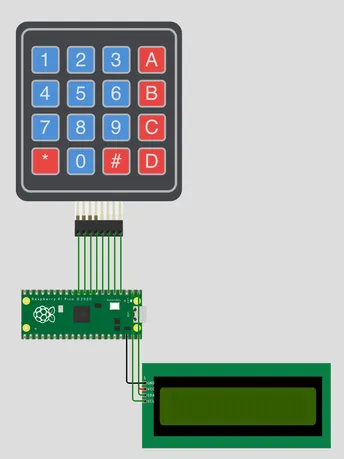 |
Setting things upThe first part of the program does the work of importing essential library files. There is one that allows us to take inputs from the keypad, one that allows us to output to the screen, another that is used to add pauses to the program (time), and one that allows us to generate a random number (random) so that questions can be chosen randomly. These last two can be used in any other type of Python program. We then have some code that sets up the keypad. I copied this from an example. Unhelpfully, the screen doesn't auto-wrap. So I wrote a function that is used throughout to print messages on the screen. This includes an algorithm that checks if the message is more than 16 characters long, splits the message into two, and displays the second part on the second line of the display. We then move on to the multiple choice questions code. |
Loading the questions
We can have an unspecified number of multiple choice questions (they are loaded from a .csv file). They all have the same structure, with the complication that there are variable numbers of optional answers (usually 3, but doesn't have to be). So I defined a class of questions. This is a custom data structure, that can also have its own algorithms. To create the class we pass it three arguments: question (a string with the question in), answers (a string with the sequence of possible answers), and correct (an integer identifying which of the options is correct). As we are loading the data from a comma-separated text file, we can't use commas to separate the optional answers - that would confuse the loading code. So we use the | symbol. When we make a new question object, we have to break down the answers string into the sequence of answers, and make a List object of the answers. So the Class definition includes code that does that. It also gets the number of questions in the questions List, so we know when to stop asking them.
 self.answersList = answers.split("|")

 self.answersCount = len(self.answersList) #this gets the number of questions in the list
We then need some code to load the csv file (test.csv), create a Question object for each row, and add them to a List of questions. I could have done this using the Pandas library, but in this case just used some neat code supplied by my assistant Alex.
def loadCSV(path):

 csvdata = []

 delim = ',' #the data is comma separated

 with open(path,'r') as file:

   for line in file:

     csvdata.append(line.rstrip('\n').rstrip('\r').split(delim))

return csvdata
def loadQuestionsFromCSV():

 global questions

 global questionCount #this is so we now how many questions there are to ask

 global startingCount

 questionCount = 0

 data = loadCSV("./test.csv") #that's the file

 for row in data:

   question = mcq(row[1], row[2], row[0]) #creating a question object from the data

   questions.append(question) #adding the new question to the lost of questions

   questionCount = questionCount + 1

 startingCount = questionCount
Asking the questions, checking the answers
 #GET A RANDOM INDEX NUMBER WITHIN THE BOUNDS OF THE QUESTION SET

 if questionCount > 0:

   index = random.randint(0, questionCount - 1)

 else:

   index = 0

 #GET THE QUESTION AT THAT INDEX

 selectedQuestion = questions[index]
writeToLCD(selectedQuestion.getQuestion(), True)
if selectedQuestion.isCorrect(matrix_keys[row][col]):

 writeToLCD("Correct", True)

 score = score + 1

else:

 writeToLCD("Wrong", True)
if questionCount > 0:

 askRandomQuestion()

else:

 writeToLCD("Done. You scored " + str(score) + " out of " + str(startingCount) + "\n\n\n", True)
Resources
Online simulation of this hardware and program using the Wokwi simulatorLink opens in a new window (you can make your own copy of this, run it, and "tinker" with it).
Wokwi online microcontroller simulatorLink opens in a new window, used for developing programs and hardware designs.
Python cheat sheetLink opens in a new window
W3SchoolsLink opens in a new window Python tutorials
This course
Python in Jupyter Notebooks for data analysis
Python for coding a Raspberry Pi microcontroller