
5.3 Job alerts and notifications
Job alerts and notifications
These can be created after you create your online professional profile, to give you information about jobs you are interested in.
Remember we said at the beginning of the module that one of the advantages of having a profile on recruitment and job websites and portals is that you are able to receive updates on jobs and job vacancies that you are interested in.
All you have to do is set this feature up once and you will start receiving the updates and job vacancies you are interested on your email directly. Based on the specific jobs and filters (below in orange is where you pick your filters) you are interested in…. Isn’t that great?
To do this, you would need to set up and manage something called Job alerts and/or Job notification on these recruitment and job websites which is usually signified by a bell symbol or something like that.
This can usually be done whenever you conduct a job search on one of these recruitment or job websites or portals. As shown below on the left on Bayt (highlighted in green) and on the right for LinkedIn (the blue box highlighted in yellow).
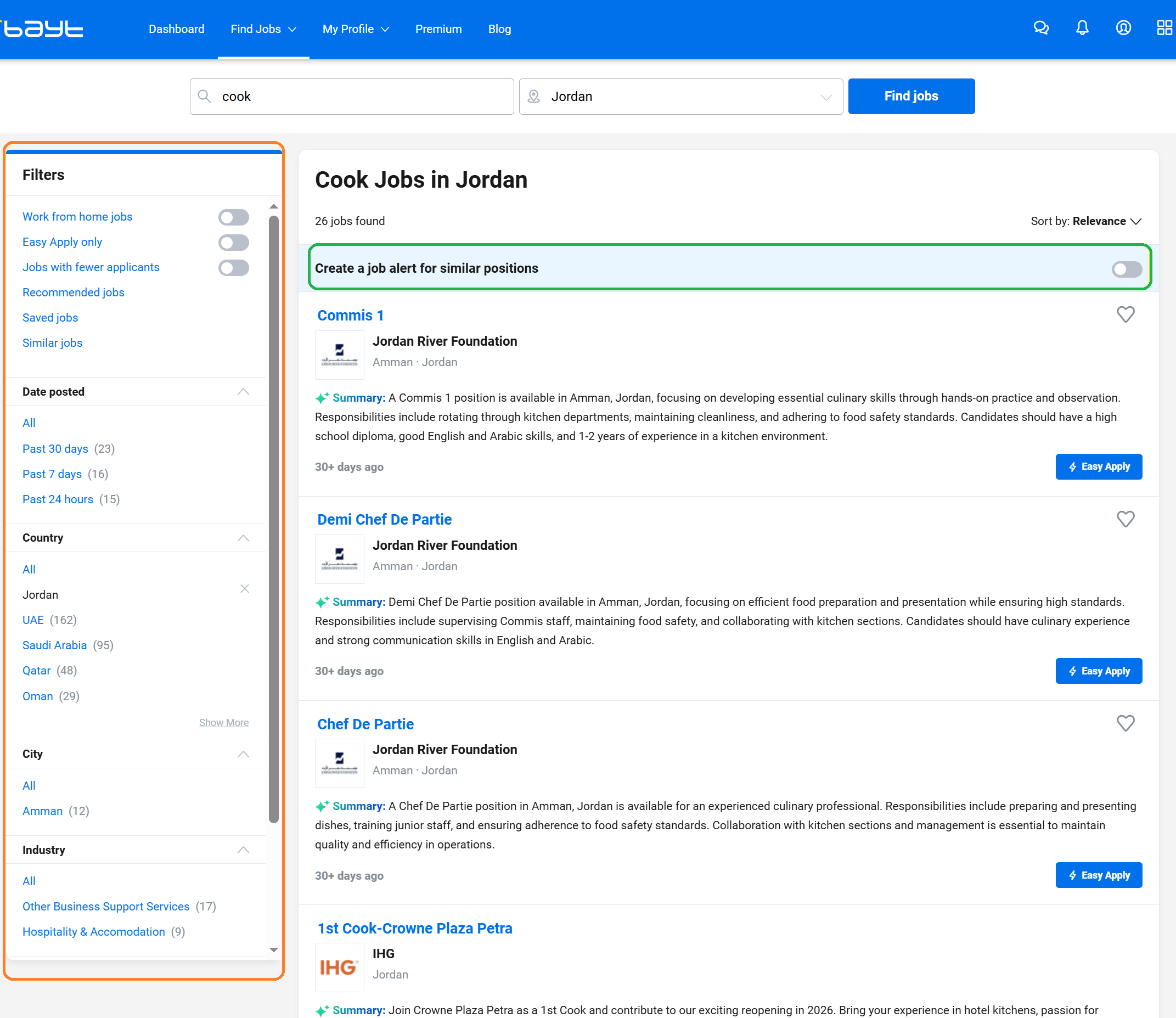 Bayt- Creating job alerts from job search (computer/laptop)
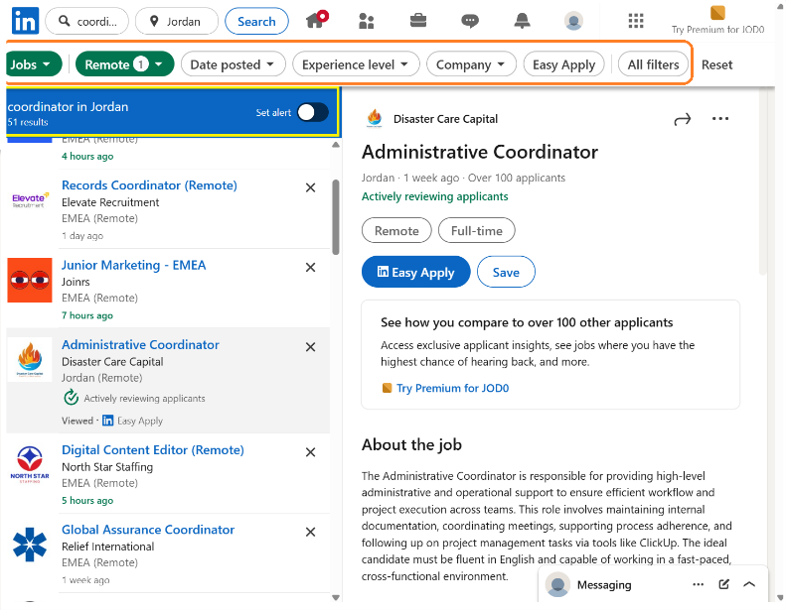 LinkedIn- Creating job alerts from job search (computer/laptop)
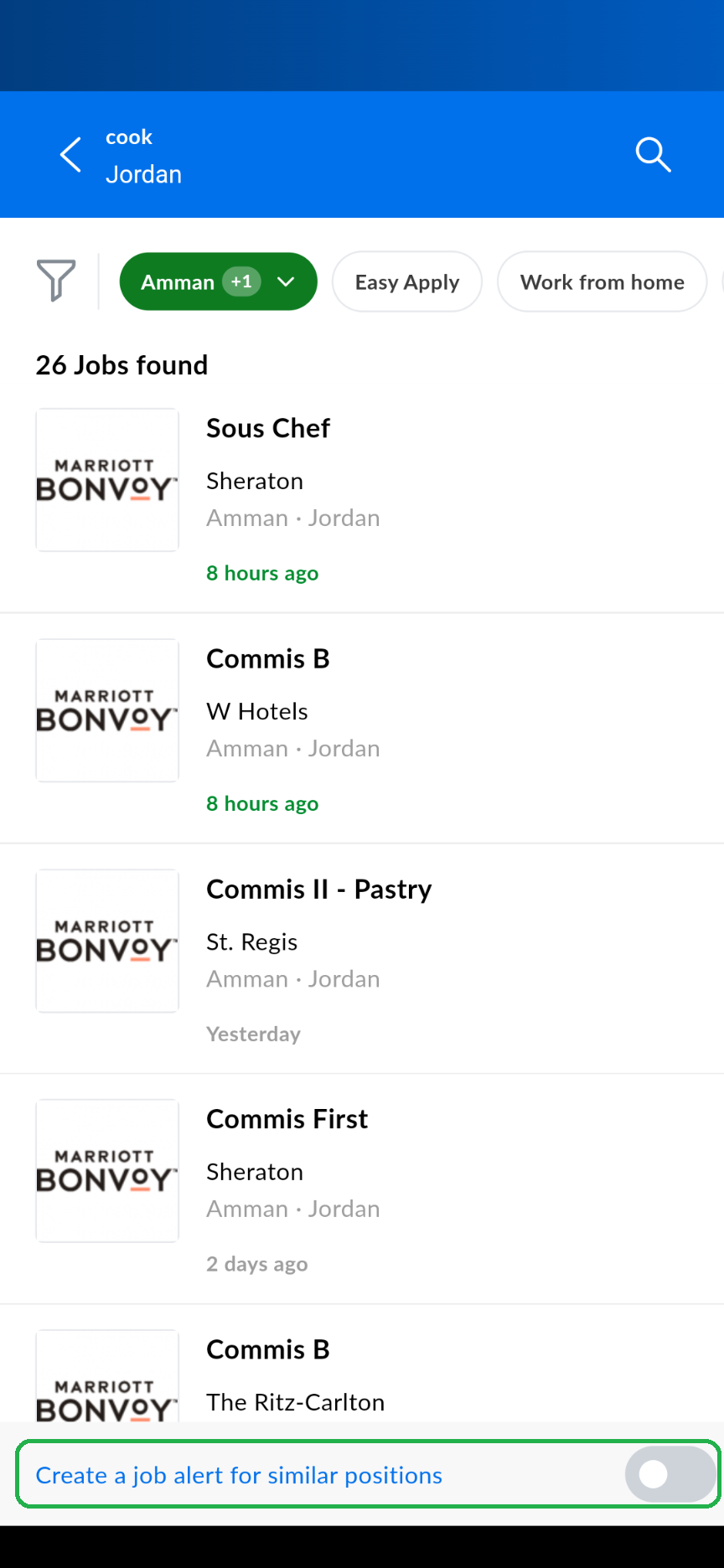 Bayt- Creating job alerts from job search (mobile application)
source: Bayt
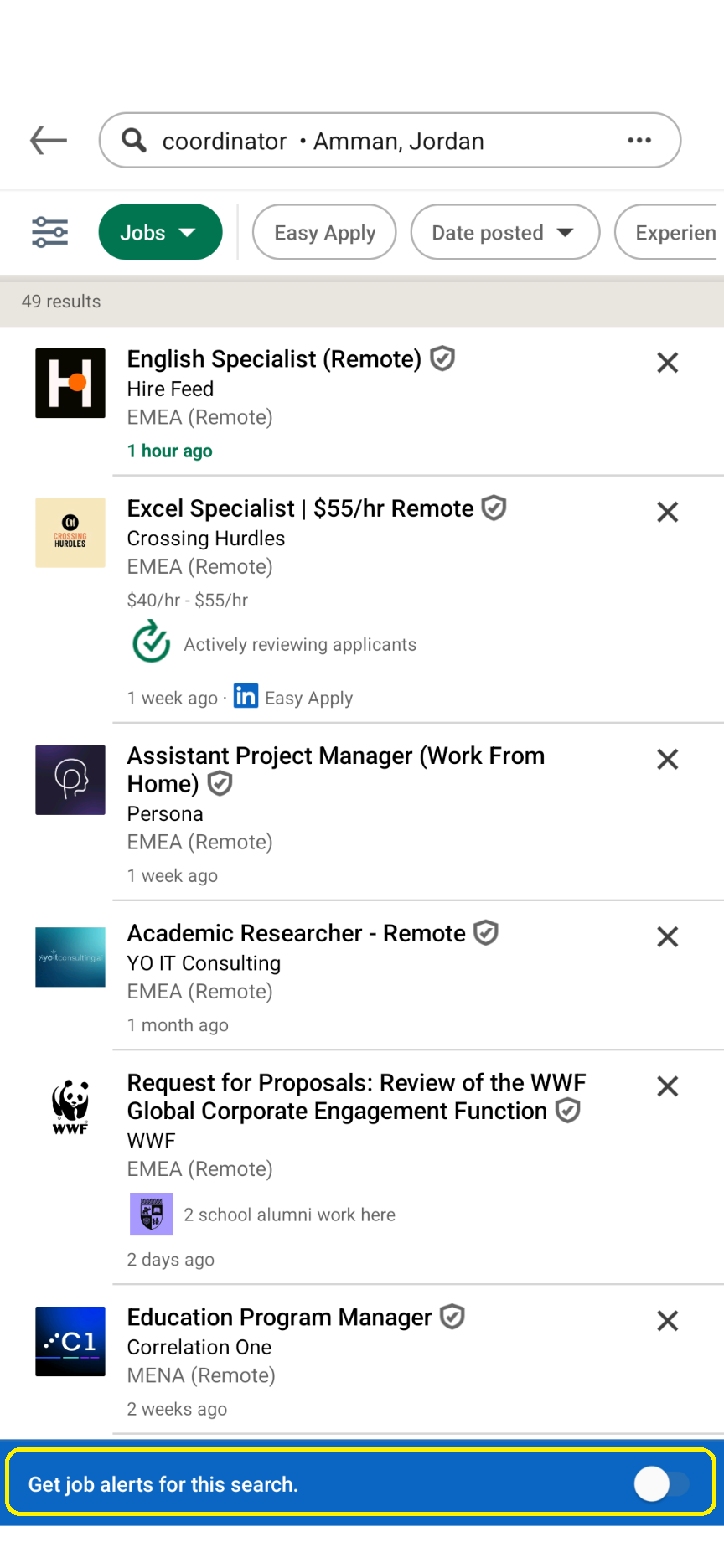 LinkedIn- Creating job alerts from job search (mobile application)
source: LinkedIn
Once you set up an alert, as shown above, you can manage your job alerts in terms of the type of alert for example notification or email or what is the alert for, or how often do you want to receive the alert for example daily or weekly.
On LinkedIn
On LinkedIn you access and manage your job alerts and notifications using the following steps. Please note that the layout might be slightly different on the mobile application, but the steps are the same.
Step 1: Go to Jobs icon (in yellow below).
Step 2: Select preferences (in yellow below).
Step 3: Select Job alerts (in yellow below).
Step 4: Once you see your alerts you can amend them if you would like by selecting the pen icon next to the alert you would like to change (in yellow below).
Step 5: You can then see the options you can change for the alert and you can also delete the alert from the same page. .
 Step 1
Source: LinkedIn
 Step 2
Source: LinkedIn
 Step 3
Source: LinkedIn
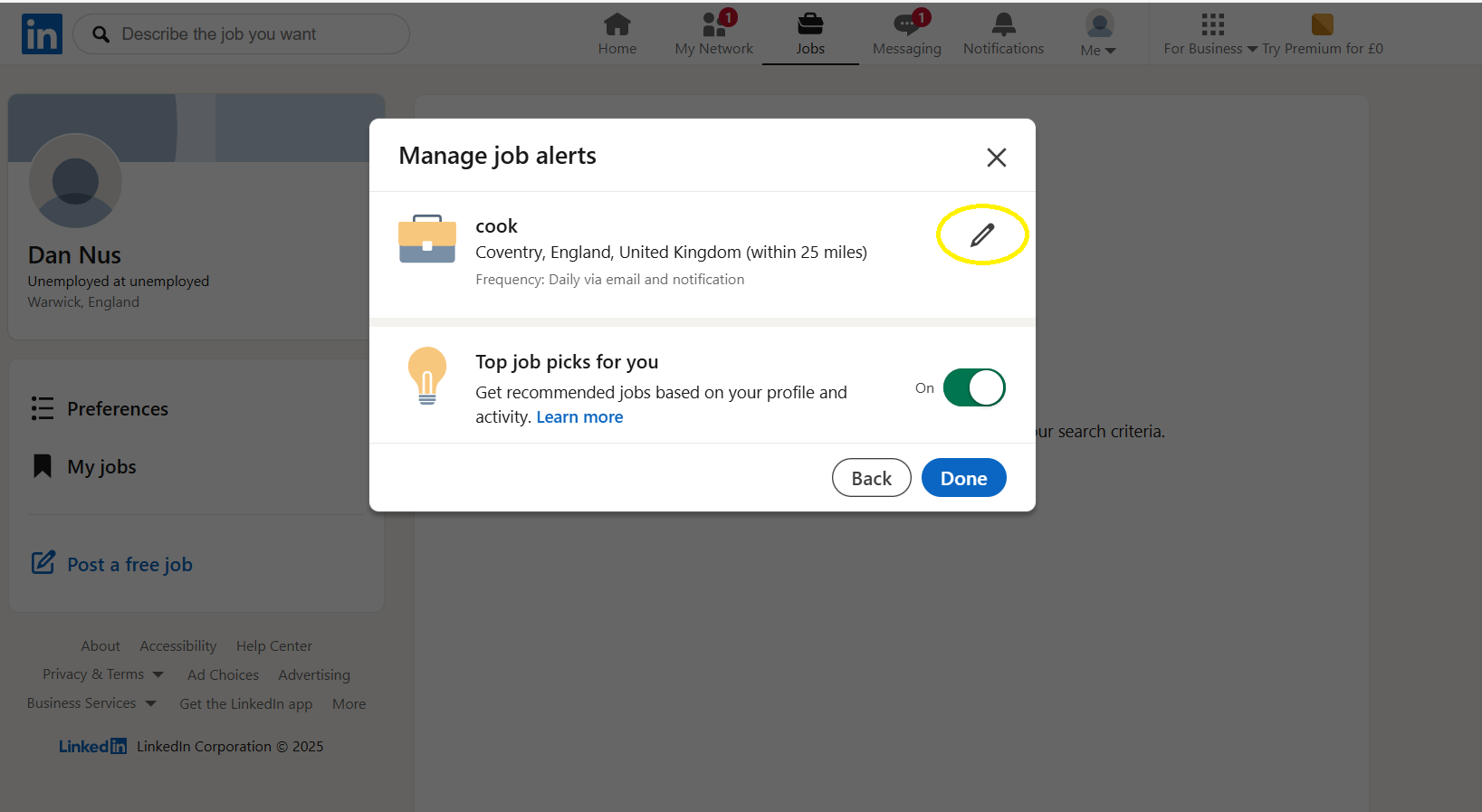 Step 4
Source: LinkedIn
 Step 5
Source: LinkedIn
On Bayt
On Bayt, you access and manage your job alerts and notification using the following steps:
💻 On a computer or laptop:
Step 1: Go to your Account setting by select your profile icon at the top of the screen followed by Account setting option (in orange below).
Step 2: Select notification from the menu on the left (in orange below).
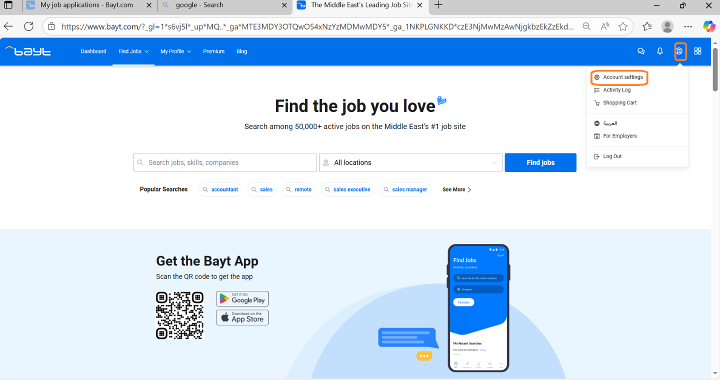 Through website (using computer or mobile)- Step 1
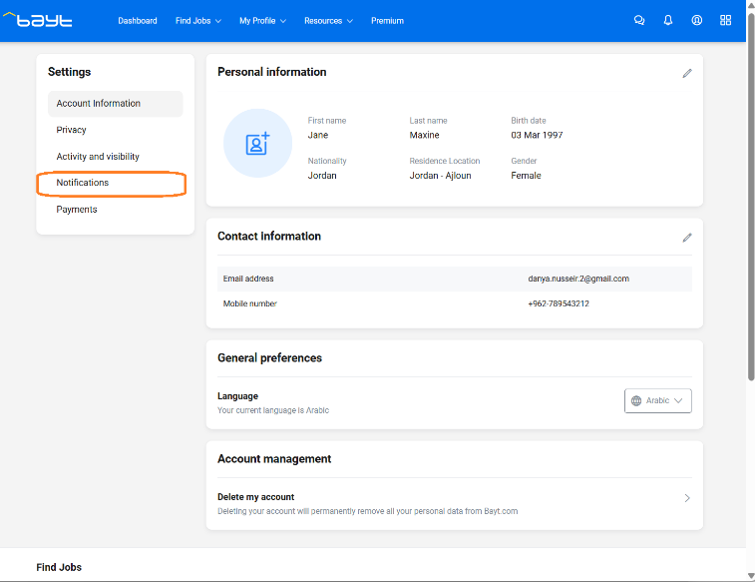 Through website (using computer or mobile)- Step 2
📱 On a mobile phone (Android):
Step 1: Go to your More options at the bottom menu on your Bayt mobile application(in orange below).
Step 2: Select the My Job Alerts option (in orange below).
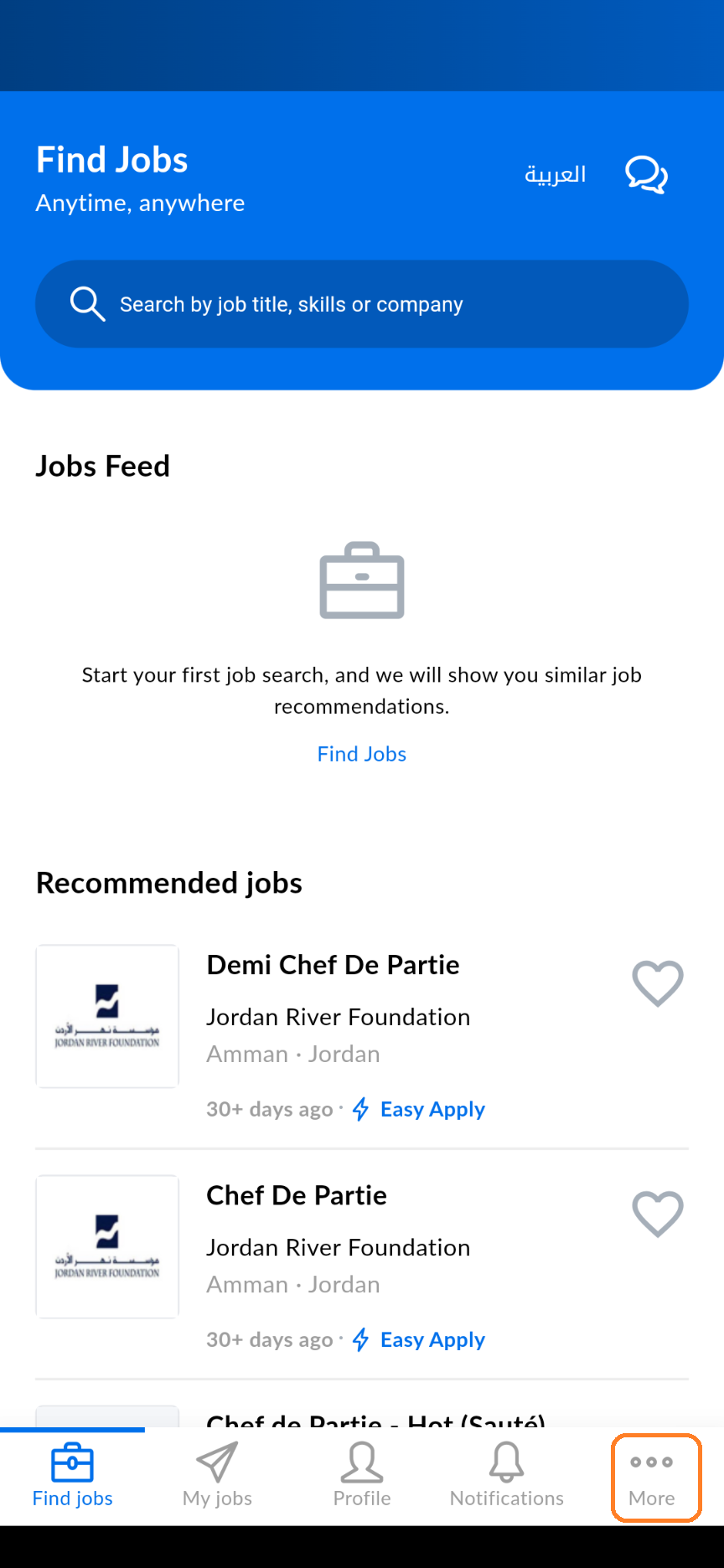 Using the mobile application- Step 1
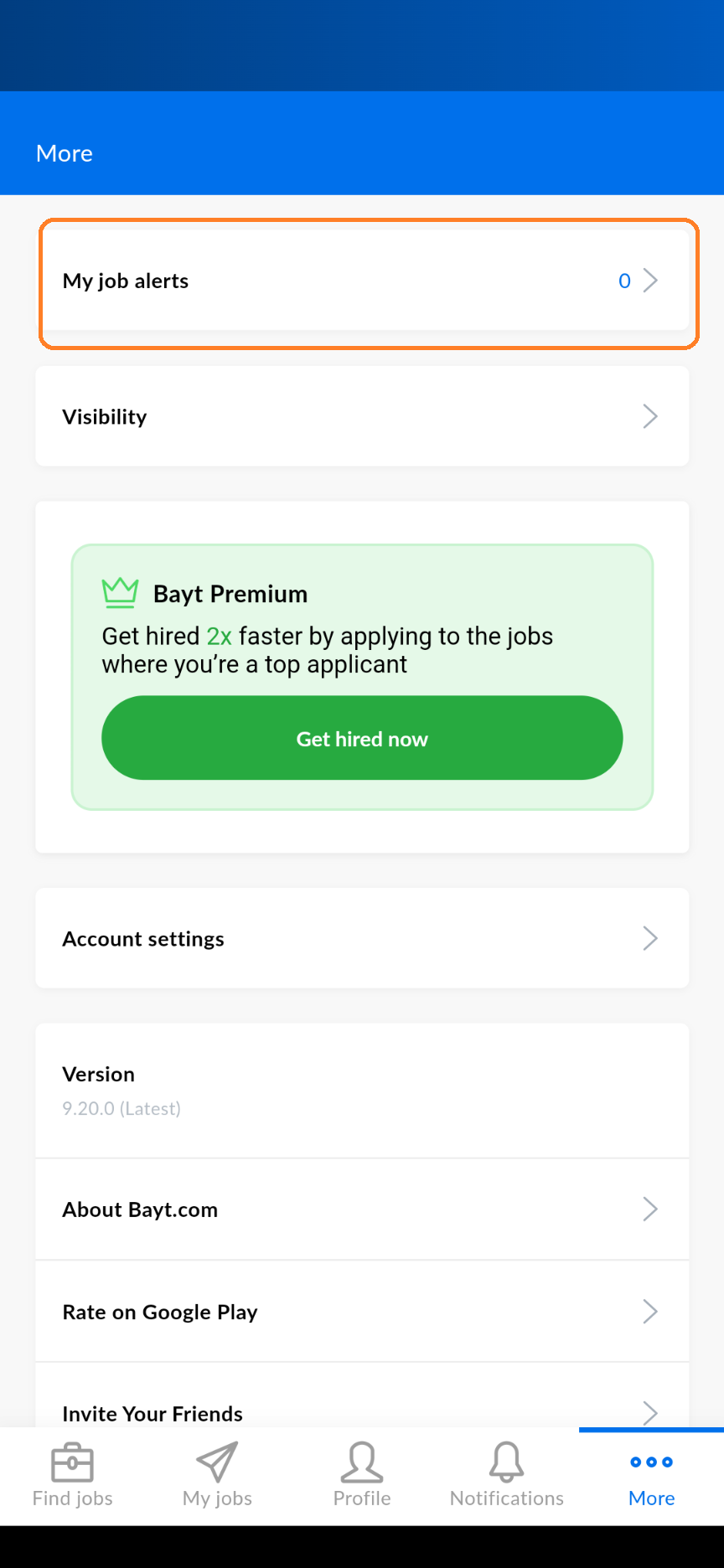 Using the mobile application- Step 2
Step 3: On the setting page you can see Jobs Alerts and Job notifications (in orange below).
Job Alerts and Job Notifications will show you your alerts, what options you have for alert/notification, and you can also delete the alert from the same page.
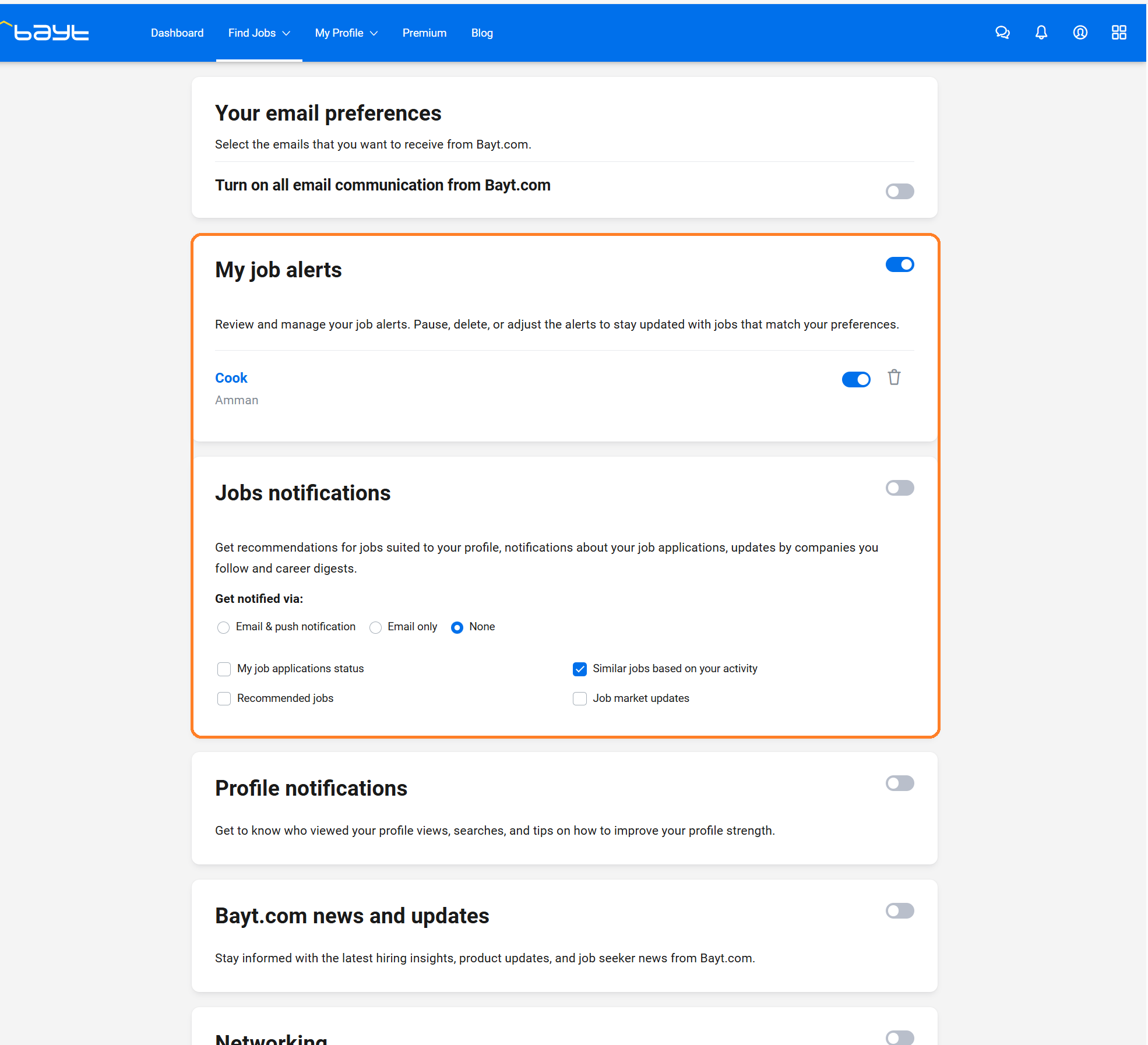 Through website (using computer or mobile)- Step 3
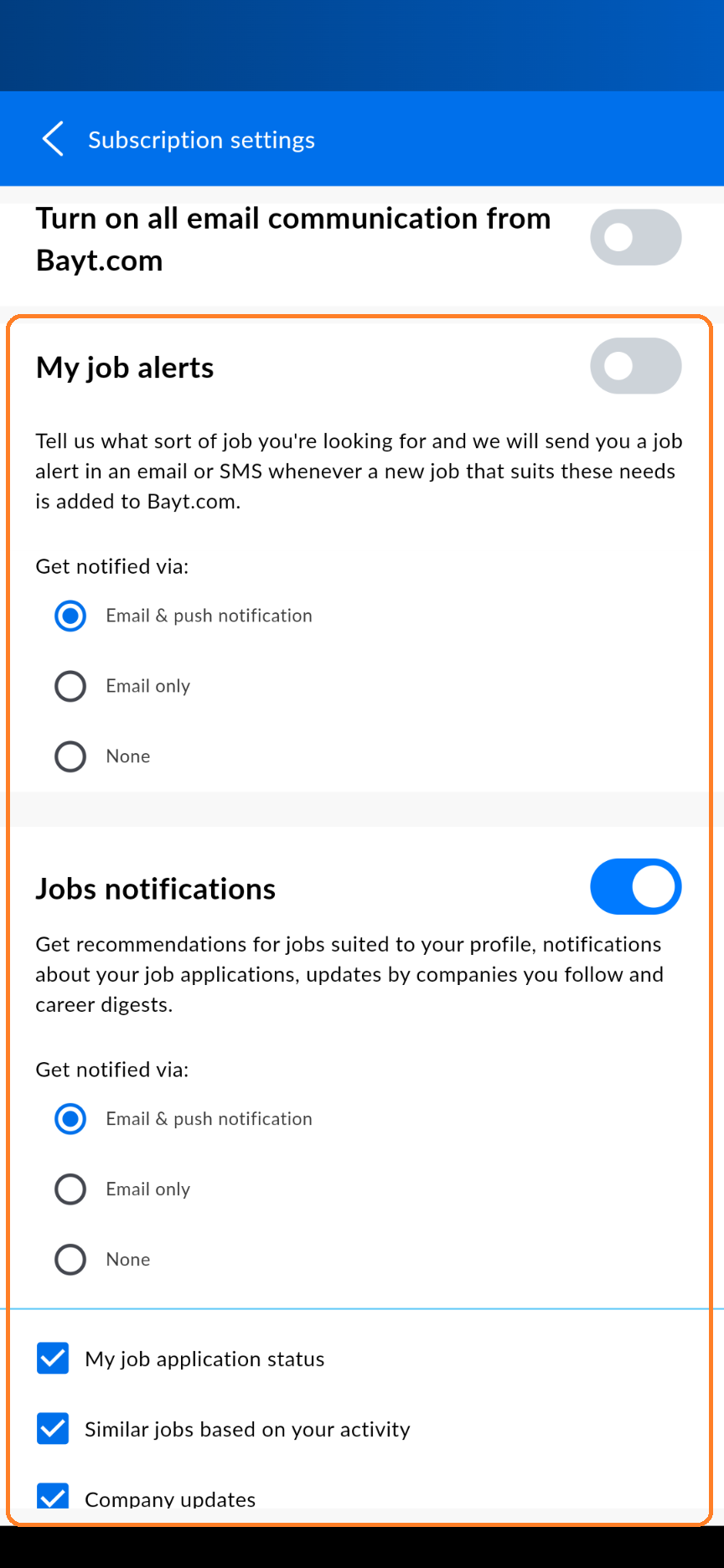 Using the mobile application- Step 3