
Creating a impact record
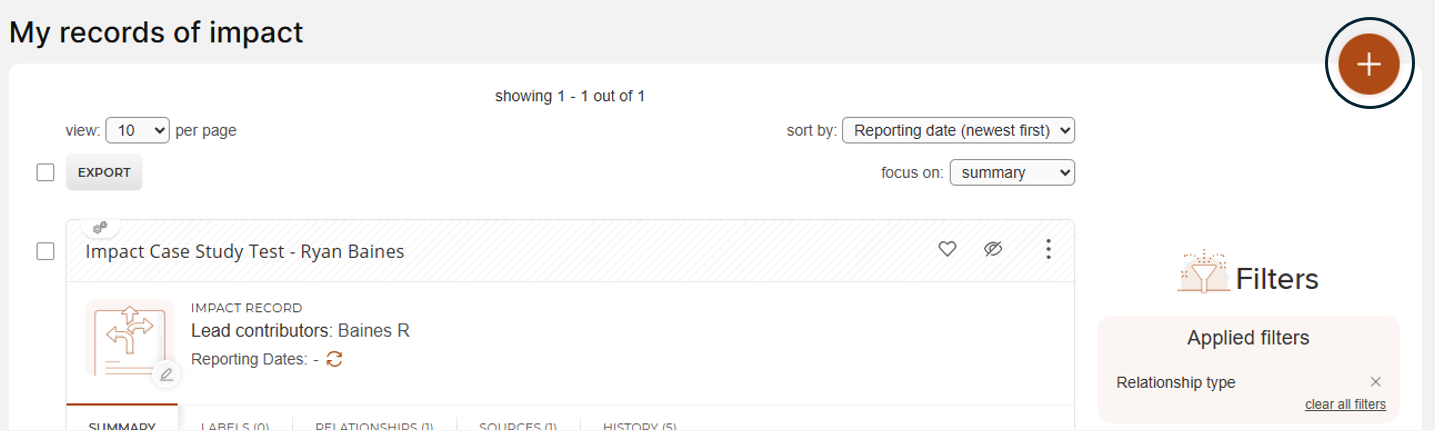
Step 1 : When creating a record we must click on the plus button to the top right of the screen. Please see the screenshot below for further reference.
Once clicking the box there will two sections that are needed to be filled in. The sections are " Tell us more" and "Attach Evidence" Please see the screenshot below for further reference.
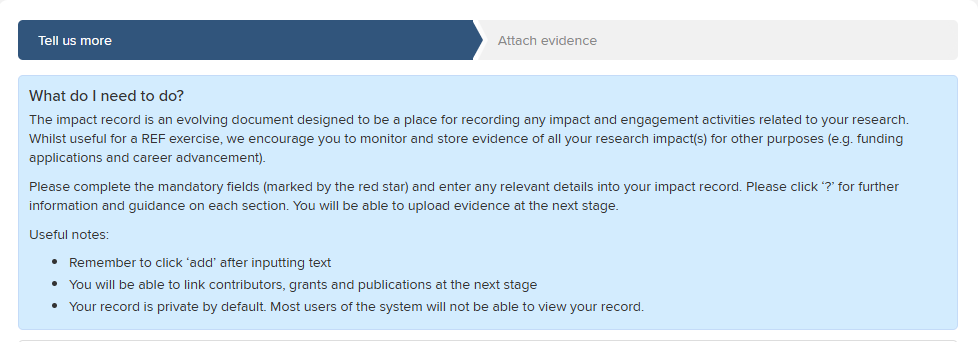

Please note: In order to create a record from and end to end process perspective, you need to click through these two sections.
Out of the two topic areas the “Tell us more” Section is the only one which has mandatory fields. This means that to create a record which would then populate in your library we can just complete the first section. This means that you can come back at a later stage to complete and add further detail within an impact record.
Step 2 : We will need to complete the following fields:
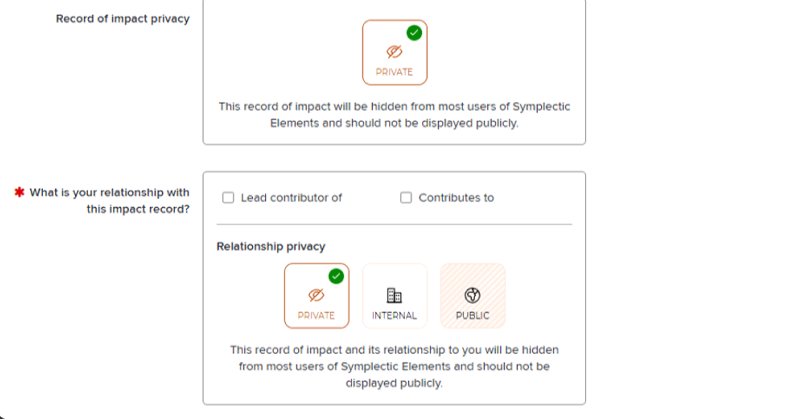
Field 1 - What is your relationship with this impact record? - You will have to select either the lead contributor or Contributes to option. lead contributor would be the person running the project, usually the one who won the grant. Contributors can be a mix of either, Research Fellows, PGR students, or even professional services admin staff who are in some way connected to the impact or will have a responsibility to update the record.
Adding Multiple lead contributors/ contributors is a possibility. This will be demonstrated later.
Field 2 - Relationship privacy -The only available option to select will be private. This cannot be changed. This means that it can only be reviewed by the following :Impact record Creator & additional users added by the creator. Also, the record can be seen by Impact team (R&IS), Impact directors and department impact officers. Users cant override this by making the relationship public or visible internally.
Please Note: From a privacy perspective, if the impact record is associated with anything national security related please do not create a record.
For more sensitive evidence e.g. confidential commercial information or sensitive information these can be password protected and handed to the parties who are allowed access to the information.
If there are any concerns on how to store potential sensitive information (such as commercially sensitive data) then these can be directed towards the impact team.
Step 3 : Further fields will need to be completed. Please see the screenshots below for reference:
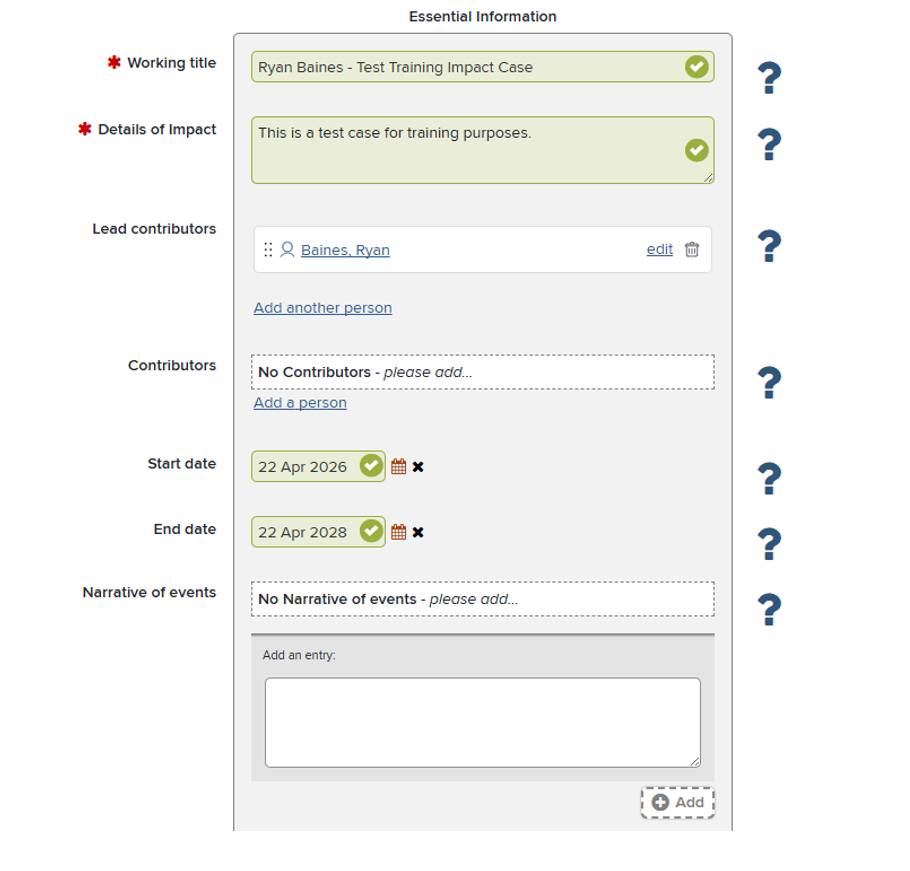
| Working title | Add a title which clearly links your research and the resulting impacts. This is a mandatory field. |
| Details of impact | Add a short summary (approximately 100 words) outlining the impacts and beneficiaries which have developed (or are being developed) from your research. This is a mandatory field |
| Lead contributors/Contributors | Add the names of those that have contributed to the generation of the impact(s), progression of the project or who can update impact record details. This could be academics from other departments, postgraduate students, technical staff or others who have supported the work. Contributors will be to view, add to or modify impact records. |
| Start Date | the estimated date when the project or impact(s) commenced. If the project or impact(s) have not yet commenced, the date can be input as an estimate, or this can be left blank and added at a later date. |
| End Date | The date at which no further impacts were generated or evidenced. If the impact is ongoing - please set a future date enabling a sufficient period for impacts to be generated. e.g. 1 - 5 years into the future. These can be updated once the record is created. This can be left blank if you cannot provide a reasonable estimate of the end date. |
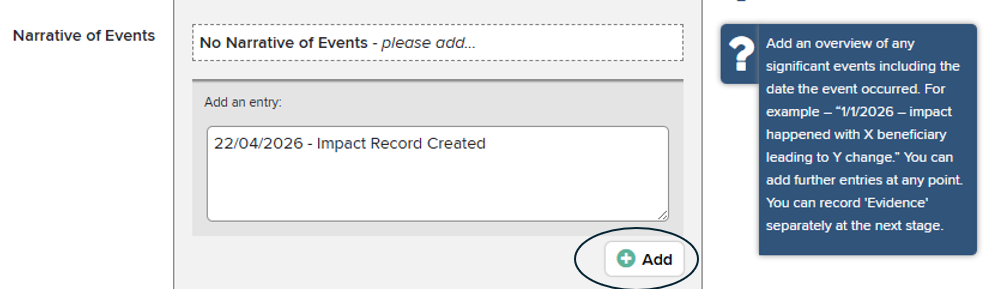
| Narrative of events | Add an overview of any significant events including the date the event occurred. For example – “1/1/2026 – impact happened with X beneficiary leading to Y change.” You can add further entries at any point. You can record 'Evidence' separately at the next stage |
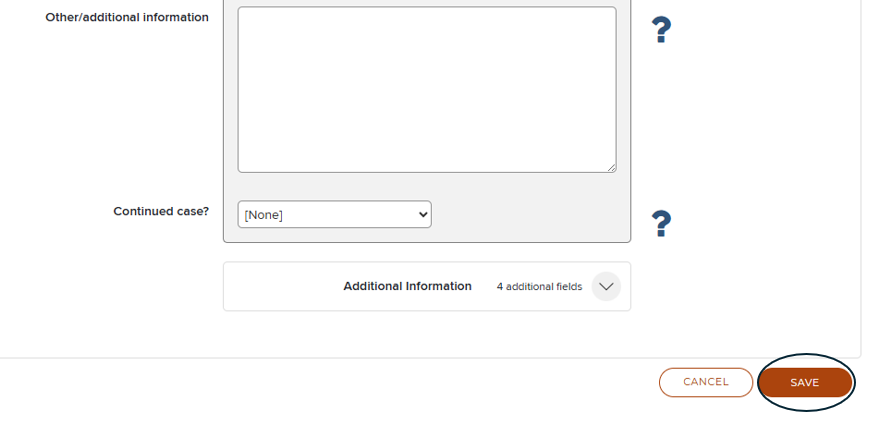
PLEASE NOTE: We MUST BE AWARE during the application process there will be many buttons which say “Done”, “Add” or “link”. To save our applications progress we need to click the save button. The save button is located at the bottom of the page otherwise progress will be lost.
Please note: It is important we save so we do not lose any progress and elements times out after 15 minutes of the application not being used.
It is advisable that once the mandatory fields marked with the red asterix save the impact record and then revisit the record to add further detail. The save button is located to the bottom right of the page. This is the only function which will save any progress.
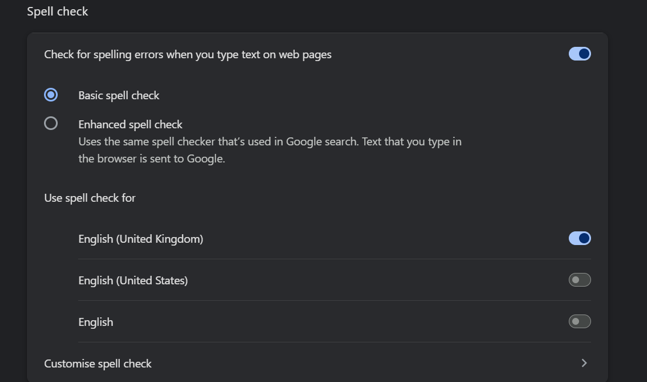
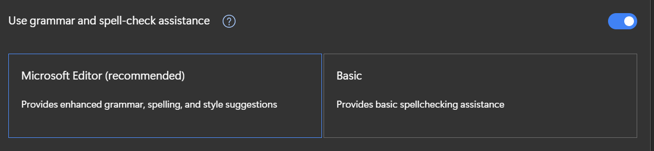
Please note: In the free type text boxes spell check works but you must highlight the word then right click. For grammar there is no feature. The two options to tackle this are use a word document or use the browser spell checker.
Type the following into the URL of their respective browser, and it should bring up the page to turn on spell check
PLEASE NOTE: We MUST BE AWARE during the application process there will be many buttons which say “Done”, “Add” or “link”. To save our applications progress we need to click the save button. The save button is located at the bottom of the page. otherwise progress will be lost.
Please note: It is important we save so we do not lose any progress and elements times out after 15 minutes of the application not being used.
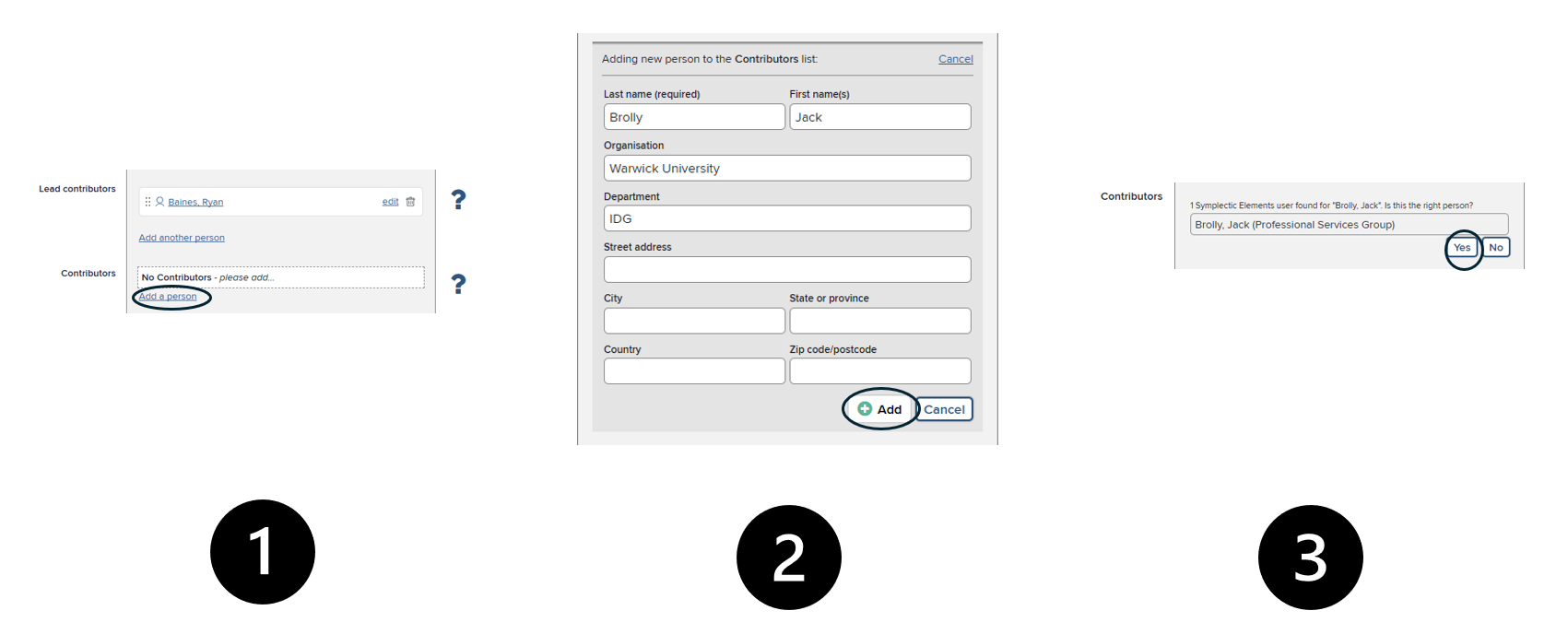
Step 5: Adding Lead contributors/ Contributors - In order to add a further lead contributor or contributor please refer to the screenshot below:
Step 5 : Adding a narrative to your impact case - When you need to add a narrative of events to your impact record simply follow the below by typing in the text box.
As an end result you should have a narrative saved and it should look like the below:

The adding narrative of events is a location to place anything significant whenever you would like. We appreciate that users will be linear in there thinking towards impact so you can change the order of the events whenever by using the 6 dots highlighted above
Step 6: Adding final details to your record. The final three details that will needed to be populated within your impact record are Locality, Continued case, Impact country.
Please refer to the screenshots below of each section :


| Impact country | What countries the impact record took place in or affected. |
| Locality | Impact submitted to previous REF exercise |
| Continued case | If the impact itself was local, national or international. |