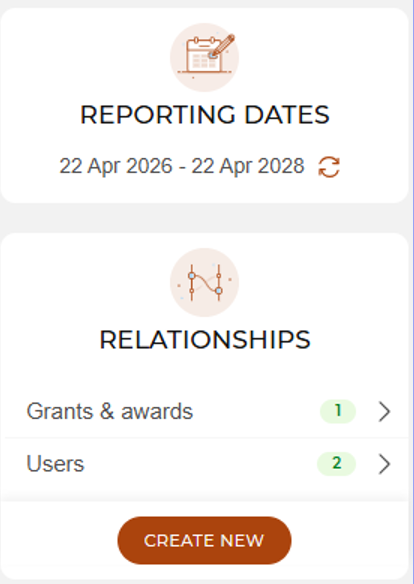
Adding relationships
When a impact record is created, there may be the opportunity for users to build and add further detail to their impact record. They may want to add a publication associated with that impact records, add a grant or even add further contributors at a later stage.
In order to do this I need to click on the relationship tab within the impact record. Please see the screenshot below :
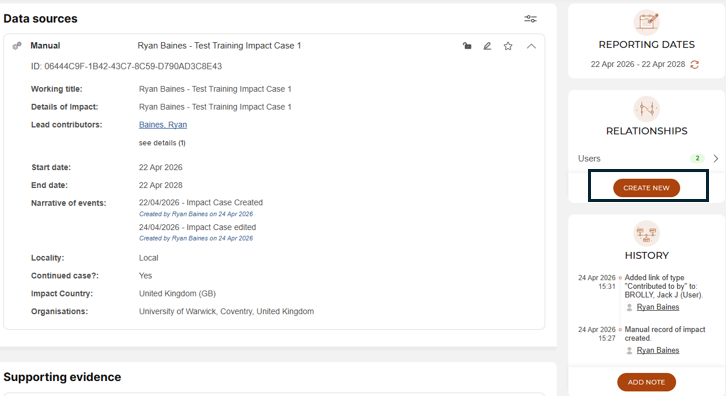
Please note: Within the relationships box I have users 2. This means that there are two contributors within this impact record already
By clicking "Create New" we are then greeted with was relationship we would like to add further. For this example we are going to add a grant. Please see the screenshot below:
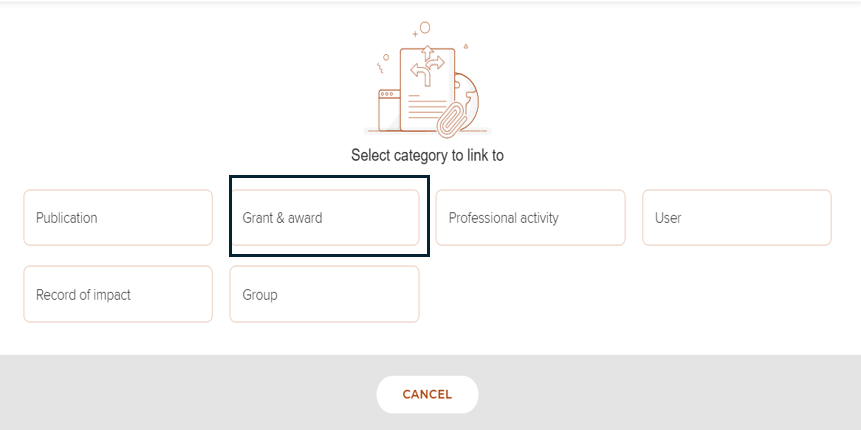
Step 1 : I need to select the desired grant or award I would like to search for. As you can see in my example below I have selected grant. This will show any grant within your department. Please see the screenshot below:
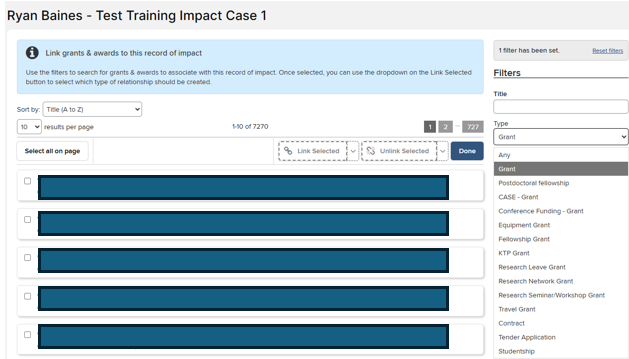
Step 2: If I want to be more specific I can by typing into the title box and find the desired grant. As a by-product the list should shorten. Please refer to the screenshot below:
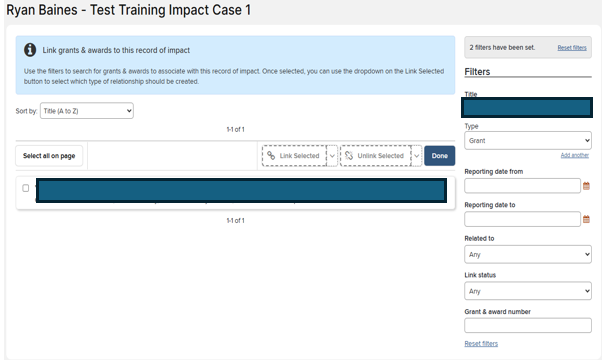
Step 3: Now that I have the desired grant I need to associate it with the impact record. In order to do this I click on the tick box to the left of the grant and click link selected. Please refer to the screenshot below :
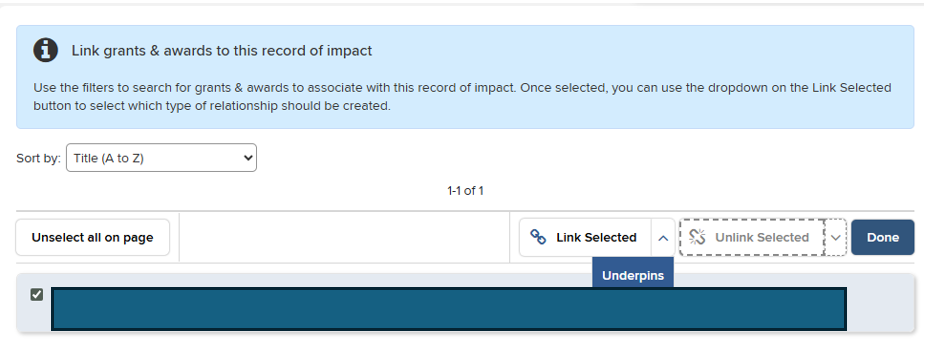
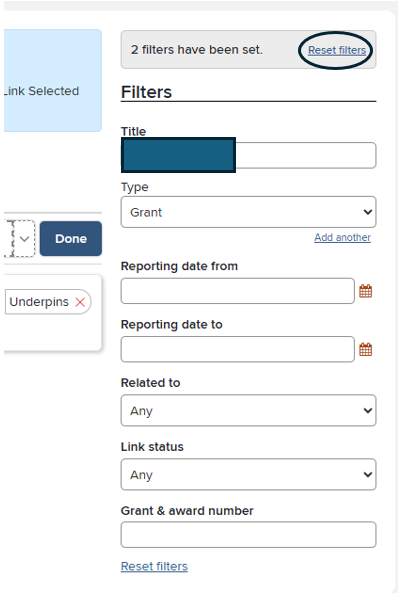
Step 4: At this point you can click done if there is no need to add further grant. However, if you needed to add further grants you would need to reset the filters. Please refer to the screenshot below :
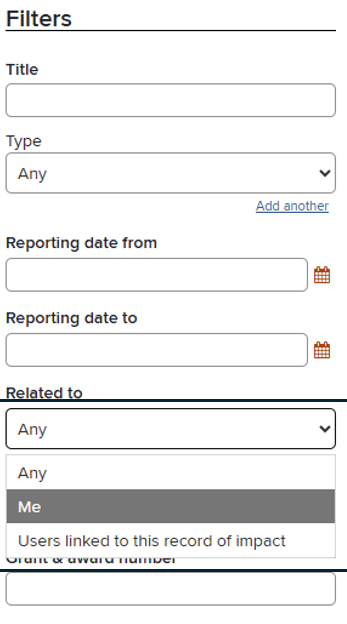
Please Note: Relationship Filters: If you are creating or amending a record of impact and want to link it with a grant or publication on which you are not named, you will need to change the ‘Related to’ filter to the following options:
Option 1 : ‘Users linked to this record of impact’ if you know the named author or grant holder has been named on the record of impact
Option 2 : ‘Any’ will review any grants within your department that isn’t linked to the record yet
Option 3 : 'Me' If you are named on the grant or publication with which you’re linking the record, you can leave the filter set to ‘Me’.
Please refer to the screenshot below :
End Result: Once selecting and adding the desired grant we can now see a further relationship has been added to the impact record. Please see the screenshot below: