
1.3. Set up and use email
Email: the basics
Your main communication tool with employers
The last part of the basics is the use of the Email. The Email stands for "Electronic Mail" like the old post/letters or mail people used to send but an electronic version. It is used unanimously as communication tool by all organisations to communicate with their employees and potential employees and job candidates like you!
In this first module we will look at how we access email, compose an email and send and receive emails. Later on in toolkit we will focus on how to use it for online job search and application.
You have two ways to access your Gmail through the laptop/computer. The fastest way to do it is open a browser and type www.gmail.com onto the search bar at the top (in yellow below), then repeat the same steps that were mention in the Accessing your Google documents section of this module to sign into your Google account and click next and you are in your email!
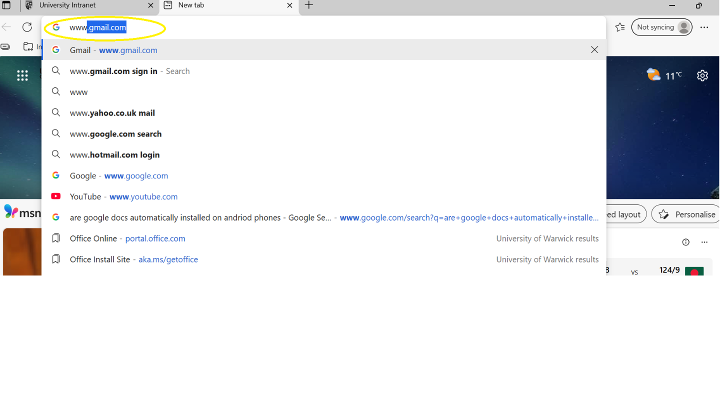 Accessing Gmail from the browser on a computer/laptop
Alternatively you access it through your browser and type www.google.com on the search bar and follow the exact same steps to access the google docs, but instead of looking for the google docs icon look for the Gmail icon and select it (below on the left in yellow). It is the same icon on your mobile phone (below on the right in yellow). If you have an Android phone you would just click the Gmail icon.
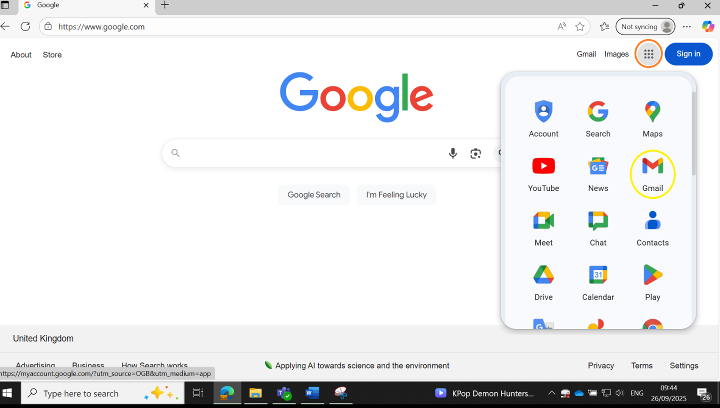 Accessing Gmail from computer/laptop browser using Google menu
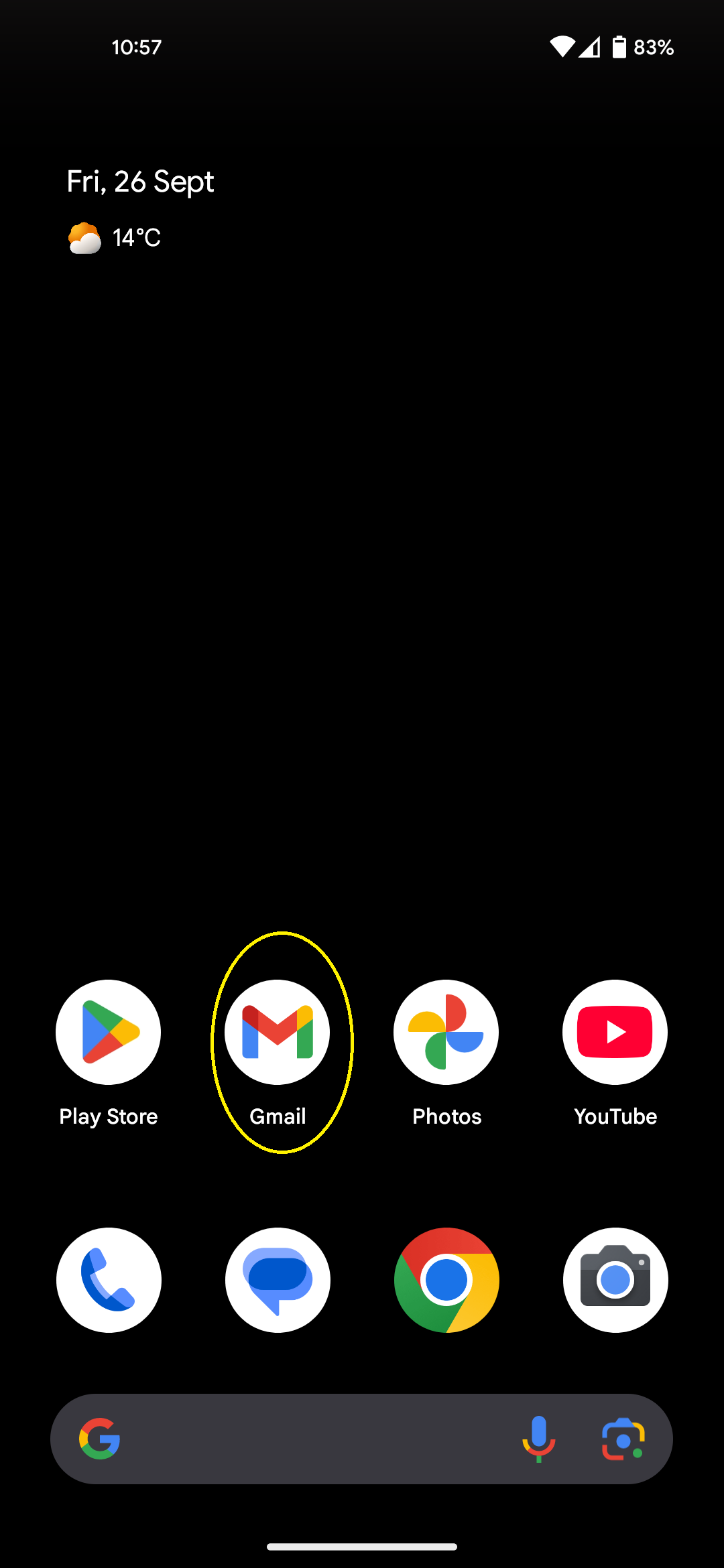 Accessing Gmail application from mobile phone
And voila you are in your Gmail inbox (left on laptop/computer and right on mobile). Here other than seeing the emails you received, you can also write new emails using the ‘Compose’ button on the right hand side of your screen. On a computer or laptop, the button appears at the top, and at the bottom when using a mobile phone (in orange below).
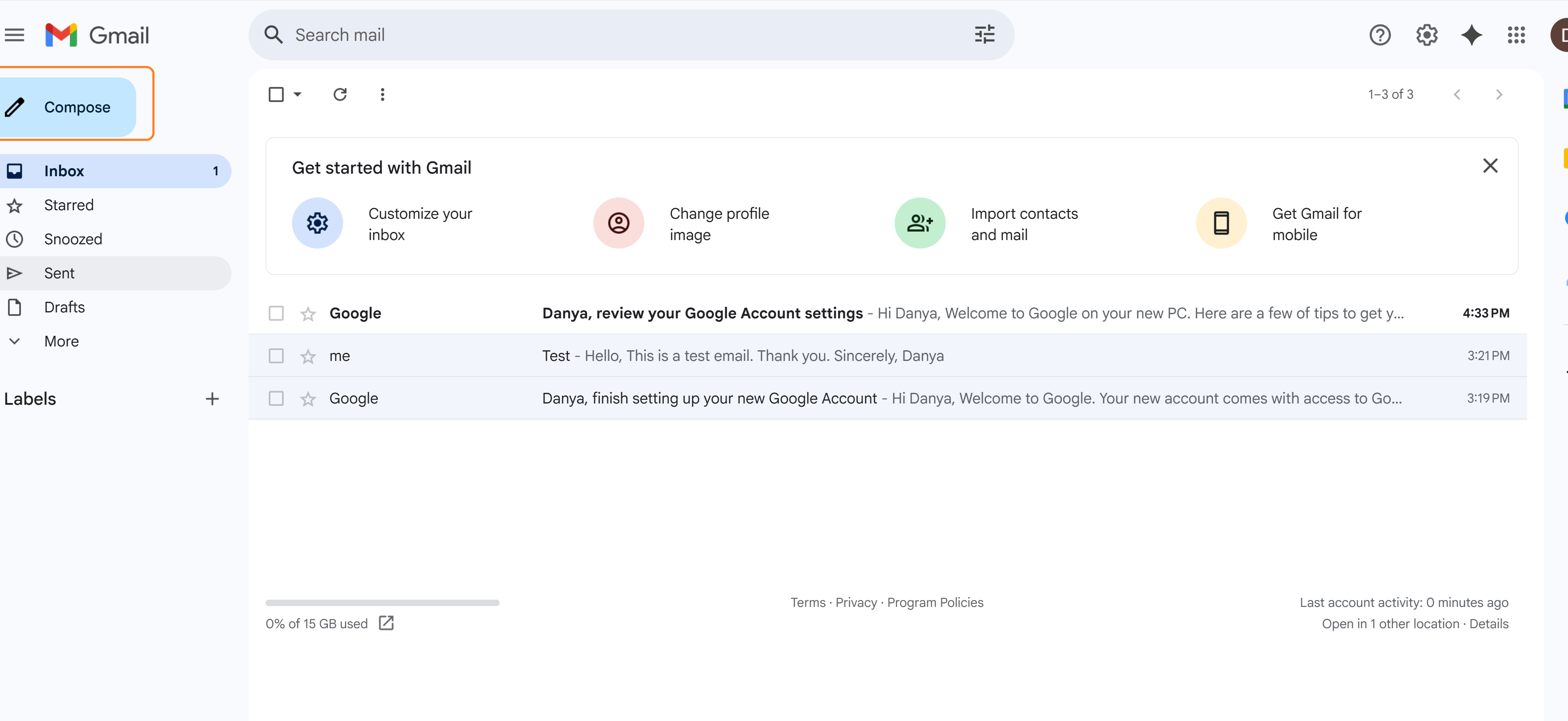 Gmail inbox from browser on a computer/laptop
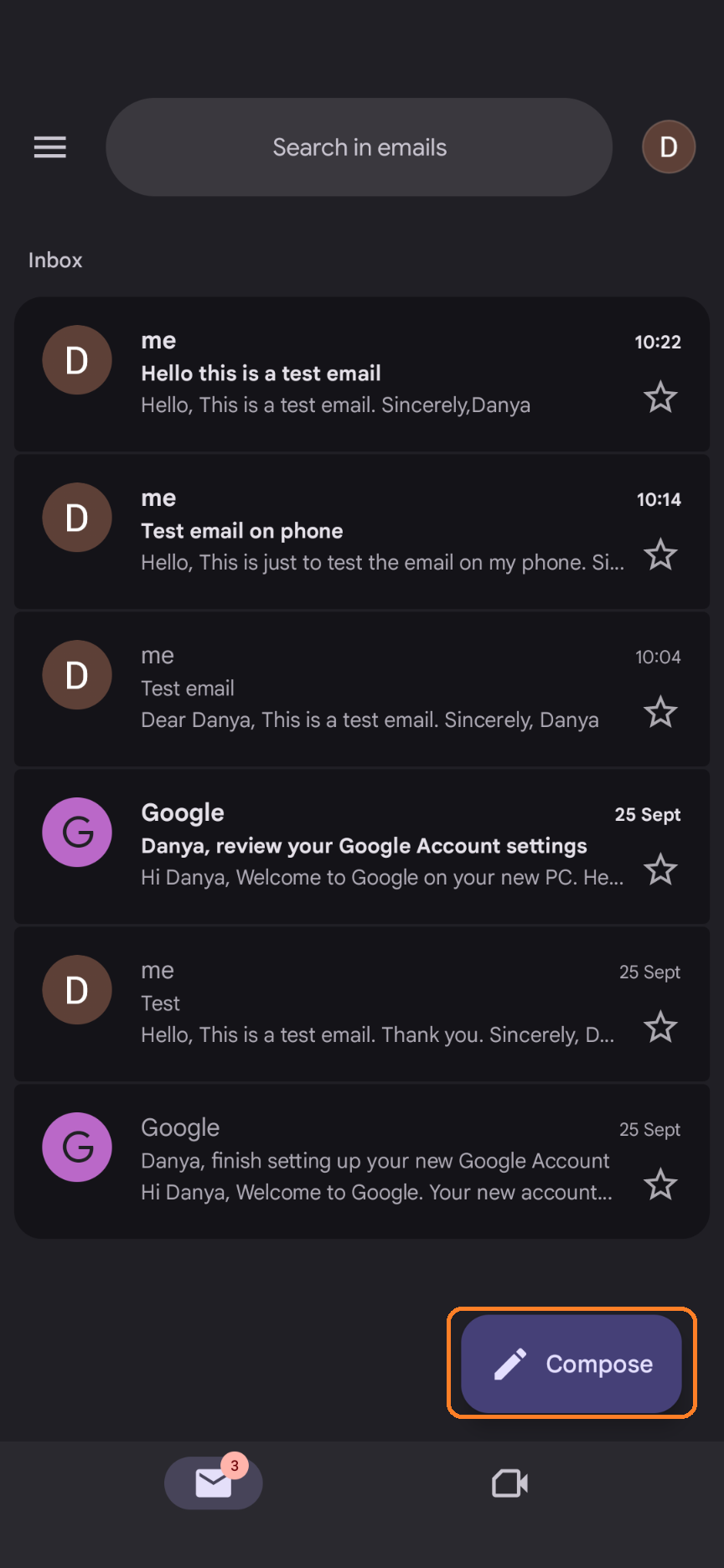 Gmail inbox on mobile application
To see what is in the email, also known as read the email, you need to click on the email name.
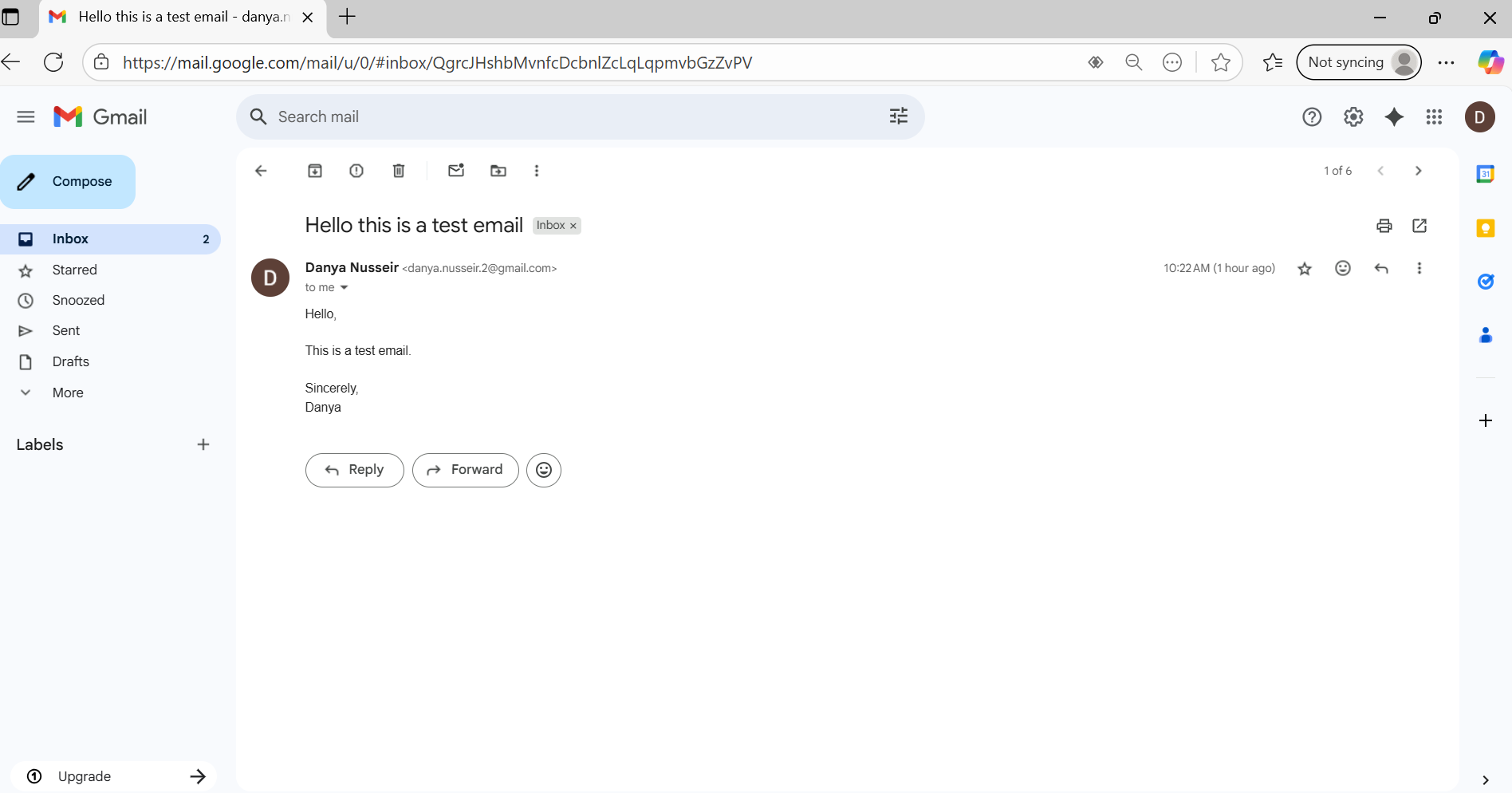 Open or read an email on computer/laptop
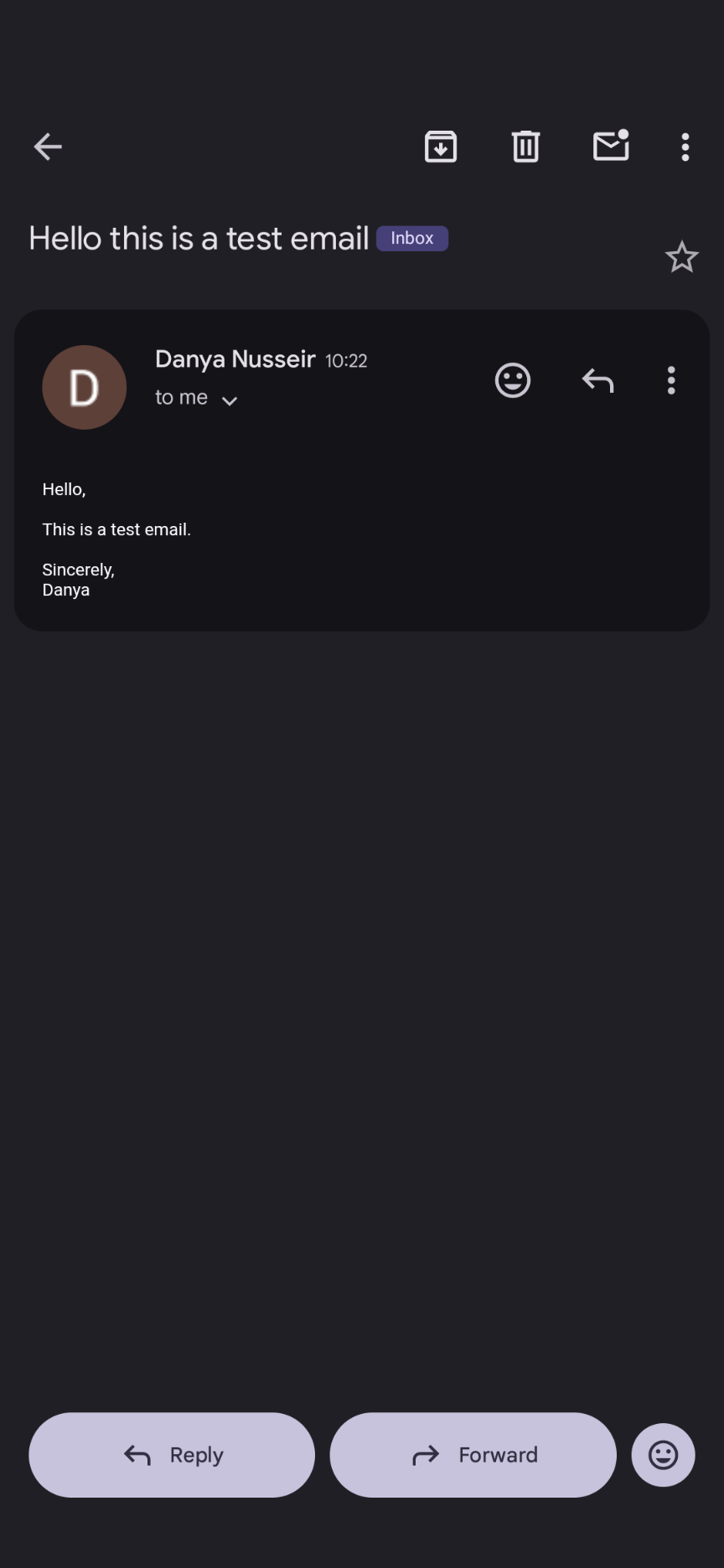 Open or read an email on a mobile phone
✍️ Writing (or composing) and sending an email
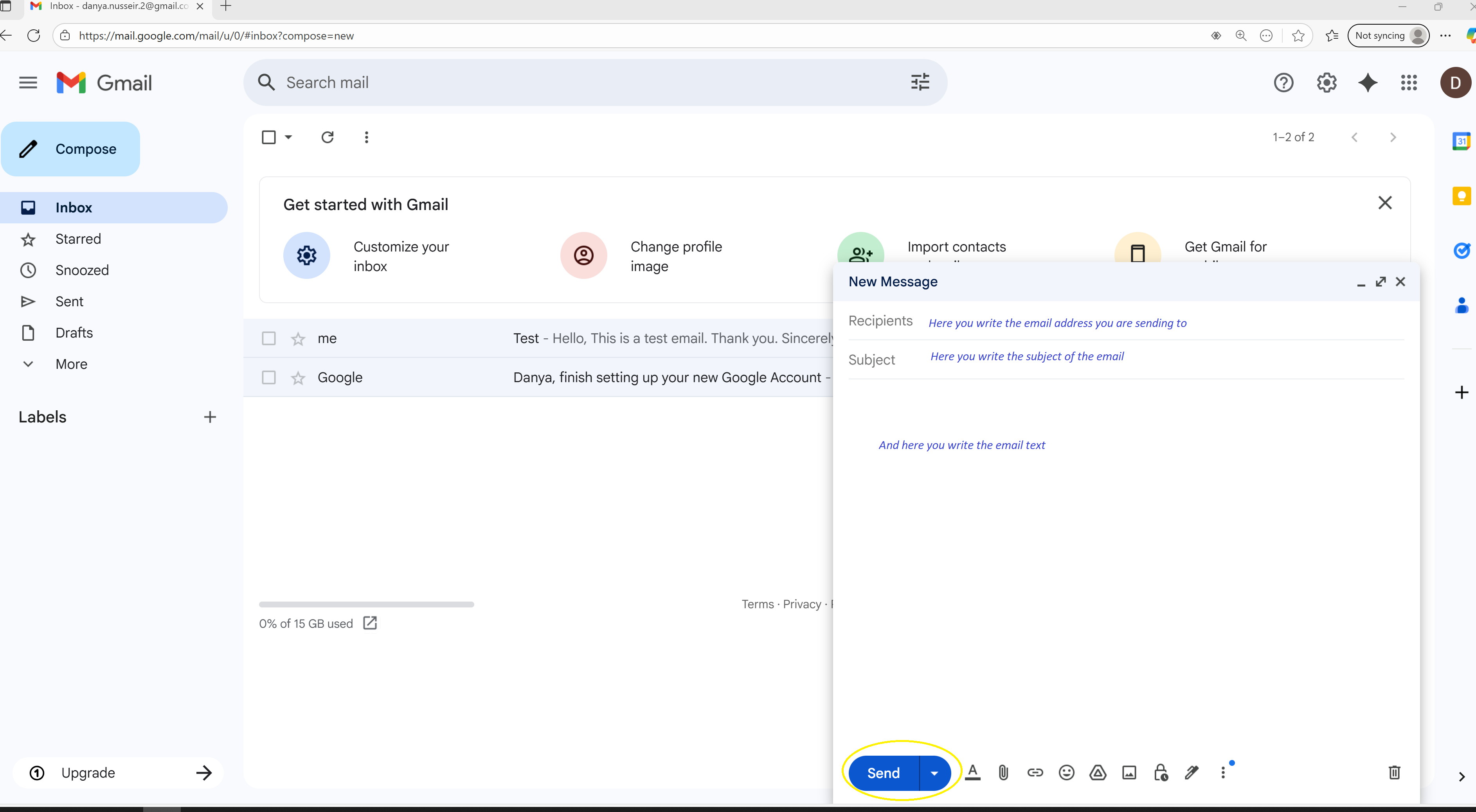
Click the 'Compose' button to write a new email (as shown above). To write an email you would need to click the ‘Compose’ button (as shown above) once you do that a blank email will appear, in the blank email you will have to write in the following fields:
| Field | What to write |
|---|---|
| Recipients | Who are you sending this email to. This is usually another email address. |
| Subject | A short title for your email (e.g. "Job Application – Sales Assistant") |
| Email Body | The main message — write everything you want to say in this big space |
After writing your email you would need to click the “Send” button (indicated in yellow).
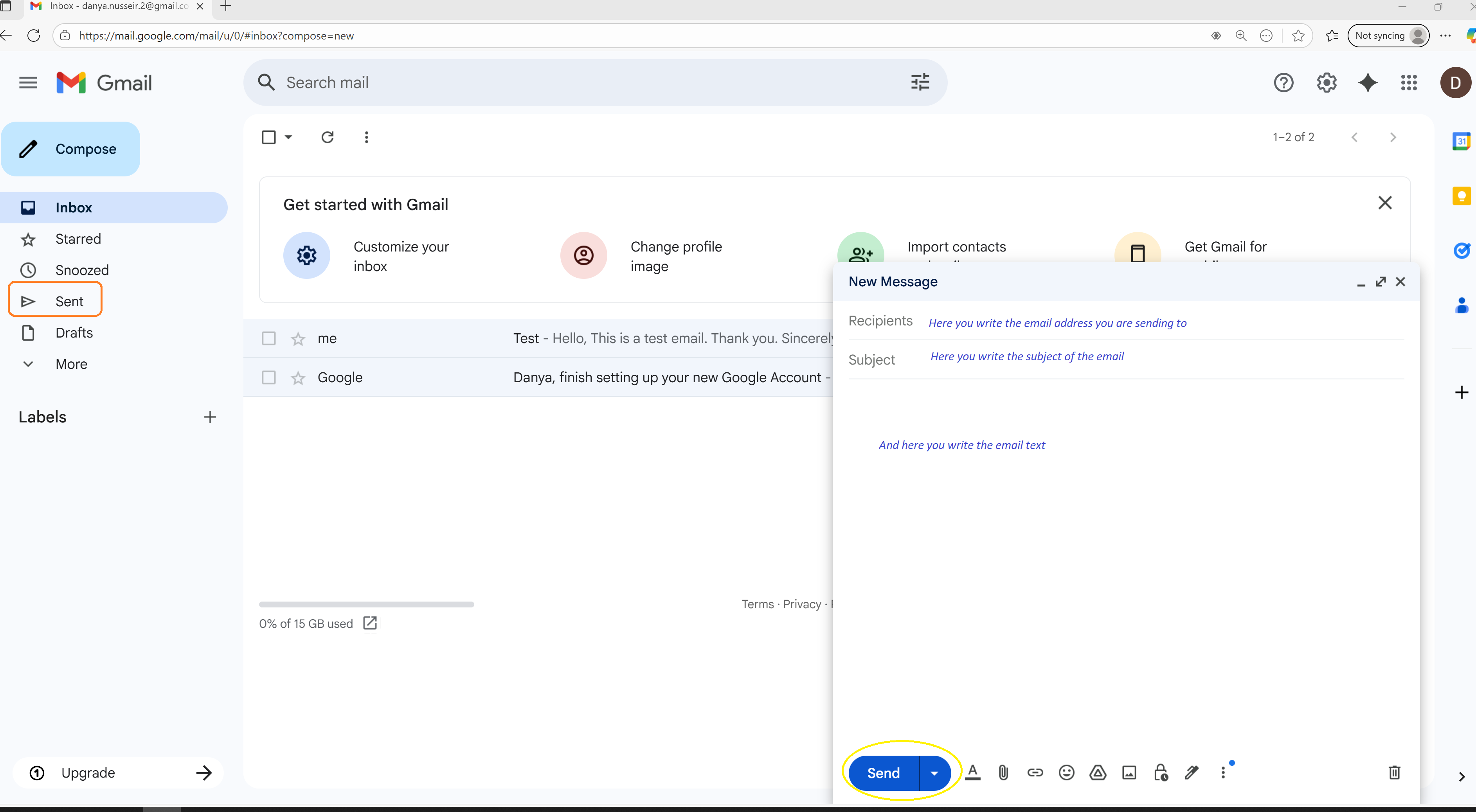 Writing or composing and sending email on a computer/laptop
You can check if the email was actually sent by clicking on the Sent folder, which is indicated by the horizontal arrow icon on the left-hand side of Gmail when using a computer or laptop (in orange above).
The same exact steps are also used on your mobile phone using the Gmail application with a slight difference in how the screen looks and the button and field names. The below example is using an Android, with the required fields:
| Field | What to write |
|---|---|
| From | This is automatically filled with your email you do not need to write anything just leave it as it is. |
| To | Same as Recipients on the above screen, which is who you are sending this email to (usually another email address). |
| Subject | A short title for your email (e.g. "Job Application – Sales Assistant") |
| Compose email | This is the same as the email body on the above screen which is the big space after the subject where you can type and write what you want to say. |
After writing your email you would need to click the “Send” button (indicated in yellow).
 Writing or composing and sending email on a mobile phone
Similar to the computer, you can check if the email was actually sent on the mobile in your Gmail app through two steps, one you click the menu button (first picture below in Orange) followed by the Sent icon, indicated by a horizontal arrow (second picture below in yellow).
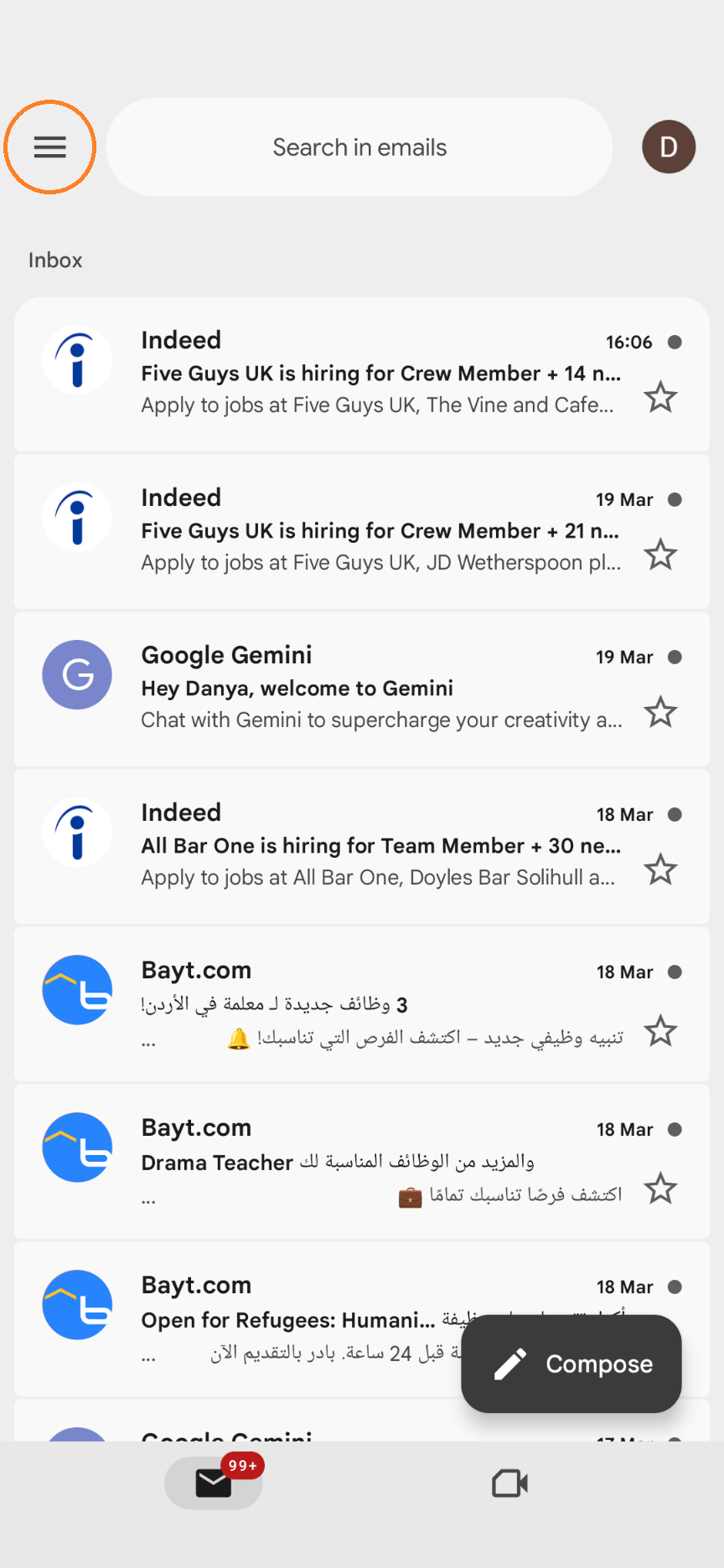 Accessing Gmail menu on the mobile
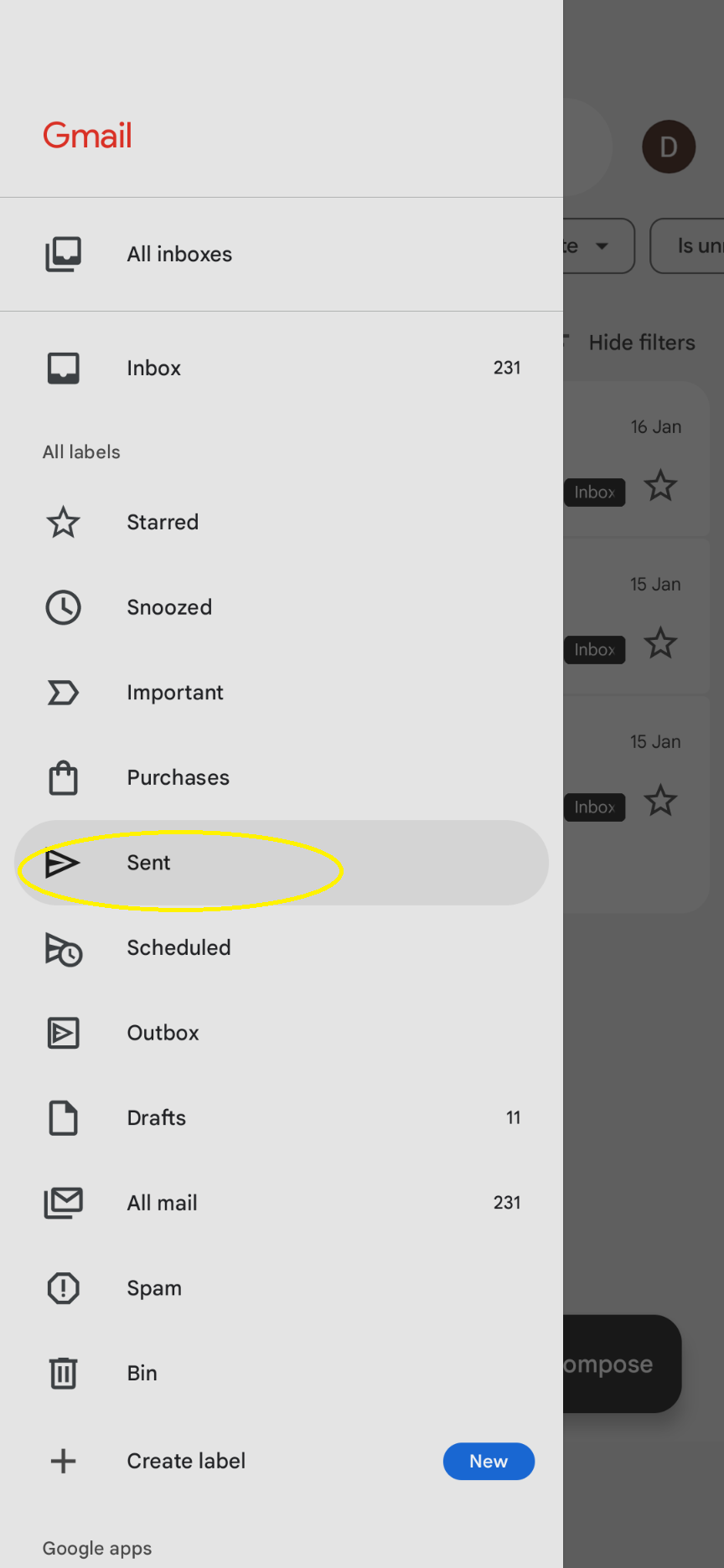 Gmail sent folder on a mobile phone