
1.2. MS Word & Google Docs
MS Word & Google Docs
You need this to write your CV and cover letter
In order to create the CV/resume and Cover letter you would need software on your device (laptop/computer or mobile) that enables you to create documents.
Using MS Word (if you have a Windows and Microsoft/MS Office license- this is a paid license)
If you have a windows and Microsoft license (this is a paid license), then you would have MS Office software on your computer/laptop. The MS Office includes a group of programs such as:
 Microsoft Office Suite
MS Word is what we will be using to create a CV/Resume and Cover letter. To access it using your computer you need to go to the search bar and type “Word” then following will appear (on the left).
On a mobile phone, even if you do not have paid license, you can still download MS Word on your mobile through your app store, but you would need to create a Microsoft account. Below on the right is an example of how to download the app on the Google play store.
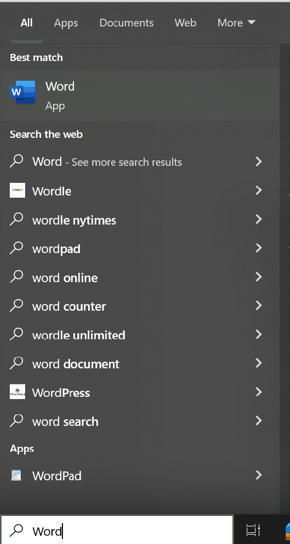 Searching and finding MS Word on computer or laptop
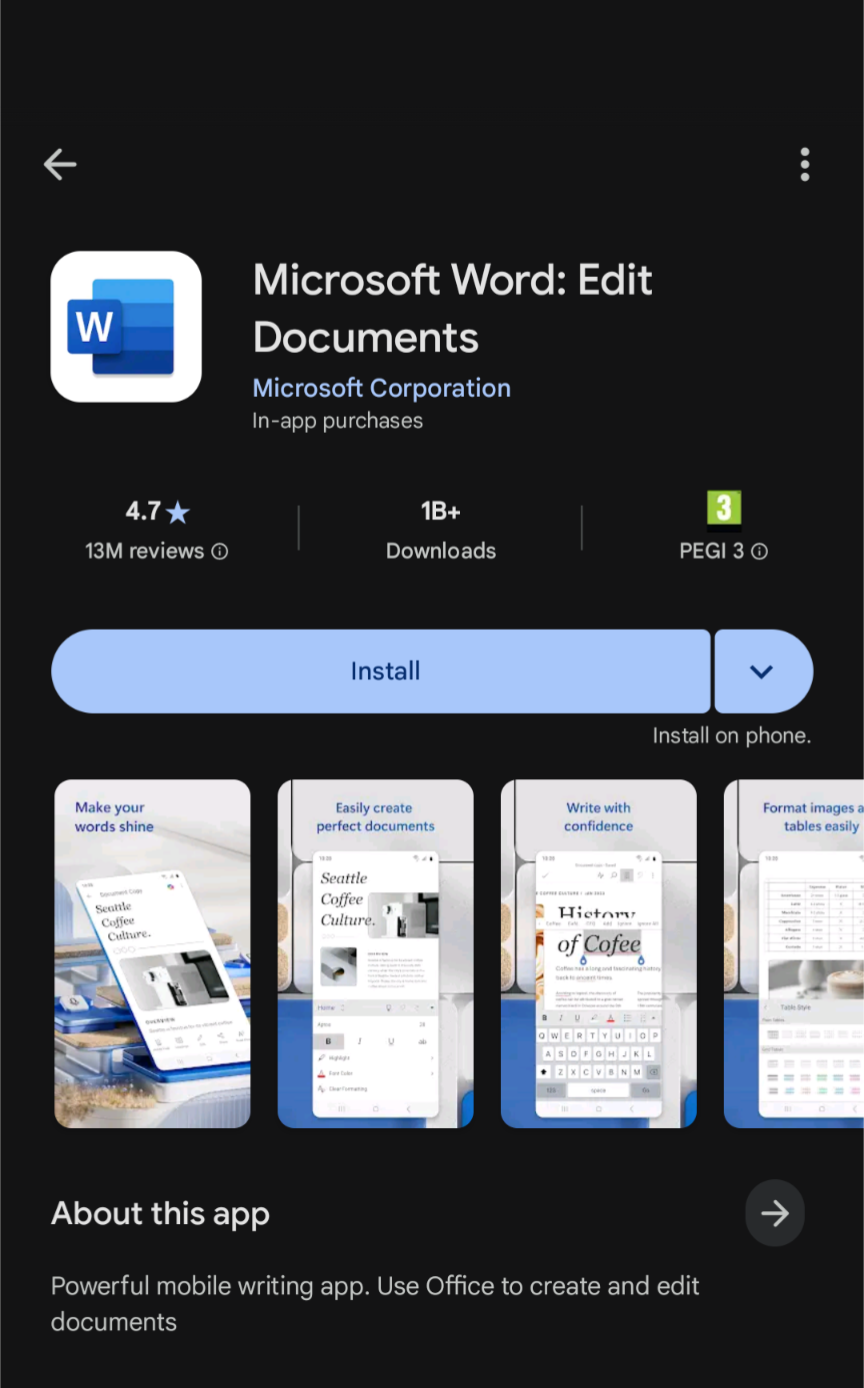 Downloading MS Word application from app store
After that you need to put the cursor on it and select it by clicking the left mouse or touchpad button.
Once you open the Word program on your computer/laptop you should see the start page which gives you the options to either select a blank document or a template. Go ahead and select a blank document.
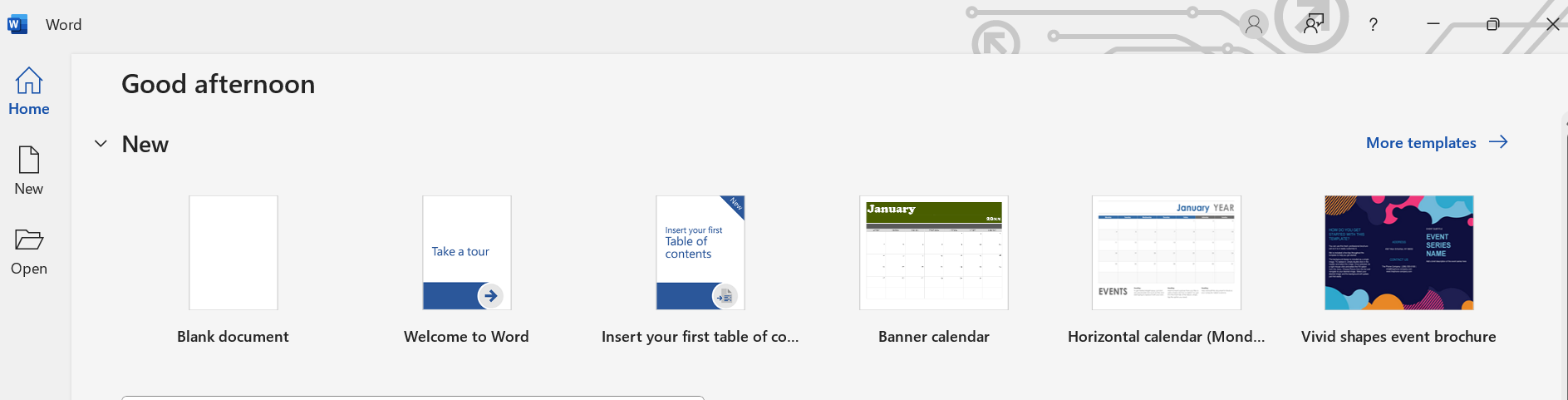 Openning a new MS Word document
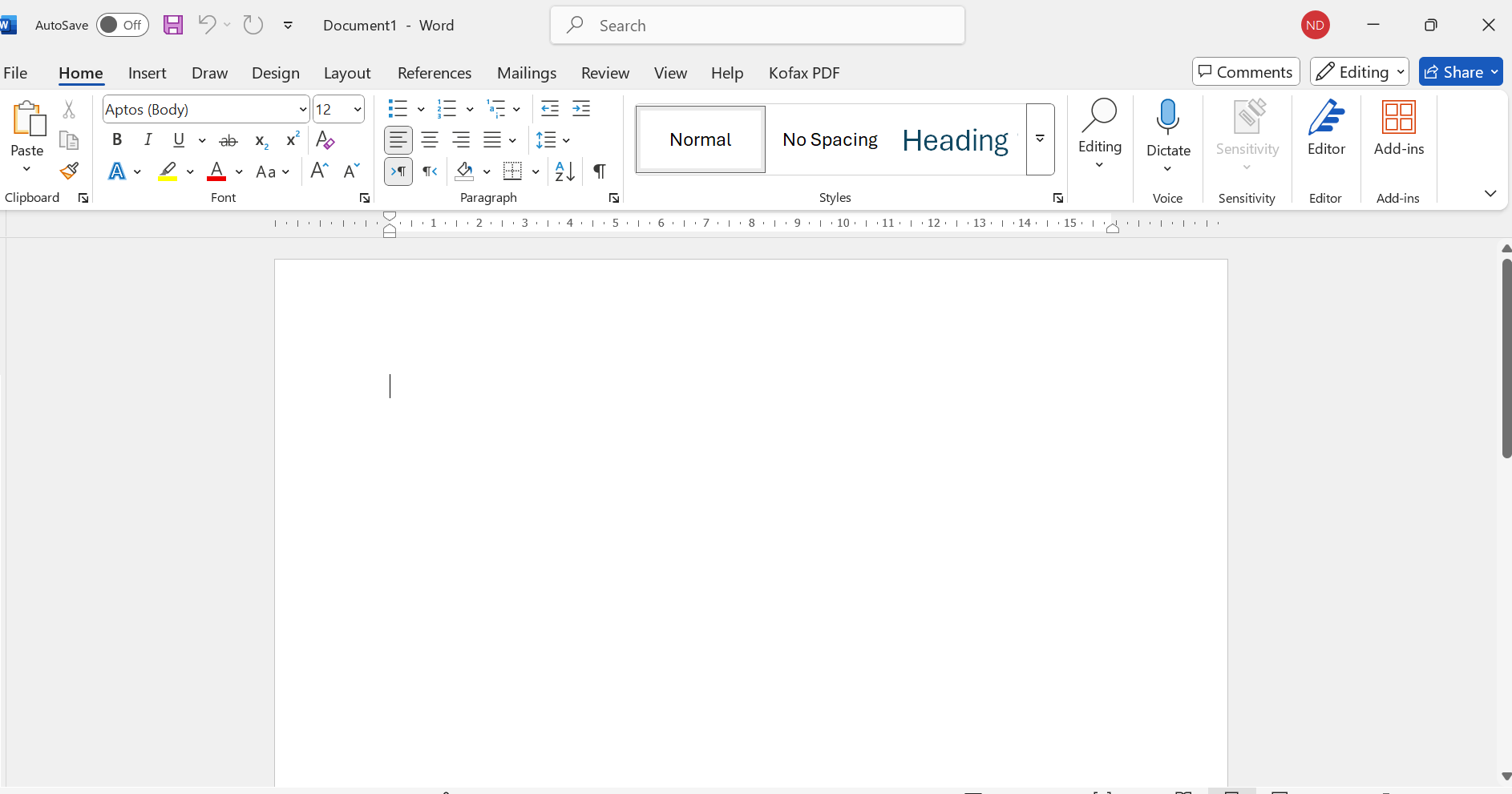 Openning a blank document on MS Word
No Microsoft account? No problem! You can easy access very similar programs on a web-based version for free through Google or Proton. We will provide details on how to set up Google in the following section and will be using Google products throughout this toolkit.
🆓 Using Google Docs (free for everyone)
Step a- Check if you already have a Google account
If you have an Android phone you might already have a google account. To check this, go to your phone settings scroll down to the Google menu item and click it. The name of the google account registered with your phone will appear this many in the form of xxxxxx@gmail.com, if this is your email then this would also be your Gmail account. If it is another person’s email, then you would need to create a Google account for yourself.
Step b- Create a Google account (if you do not have one)
If you do not have your own Gmail account. Below are links to detailed step-by-step guides on how to create your own Google account is found on Google on Creating a Gmail Account on a computer or can also be accessed via Creating a Google Account-Android from you mobile.
- Create a Google account on computer, Andriod or iphoneLink opens in a new window
- Create a Gmail Account — Google's official guideLink opens in a new window
Other than the google links and guides of how to create a google or gmail account provided above, there are plenty of videos online on how to create an account on Google or a Gmail account.
For this toolkit, I have created a Google account named: danya.nusseir.2@gmail.comand will you see this throughout the toolkit.
Once you have created your own Google account you will be able to access the different google suite programs (shown below) to create the documents you need.
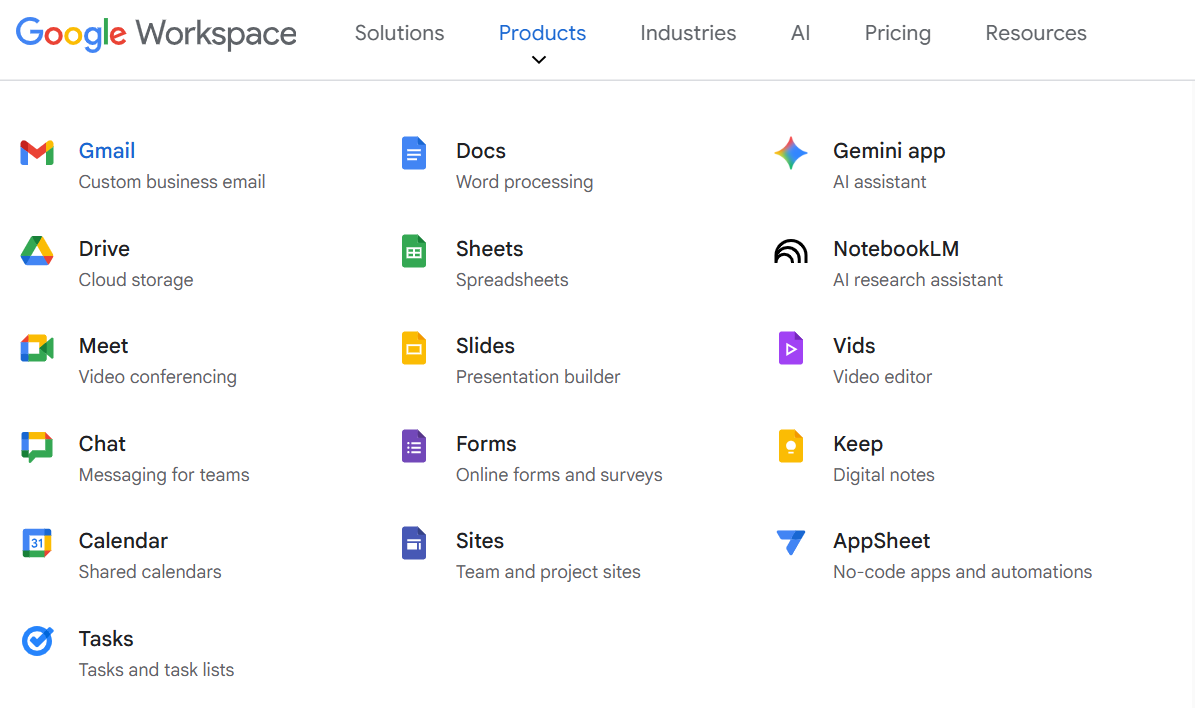 Google Products
Step c — Accessing and opening Google Docs
Similar to the MS Word found in the Microsoft office discussed above, Google has a similar free tool that can be used online to create documents called Google Docs. Google Docs can be accessed via your computer/laptop or through your mobile phone by clicking on the Google Docs Icon.
💻 On a computer or laptop:
Through your computer/laptop you would need to go on the web-browser there are a variety of browser below are the general and default ones on windows laptops/computers:
 Google Chrome browser icon
 Microsoft Edge browser icon
You search and access these browsers on your computer/laptop the same way you search and access MS Word (shown above), once you find them you click on the selected browser.
The below example is using the Microsoft Edge browser the same steps can be followed on the Chrome browser or any other browser you choose to use. Once you open the browser you need to type on the search bar above the URL www.google.com (circled in yellow below).
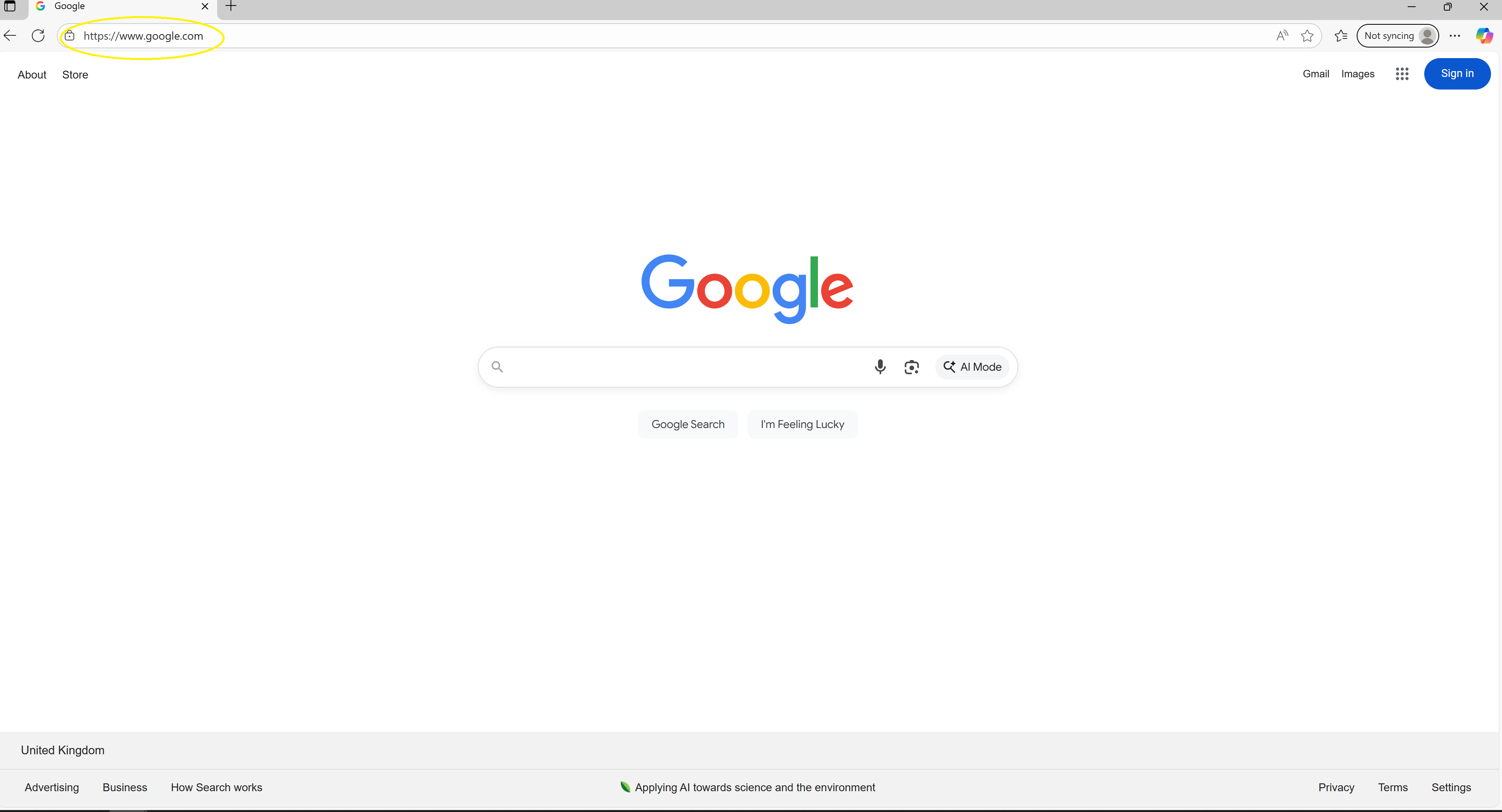 Accessing Google from browser
Once you accessed google you need to click on the google menu icon which is the dots square on the top right corner of your browser (indicated in orange below). After clicking the icon, a list of google products will appear scroll down using the bar at the right-hand side of the box (indicated in green below) and find and click on the google doc icon (indicated in yellow below).
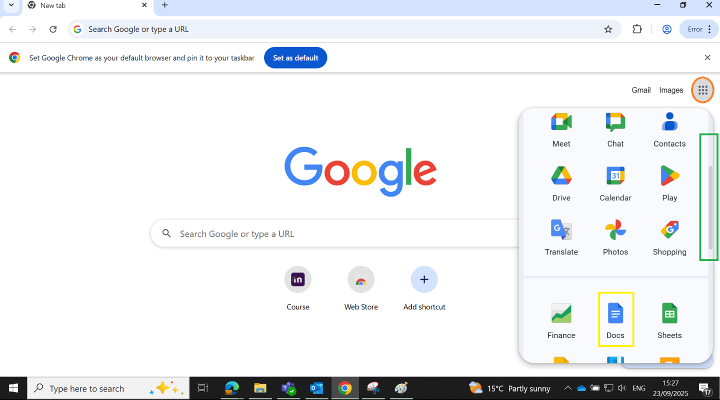 Accessing Google Docs from Google menu
Once you click on the Docs file it would ask you to sign into your google account by asking you which account you want to use (your Gmail). It will bring up the sign in page where you are required to type in your username (which is your Gmail) or select it form the options that appear if you have more than one email (which is the case in example of the left below).
Once you select the account you want to (in yellow below), it will ask you to enter the password you used when you created the account (below on the right).
You also have the option of changing the language of the page by selecting the language you want from the drop down menu (below in orange).
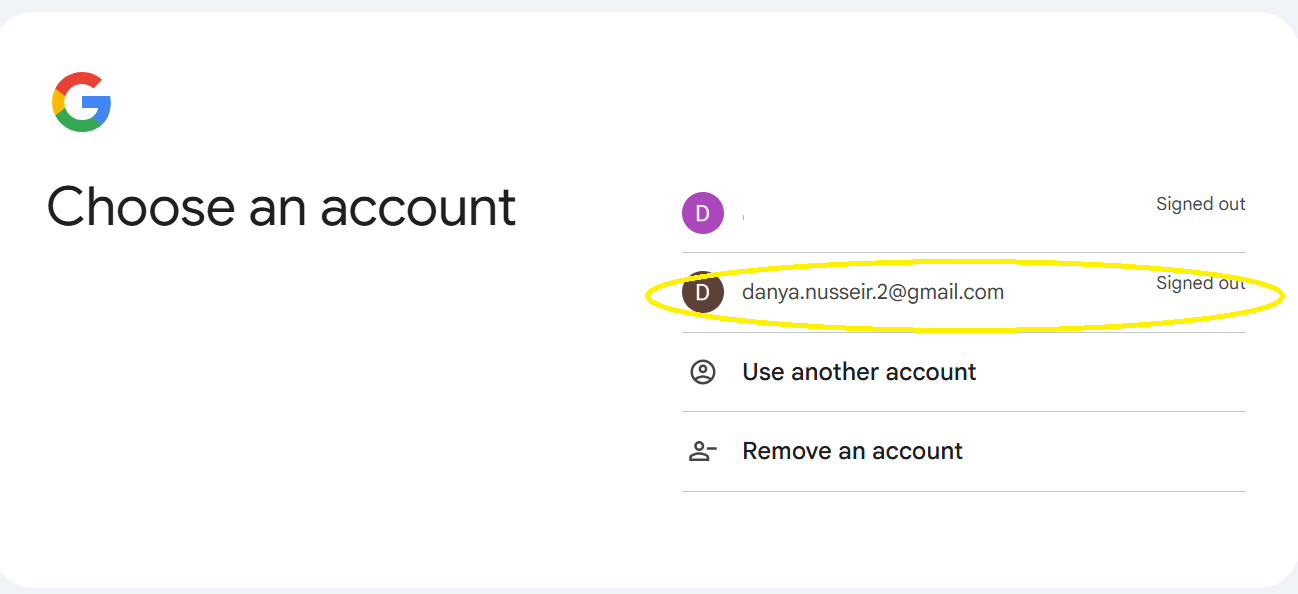 Signing into your Gmail or Google account
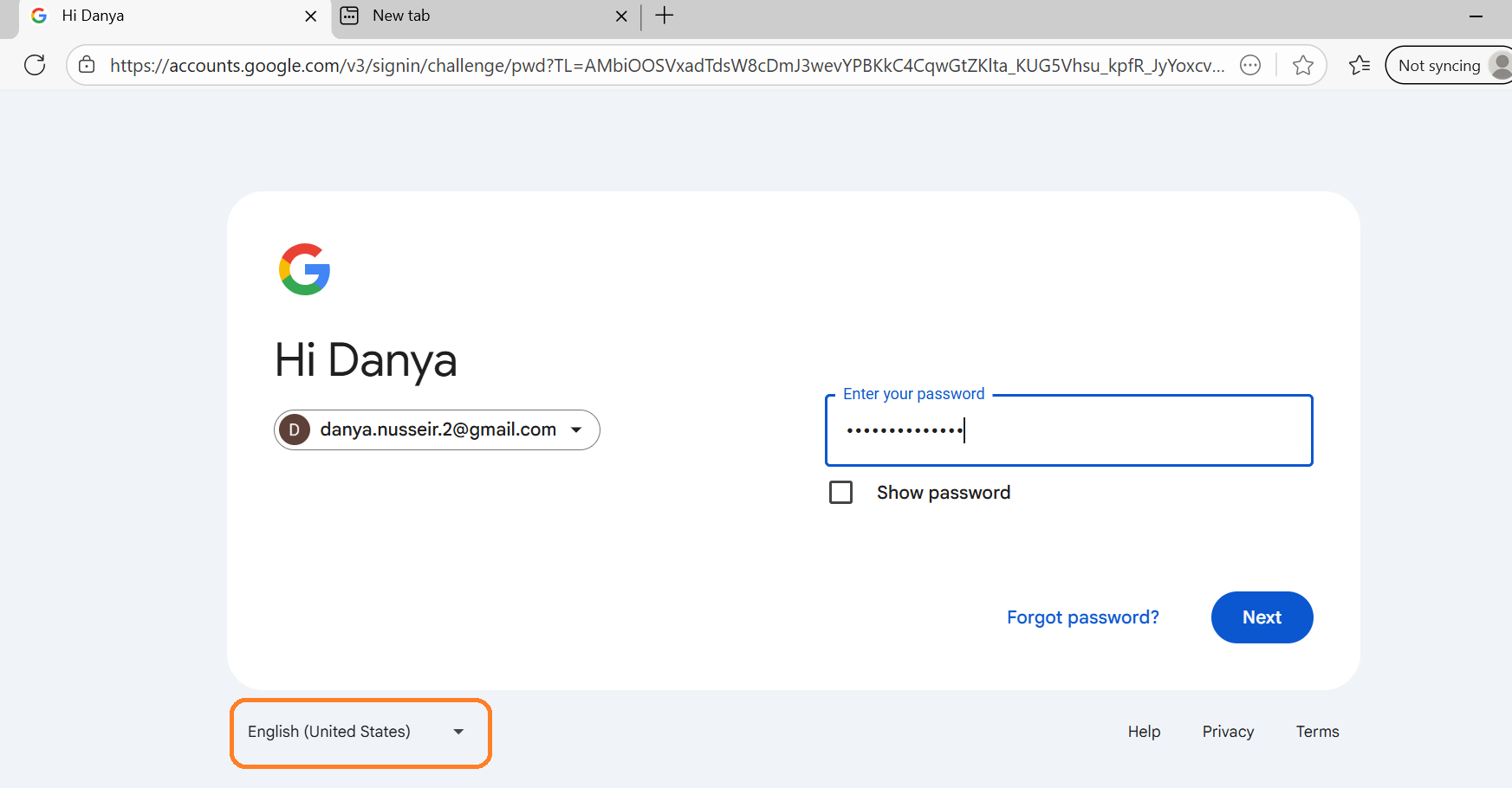 Google account or Gmail password
If you forgot your email password, then you can take the following steps:
Step 1: Select forgot password (below in orange).
Step 2: It should send you a code to another email you provided when you created your Google Account. The email should be from Google to you with a verification code.
If you cannot access the other email, then you can select “Try another way” button (in green below).
Step 3: It would then ask you if you want to receive the code as a message or a call (in blue below) to your mobile. Then it will send you a code to your phone number (which you provided when you created your Google account).
If you choose the message then then you will receive a message from Google with a code starting with “G-“.
Step 4: Once you get the code, you should add it to the code the box called enter the code (below in yellow) and click the ‘next’ button in blue.
Step 5: It will give you the option to either continue to your email or your google account by clicking “Continue” button (in yellow below); or updating your password (in green below).
Step 6: You will need to update your password and add a new one you can remember (using the same steps of creating a Google account). Then click “save password” button in blue.
Then you will go back to the main Google sign in page shown above and you need to write your new password and then click next, and you would be able to sign into your Google and Gmail account.
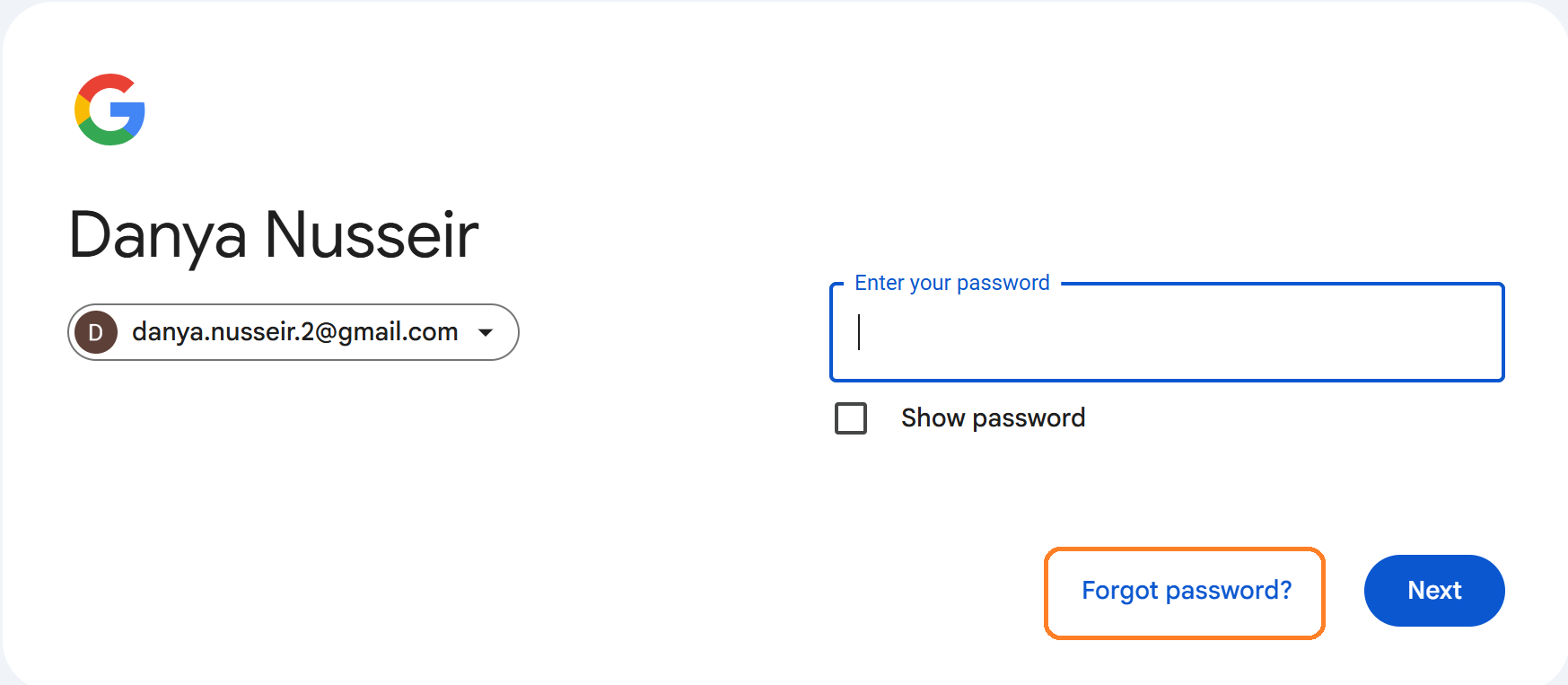 Forgot Gmail password- Step 1
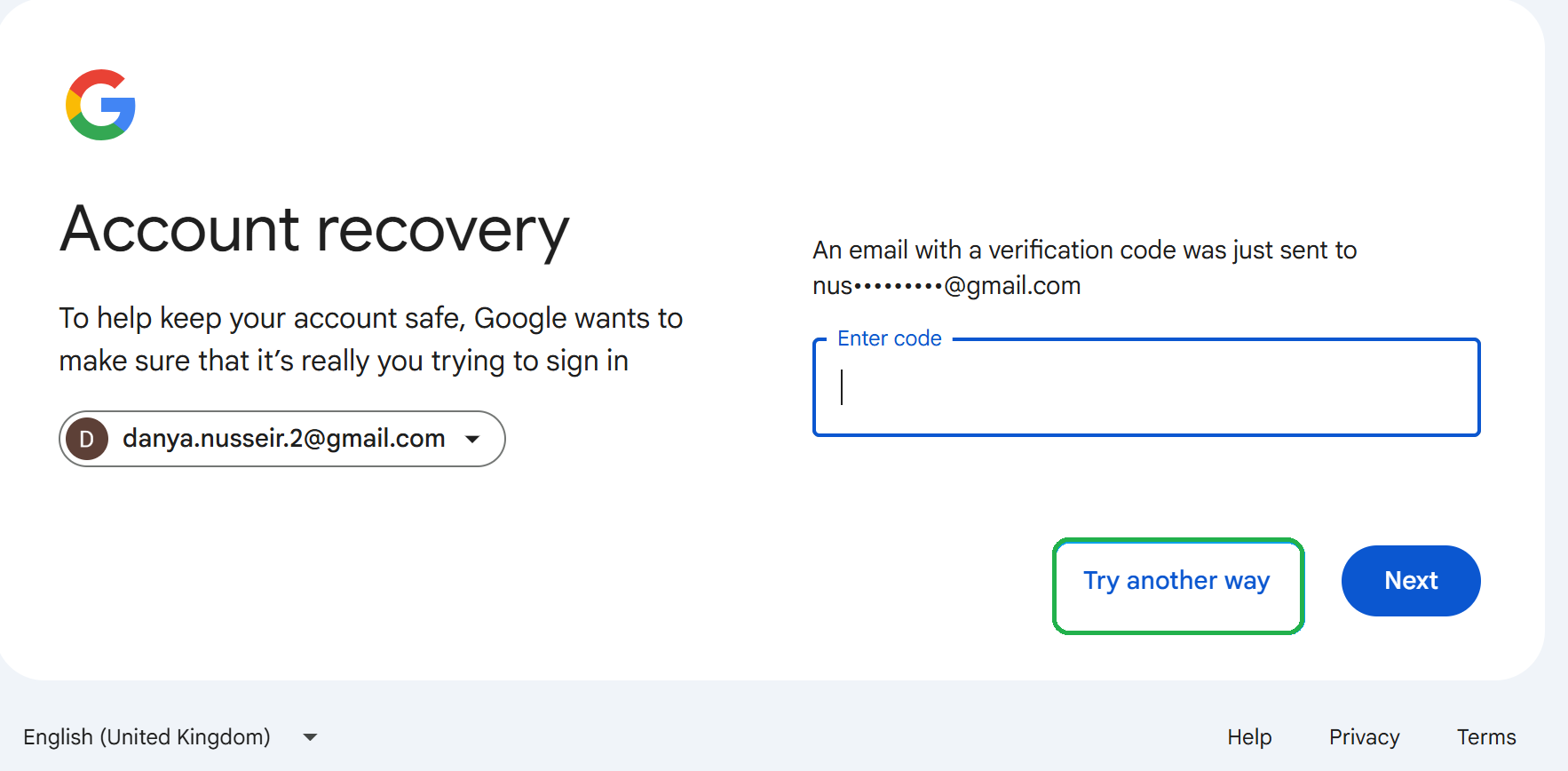 Forgot Gmail password- Step 2
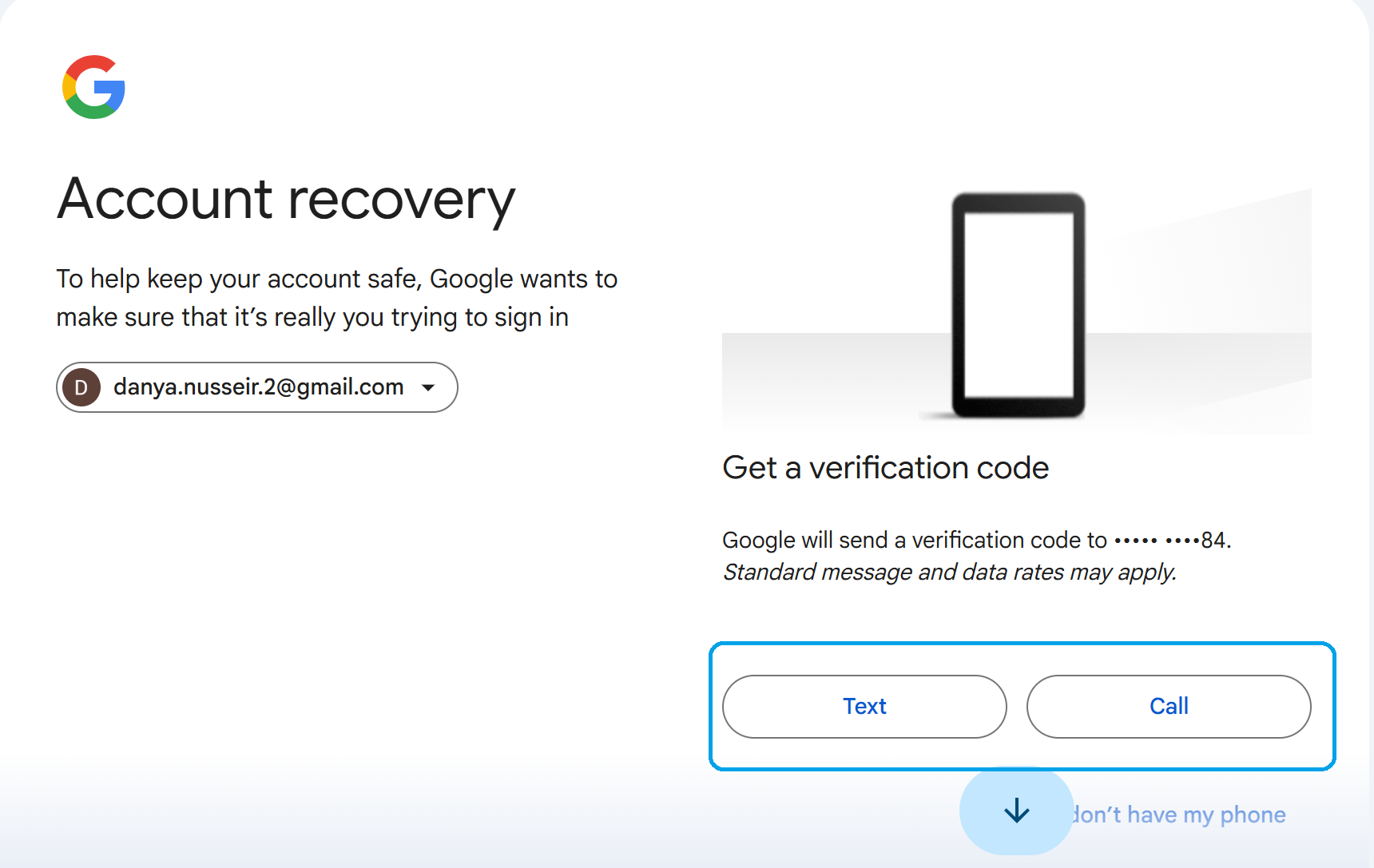 Forgot Gmail password- Step 3
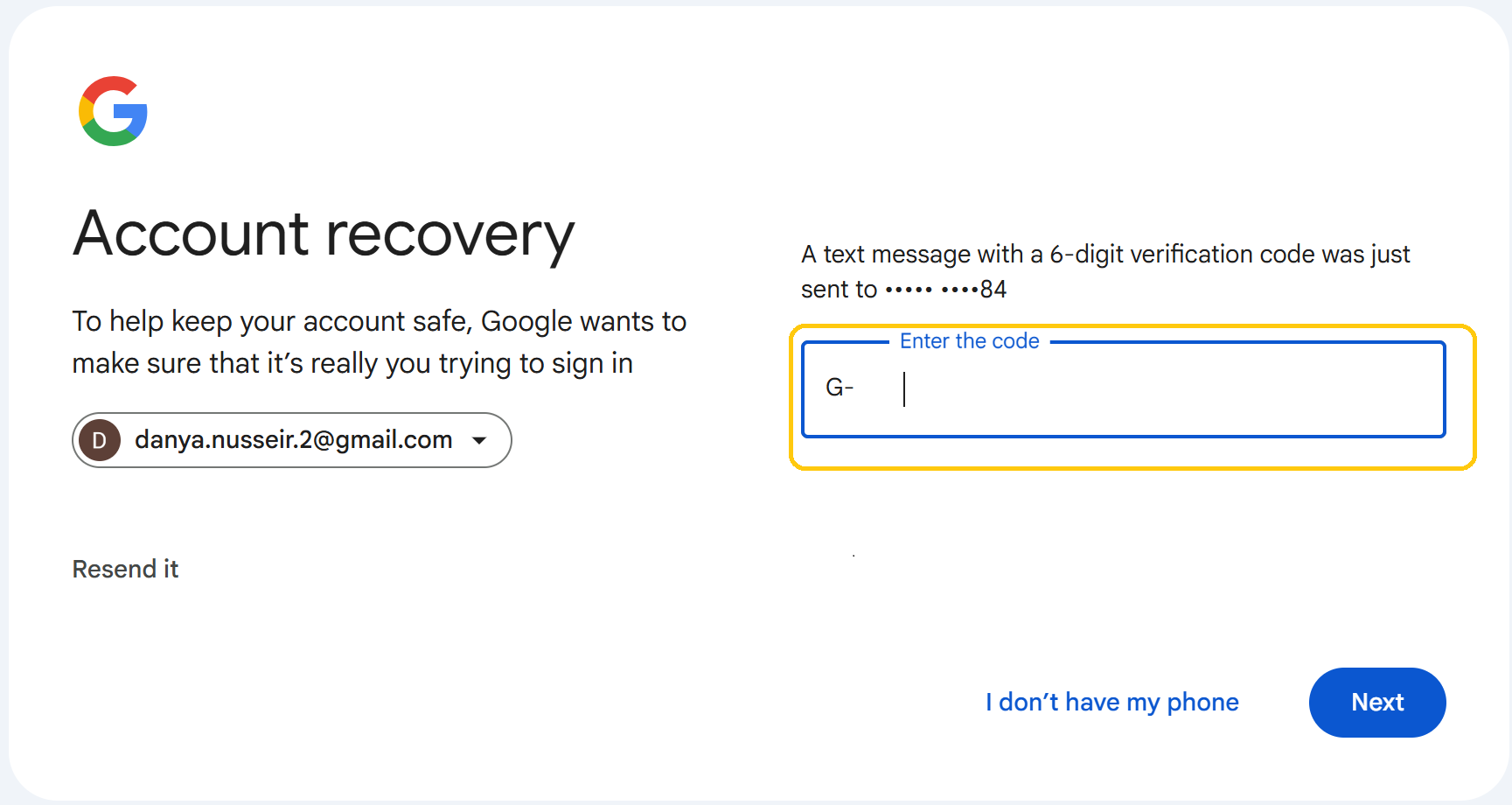 Forgot Gmail password- Step 4
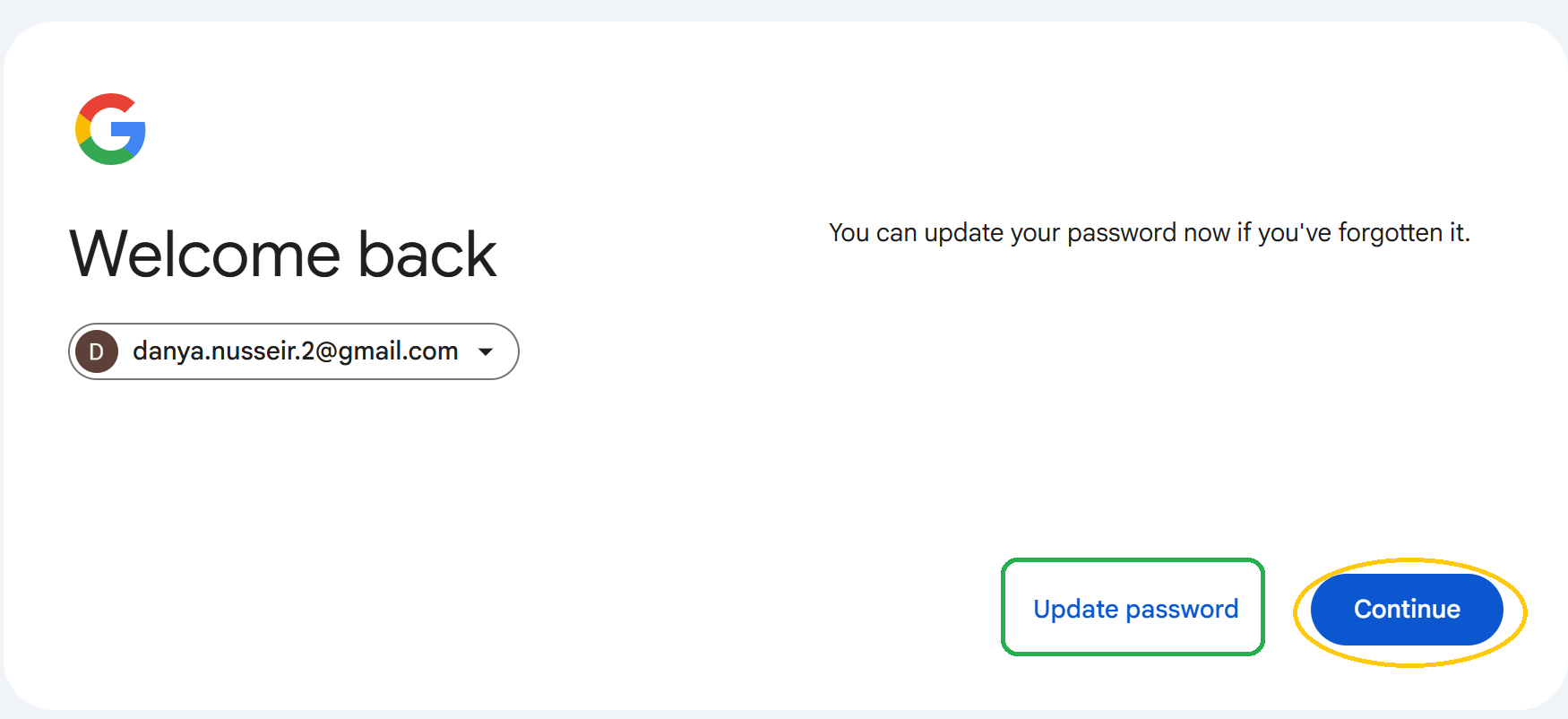 Forgot Gmail password- Step 5
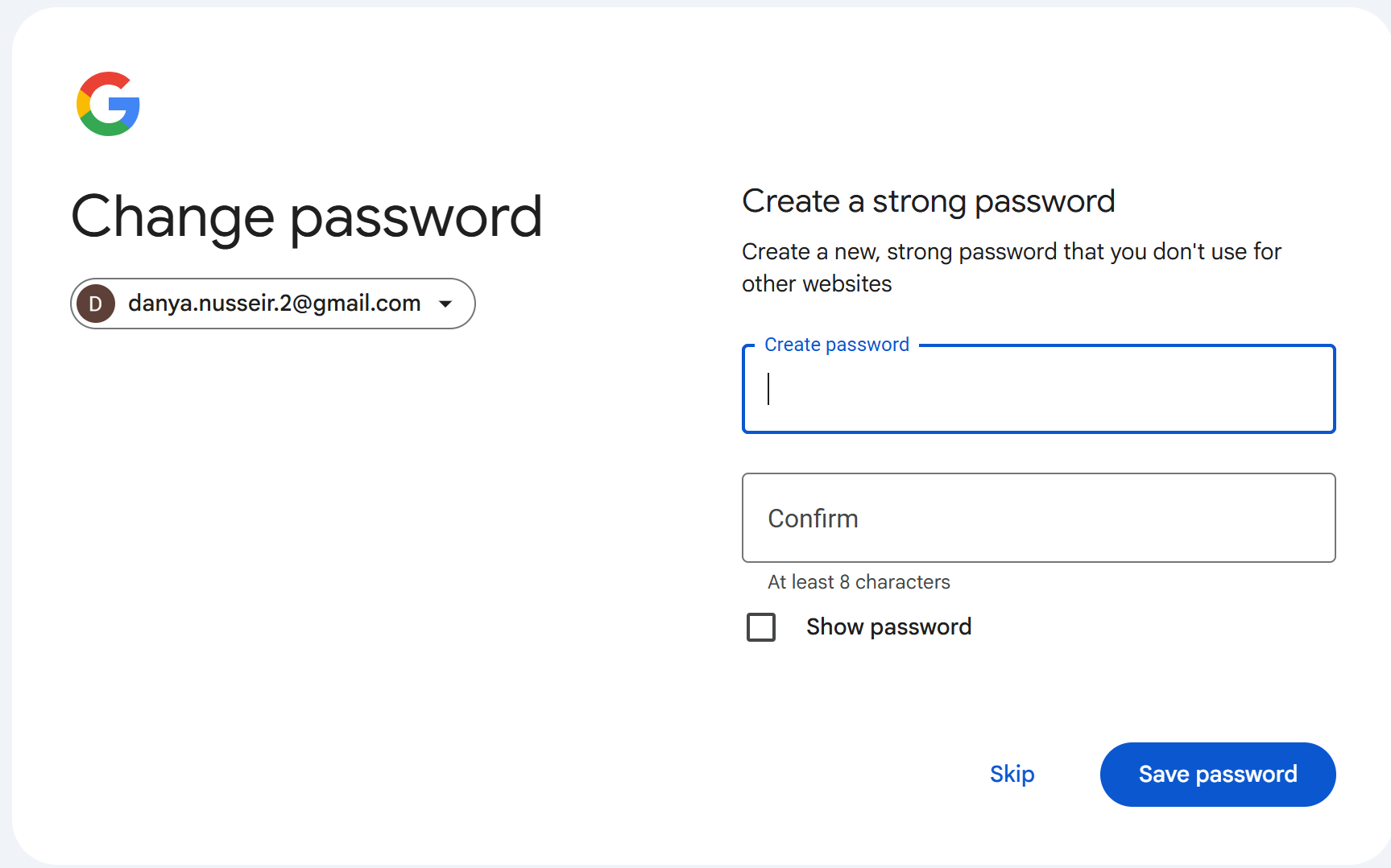 Forgot Gmail password- Step 6
Similar to MS Word, it would provide you with option to access a new blank document or templates that are already saved on Google docs. Go ahead and select a blank document.
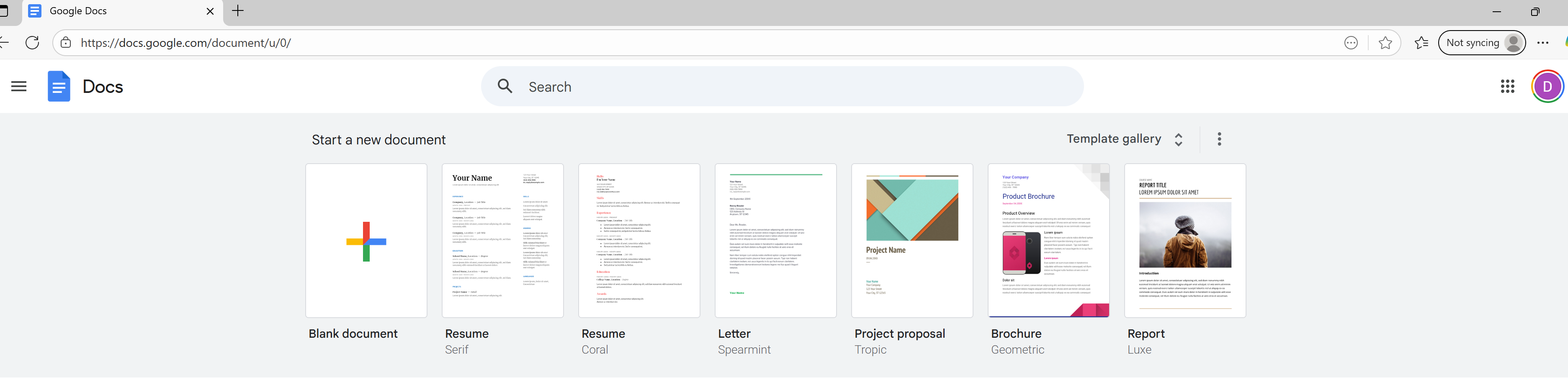 Opening a new document on Google Doc from a computer/laptop browser
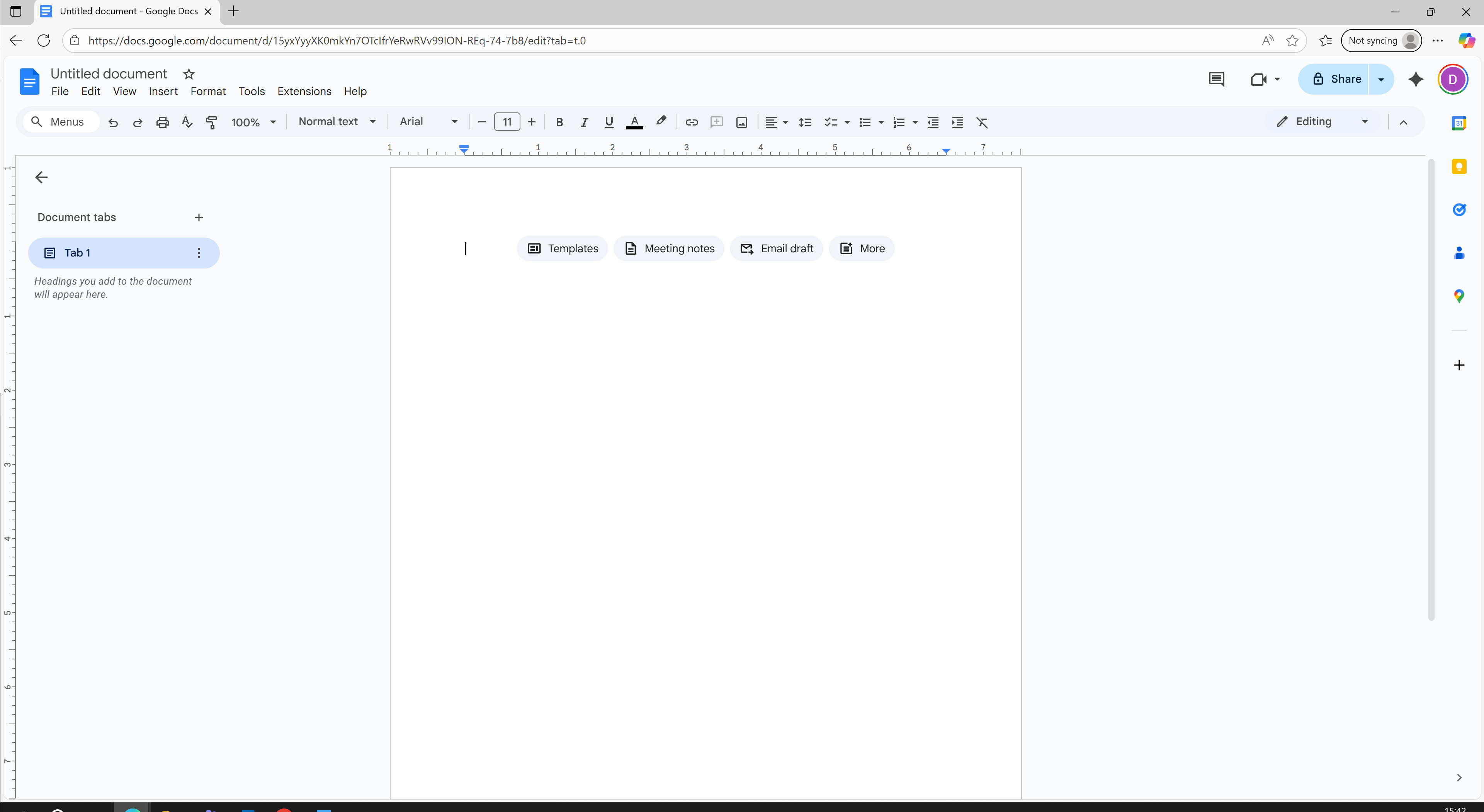 Opening a blank Google doc on a computer/laptop
📱 On a mobile phone (Android):
To access Google Docs on your mobile you would need to go to your app store and search for Docs app. Below is an example of what it looks like on the Android play store.
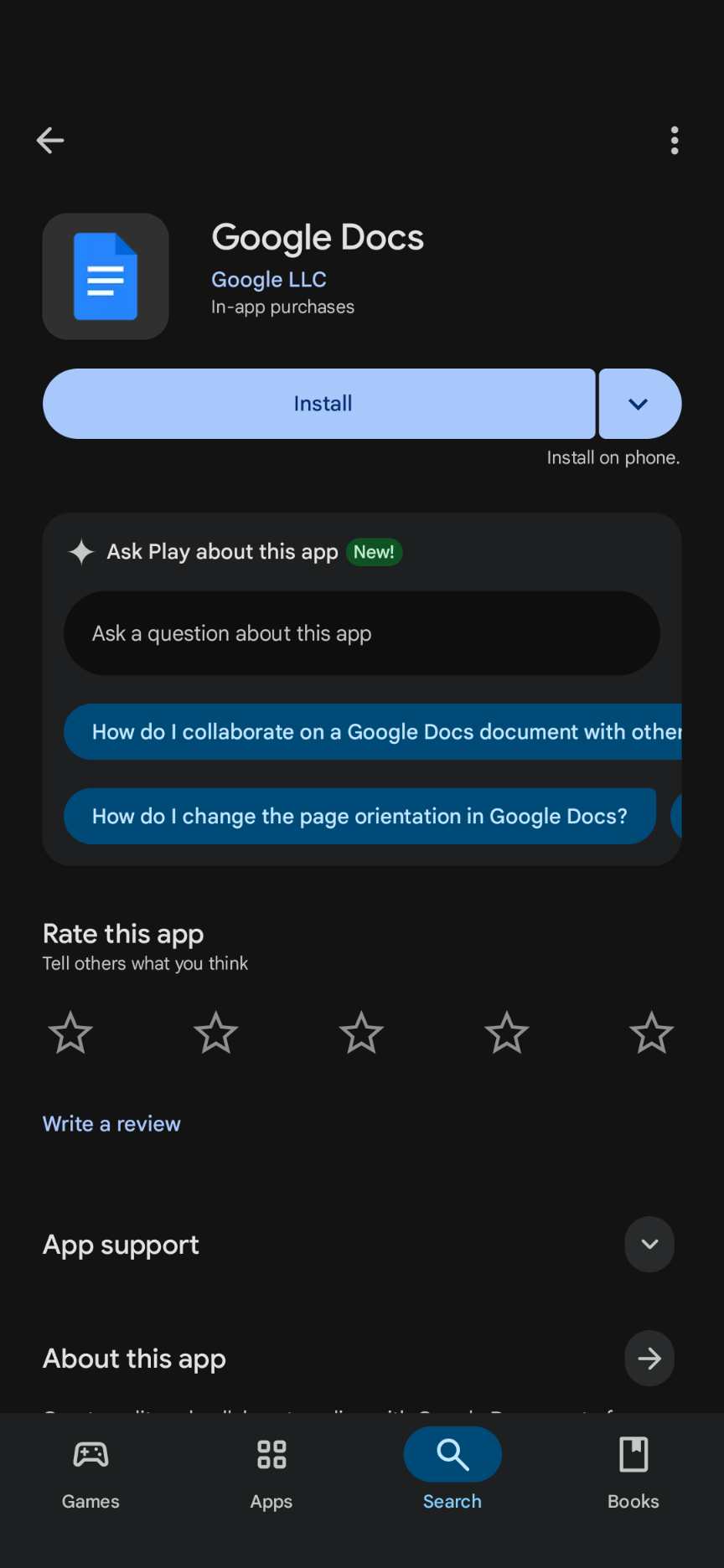 Google Docs on Andriod play store
Once you have installed the application, you can open it on your mobile. Once you go into the app there will be a + sign (below in yellow on the left), it would give you the option of either using an existing template or to create a new document, for the time being, select new document and a blank page should appear (below on the right). This is your new Google document.
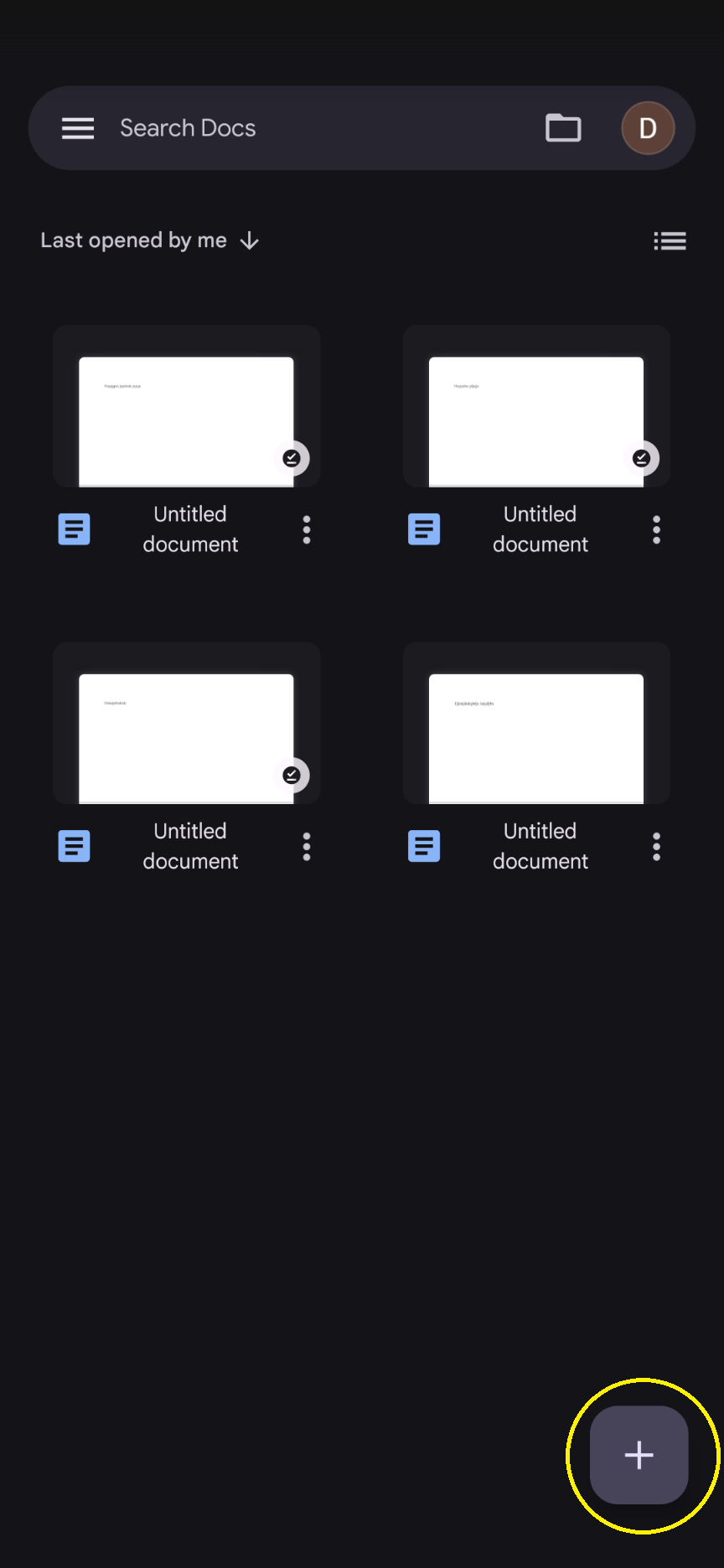 Opening Google Docs application on mobile
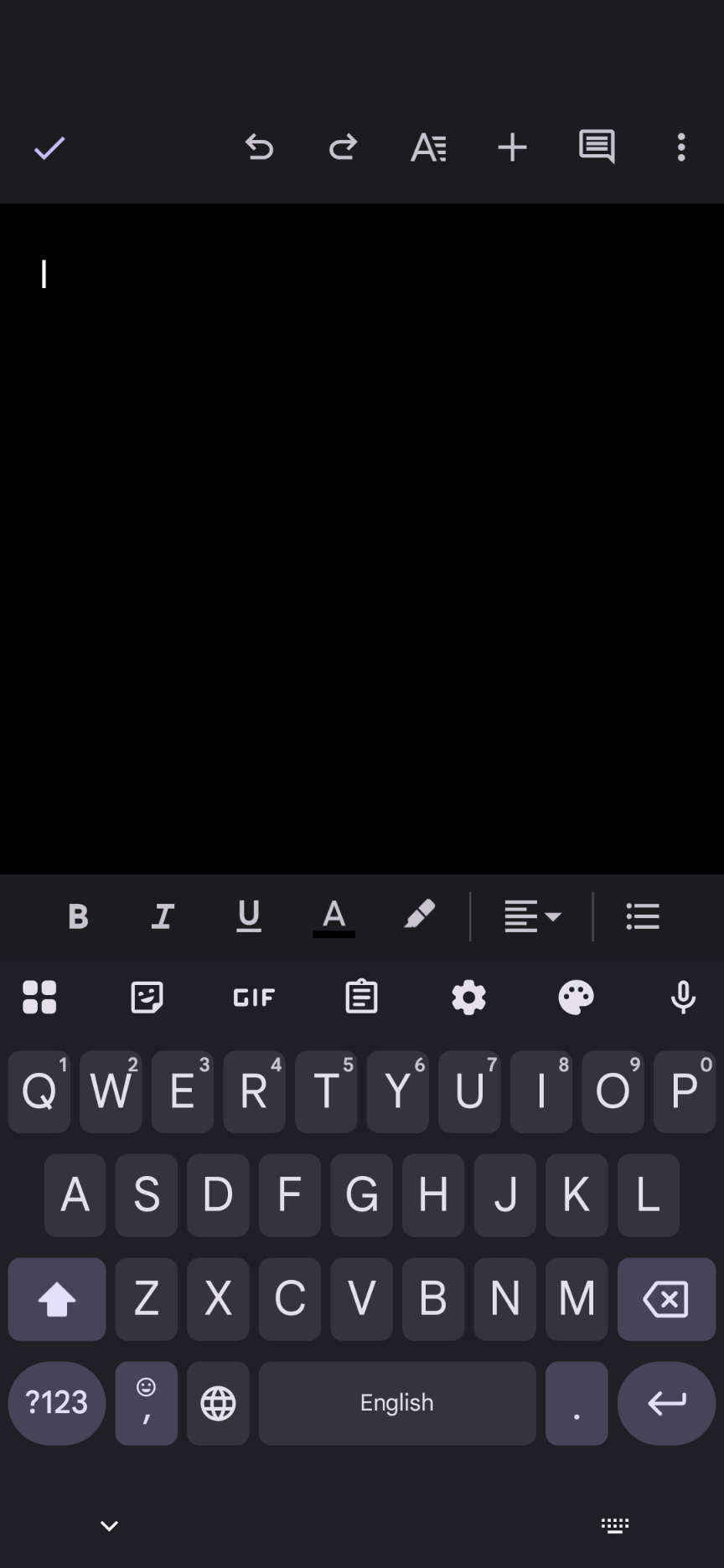 Selecting and opening and Google docs blank document