
3.4 Converting your CV and Cover letter to PDF
Sending your CV and Cover letter to employer in PDF
You need to make sure that you only send the PDF (.pdf) file of your CV and Cover letter to your employer
As a general rule, you should always send the PDF file (.pdf) of your CV and Cover letter in your job application NOT the word or google docs file (unless specifically requested otherwise).
This section will explain how to convert your CV and Cover letter files (.docx or .doc) into PDF files (.pdf) to be able to use for your job applications
The PDF files should look like the below:
 PDF file icon-1
 PDF file icon-2
When using Google Docs
On a computer or laptop
Below are the steps for saving the Google docs template into PDF using a computer/laptop
Step 1: On your Google doc go to file option on the tool bar (in blue below).
Step 2: Go to ‘Download’ option on Google docs from the left menu (in yellow below).
Step 3: Change file type from .docx on Google docs to PDF (.pdf) (in orange below).
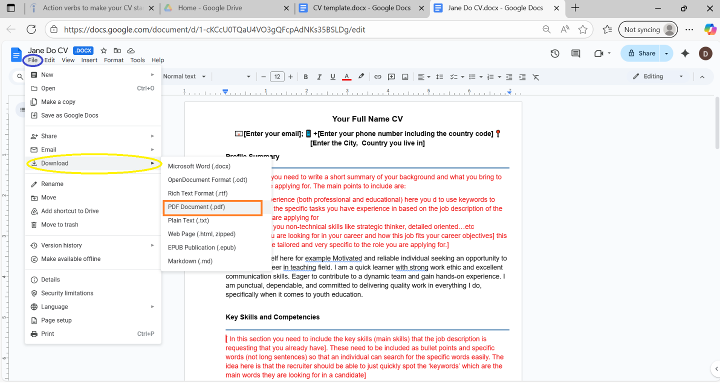 Steps 1, 2 & 3- On a computer
On a mobile phone
Below are the steps for saving the Google docs template into PDF using a mobile phone
Step 1: Go to menu on top right (in blue below).
Step 2: Select ‘Share and Export’ (in yellow below).
Step 3: Go to ‘Save As’ option on Google docs from the menu (in yellow below).
Step 4: Select ‘PDF Document (.pdf)’ (in orange below) Click Ok (in green below).
Step 5: Check the file name and location are correct and then click ‘Save’ (in yellow below).
 Step 1- On a mobile phone
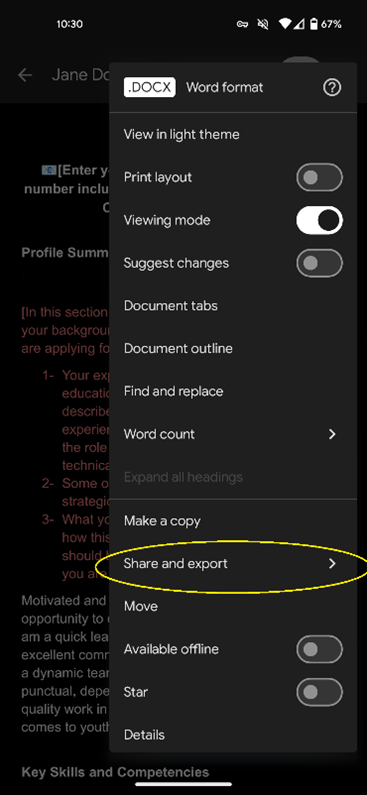 Step 2- On a mobile phone
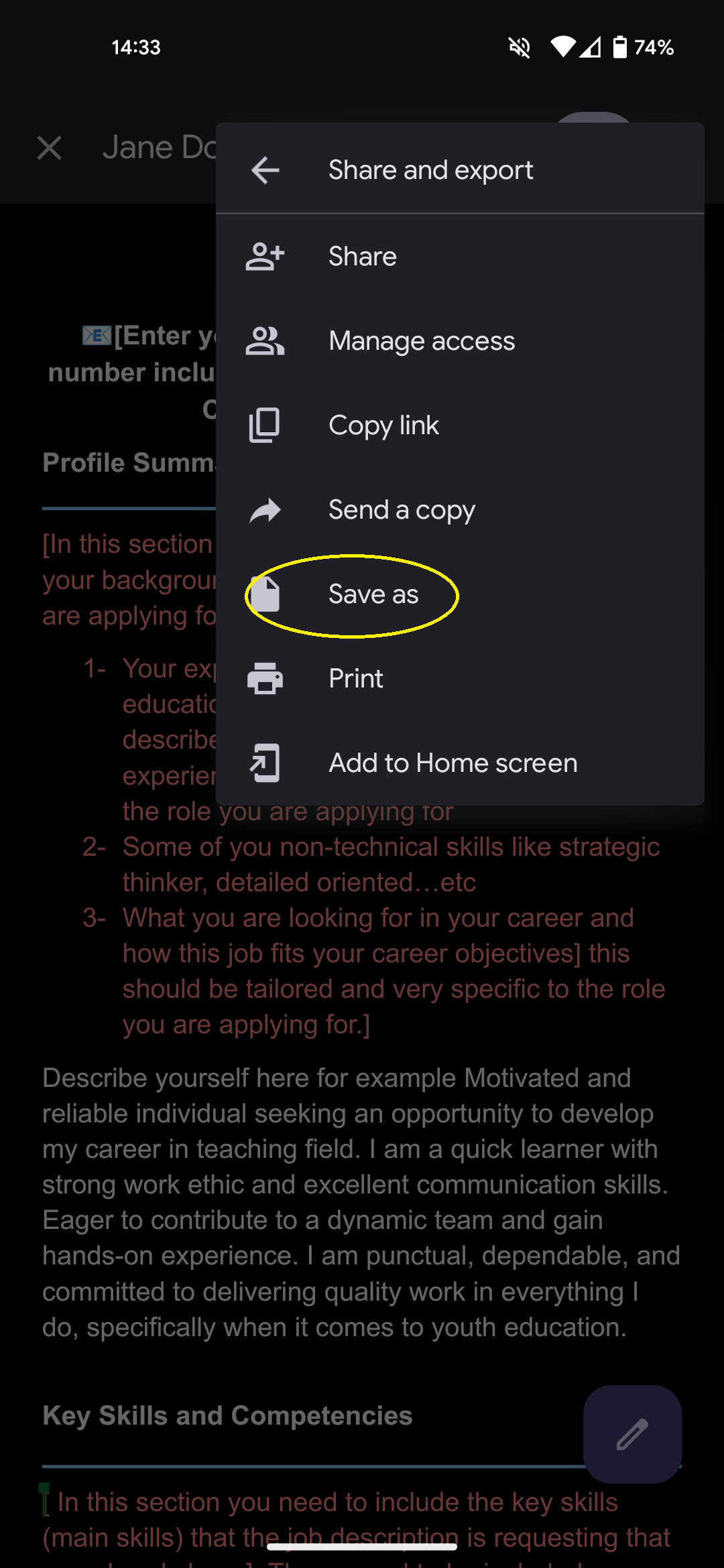 Step 3- On a mobile phone
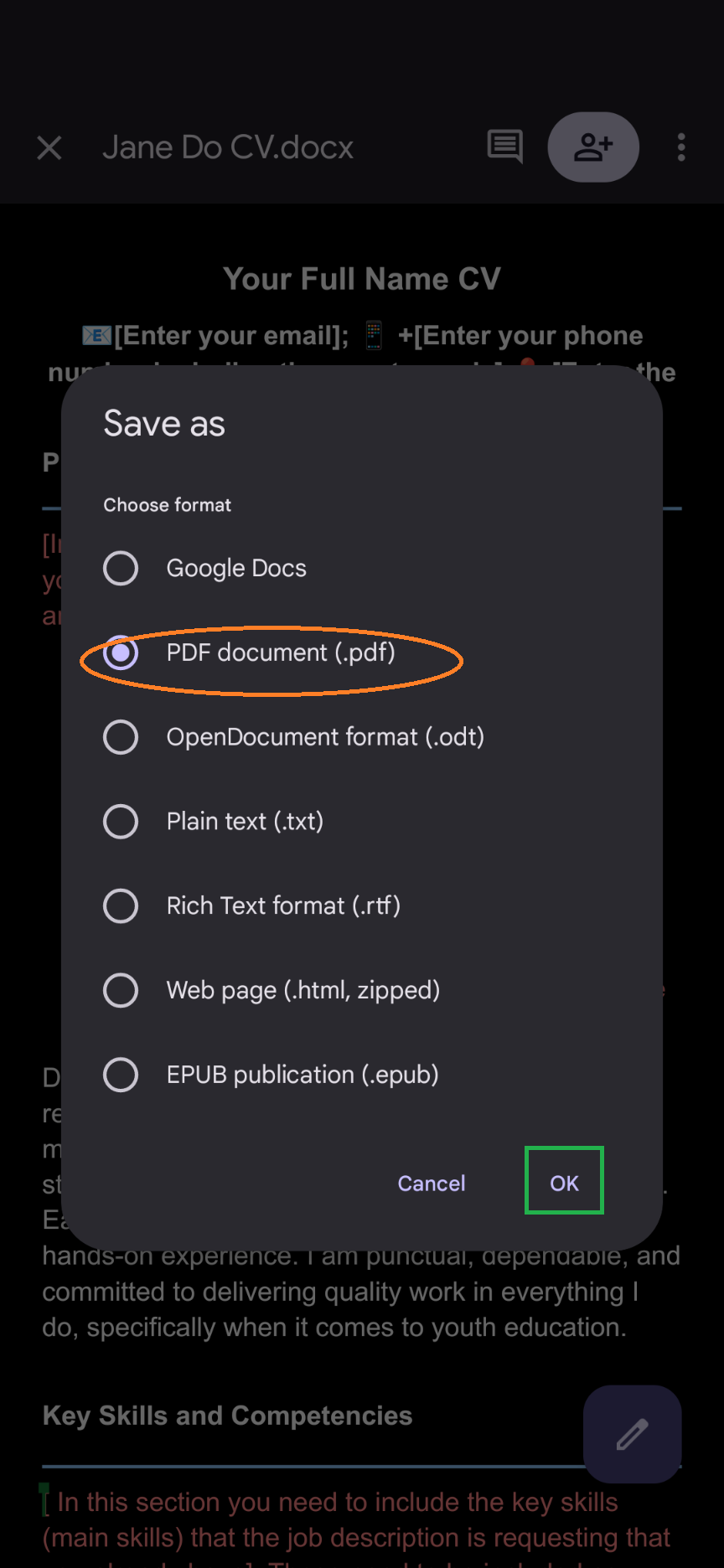 Step 4- On a mobile phone
 Step 5- On a mobile phone
When using MS Word
On a computer or laptop
Below are the steps for converting the MS Word template into PDF using a computer/laptop
Step 1: Go to file option on the tool bar (in blue below).
Step 2: Go to ‘Save as’ option on MS Word from the left menu (in yellow below).
Step 3: Change file type from Word document .doc on Microsoft Word to PDF (.pdf) (in orange below).
Step 4: Click Save (in green below).
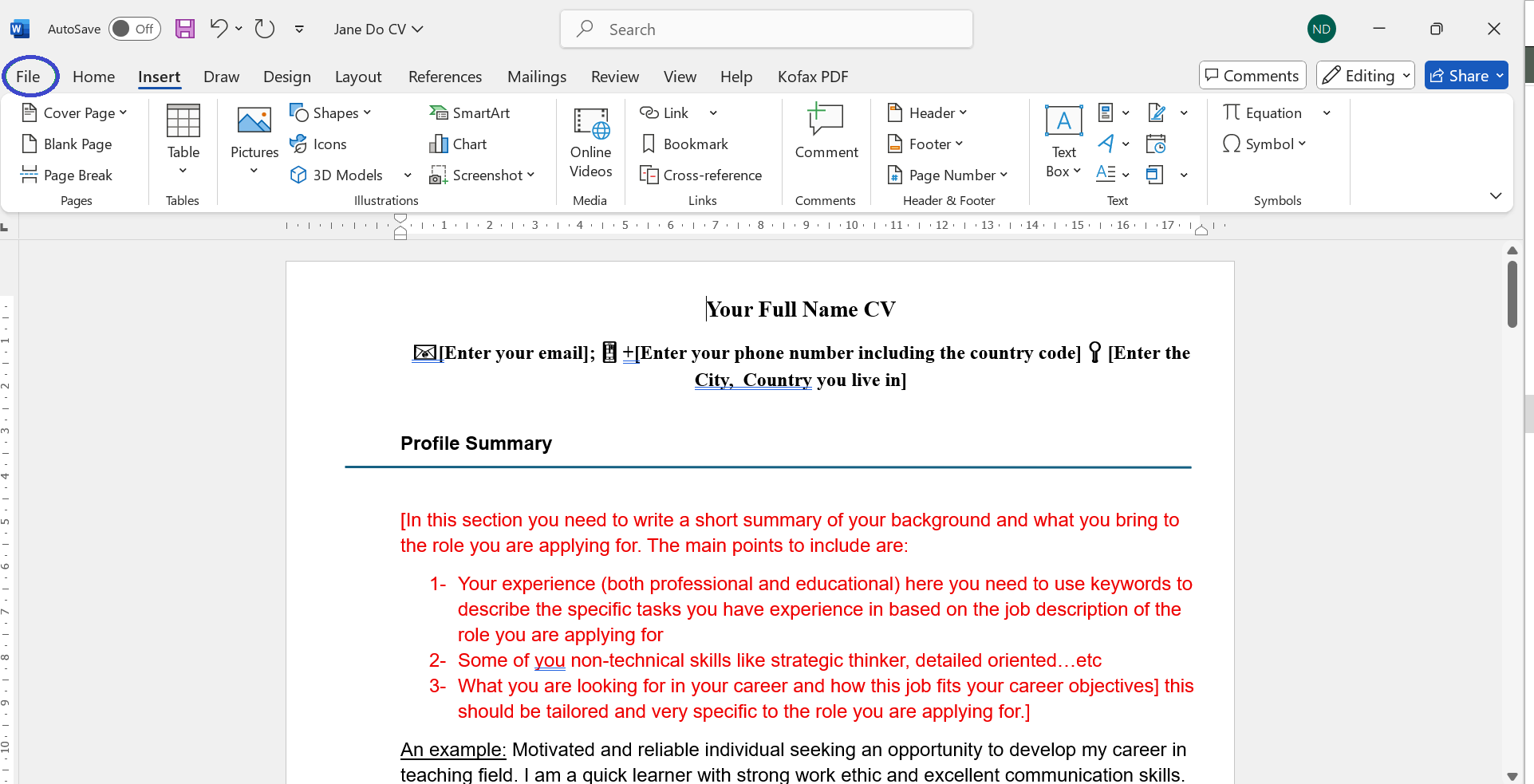 Step 1- On a computer
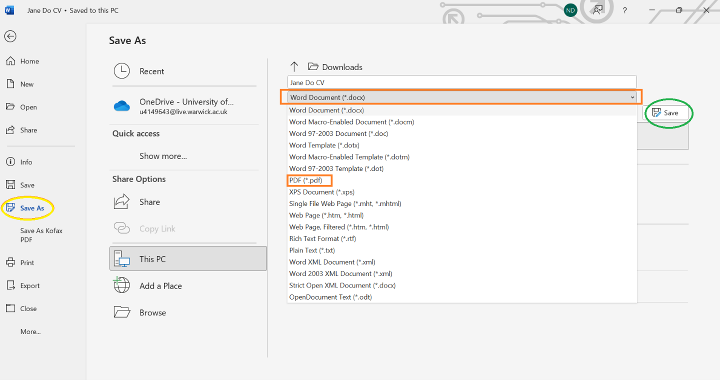 Steps 2, 3 & 4- On a computer
Once you download the file in PDF using a computer or laptop you need to access it either through your browser once it shows you a pop up that it downloaded the file, or if you go to your downloads folder it should be there. When you access the PDF, you would need to copy it or select it and then drag it onto your Google drive or your computer into your folder that has the word version of your CV in it.
On a mobile phone
Below are the steps for converting the MS Word template into PDF using a mobile phone
Step 1: Go to menu on top corner (in green below).
Step 2: Select the “Share as PDF” option (in yellow below).
Step 3: Select your Google Drive icon, and then check the information (file name and where it is saved, and your Google account) and click “Upload” (in green below).
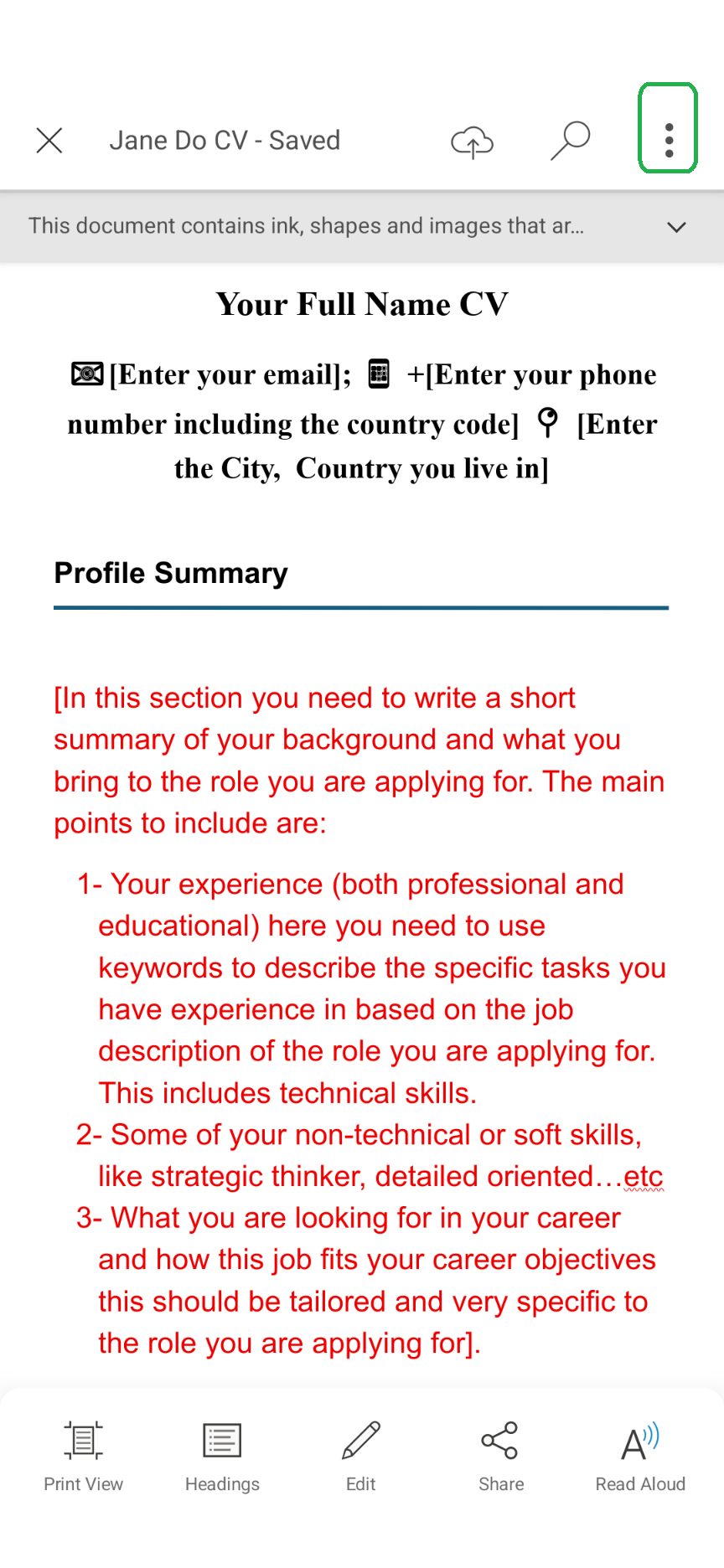 Step 1- On a mobile phone
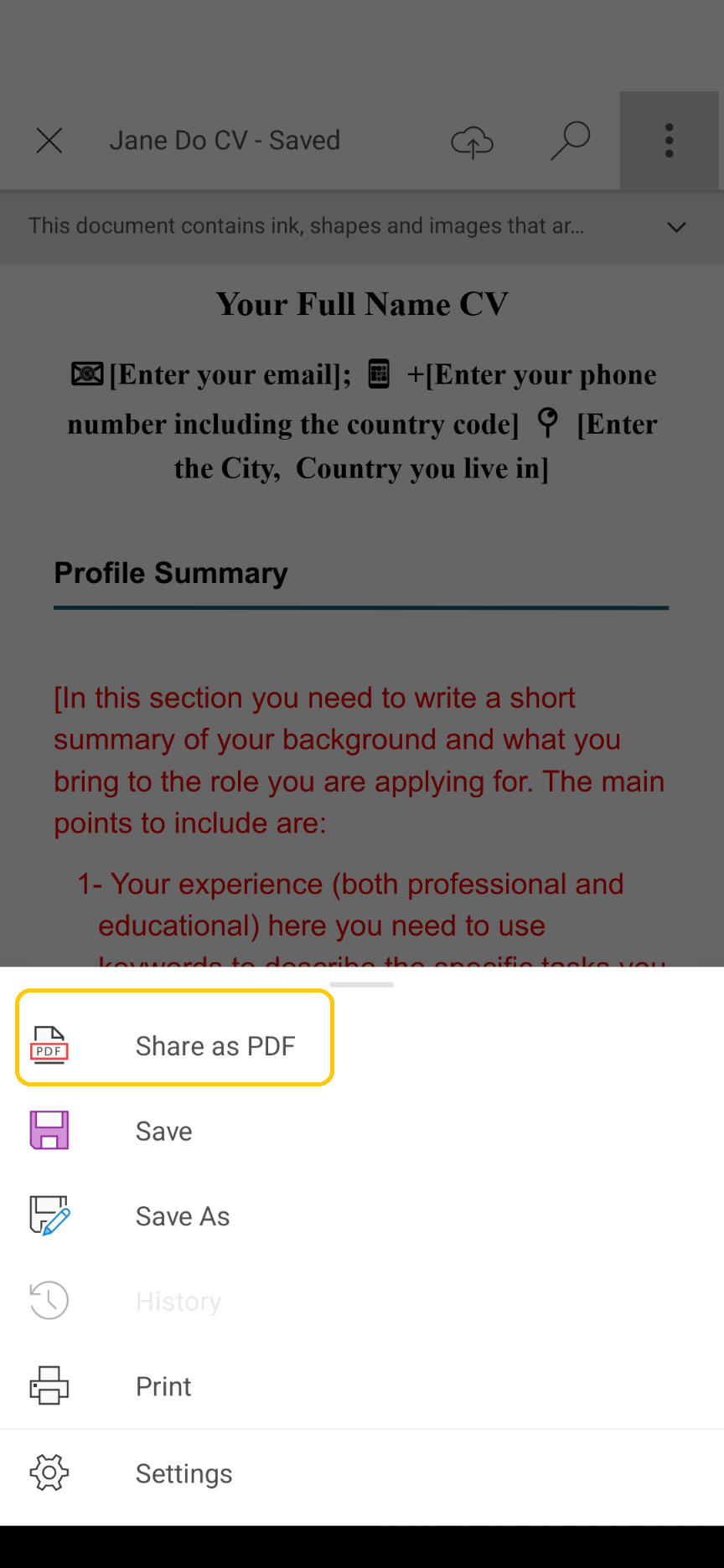 Step 2- On a mobile phone
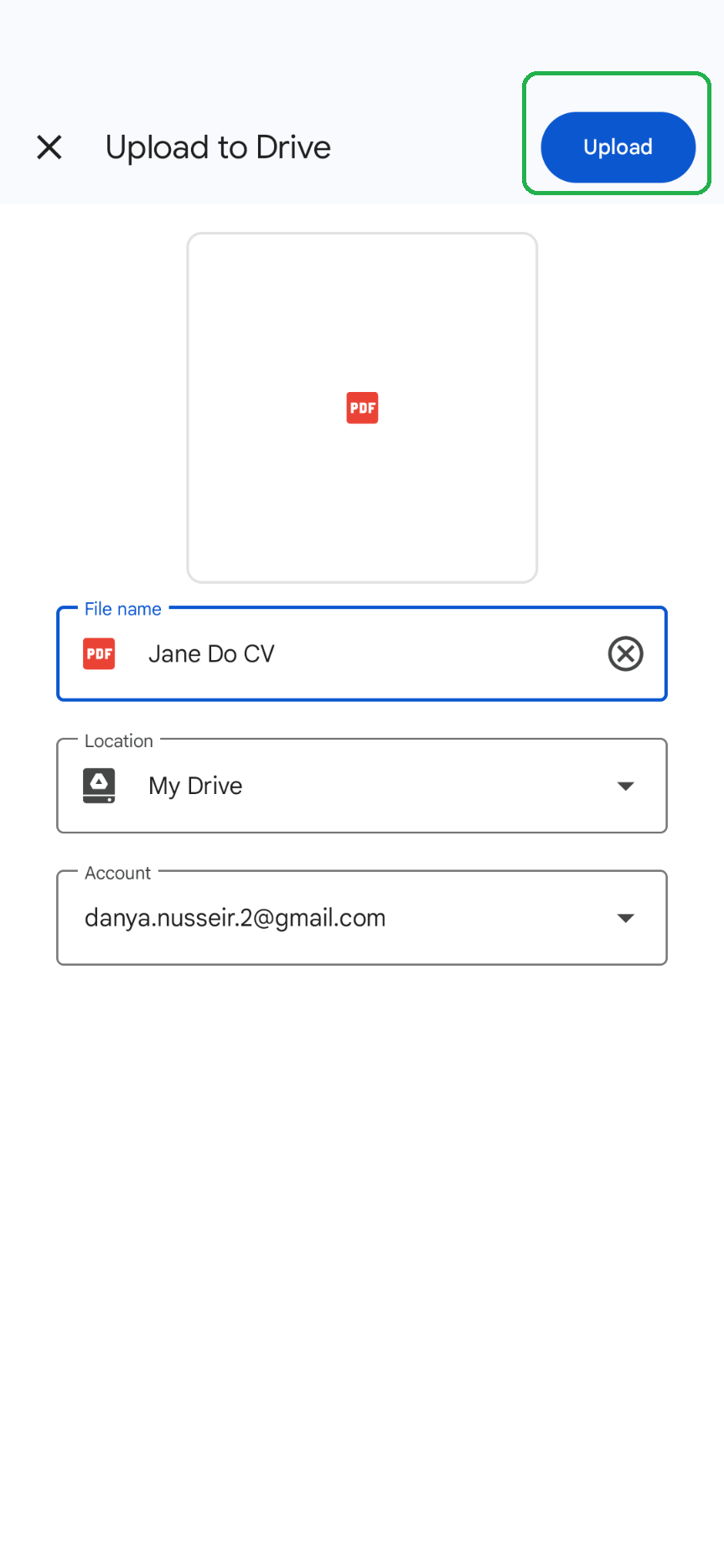 Step 3- On a mobile phone