
4.3.1 LinkedIn
What is LinkedIn and how it works
“LinkedIn is the world's largest professional network on the internet. You can use LinkedIn to find the right job or internship, connect and strengthen professional relationships, and learn the skills you need to succeed in your career.” – (LinkedIn, 2022)
LinkedIn can be accessed through the website: www.linkedin.comLink opens in a new window or jo.linkedin.comLink opens in a new window either from your computer or your mobile phone. You could also use the mobile application on your mobile phone.
It is important to note that to use LinkedIn's mobile application you would need to create an account on LinkedIn which will be discussed in detail in the next module (Module 5).
Once you access the LinkedIn, the first thing both the website (below on the left) and mobile application (below on the right) does it prompt you to create an account and profile or sign in to your account and profile.
 LinkedIn sign in page through the website
 LinkedIn sign in page through the mobile application
Importance of creating a LinkedIn account
1- Allow you connect to work and professional opportunities that are important to you.
2- Enable you to stay up to date with the latest news and update from the organisations you are interested in.
3- Allow you to showcase your experience and skills to potential and future employers.
4- Enable you to create connections with other professionals in your field, sectors or organisations you want to work in.
As mentioned earlier, details of how to create an account and profile on LinkedIn will be discussed in the next module (Module 5). But for this module we will assume that you already have a LinkedIn account profile to explain the features of the platform.
LinkedIn main page (Homepage)
Once you access your LinkedIn account you will see the below screen the one on the left is from a laptop/computer and the one on the right is from a mobile application.
The main aspects on the LinkedIn Home page are:
Profile summary: Your profile summary on a computer/laptop only (in orange below).
Search bar: The search bar (in purple below).
Writing own post: An area where you can write your own post at the top on the laptop/computer and at the bottom on mobile application (both indicated in brown below).
Posts/Feed: The suggested ‘feed’ posts on LinkedIn based on your interest and what might be relevant to you (in green below).
Menu bar: The menu at the top on the laptop/computer or at the bottom on the mobile application (both indicated in blue below).
Messaging window: Where you can send and view your LinkedIn messages at the bottom on the laptop/computer and at the top on mobile application (both indicated in black below).
LinkedIn Jobs: To start searching for jobs you would need to go and select the “Jobs” icon on the menu on your LinkedIn Home page (indicated in red below).
 LinkedIn main page (homepage) through the website
 LinkedIn main page (homepage) through the mobile application
Searching for jobs on LinkedIn
Once you access the jobs page you can start by searching for the job you want and going through the 5 basic steps for online job searchLink opens in a new window we mentioned earlier.
The below images will show what it looks like when using the website (including on a computer /laptop) (below on the left) and using the mobile application (below on the right).
Step 1: Access LinkedIn (shown above).
Step 2: Type the name of the role and location you are interested in working in, in the top search bar (indicated in yellow below) and clicking Enter or search. The job search page will also show you the top jobs that might be suitable for you based on your profile and the previous jobs you search for (indicated in orange below).
On the mobile application, this would be done in two stages, first you type in the job you are searching for (in yellow below) and then it would ask you to add the location (in blue below).
 Step 2- through the website
 Step 2- through the mobile application (1 of 2)
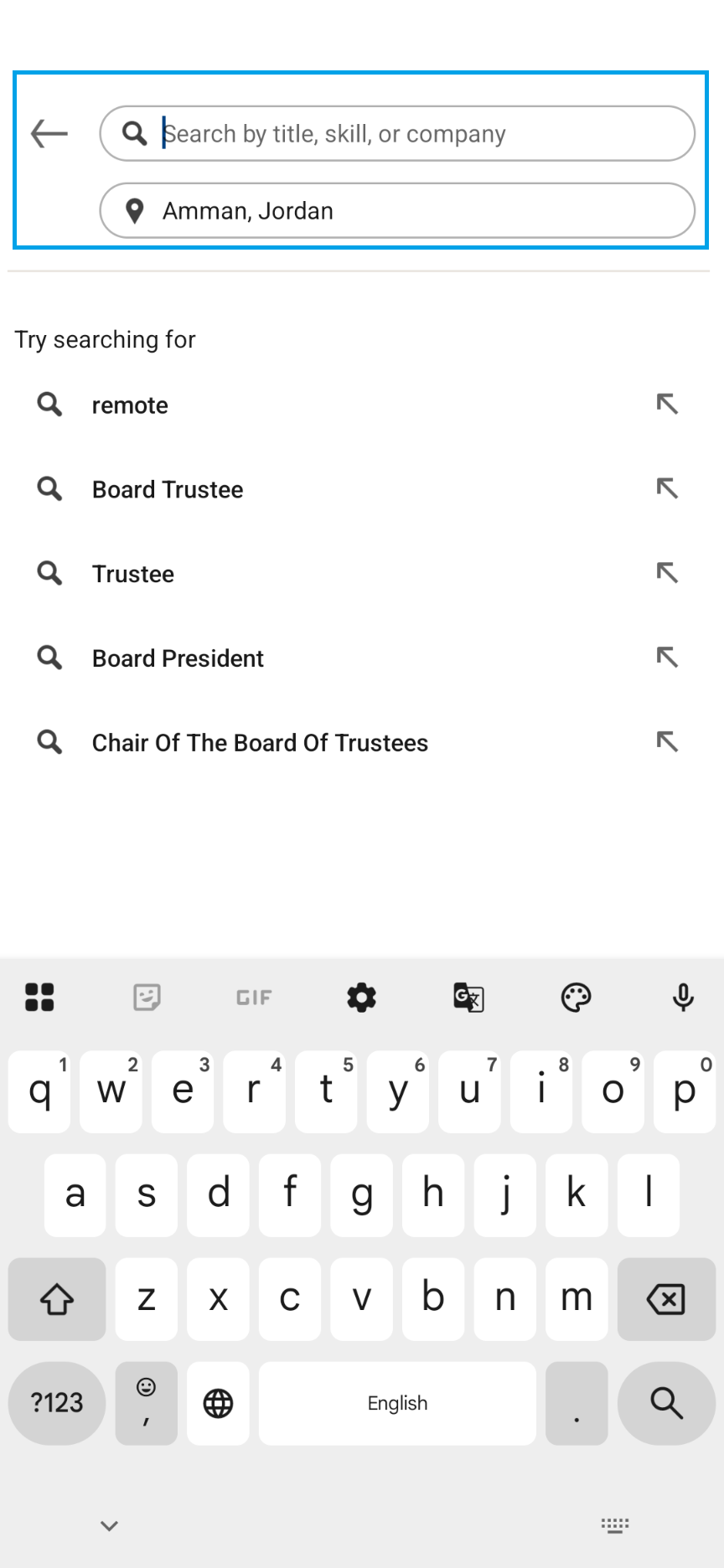 Step 2- through the mobile application (2 of 2)
Step 3: After the search results appear, review and filter the results (below in yellow) based on the criteria you want for the job.
You do this from the filter row which shows some of the filters (below in orange). You can also access more filters to refine your search by selecting the “All filter” button which will show a pop up with more filters to select from and then either click the search button or the “Show results” in the filter pop-up window.
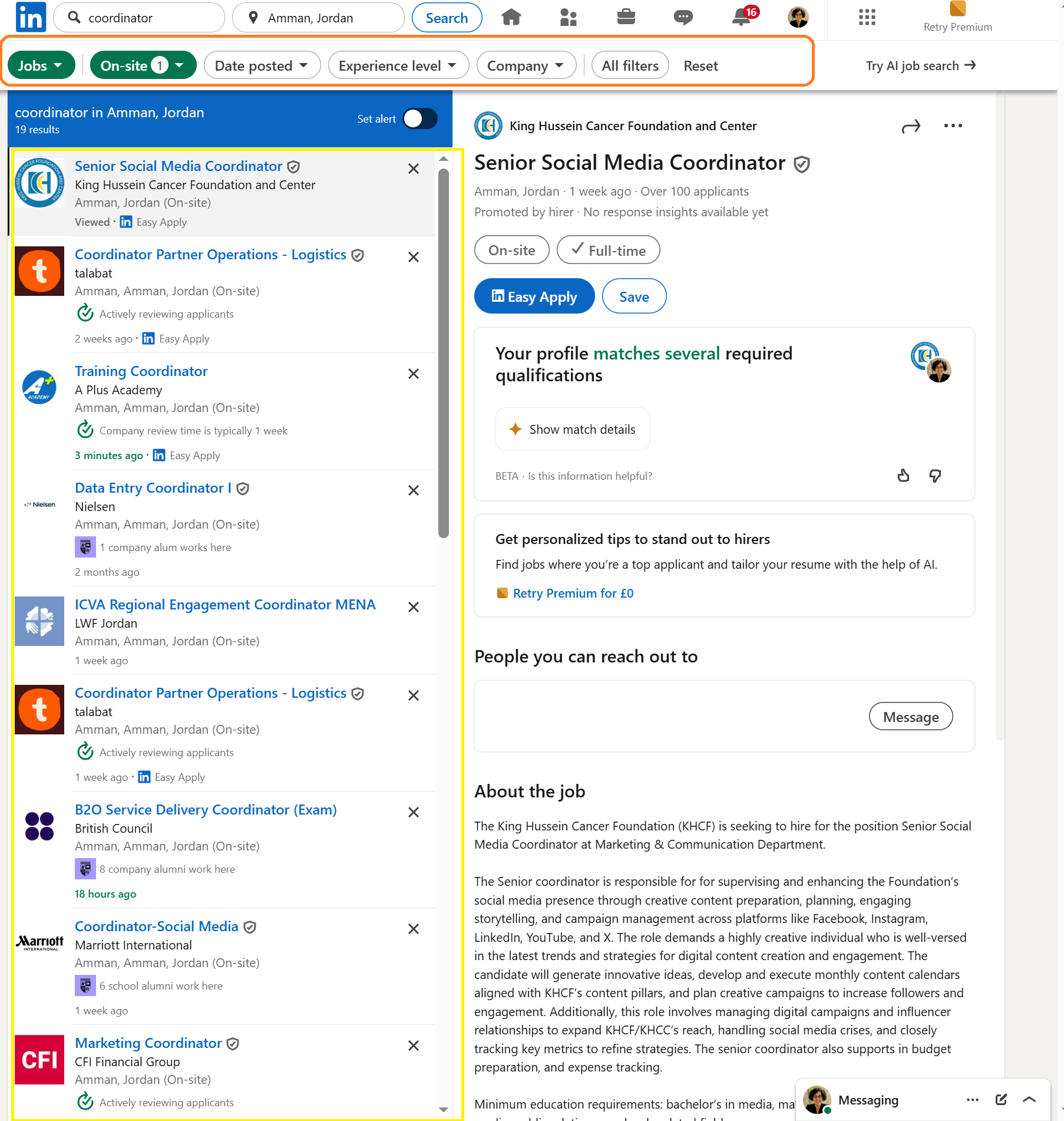 Step 3- through the website
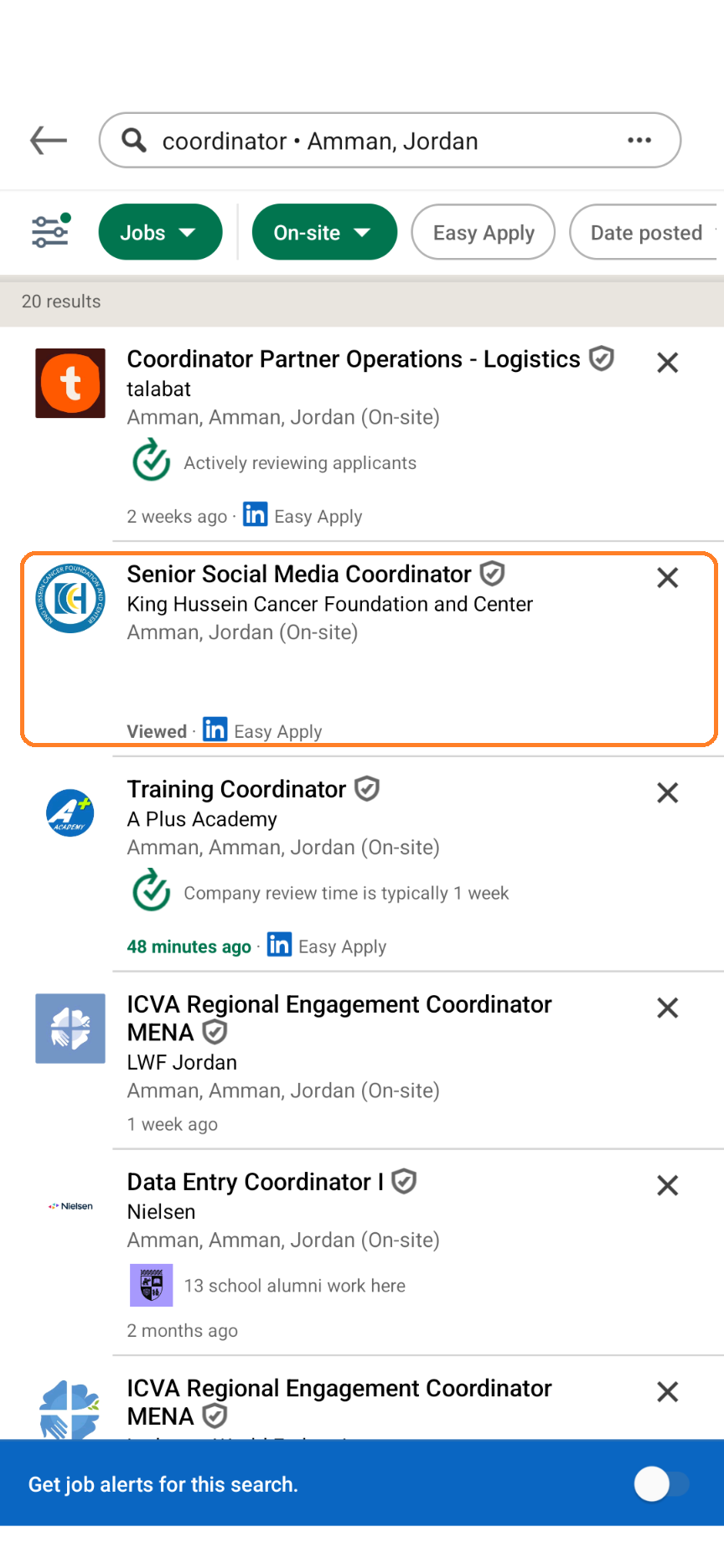 Step 3- through the mobile application
Step 4: You should see the search results with the filters you added, then you should review the results.
Step 5: Pick a result you are interested in and view the job description. For example here “Digital project officer” (in orange below) then select it (or click it) and the job description will appear on the screen (in green below) on a laptop/computer (below left). It would appear on different screen using the mobile phone application (below right).
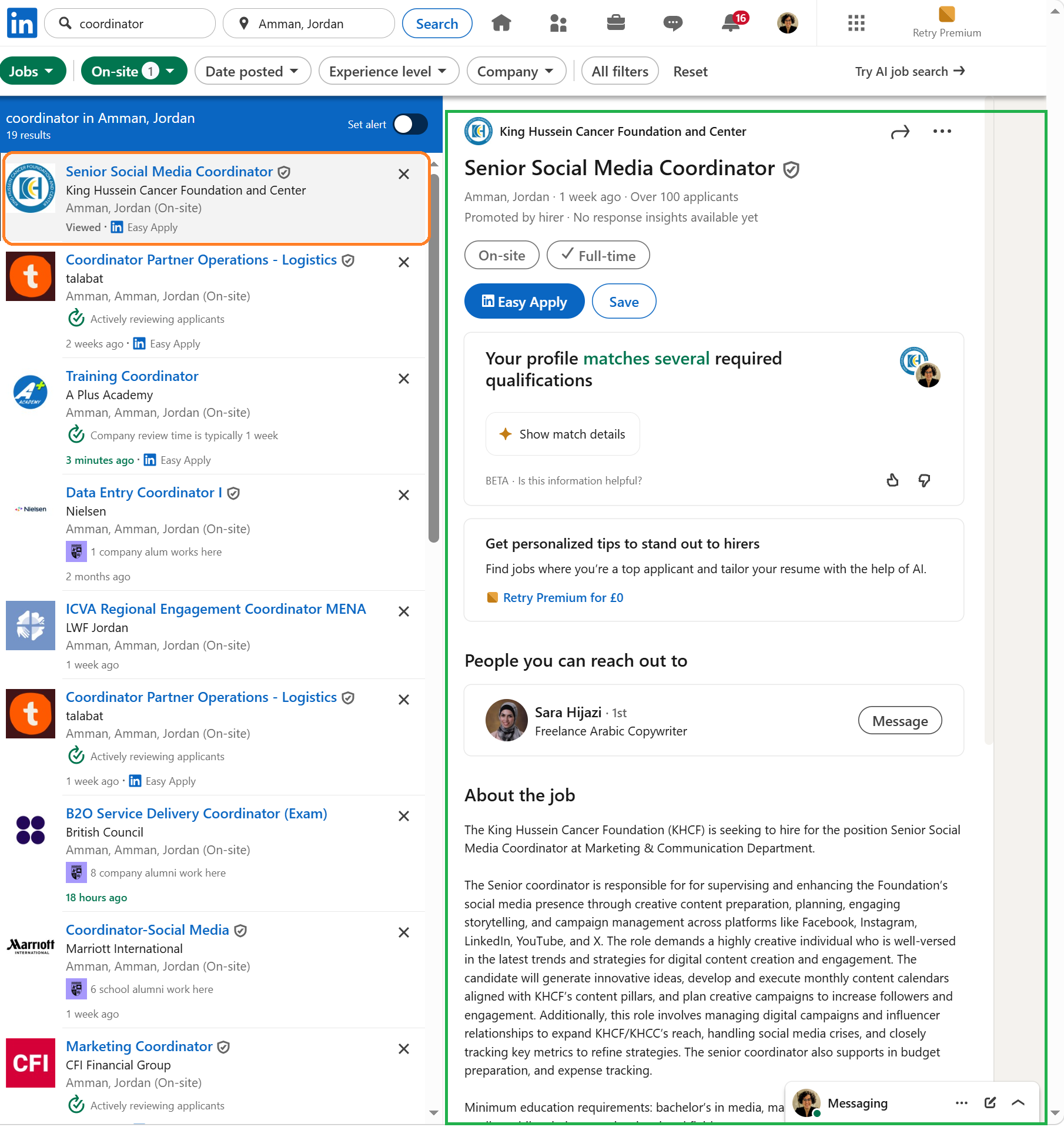 Step 5- through the website
Step 5- through the mobile application (1 of 2)
Step 5- through the website
Step 5- through the mobile application (1 of 2)
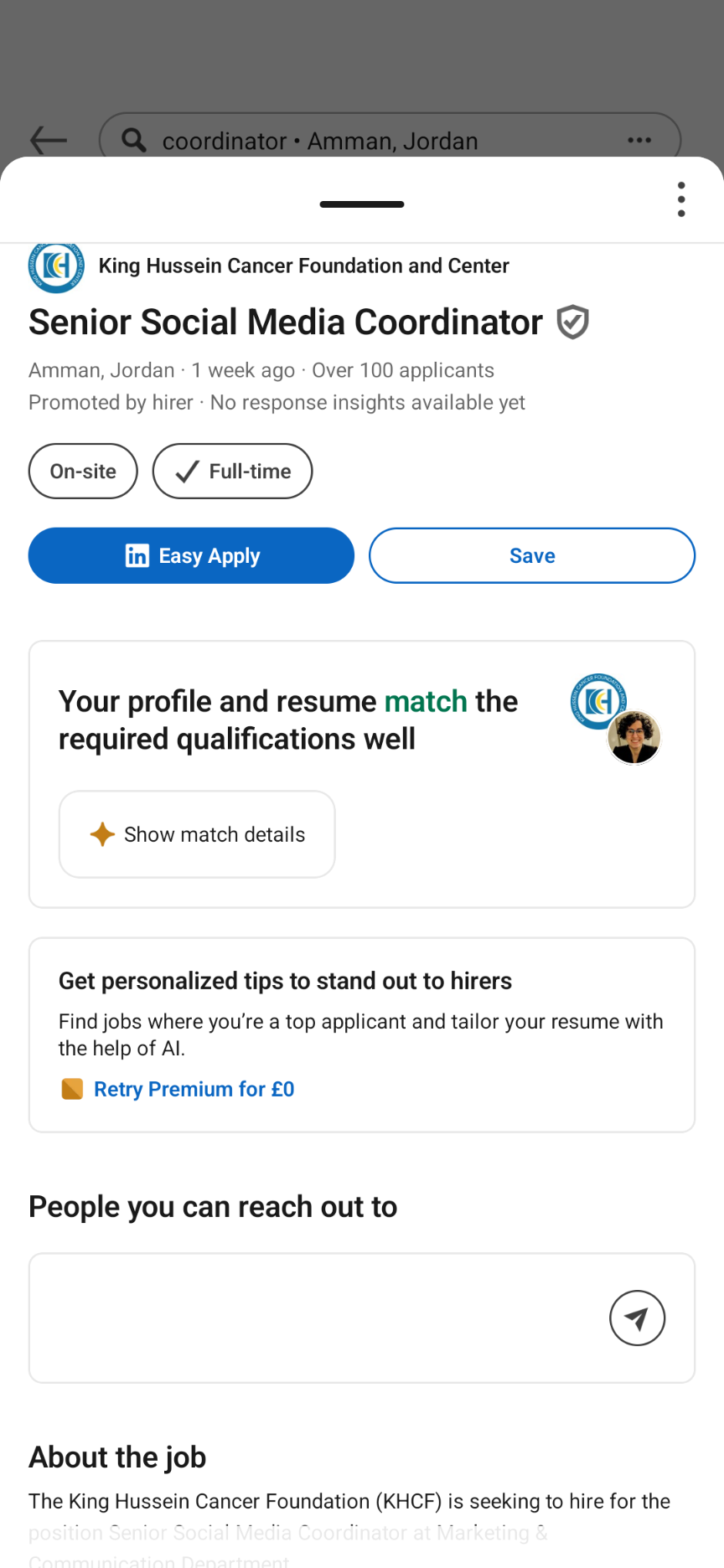 Step 5- through the mobile application (2 of 2)