
Creating a record and adding a file
When you are notified that your research is going to be published, create a record in Symplectic Elements.
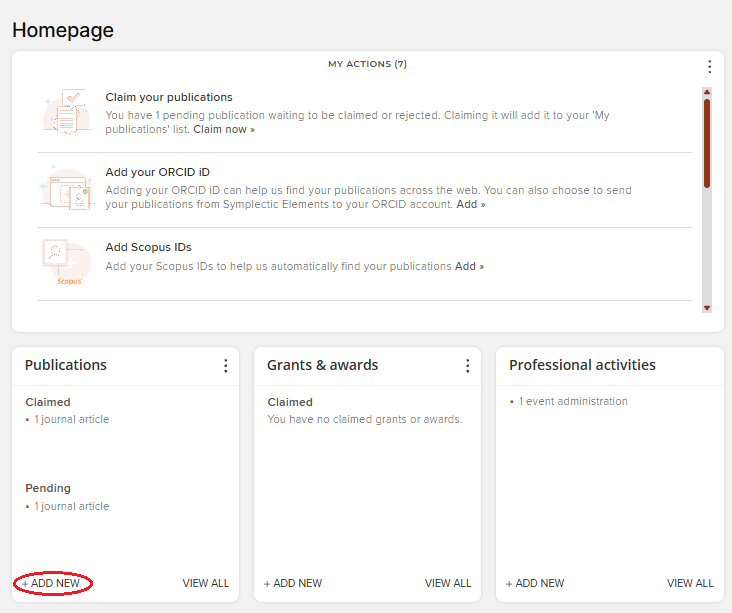
STEP 1: Select 'ADD NEW' in the Publications tile on your Symplectic Elements homepage.
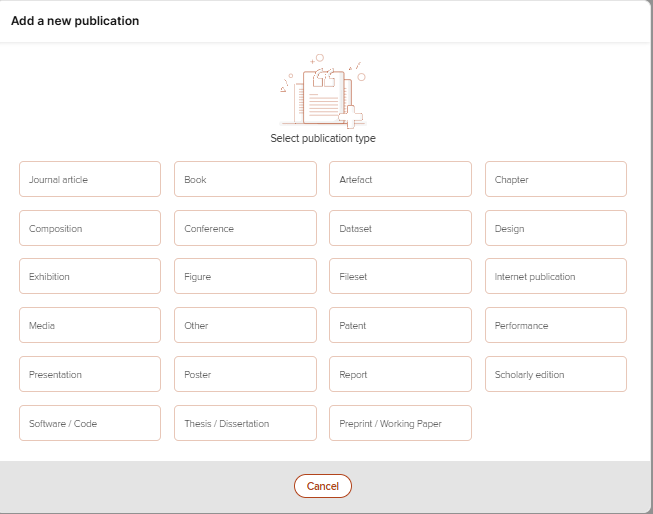
Step 2: Select the type of publication you are adding.
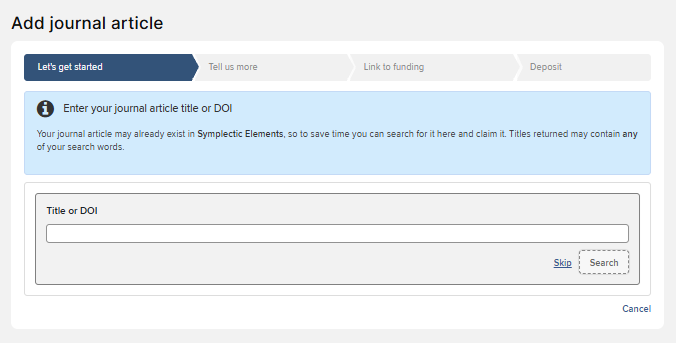
Step 3: Locate the item (if it has been published)
Although you should act on acceptance as soon as you know an item is going to be published, if the item has already been published, you can check whether it exists already in the CRIS. Elements draws data from a number of external sources, and may have a record of your item, if it has already been published. To check, search by the title or DOI in the search box and click 'Search'. If you know that the item hasn't been published yet, click 'Skip'.
Step 4: Add the metadata
1. You will be presented with a list of metadata fields. This has been customised to be responsive to the type of publication you are depositing.
2. The essential fields are marked with red star.
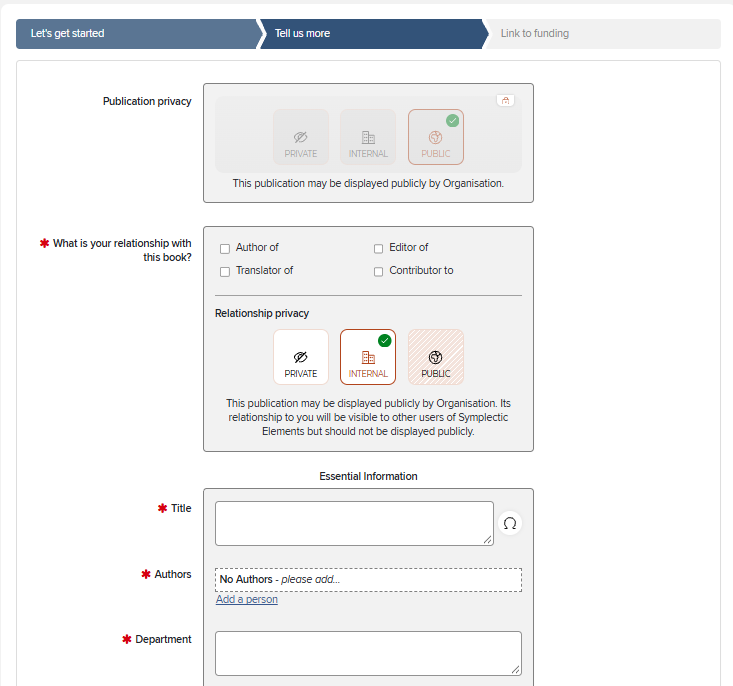
3. Add as much information as you can.
4. Scroll to the bottom of the page when you are done, and click 'Save'.

Step 5: Link to funding
1. Information about grants and contracts enters Elements from Worktribe (see more information on this here). If your project is listed in Elements, use the filters to search for and add it. If you select 'Related to' and choose 'Me', the filter will include only funding on which you are named.
2. Put a tick in the box next to the correct project and click 'Link selected'.
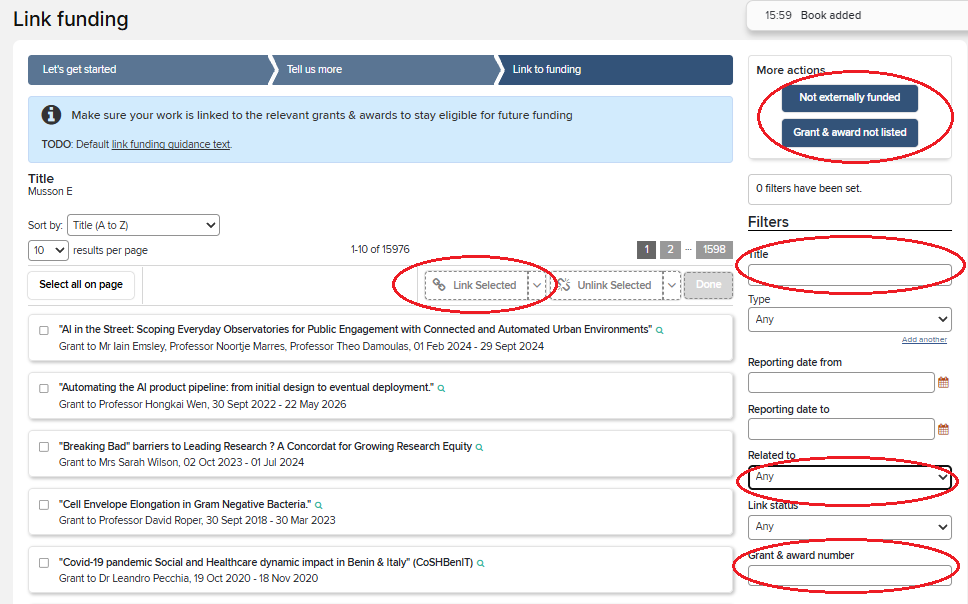
3. If there is no associated external funding, click 'Not externally funded'.
4. If the details of your grant are confidential and not included in Elements, click 'Grant & award not listed'. If you think your grant should be listed in Elements, see the troubleshooting here.
Step 6: Deposit a file
1. Add the file by clicking 'Choose file'.
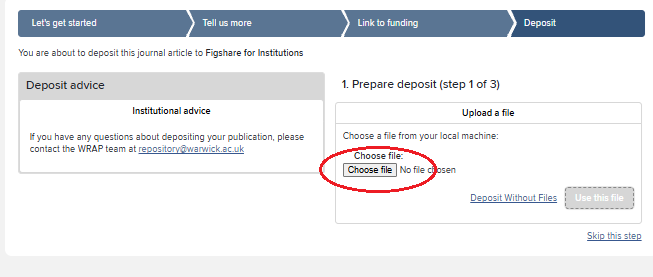
2. Please upload the Author's Accepted Manuscript (AAM), the version provided after acceptance but before proofing and publisher typesetting.
3. The WRAP team in the Library & Archives will check every file uploaded and make it as open as they can, complying with any OA requirements and the publisher's policy.
4. Files are added one at at time but should all be added to the same record; if you have another file to add, you can do this in the same way as you have just done with the first file.
5. If you wish to add a reuse license, tick the box and select a license from the drop-down menu.
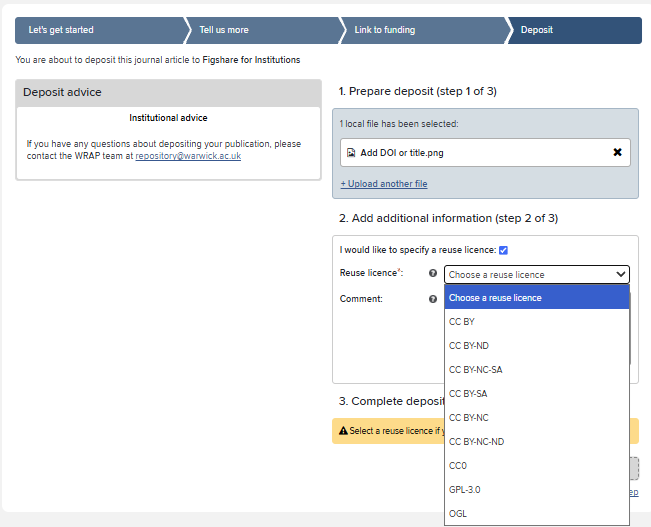
6. If you are not sure which license to choose, leave this blank and the WRAP team will select a suitable option.
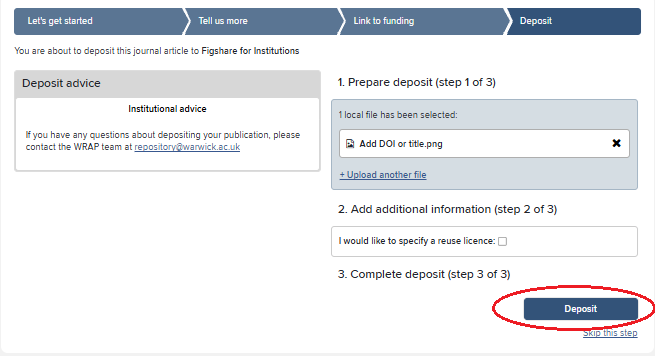
7. Click 'Deposit'.
Step 7: What to do if you don't have a file yet
1. If you don't have a file to deposit at this stage, click 'Deposit without files'. A record will be created in Symplectic Elements and WRAP, and you can come back at a later date to deposit.
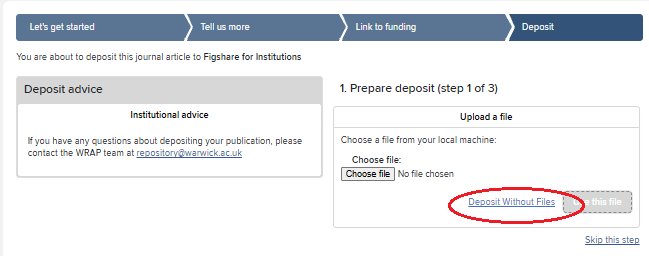
2. You should also do this if you have a very large dataset to deposit. Create the record and then email repository@warwick.ac.uk for support with adding the file.
3. If you need to save the record but don't want it to enter the repository yet, click 'Skip this step'.
Other guidance
Depositing a file for a record that already exists in Elements
Requesting changes to your record