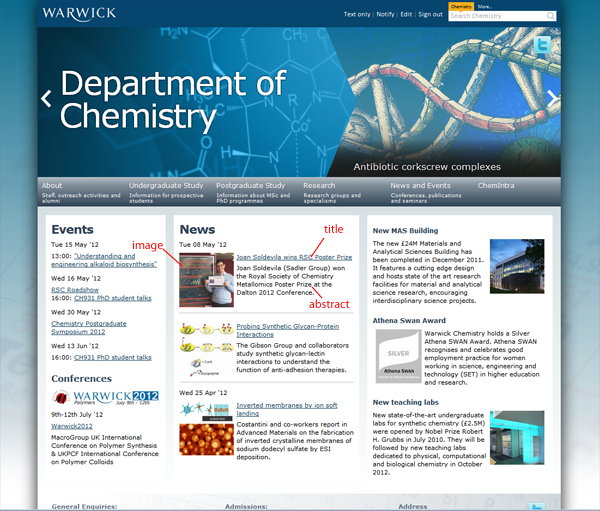
Adding a news item
How to add a news item:
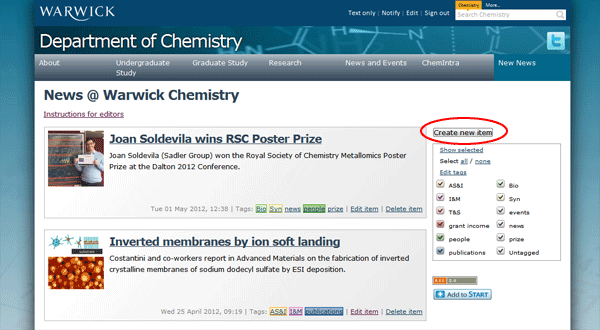
- Browse to the news page and click on the 'Create new item' button:
- You will see the newsbuilder screen:
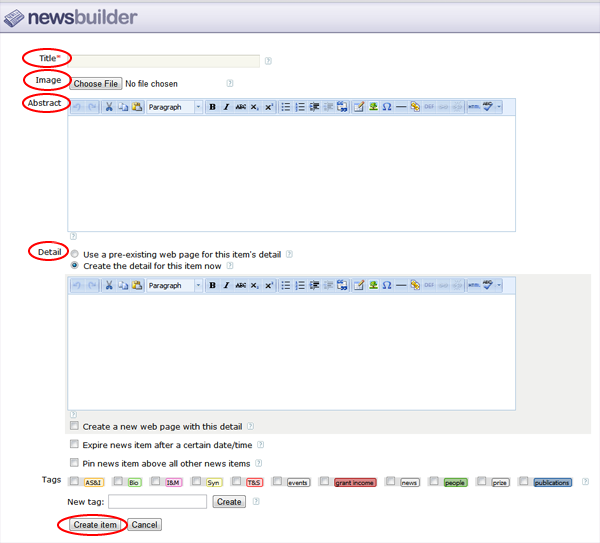
Fill in the fields as follows:- Title: max. 50 characters (around 6-7 words)
- Abstract: Enter a short sentence about the news story (max. 140 characters)
- Detail: The length of the text in this section can be arbitrarily chosen and pictures of whatever size and aspect ratio can be inserted. If a webpage already exists about this news story (either on the Warwick website or elsewhere on the web), select the option 'Use a pre-existing web page' and enter the web address in the URL field.
If you wish to create a new page about the news story, select the option 'Create the detail for this item now' and enter the text/images etc in the 'Detail' text box which will appear (no character limit applies).
- Choose an image to represent your news item. This should be square (ie. ratio 1:1), between 100x100 and 150x150px, in .jpg format, so you may need to crop/resize your image accordingly. Once you have saved the image in an appropriate format, click on the 'Choose File' button and select the file.
- Click 'Create item'.
- Your news story will now appear on the homepage: