
5.1.1 Bayt: Creating an account
Bayt: Creating an account
Before being able to create a profile on Bayt, you would need to create an account on the platform.
To create an account on Bayt, follow the below steps:
💻 On a computer or laptop:
Step 1: Access Bayt job portal through the website (www.bayt.comLink opens in a new window).
Step 2: Select the ‘Register’ button on a computer/laptop (in yellow below).
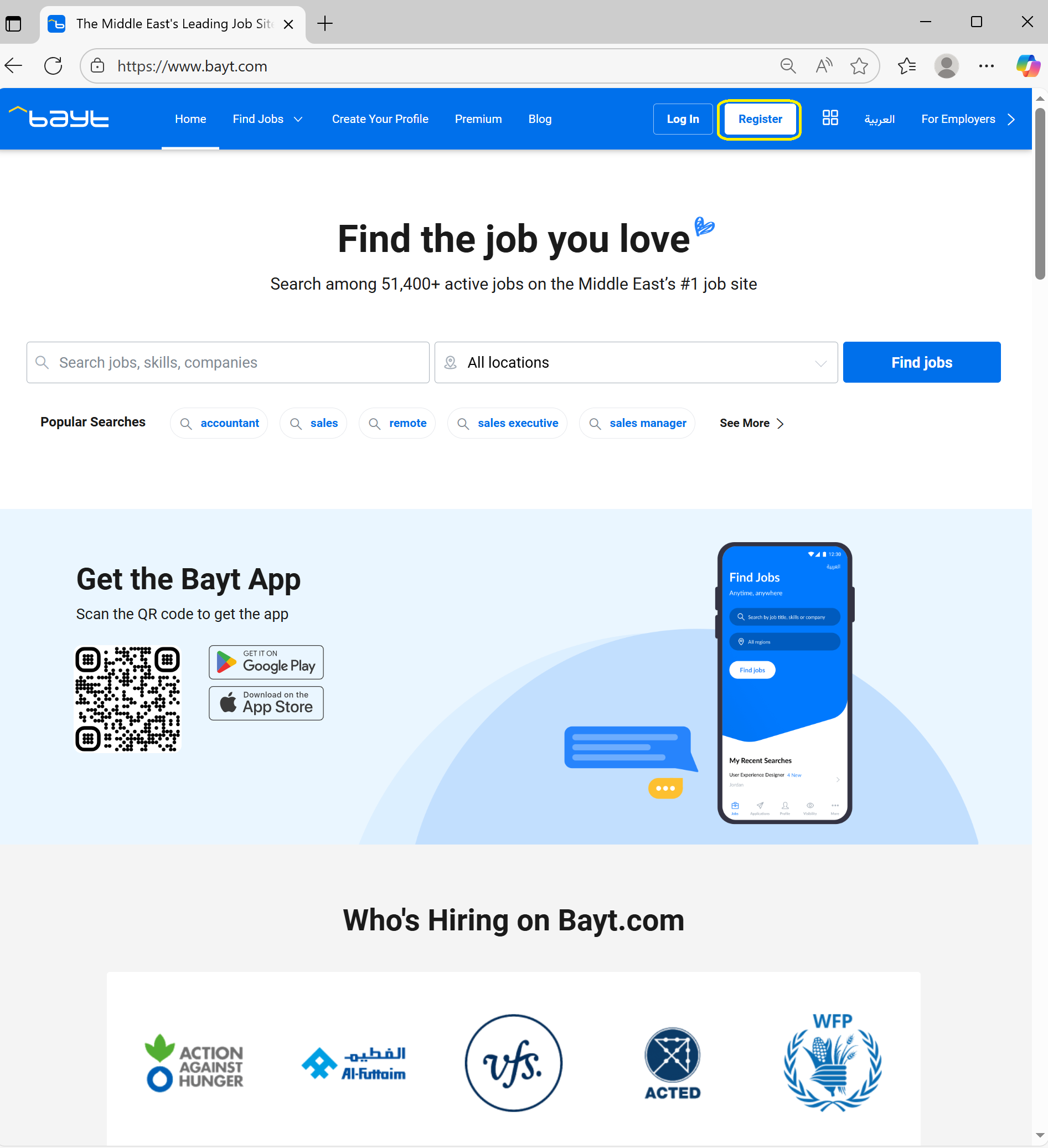 Using the website- Step 1 & 2
📱 On a mobile phone (Android):
Step 1: You can access the Bayt platform through the mobile application using your mobile phone.
If you do not have it on your phone, then you would need to download it from your mobile application store.
If this is your first time downloading the application, then you would need to first select the ‘Get started’ blue button.
Step 2: Go to the main screen and click the ‘Register’ button (in brown below).
You can also access the register button, by going to your profile icon (also in brown below).
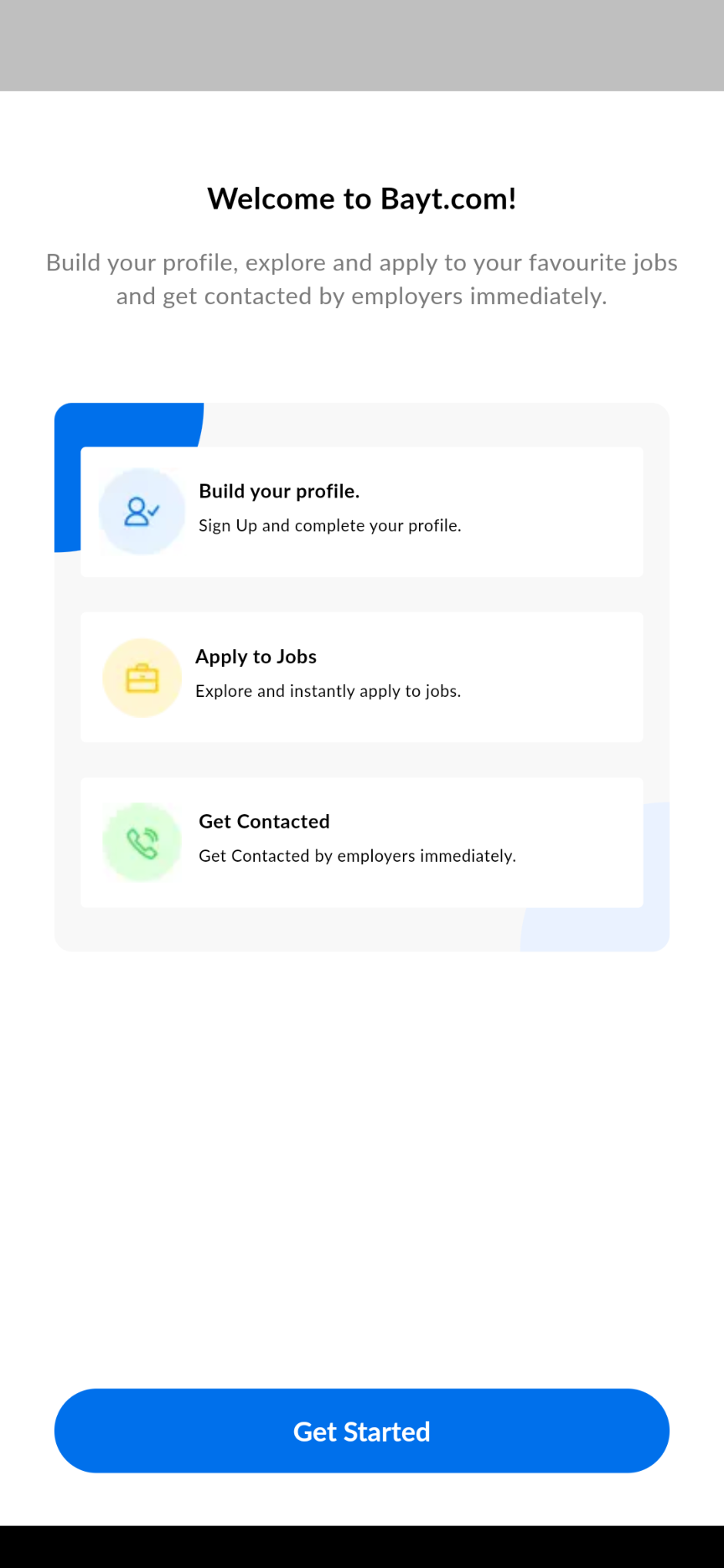 Using the mobile application- Step 1
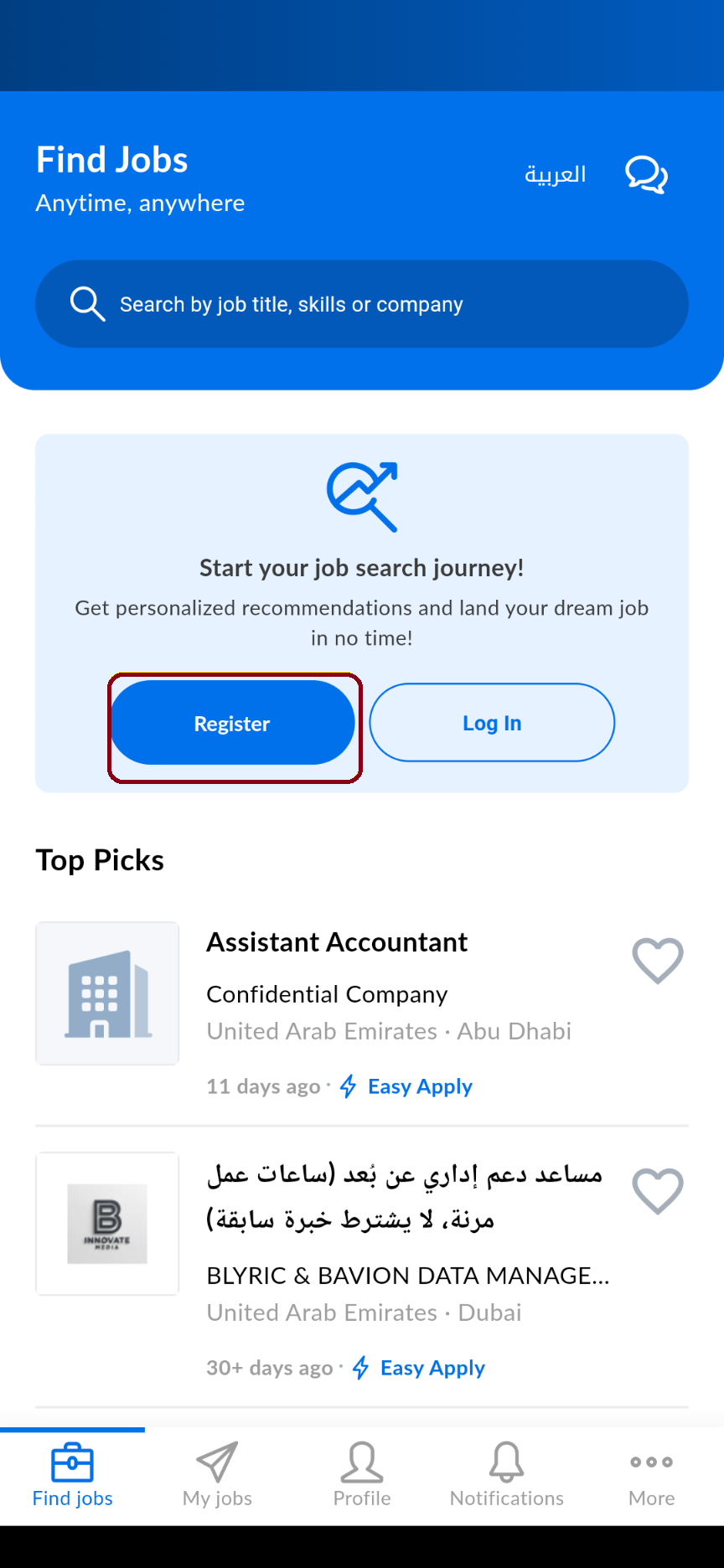 Using the mobile application- Step 2 option a
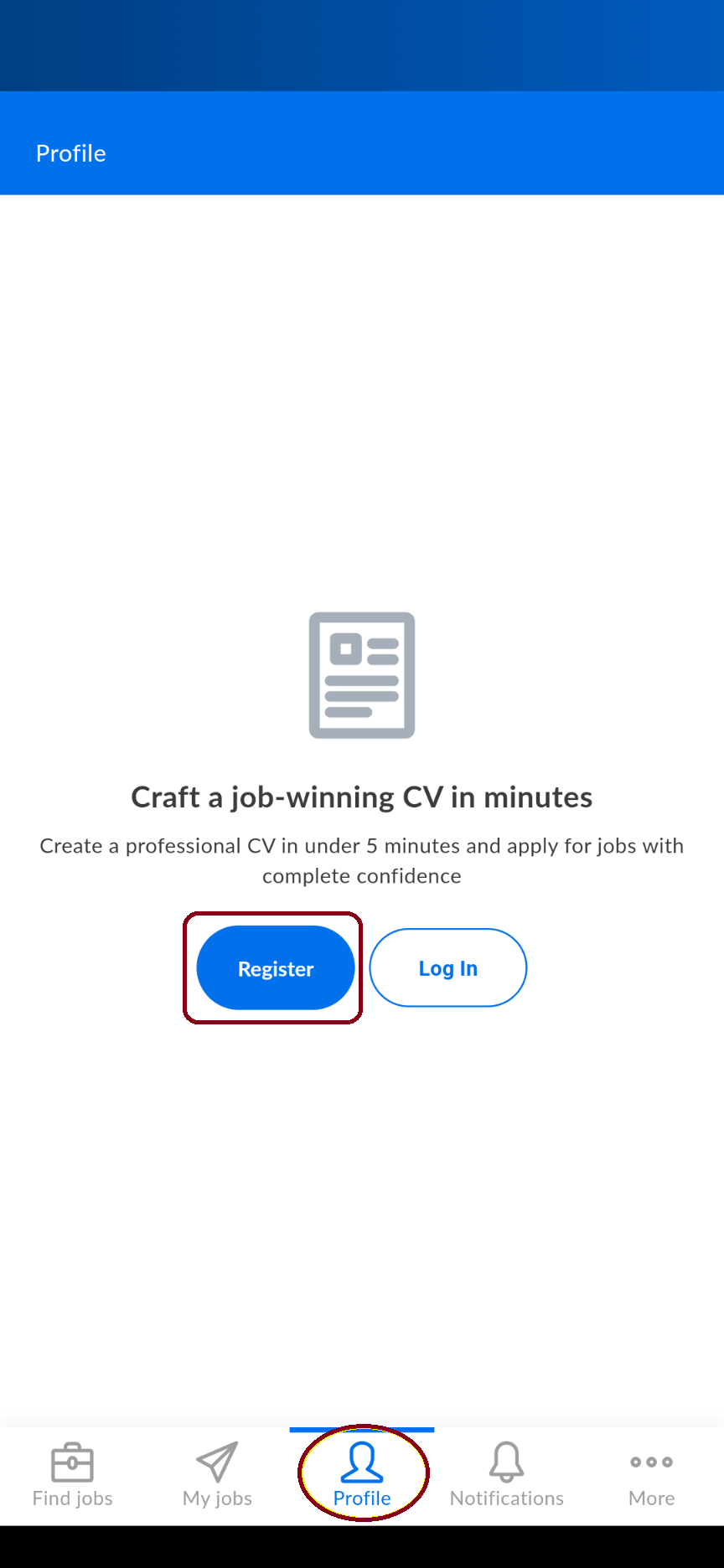 Using the mobile application- Step 2 option b
As mentioned earlier, the remaining steps are the same on both the website using a computer/laptop and on the mobile phone using a mobile application.
Step 3: Fill in the form required and select the “create my account” blue button (shown below on the left on a computer/laptop and right on the mobile application).
Remember the information here should be your real name and your professional email address and phone number as these will be visible to potential employers and will be used by them to contact you.
For that reason, make sure you add your real name, your professional email address (Module 1)), and phone number which should be the same information you used in your CV (Module 3).
Step 4: Verify your email address, by checking your actual email inbox folder of your email account (Module 1) and following the verify your email instructions. This will usually require you to just click a button.
Step 5: You will get the option of adding your CV or building your profile from zero, this will be discussed in section 5.1.2 Bayt: creating your profileLink opens in a new window.
Step 6: Voila! You have created your own Bayt account.
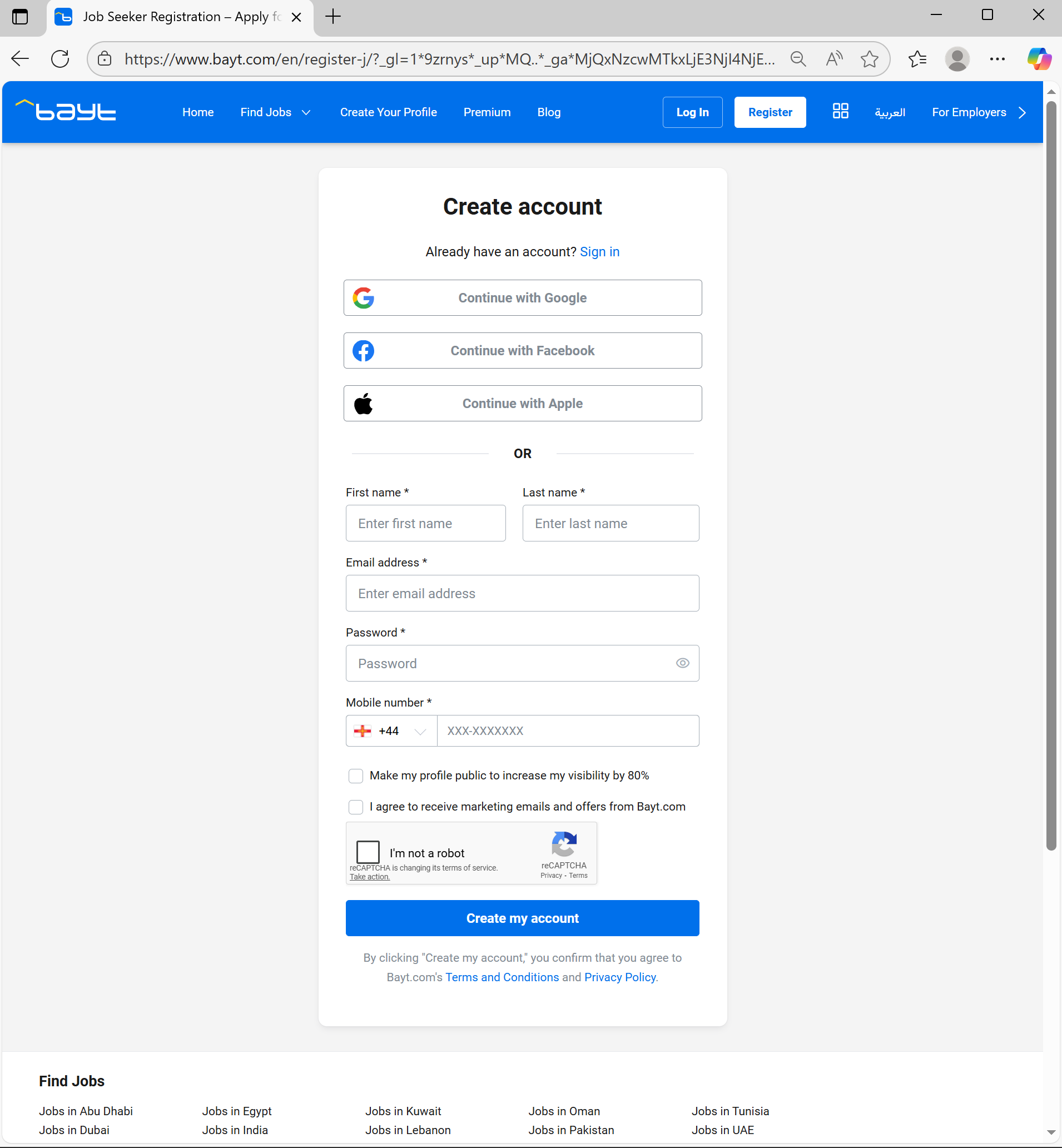 Using the website- Step 3
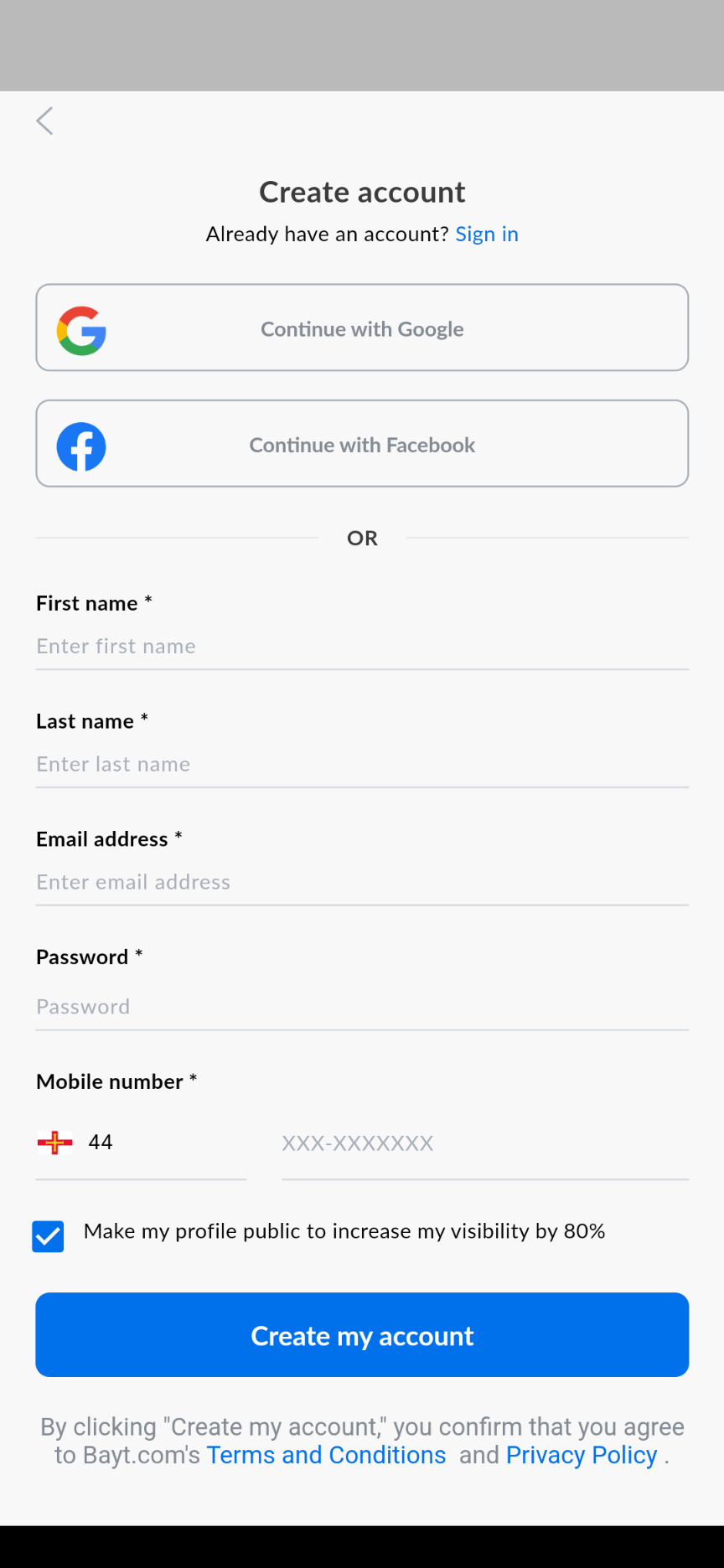 Using the mobile application- Step 3
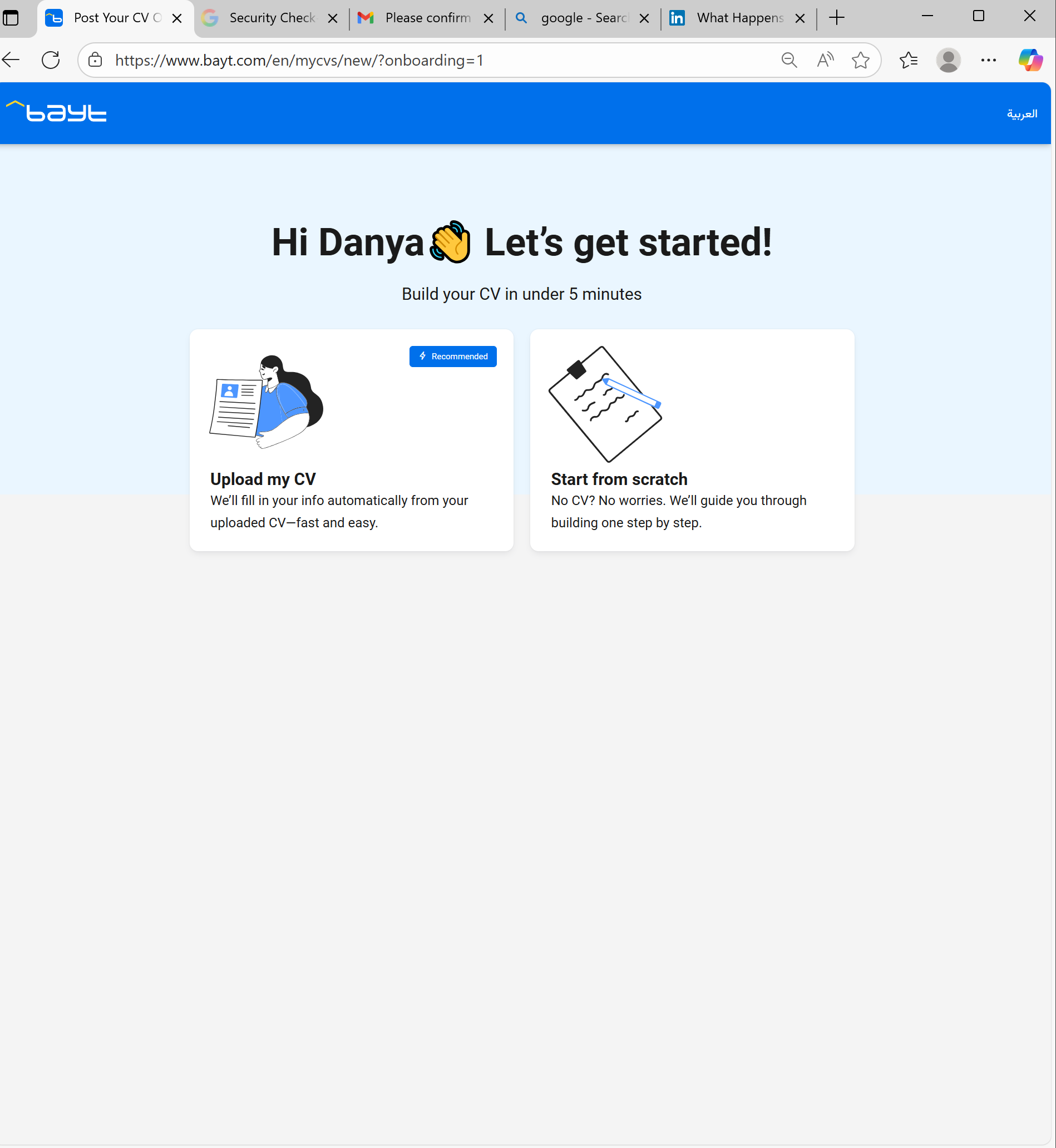 Using the website- Step 5
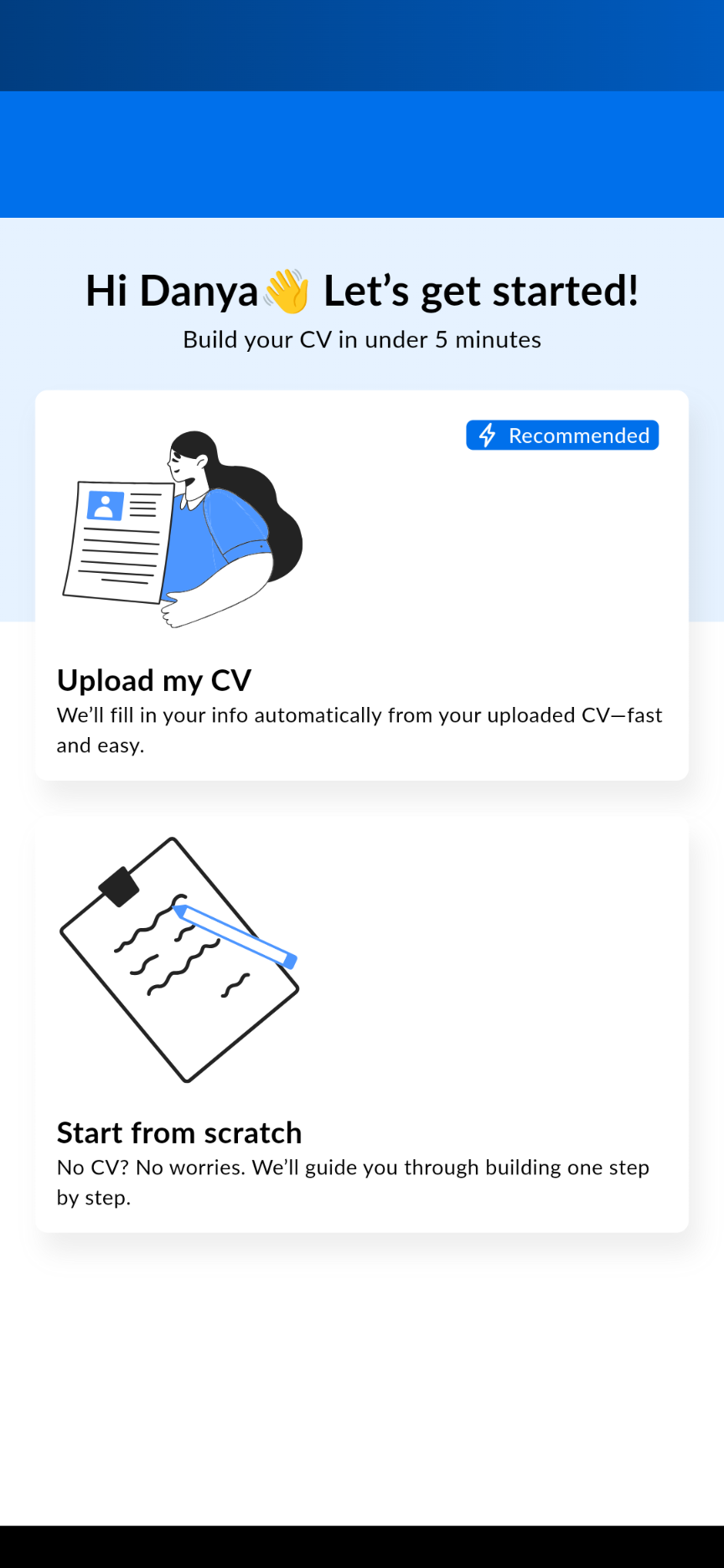 Using the mobile application- Step 5
Important: The point of created an account is for us to create our own profile on the website.
Since we have now created our account, let’s move on to what is important and create our profile in Section 5.1.2 Link opens in a new window.