
5.1.2 Bayt: Creating a profile
Bayt: Creating a profile
This is the main reason you would create an account on job and recruitment websites and portals.
The process of creating a profile on Bayt is already part of the process of creating an account on the platform.
This means that, the moment you reach the below screen (which is the last step in section 5.1.1 Bayt: creating an accountLink opens in a new window), you have now started creating your profile.
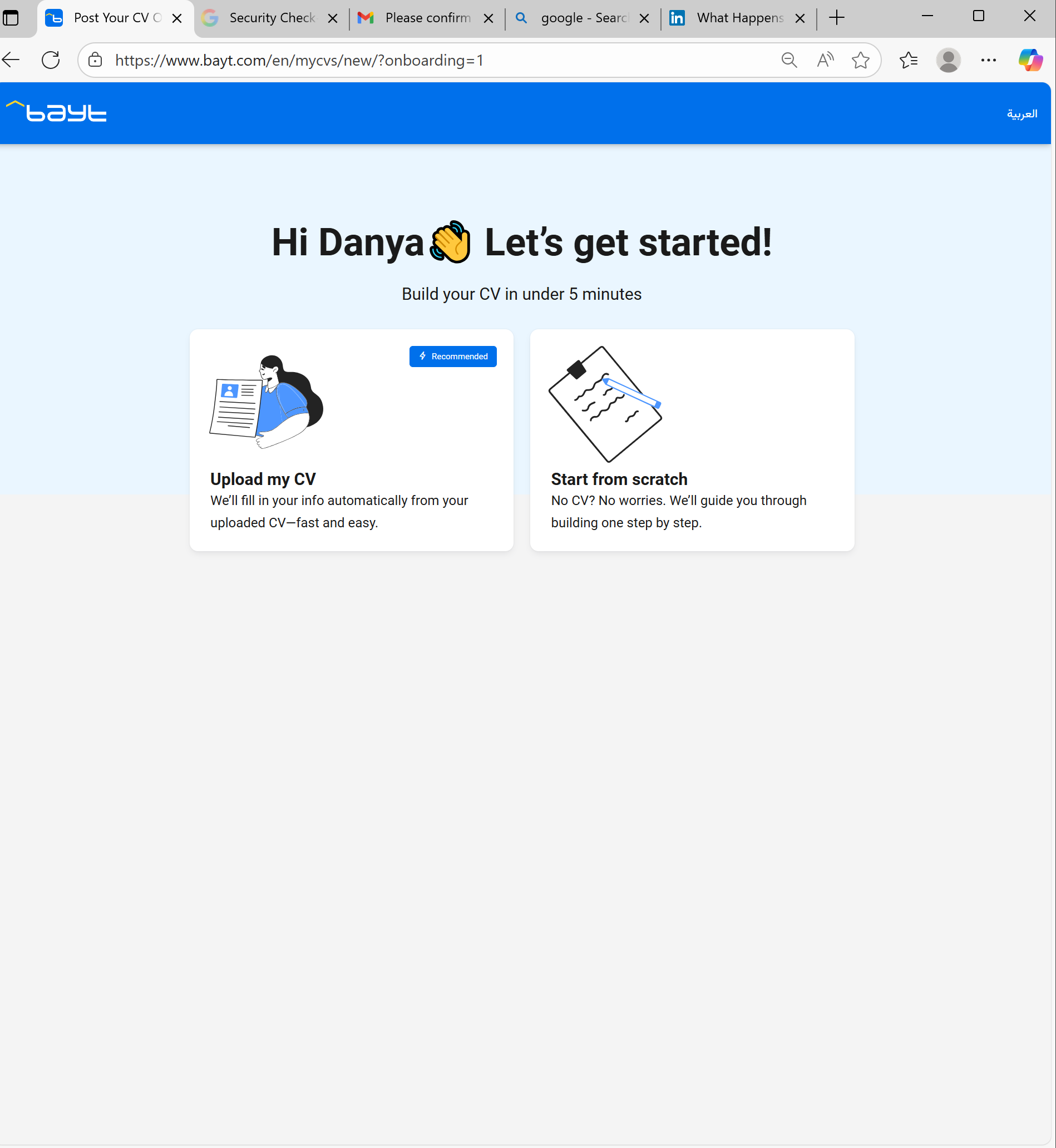 Creating an profile on Bayt- Using the website (computer/laptop)
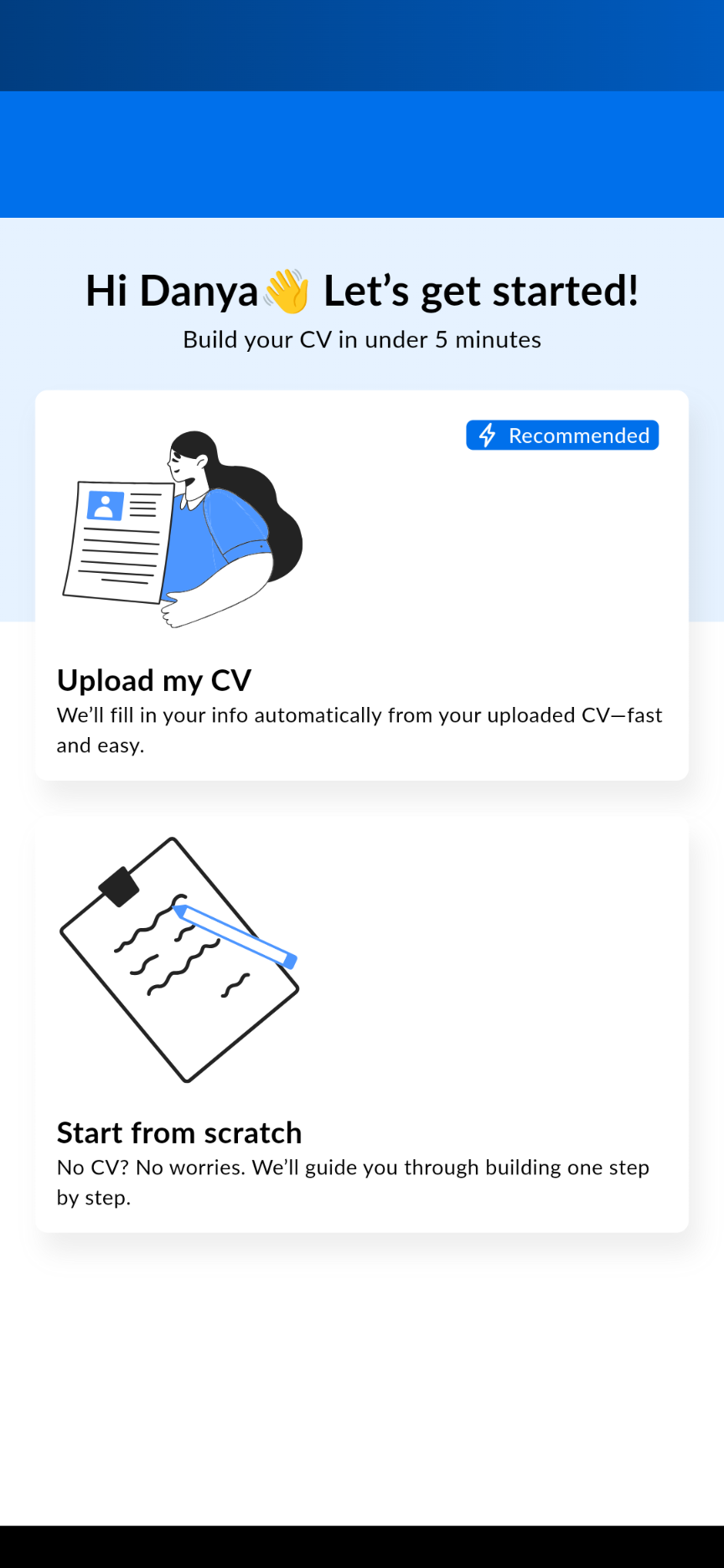 Creating an profile on Bayt- using the mobile application
As you can see below your Bayt Profile is made up of four main components. The remainder of this section will briefly discuss each one.
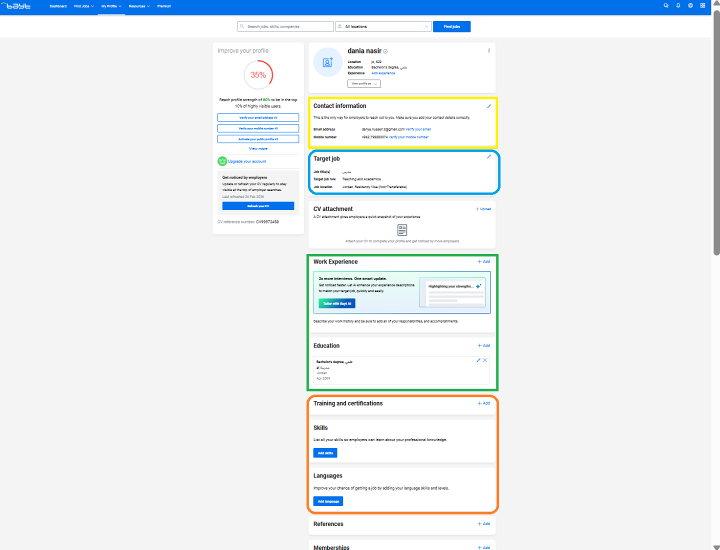 Bayt profile components
Component 1: Your main contact and personal information (in yellow above)
This is your contact information that you usually fill when you create your Bayt account.
Component 2: What jobs you are looking for in your job search (in blue above)
This component includes the filters for refining your job search and what jobs you see on your Bayt profile as discussed in Module 4.
Component 3: Your professional experience and educational experience (in green above)
Component 4: Your training and certificates and skills and languages (in orange above)
Bayt gives you two options of filling in the information for your Bayt profile as discussed in the beginning of this section. They both have the outcome, so you would need to choose which options works best for you.
- Faster way.
- All the relevant information will be automatically filled into your profile.
- You need to make sure that the information from your CV is added correctly to your online profile on the platform, because sometimes it is added incorrectly.
- Any additional sections found in your online profile on the platform that are not in your CV will need to be added manually, after the CV is uploaded.
- Longer way.
- Bayt will walk you through each part of your CV and ask you to fill each part manually (save the sections you have filled and skip the sections you do not want to fill).
- You would need to copy and paste the information one by one from your CV.
- You will be sure that the information is added correctly from the first time to your online profile.
- You can add and remove as much information you want, from the first time you set up your profile on the platform.
If you choose to upload your CV:
1- You should select and upload the PDF version of your CV not the Word or Google docs version.
2- You need to make sure all the information is inputted correctly in the right fields.
You can also access and change your Bayt profile at any time by going to the ‘My profile’ drop down menu on your computer/laptop and selecting my CV (on the left below in yellow) or through accessing the profile icon on your mobile application (on the right below in orange).
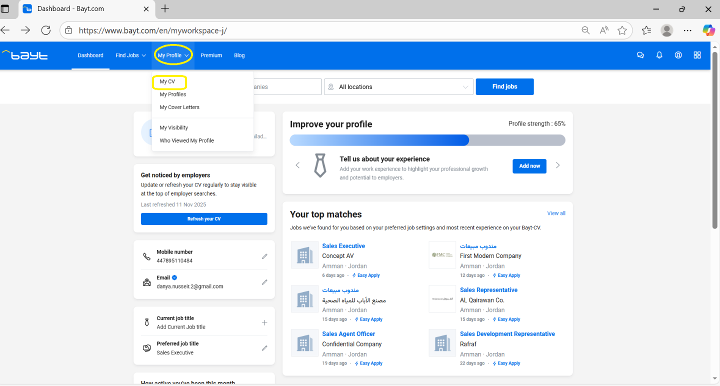 Accessing and changing profile on Bayt- Using the website (computer/laptop)
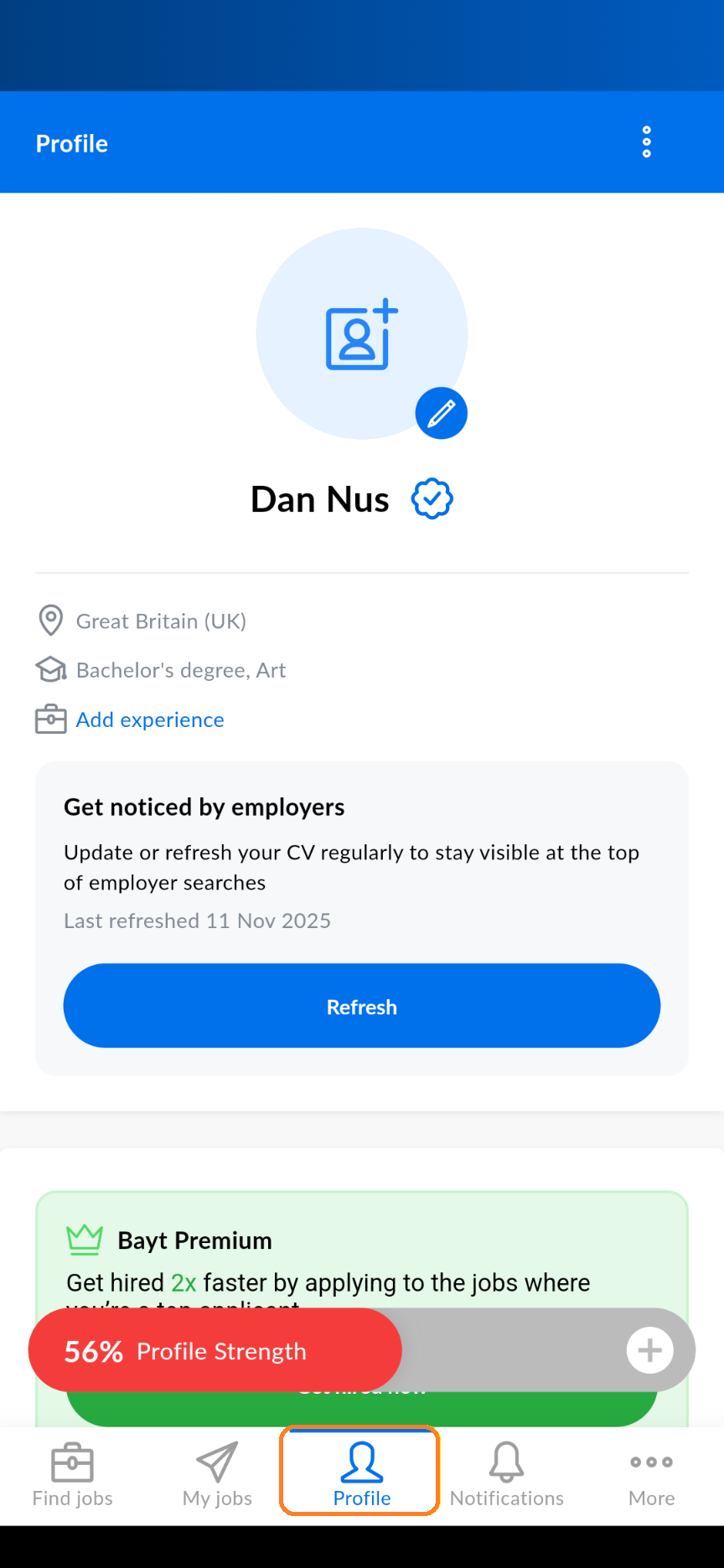 Accessing and changing on Bayt- using the mobile application