
Why your inbox matters
Why your inbox matters
Email is Warwick's main communication channel. Checking it regularly can make a big difference to your university experience. Your inbox isn't full of spam - it’s where you'll find important announcements, deadlines, job opportunities and helpful information.
This page is here to help you stay on top of your inbox without letting it take over.
Divine, PGT WMG
What emails to expect in your inbox
Most of your emails will fall into three main categories:

Academic
Moodle notifications: lecture and seminar materials, pre-session tasks, assignment briefs, academic feedback and room changes.
Tabula notifications (or my.wbs): timetable changes, grades, assignment feedback and personal tutor allocations.
Department newsletters: course updates, student notices, departmental support, professional opportunities and wider university news.
GradIntelligence: academic transcripts, degree certificates and Warwick Award certificates (Bronze, Silver, Gold).

Extra-Curricular
University newsletters: your student newsletter includes updates university news, campus events, support services, student voice initiatives and key dates to be aware of.
Students’ Union newsletters: events and news from your Students' Union.
Society and Sports Club newsletters: invitations to events, socials, trips, members' discounts and Sports Hub bookings.
Events and opportunities: invitations to Together at Warwick events, Warwick Sport updates, career or student mobility opportunities through the Student Opportunity newsletter and more.

Professional
MyAdvantage notifications: invitations to Careers Fairs and events, tailored job alerts, and confirmations of 1-1 career advice appointments.
Job platforms: emails from websites such as Unitemps, Bright Network, Student Circus and Glassdoor. These might include part-time and campus jobs, student researcher roles, internships and work experience and graduate schemes.
Subscriptions: updates from sources such as The Financial Times, National Geographic or sector-specific newsletters. Staying informed with global news is useful for seminars discussions.
.

"Try not to be overwhelmed by the number of emails you’ll receive - although it can feel like a lot, they'll become easier to manage once you organise them in a way that works for you!
Email communication with staff is a great way to get answers to any questions you might have. Don't forget to always use the appropriate terms of address, be polite, and try to make your messages as clear as possible to avoid a lot of unnecessary back and forth. Also, remember to be patient - staff receive a high volume of emails, so it may take a few days to receive a reply."
Anjola, 2nd Year Psychology Student
Organising your inbox: smart email habits

- Check it daily: Check your inbox 2-3 times a day (morning, midday, evening). Once a day is enough at the weekend.
- Use folders or labels: Create simple folders or label with clear names, like ‘Module Code’ ‘Internships,’ or ‘Societies'. A simple system can help you find what you need.
-
Turn emails into tasks: Many emails include deadlines, invitations, or reminders. Sync your inbox with your digital calendar (Tabula → Outlook) to stay organised.
- Be proactive with communication: Book office hours, ask questions, and contact your Personal Tutor or module tutors.
- Simplify your inbox: Unsubscribe from mailing lists that aren't relevant to you, and archive emails you don't need anymore.
Anjola's advice: keeping on top of your inbox
As a student, you will receive a high volume of emails from a variety of people, topics and branches of the University. This means it is very important to frequently check your inbox in order to keep on top of this.
A good amount is at least twice a day, in the morning and afternoon. This will allow you to reply to any emails that require responses, within staff working hours (which are usually from 9:00 AM to 5:00 PM). If you need to send responses outside of these hours, it's a good habit to make use of the 'schedule send' feature.

It's helpful to also simplify your inbox as much as possible.
Avoid using your academic email to sign up to social, or promotional websites with mailing lists: these can easily clog your inbox and make it possible for important information to get lost. It's better to keep your personal and academic email separate in this respect.
Within this, you can also categorise your emails to make your inbox more organised, and easier to find the information you are looking for.
Use the flag, star and pin features to keep track of key conversations, or even to remind yourself of things you don't want to miss. Emails are meant to be functional - you can sync your inbox to your Outlook calendar to keep track of meetings, deadlines, and event invitations. Always make sure to extract key details from emails and transform them into materials which are most practical for you.
Here is an example of some folders which may be helpful to separate email content:
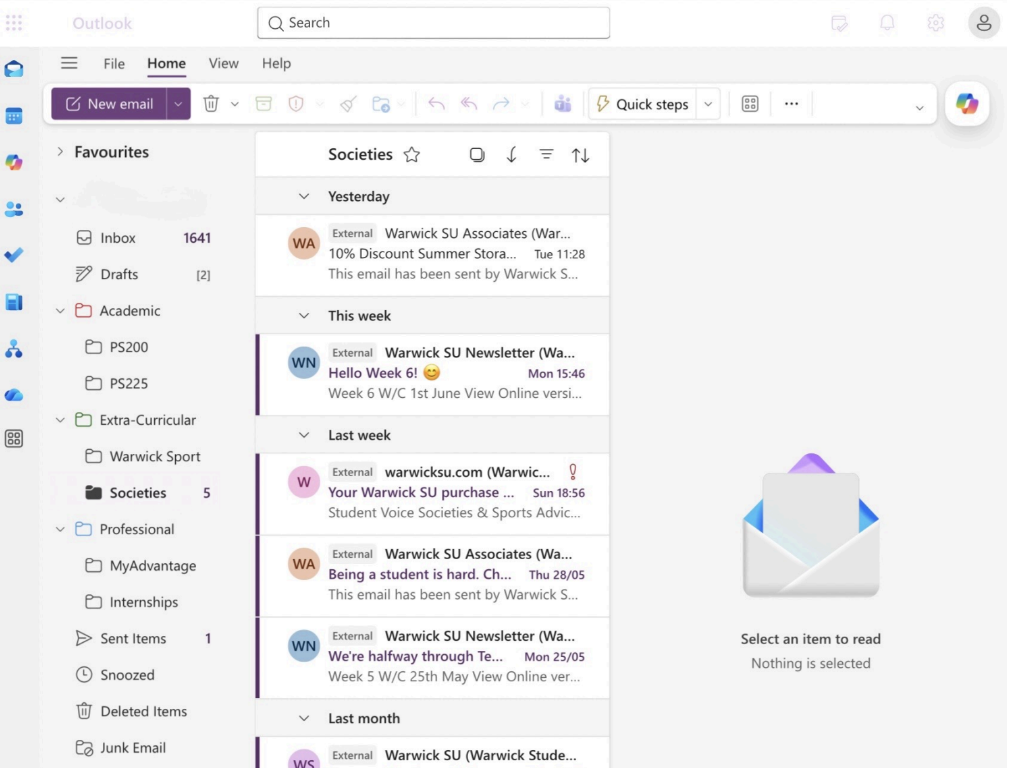
Personally, I like to make a conscious effort to also have a look at emails that you may be naturally tempted to ignore.
Different departments within the University often advertise unique opportunities and events via email - checking the materials sent out is a great way to stay in the loop!
Email etiquette: communicating with staff
Emailing at university is different from texting your friends. Here’s how to keep it professional, polite and to the point.
Use the correct title - Always address staff with their official title at first (e.g. Professor Jenkins). Some academic staff are happy to be addressed by their first name and often sign off their emails this way. But you should start by addressing them with their official title first.
Use a clear subject line - Make it clear and specific (e.g. Question about M10 Assessment)
Structure your email
Greeting: Dear [Insert Name]
Main message
End with: Best wishes or Kind regards [insert name]
Mention attachments - If you’ve attached a file, confirm this in your email (e.g. Please find the file attached...)
Proofread before sending - Typos can cause confusion; take a moment to re-read and check your message.
Be patient - Staff may take a few days to reply. Try to avoid sending many emails about the same topic unless it’s urgent.
Helpful guidance: