
3.3.1 Using templates on Google Docs
Google Docs template
Using the CV and Cover letter templates on Google Docs
This section provides a step by step guide on how to use the Google doc templates, using a person called Jane Do as an example.
Step 1: On a computer and select “File” from the above menu (in green below), on a mobile phone, select the menu option then icon shown below in green, and then a drop down menu will appear on both devices, select ‘Make a copy’ (in yellow below).
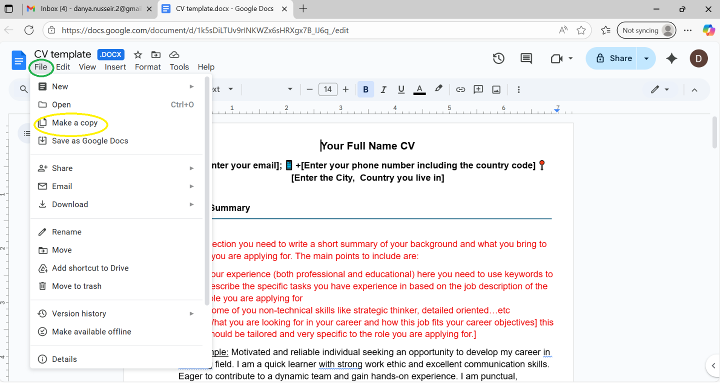 Step 1- On Computer or laptop
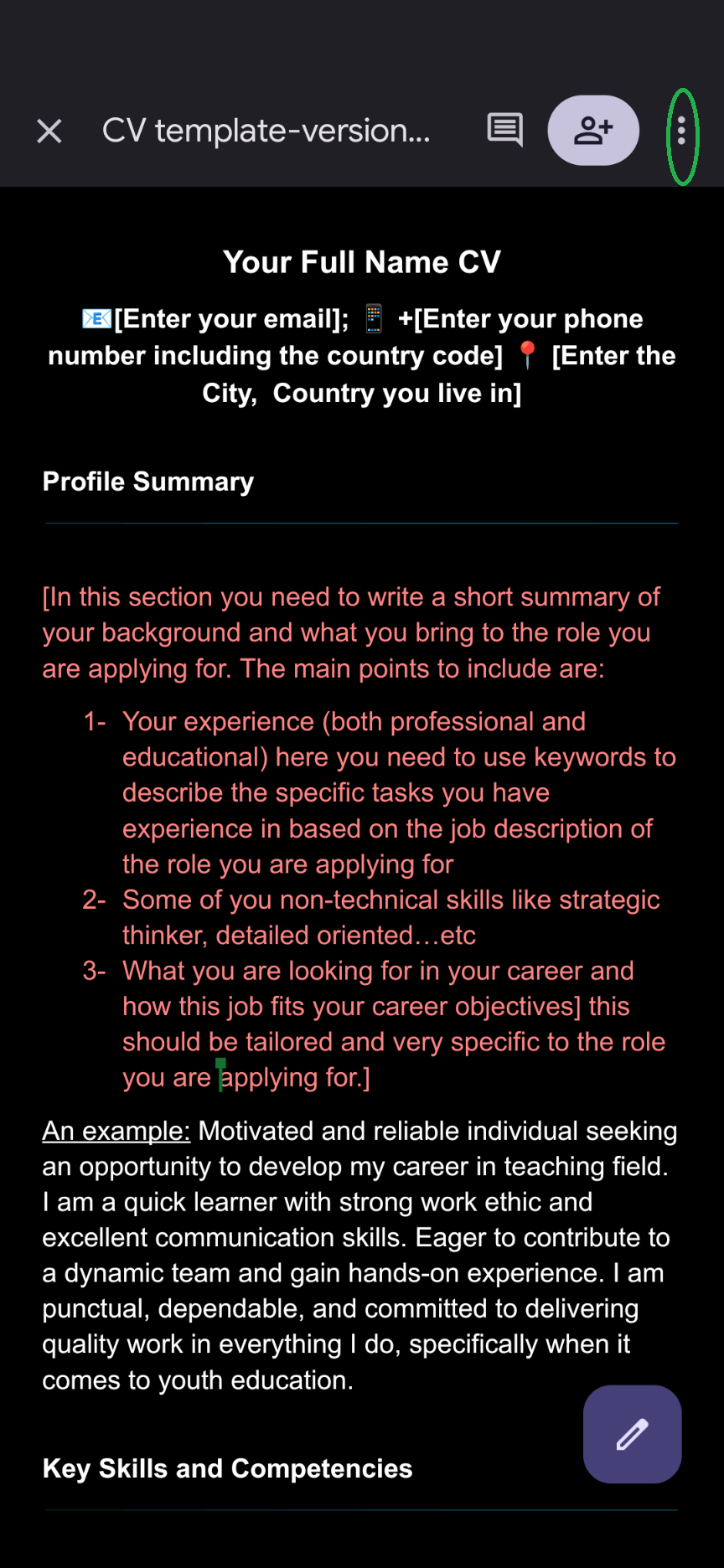 Step 1- a On a mobile phone
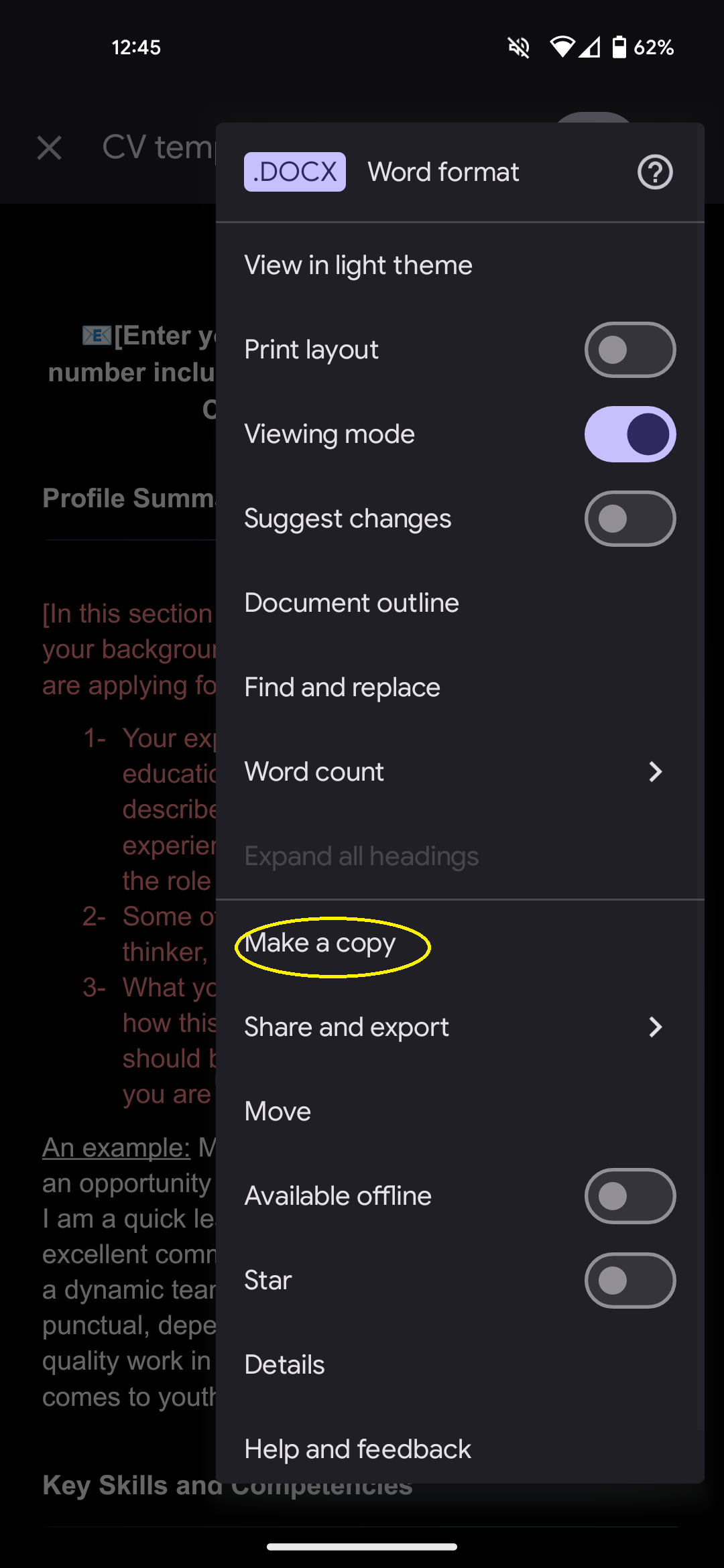 Step 1- b On a mobile phone
The below images show the rest of the steps (Step 2 - Step 5), the column on the left shows what the above steps would look like on a computer/laptop and the right column is what it would look like on a mobile device.
Step 2: Make a copy of the template and change the name to your first and last name and then add the word CV or Cover letter depending on which template you are using (in yellow below). It is important to note that when you change the name of the file you need to make sure you keep the .docx as this will determine the type of file you are using.
Step 3: Make sure that the folder or location or destination of the copy is on your drive usually indicated by ‘My Drive’ (in green below).
Step 4: If the location was not on your drive then you click the folder and options of drives will appear, you should select your required folder in this case "My Drive" and then click ‘Select’ (in green below).
Step 5: Make sure all the information is correct the click the ‘Make a copy’ button which is usually in blue on a computer/laptop or ‘ok’ on a mobile phone (in yellow below).
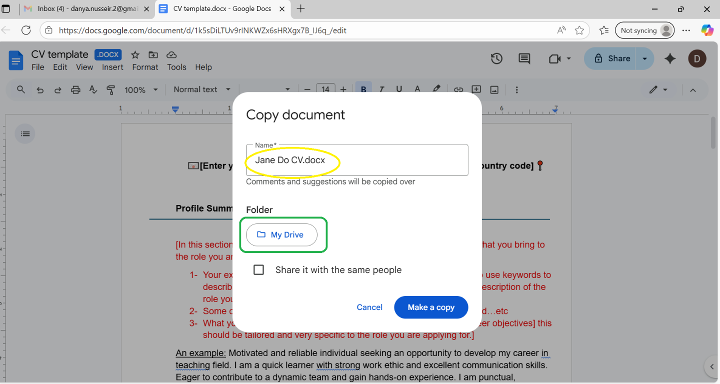 Step 2 & 3- On a Computer
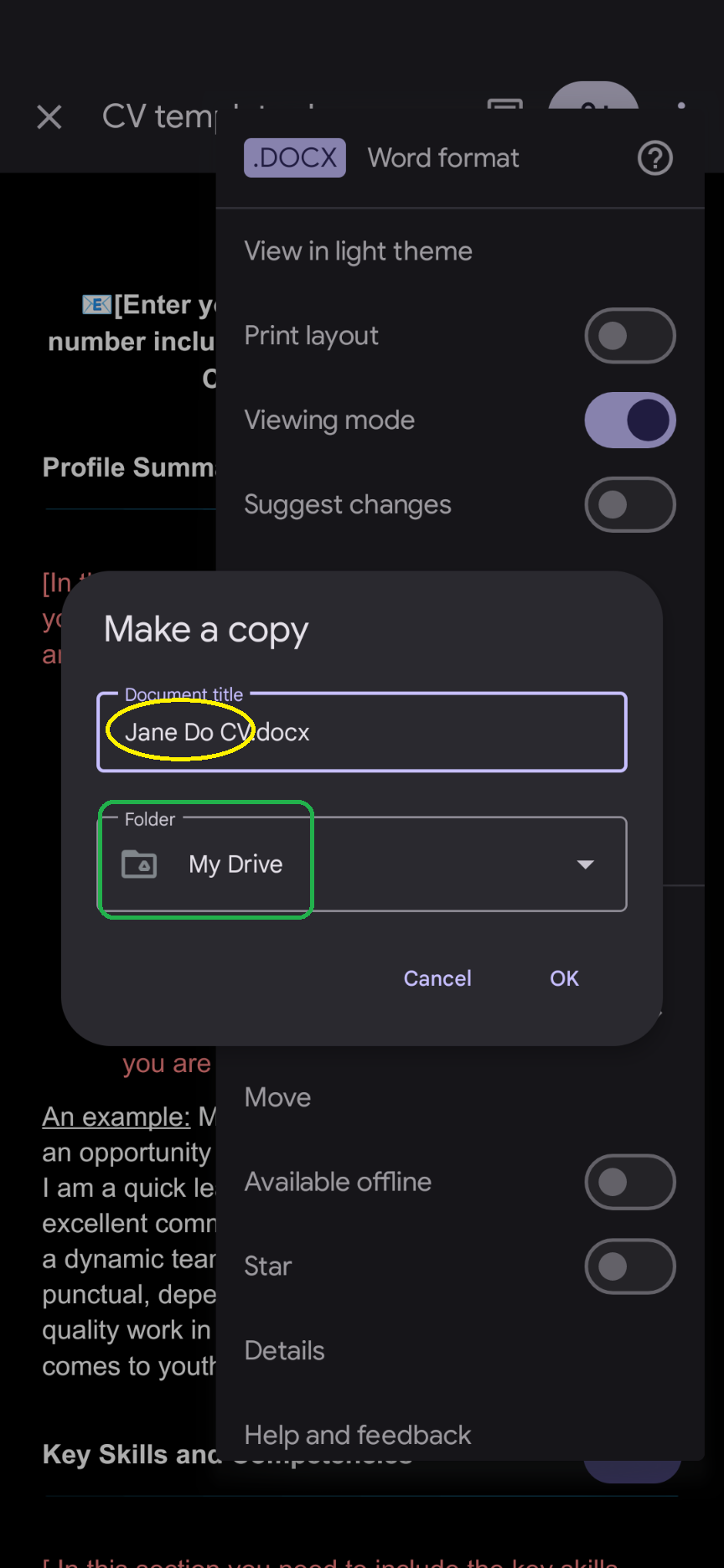 Step 2 & 3- On a mobile phone
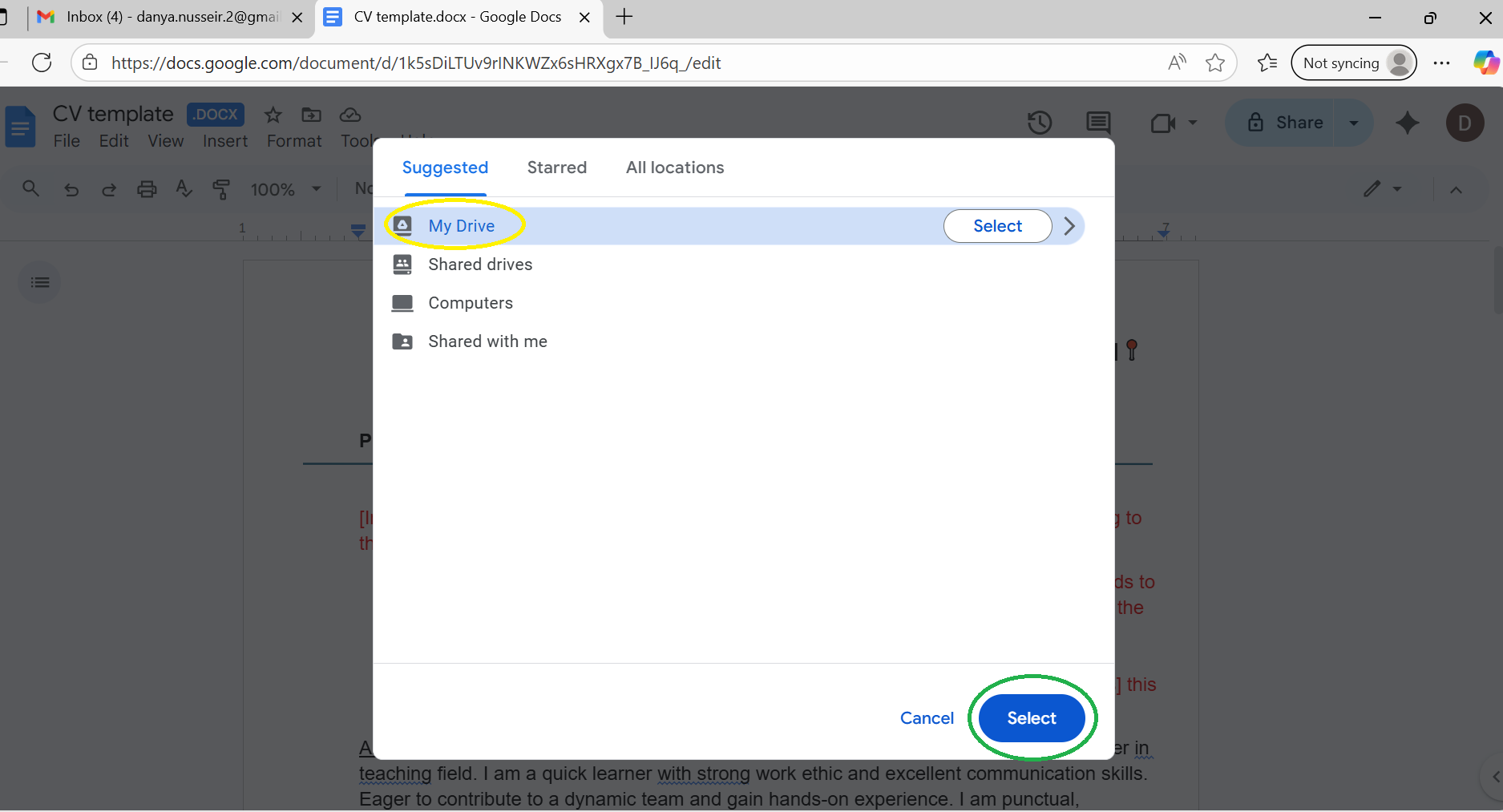 Step 4- On a Computer
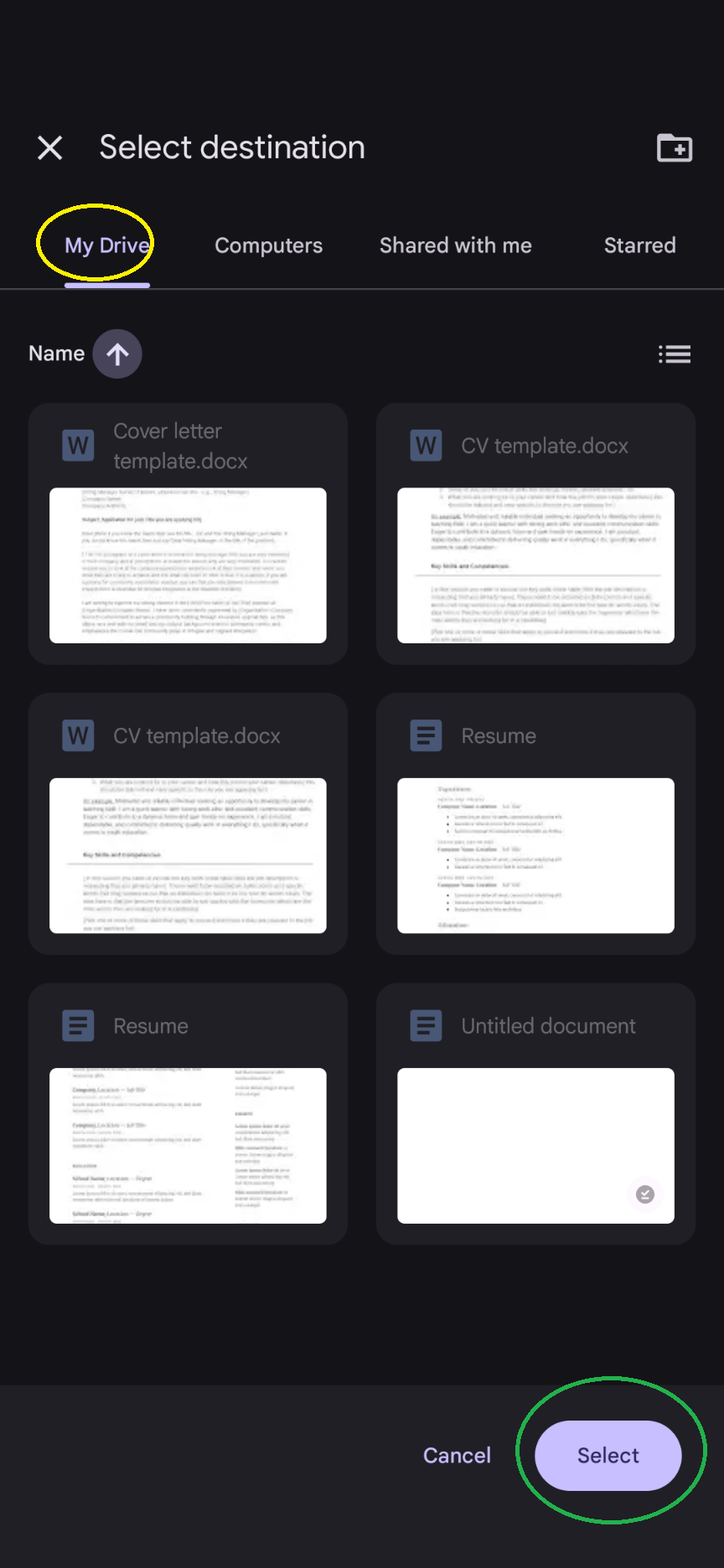 Step 4- On a mobile phone
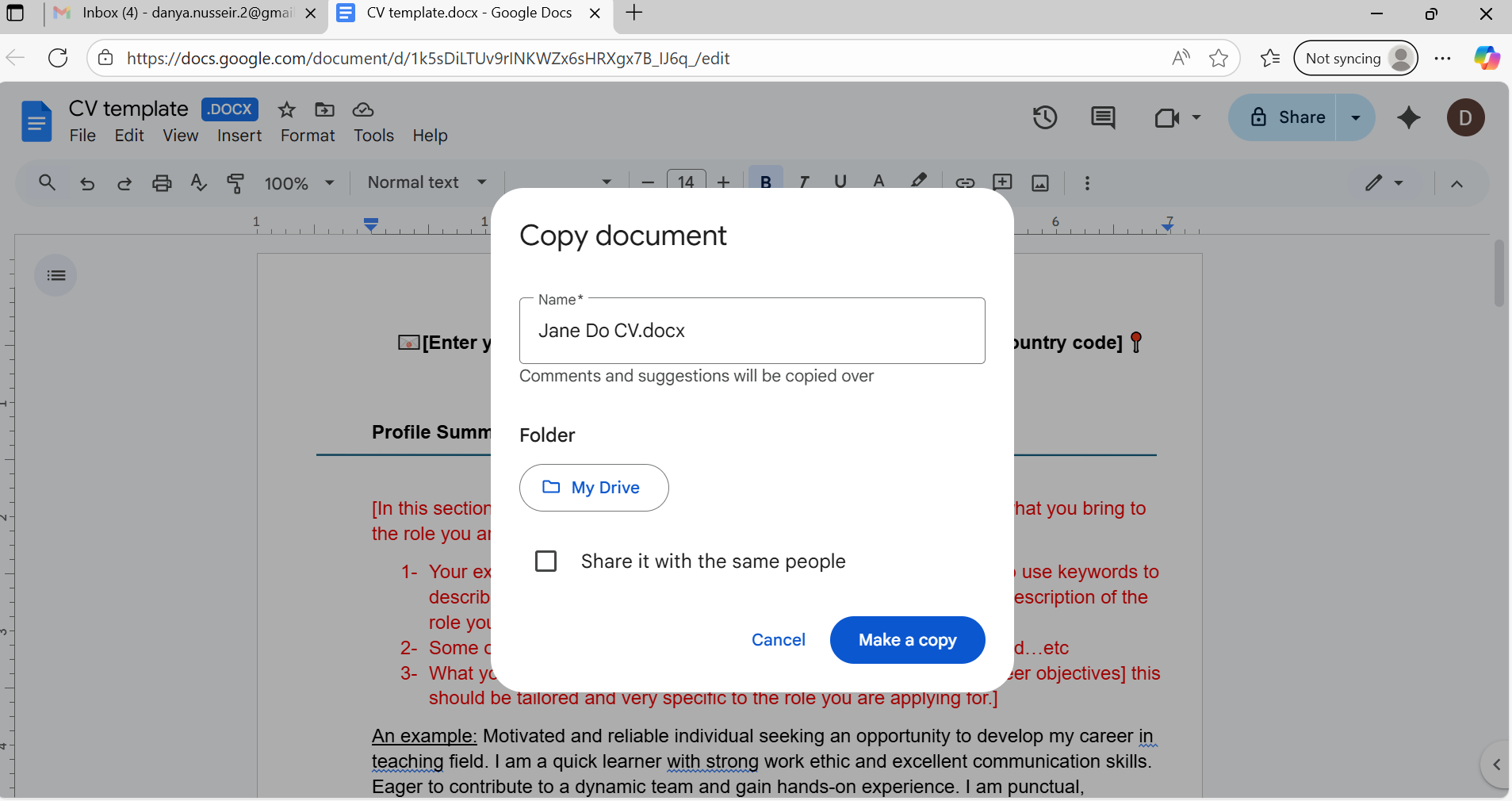 Step 5- On a Computer
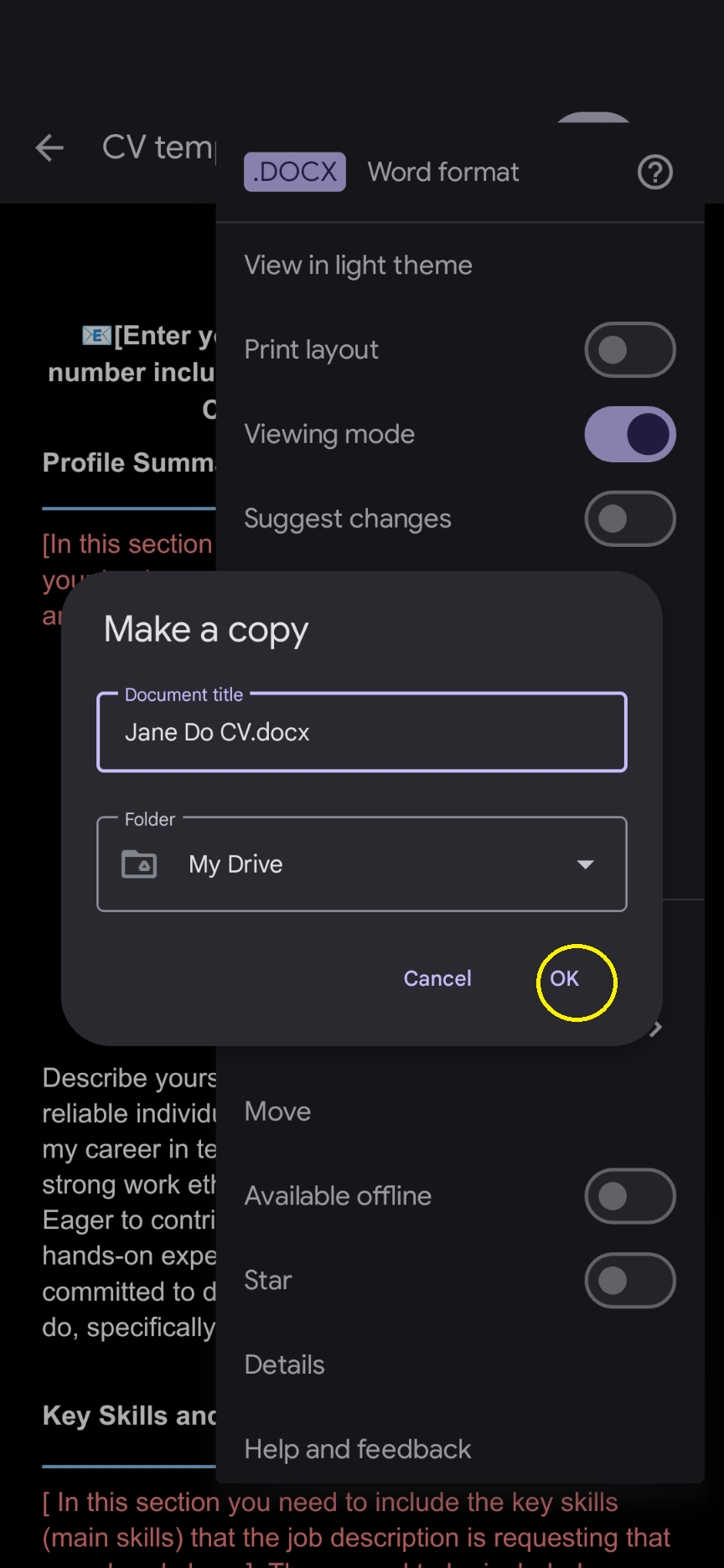 Step 5- On a mobile phone