
3.3.2 Using templates on MS Word
Microsoft Word (MS Word) template
Using the CV and Cover letter templates on MS Word
This section provides a step by step guide on how to use the MS Word templates, using an example of a person called Jane Do. This guide is provided using a computer or laptop, the same steps can be followed using a mobile phone.
Step 1: Open the CV or Cover letter template from the link in Module 3. Select ‘File’ at the top left corner (in yellow below), scroll down and select download (in green below) and then select Microsoft Word (.docx) (in black below).
Step 2: Open the downloaded file which either appears on the right side of your browser or in the downloads folder on your computer, and then open file and select ‘Enable Editing’ (below in green).
Step 3: Then go to ‘File’ again at the top left corner (below in yellow).
Step 4: Select ‘Save As’ below in yellow, then make sure you change the name from CV or Cover letter template (highlighted in blue below) to your first name and last name followed by the word CV.
Step 5: After you change the name the file is saved in the correct folder the location, in the below example I saved it on the desktop (in yellow below) and then click Save button (in green below).
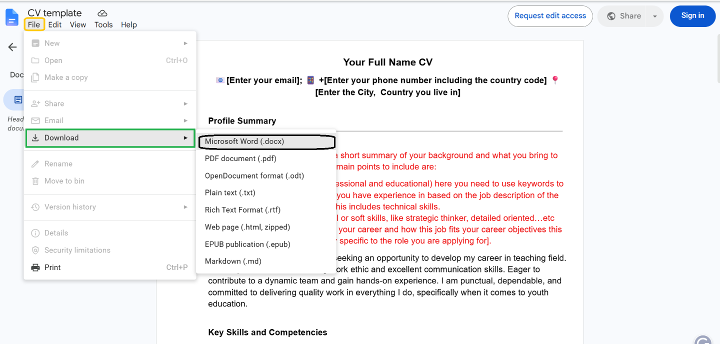 Step 1- On a computer
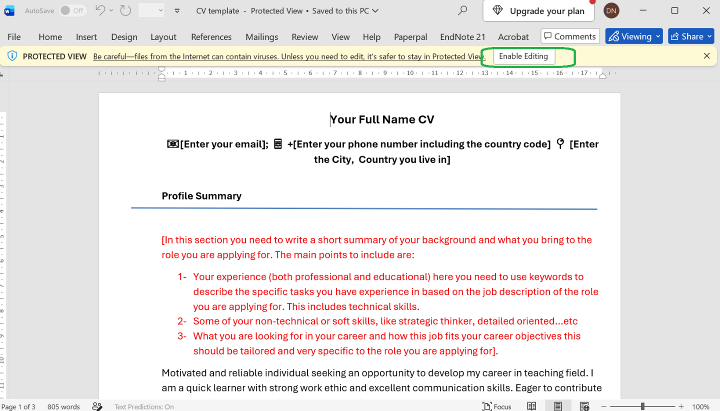 Step 2- On a computer
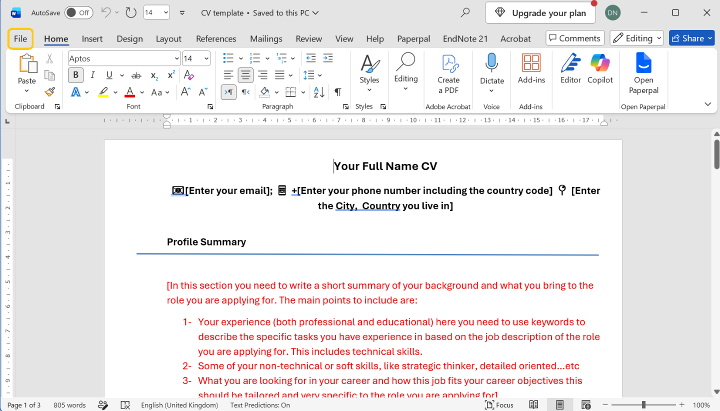 Step 3- On a computer
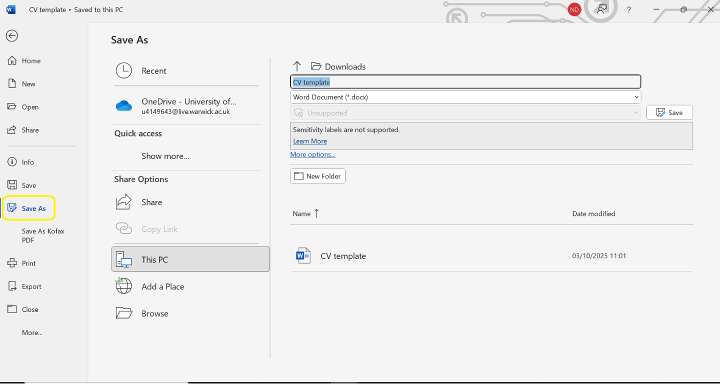 Step 4- On a computer
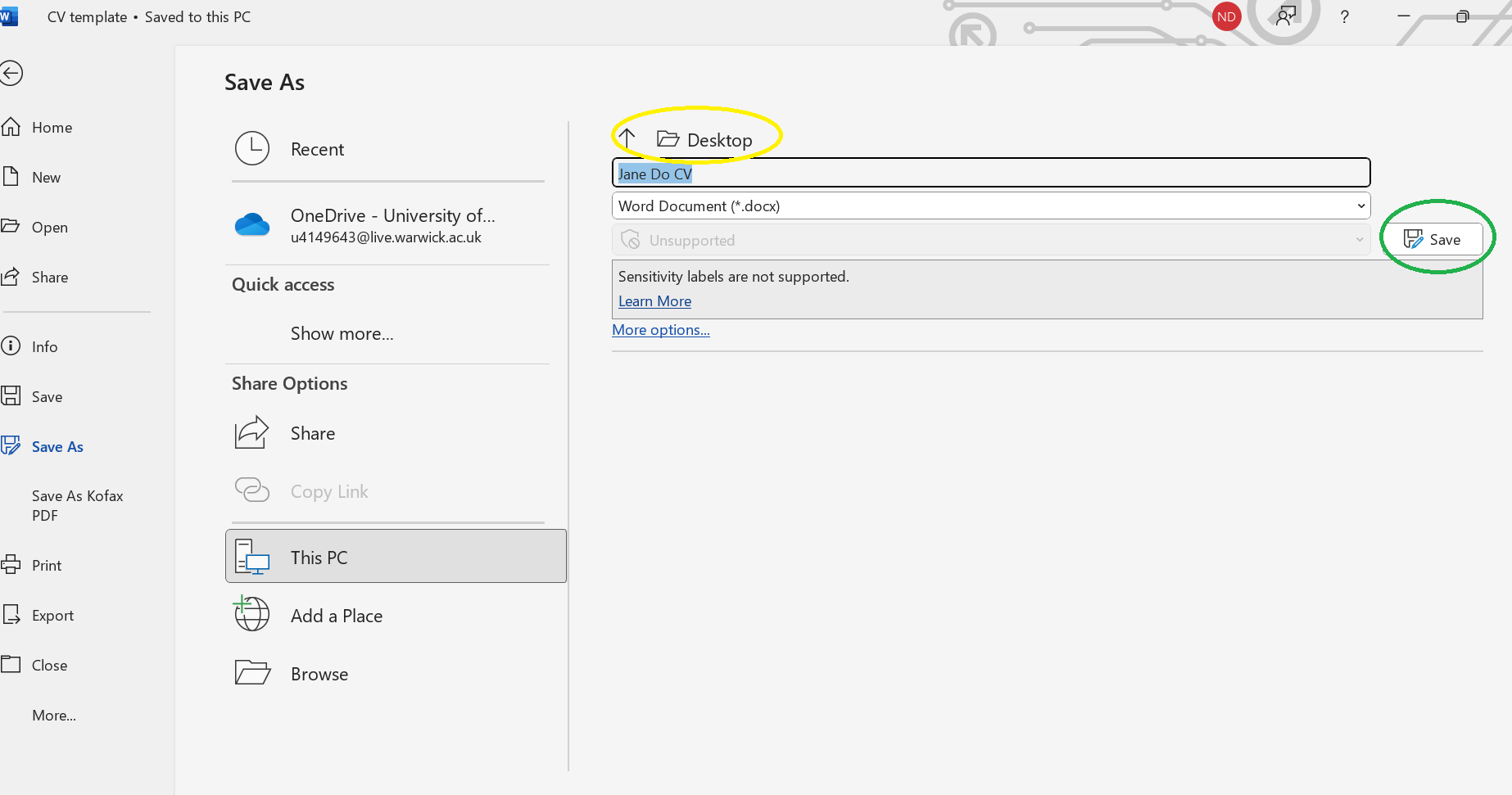 Step 5- On a computer