
5.2.1 LinkedIn: Creating an account
LinkedIn: Creating an account
Before being able to create a profile on LinkedIn, you would need to create an account on the platform.
To create an account on LinkedIn, follow the below steps:
Step 1: Access LinkedIn portal through the website (www.linkedin.com) if you are using a laptop/computer or through the mobile application if you are using your mobile phone.
Step 2: Click the blue ‘Register now’ button at the top of the page or the “Join now” option at the bottom of the page (indicated in yellow below).
Step 3: Add your email address and click the blue ‘Agree & Join’ button.
Step 4: Add your real full name, remember this is a what employers and recruiters will see you as.
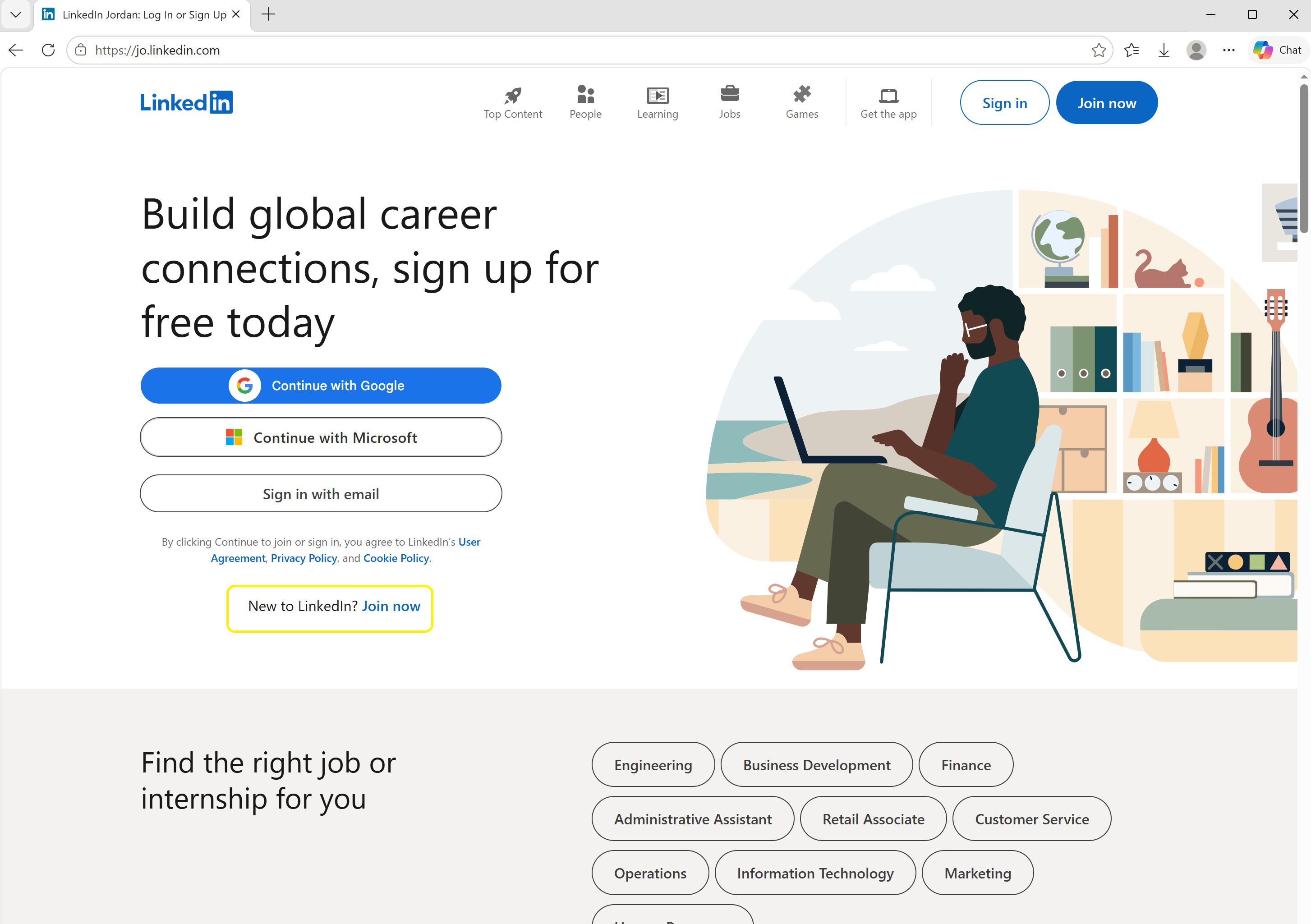 Step 1
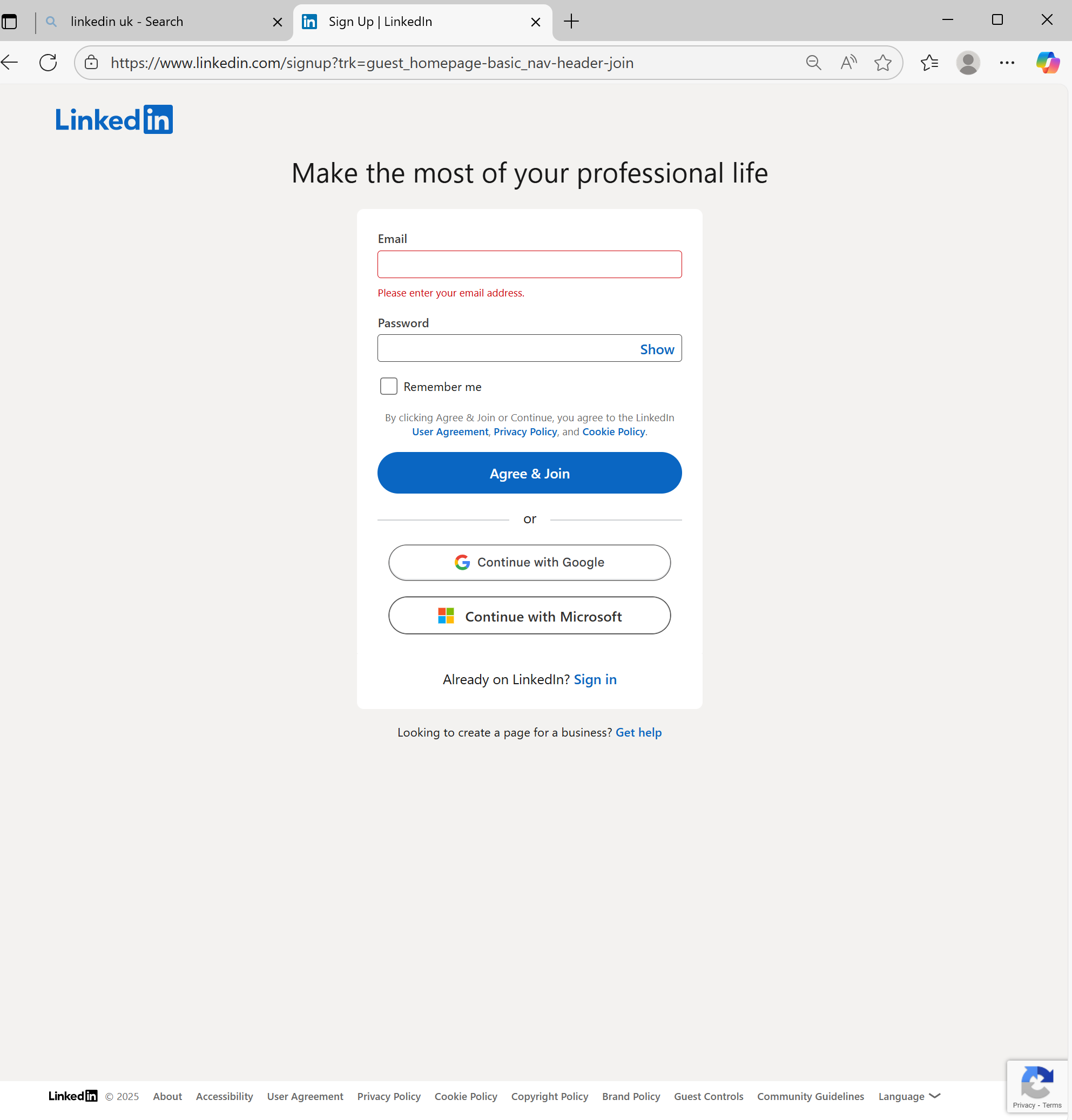 Step 2 & 3
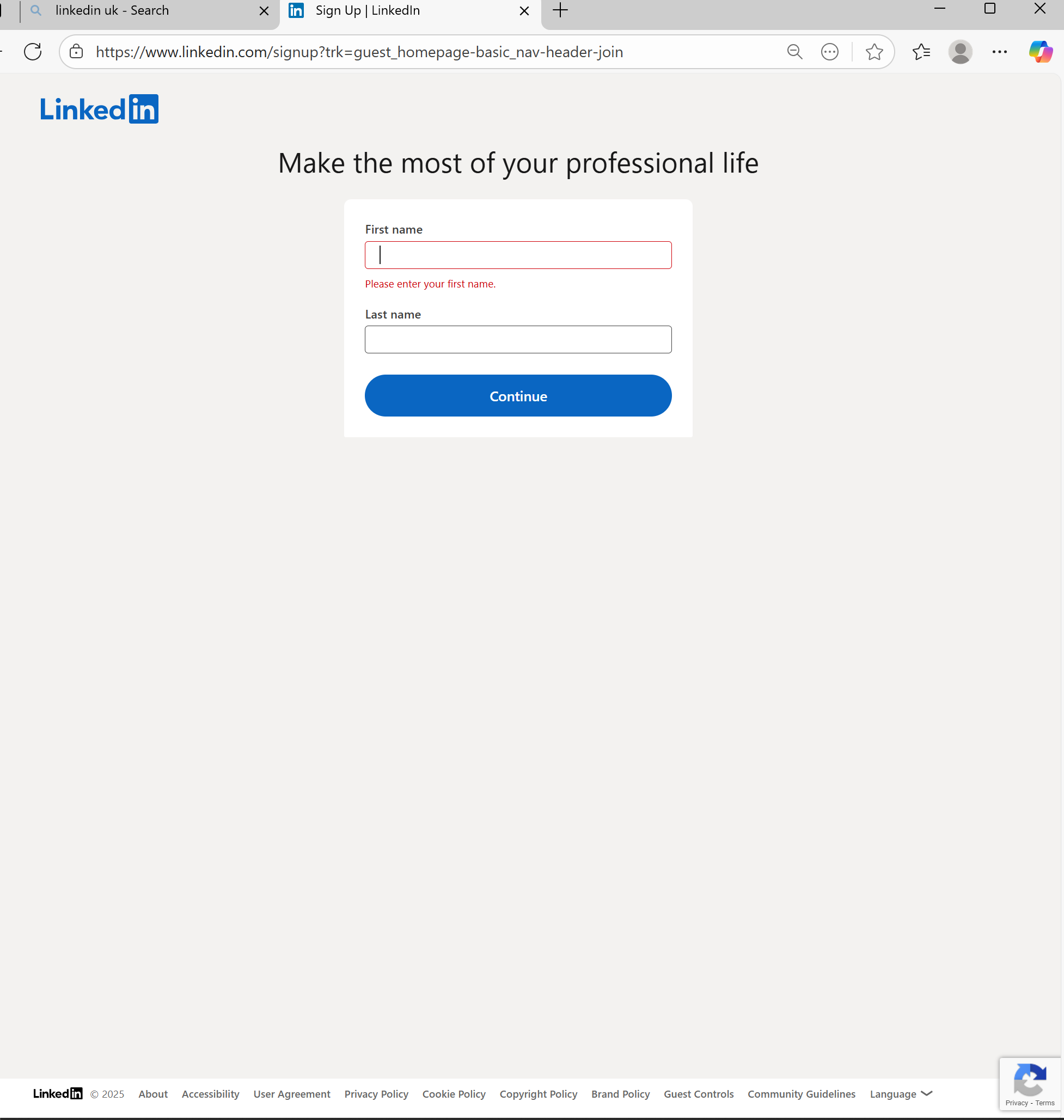 Step 4
Step 5 & 6: You would need to answer basic questions about your location of residence and your last job. Once you fill the questions, click the blue “Next” or “Continue” button.
Step 7: You would need to confirm and verify your email by entering the verification code you received on your email and then click the blue “Submit” button.
Step 8 & 9: You would need to fill in what you would like recruiters or employers to know. If you are actively looking for a job, or just browsing to see what opportunities are out there. In addition, to what types of jobs are you mainly interested in.
Step 10: Voila! You have created your own LinkedIn account.
I know that the steps for creating an account on LinkedIn may look like many steps to follow but they are very quick and easy steps. Just go through them one by one and fill in the required information on each screen that you see.
Remember this email address you use to create your LinkedIn profile will be visible to potential employers and recruiter, therefore, make sure you add your professional email address (Module 1), which is the same one you used in your CV (Module 3).
After you have created your own LinkedIn account following the above Step 1 – Step 9, you should be able to view your LinkedIn home page . Section 4.3.1Link opens in a new window, which we discussed earlier, provides details on the LinkedIn home page features
Important: The point of created an account is for us to create our own profile on the website.
Since we have now created our account, let’s move on to what is important and create our profile in section 5.2.2 Link opens in a new window.