
5.2.2 LinkedIn :Creating a profile
LinkedIn: Creating a profile
Your online professional profile is what the employers and recruiters will see. It provides you with many addiitonal features on job & recruitment websites.
As mentioned in Module 4, LinkedIn is one of the largest a social media networking platform for businesses and professionals. Based on that, your profile on LinkedIn would look a little different than those on other jobs and recruitment platforms.
Your LinkedIn profile is made up of a blend of different online profiles:
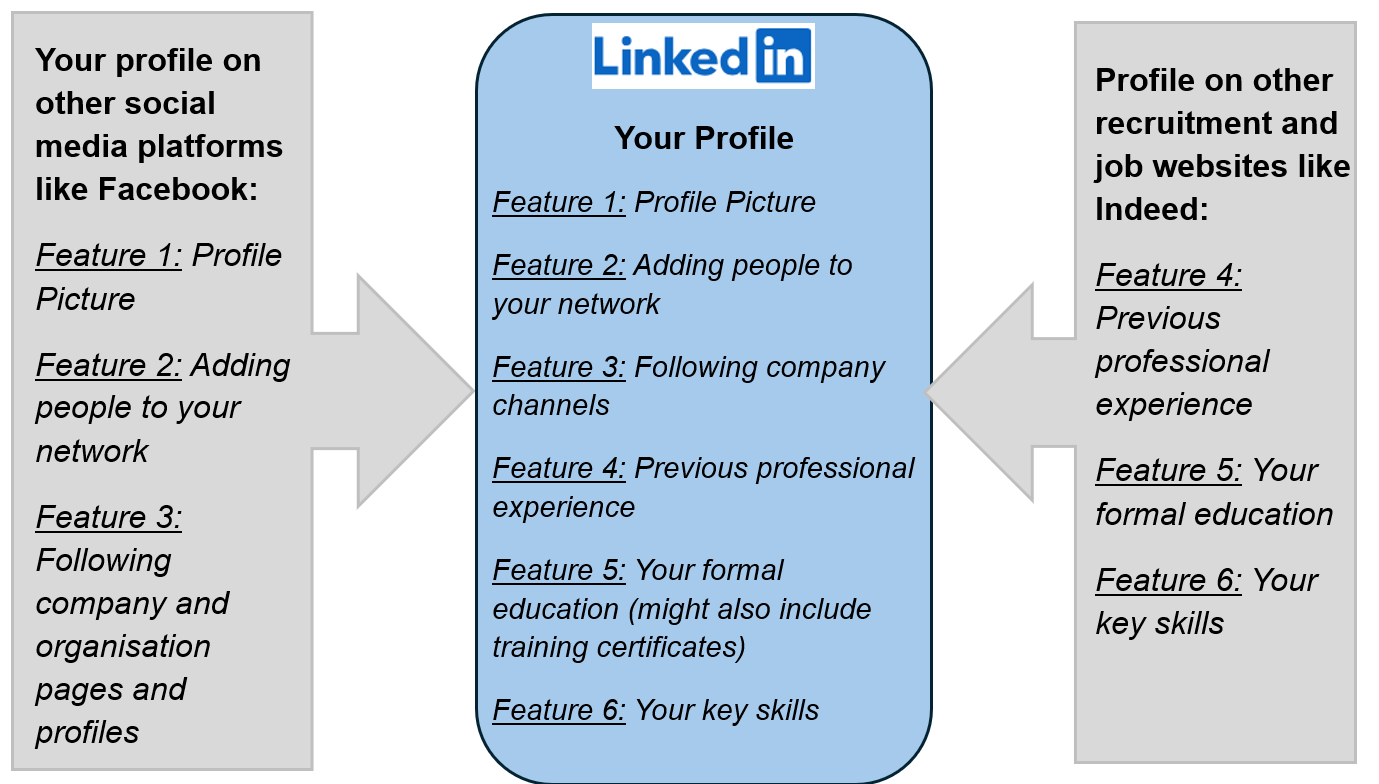 LinkedIn profile is made up of
You can access your LinkedIn profile from the home screen through:
Option 1: When using a computer/laptop, you can select your profile from the box on the left hand side of the home screen with your name on it (in orange below).
Option 2: On both the mobile application and computer/laptop, you can access your profile from the profile icon called “Me” found on the top menu as shown below in orange, then selecting “View Profile” (on a computer/laptop) or clicking the profile box (on the mobile application) both indicated in orange below.
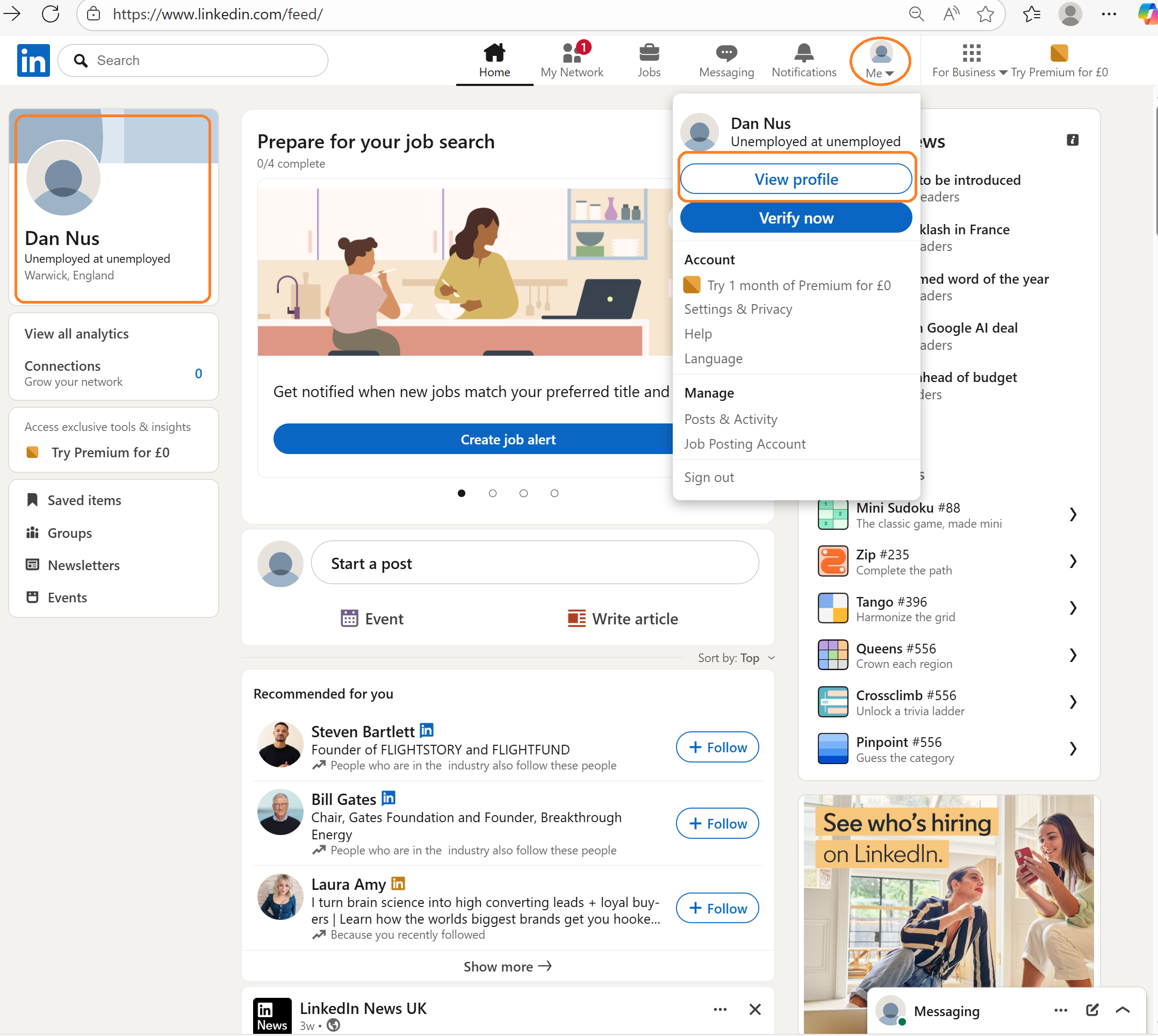 Accessing your LinkedIm profile from the website (including computer/laptop)
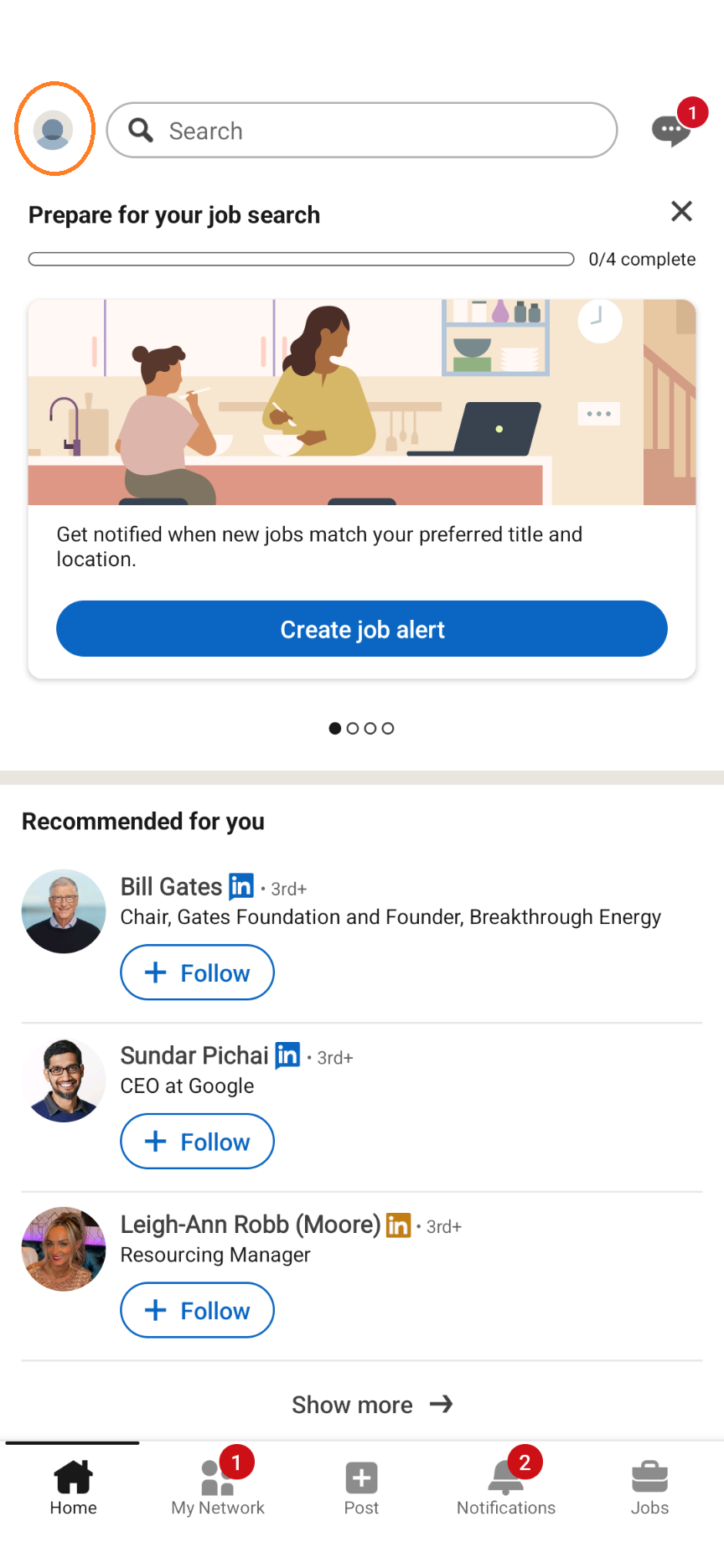 Accessing your LinkedIn profile from the mobile application (1 of 2)
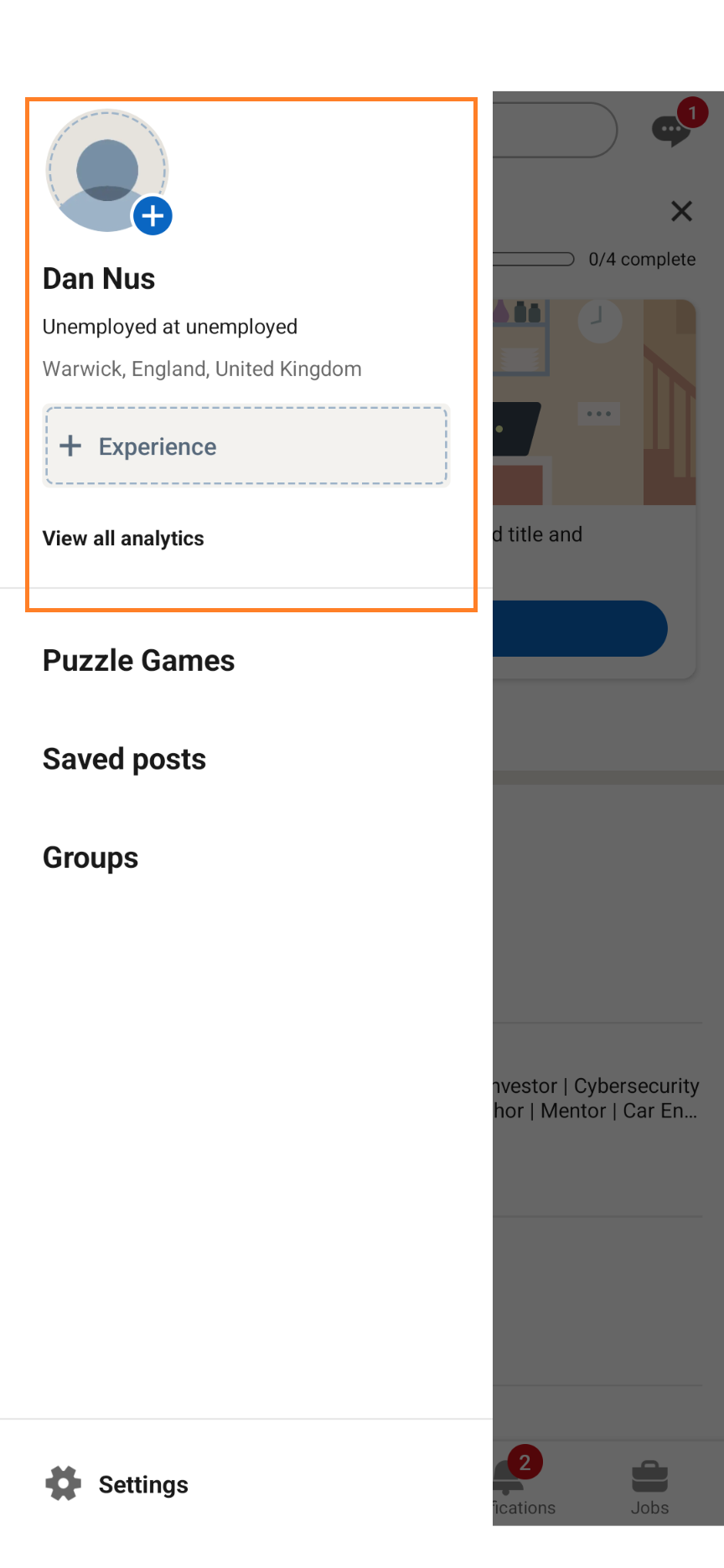 Accessing your LinkedIn profile from the mobile application (2 of 2)
As you can see below, your LinkedIn profile should be made up of five core components/sections. The majority of these sections are added by default once you open your LinkedIn profile, with the exception of your "About section" which you need to add it manually.
The remainder of this section will briefly discuss each main component.
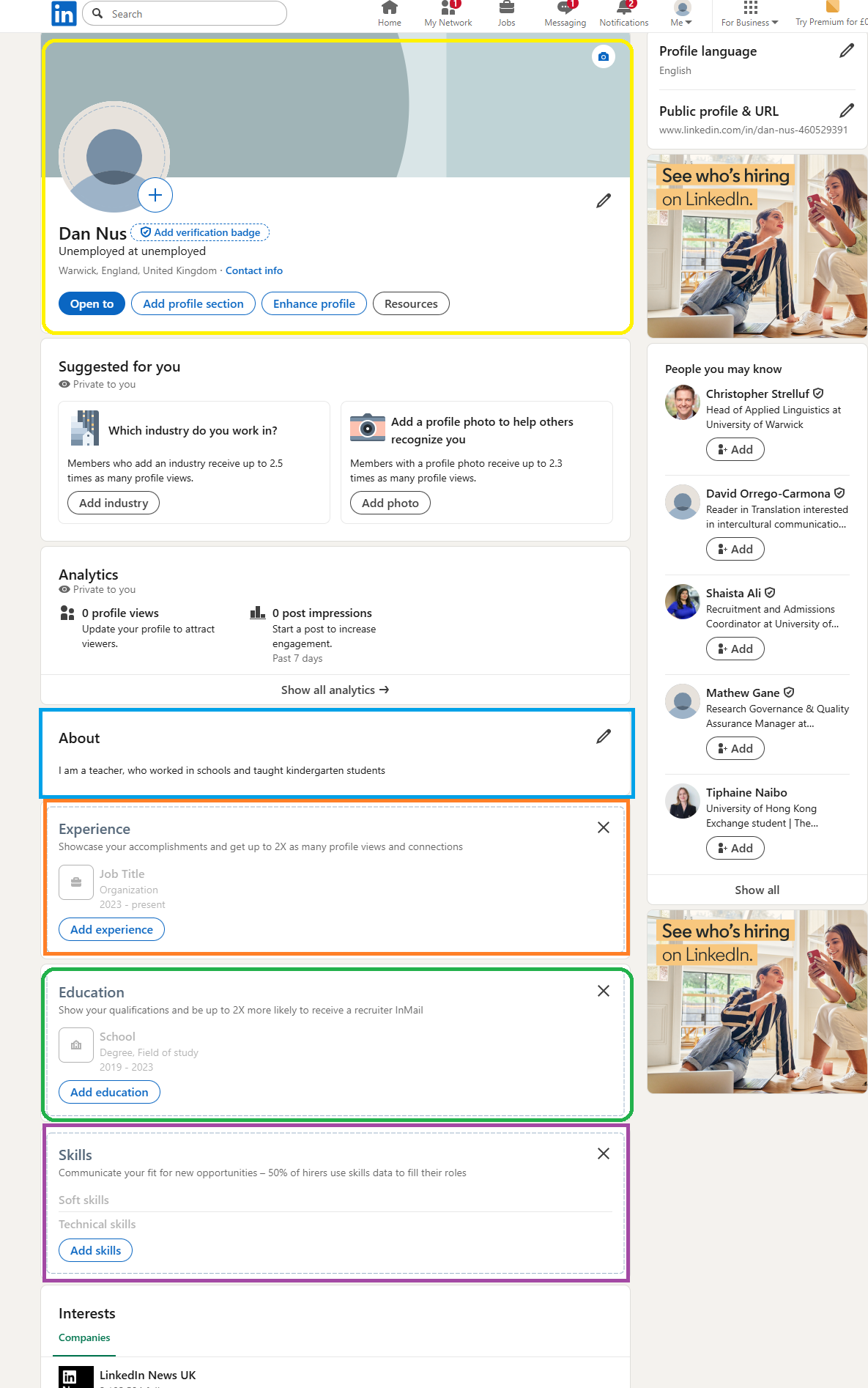 LinkedIn core profile components
Component 1: Your introduction including your profile photo and contact information (in yellow below)
This is your contact information that you usually fill when you create your LinkedIn account. Like other social media platforms this is the first thing the recruiters or employers on LinkedIn see when searching for your profile. Information here must be as up to date as possible.
Component 2: Your professional summary- also known on LinkedIn as About section (in blue above)
Your LinkedIn profile - About section
You need to manually add this section, it will not automatically appear in your profile, like the rest of the sections.
This section provides a professional summary of you. This should be similar to your professional summary in your CV (Module 3), but a bit more general and potentially tailored to specific industries you are applying for but not too specific.
Component 3: Your professional experience (in orange above)
This is your previous professional experience.
Component 4: Your education (in green above)
This is your educational experience including any formal certifications.
Component 5: Your key skills (in purple above)
These your key skills and also the keywords (Module 3) used by recruiters or employers that would show your profile to them.
You can fill in the information in your profile components in two ways. You would need to choose which option works better for you.
- Faster way.
- All the relevant information will be automatically filled into your profile.
- You need to make sure that the information from your CV is added correctly to your online profile on the platform, because sometimes it is added incorrectly.
- Any additional sections found in your online profile on the platform that are not in your CV will need to be added manually. After the CV is uploaded.
- Longer way.
- Filling in each core component or section manually yourself. This can be done in three ways as shown below in yellow.
- You would need to copy and paste the information one by one from your CV.
- You will be sure that the information is added correctly from the first time to your online profile.
- You can add and remove as much information you want, from the first time you set up your profile on the platform.
If you choose to upload your CV:
1- This option is accessed from the “Get started” section (in orange below) found in the ‘Add profile section’ on the computer/laptop (in yellow below) and ‘Add section’ the mobile application (in yellow below).
2- You need to make sure all the information is inputted correctly in the right fields.
3- You should select and upload the PDF version of your CV not the Word or Google docs version.
Adding a section to your LinkedIn profile
To add a section to your LinkedIn profile, you need click the ‘Add profile section’ or ‘Add section’ button on your profile screen as shown below in yellow on a computer/laptop (left below) and on a mobile phone (right below).
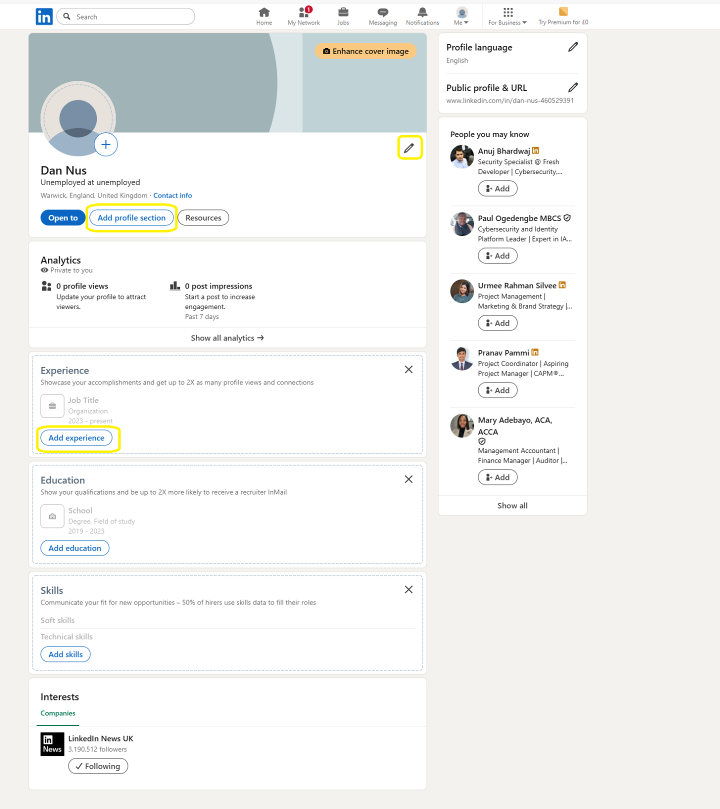 LinkedIn- Adding sections and editing profile- website (computer/laptop)
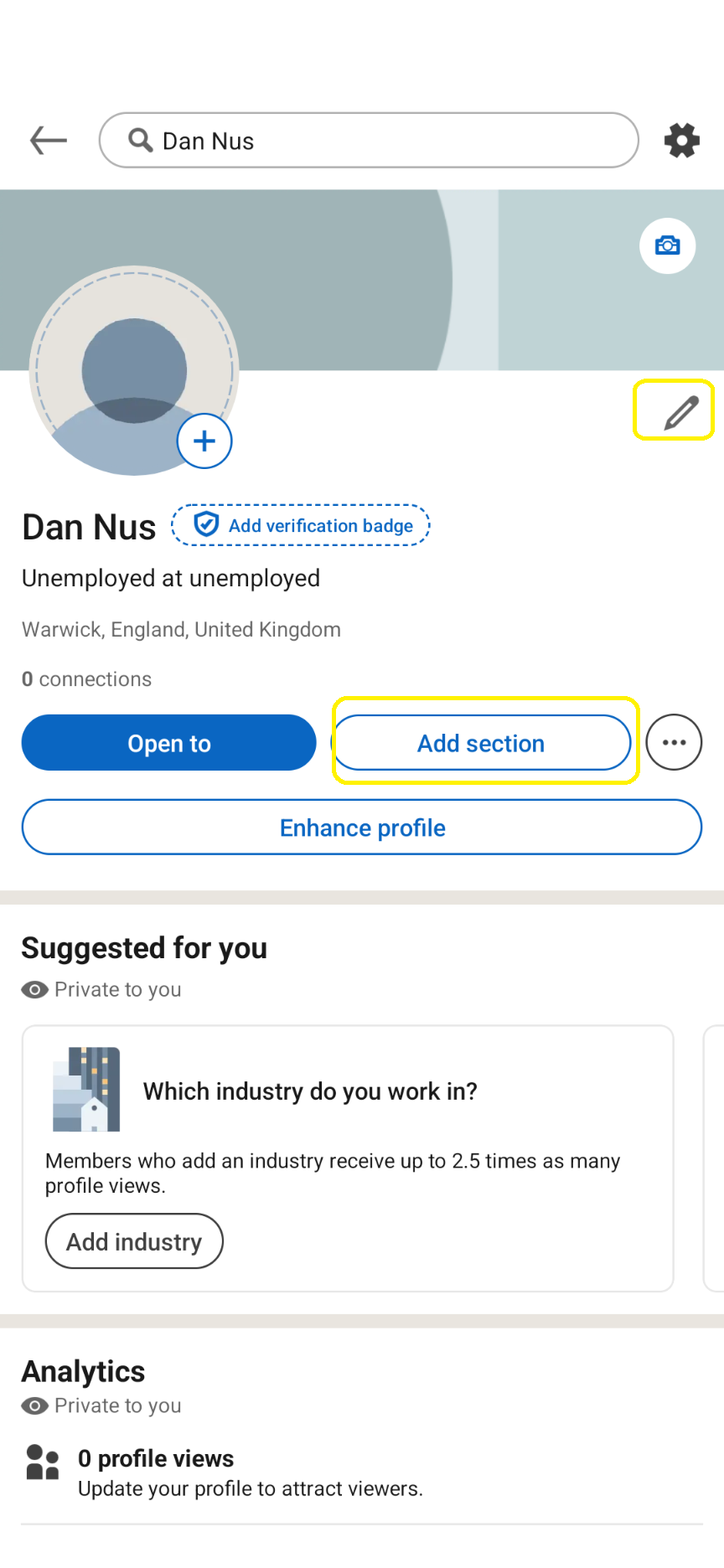 LinkedIn- Adding sections and editing profile- mobile application
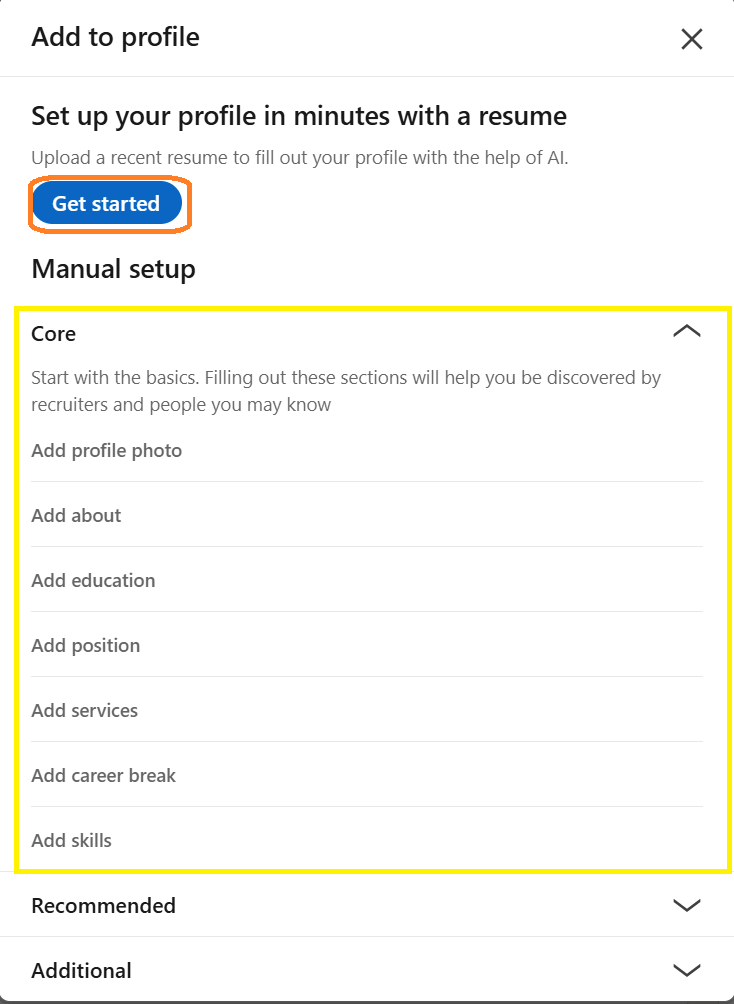 Filling LinkedIn profile by uploading a CV
Once you have created your LinkedIn profile, you would be able to start your job search on LinkedIn based on the LinkedIn account that is tailored for you, by following the steps detailed in section 4.3.1 LinkedInLink opens in a new window