
TEL tools and Platforms
What is Axia?
Axia is the platform that CTE uses to provide a single, easy-to-use space for students, mentors and staff to record, track and personalise each element of the Initial Teacher Education (ITE) journey.
This is the link to Axia:
https://axia.warwick.ac.uk/ Link opens in a new window
and this is the login screen:
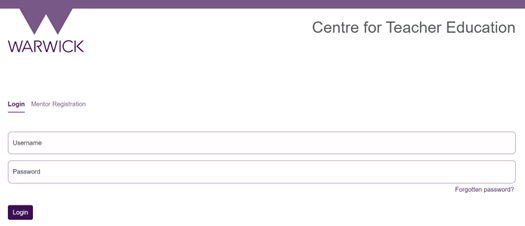
Students will receive an email from Axia with 'CTE Axia login details' in the subject line which contains their Axia username and password. Please change your password once you have logged in for the first time to something more memorable.
CTE staff accounts will be manually created in Axia and staff will also receive an email notifying them of their username and password. Staff should be aware that if they have multiple roles in Axia (for example if they are a personal academic tutor and a lead mentor) they will have multiple accounts with different usernames and passwords. If you are a CTE member of staff and do not have an Axia account please email ctecurrentstudents@warwick.ac.uk giving details of the role(s) you require. They will then email you your username and password. Please change your password once you have logged in for the first time to something more memorable.
General Mentors can either wait to be invited to view and access a portfolio via an email sent by their mentee from within the Axia platform, or they can register themselves ahead of this. If they pre-register they will see warning messages saying that they are not linked to any student accounts until the student links them to their account. General Mentors can click on the Mentor Registration tab on the login screen to do this and then follow the instructions on the screen.
Please note: personal email addresses should not be used.
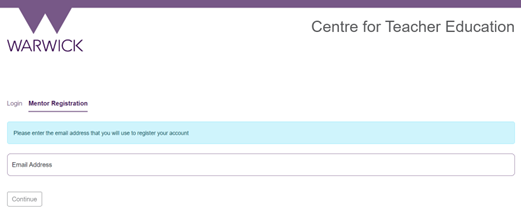
Lead Mentor accounts will be manually created in Axia and they will also receive an email notifying them of their username and password. Please change your password once you have logged in for the first time to something more memorable.
Students are unable to link Lead Mentors to their accounts. This has to be undertaken by the CTE Axia Admin team. Please email ctecurrentstudents@warwick.ac.uk giving the name of the school(s) that your account should be linked to.
Please note: personal email addresses should not be used.
Logging into Axia: Student guide
For international students:
For primary students:
For secondary students:
For primary assessment only students:
For secondary assessment only students:
What do I do if my school is missing from the list in Axia?
Please provide the full address to ctecurrentstudents@warwick.ac.uk and the CTE Axia Admin team will add your school and notify you when this is complete.
I'm trying to upload a document and it keeps failing, what should I do?
Firstly try logging out and logging back in to see if this clears the issue. If the problem persists try saving your document in a different format to see if that allows you to upload it. If that still doesn't work you will need to email ctecurrentstudents@warwick.ac.uk with details of the issue. They will be able to raise a support ticket with Axia on your behalf.
What do I do if there is a mistake on one of the forms in Axia?
Please email ctecurrentstudents@warwick.ac.uk with details of the error. They will ensure it is corrected.
What do I do if I've submitted and signed off a form/document by mistake?
Please email ctecurrentstudents@warwick.ac.uk with details of the error and they will be able to reopen the document/form for you.
Why do I get incorrect user credential error messages when I try to login as a mentor?

Contact the Digital Learning team for help, support and advice for any digital learning tool or task.
Affordances
Lecture captures offer a simple and effective learning tool for students, helping them engage with lecture content both during and after the class.
- Lessen student anxiety about struggling with key and threshold concepts
- Rewatching specific content helps students with problem areas, helping them catch up when they are struggling
- Selective watching of captured content a few days after a lecture can help with adding detail to notes and compounding learning
Lecture capture at Warwick with EchoVideo
EchoVideo is the University's lecture capture and video management platform. It enables you to capture, edit and share video content with your students. Automated lecture capture in teaching rooms at Warwick is covered by an opt-in consent policy.
EchoVideo is installed in over 260 rooms across campus, offering a no-hassle, automated capture and distribution via Moodle. To find out more about using Lecture Capture and get support using it to enhance your teaching explore our EchoVideo specific guides and recipes.
- Schedule lectures for recording in Lecture Capture-enabled rooms
- Control what you capture, when you release and how it is distributed
- Students access recordings directly from your Moodle space
- Capture overhead projectors, chalkboards, slides or podium (select rooms only)
EchoVideo Accessibility Statement
Follow our guides to get started
Contact
Digital Learning
Scheduling and EchoVideo support
Audio Visual Team
Teaching room support & training
024 765 22463
What is H5P?
H5P is described by Hart (2017) as a content development tool and an instructional tool as it can be used to create both interactive content and instructional content such as quizzes.
H5P stands for HTML 5 Package and as the name suggests is HTML5-based.
Benefits of H5P
- does not use Flash and consequently works well on mobile devices.
- It is an open source package and you are encouraged to share any resources that you create with it and to add to the open source community if you adapt the code.
- You do not need coding skills to use HTML5 as it has a template-type editor that is quite straightforward to use. You can add your creations to Moodle courses, WordPress and Drupal sites and use them as standalone content on ordinary websites as I've done with the learning theories examples.
- It is a module-based software with lots of different 'modules' that you can use to create different types of content.
- It offers activities from fairly basic presentations to more sophisticated videos with interactive components.
- It is free to use: register on https://h5p.orgLink opens in a new windowLink opens in a new window or use it within your Moodle space by selecting Add an activity or resource link in each section. More details are available here.
Suggested uses include creating:
- anonymous formative assessment to check knowledge and understanding
- flipped learning content
- richer content that is more engaging e.g. for health and safety notifications
- interactive videos with hotspots to add more information and question points to check understanding
Examples:
- https://h5p.org/timelineLink opens in a new window
- https://h5p.org/content-types-and-applicationsLink opens in a new window
- https://h5p.org/interactive-videoLink opens in a new window
- https://www2.warwick.ac.uk/fac/soc/cte/students-partners/academictechnology/learningtheories/cognitivetheories
- https://moodle.warwick.ac.uk/course/view.php?id=36322
- https://councilfordisabledchildren.org.uk/node/2369/takeLink opens in a new window
Upload Media (e.g. existing videos)
Managing your own media
Please note that in order to publish your recording you will need to add tags to your recording first. These should include 'captions', and 'shared.'
How to enable captions and share Kaltura recording links
Every memeber of staff has permissions to manage their own media in Kaltura.
Please note that in order to publish your recording you will need to add:
- tags to your recording first. These should include your name, 'captions', and 'shared'.
- add CCs (captions)
- publish the media in the correct 'channel'
- share the link to your audience
Publishing media: video and instructions
Adding quizzes (post-recording)
Please note if you require further editing to your recording, please contact the AT team for support.
- How to login to Mahara
- Finding and copying the PDP template
- Generating your secret URL
- Customising the pages in your collection
- How to add text to your PDP
- How to upload images to your PDP
- How to upload files to your PDP
- Dealing with large files
- How to embed media files into your PDP
- How to link to external media in your PDP
- How to add a new page to your collection
- Adding loose pages to your PDP collection
- Moving pages within your PDP collection
- Privacy of your information - Mahara
- Accessing your ePDP after graduation
IMPORTANT NOTICE: Please note that the sections linked in the green boxes to the right are being updated so some links may be temporarily inactive, however the information and deadlines on this page are up-to-date. In the meantime, please refer to this Reading List Guide for additional information and step-by-step guides. You can also reach out to the Library reading list team directly by emailing readinglists.library@warwick.ac.uk
Please note that due to the migration of the Digital Content Store, users will be unable to submit digitisation requests from March 6th to 16th 2026. If you will require a scan of material for teaching around this time, please ensure that you submit your request by February 23rd, 2026. We apologize for any invconvenience this may cause.
Information and guidance for academic staff
To facilitate resilience of our teaching and support for students, all reading lists should be submitted online using the Talis Aspire system, and all essential and recommended readings should be available electronically – either as e-books, e-journal articles or copyright-cleared chapter/article scans (where possible).
The Talis Aspire Reading List system enables you to create dynamic reading lists for your students, providing them with direct links to all their required reading materials. Using Talis Aspire for your reading lists will improve the visibility of lists for students and provide a consistent approach across modules. Your published lists will also be checked by the Library, allowing them to provide access to the materials and resources your students need.
2025/26: Action Required
The recommended deadline for submitting Term 2 reading lists was Monday December 1st, 2025 however we are still accepting lists! Please submit your list as soon as possible by publishing it.
- The My Lists page should display all reading lists which have been assigned to you in Talis Aspire.
- Please check any unpublished lists you may have for 25/26, make any changes, and publish them by the recommended deadline or as soon as possible.
- Publishing ensures your list is visible to students and will alert the Library of your changes.
-
You can make further edits at any time, even after the list is initially published.
- Every time you publish new changes to the list, these changes become visible to students and the Library is alerted so that they can take any required action.
-
Please note: The Library will still check lists received after the recommended deadlines for each term, but due to the workload involved they may not be able to ensure that all new or additional resources will be available in time for the start of teaching.
Please contact if any of the following apply:
- your module reading list is not showing in your My Lists page
- a list assigned to you is not running in the current cycle, or is no longer needed
- you are no longer the lead for a module reading list
On January 12th 2026, a new bookmarking workflow was rolled out to all Talis users. This is the process by which users create new bookmarks (from the Library Catalogue or the web) to populate their reading lists. The has been testing this for several months and have found the new workflow to be very user friendly and a huge improvement on the previous method.
- This new workflow will overwrite the old one, meaning existing users do not need to reinstall, update or install a new bookmarking extension.
- After pressing the bookmarking extension button, users are now shown a preview of what the bookmark will look like:
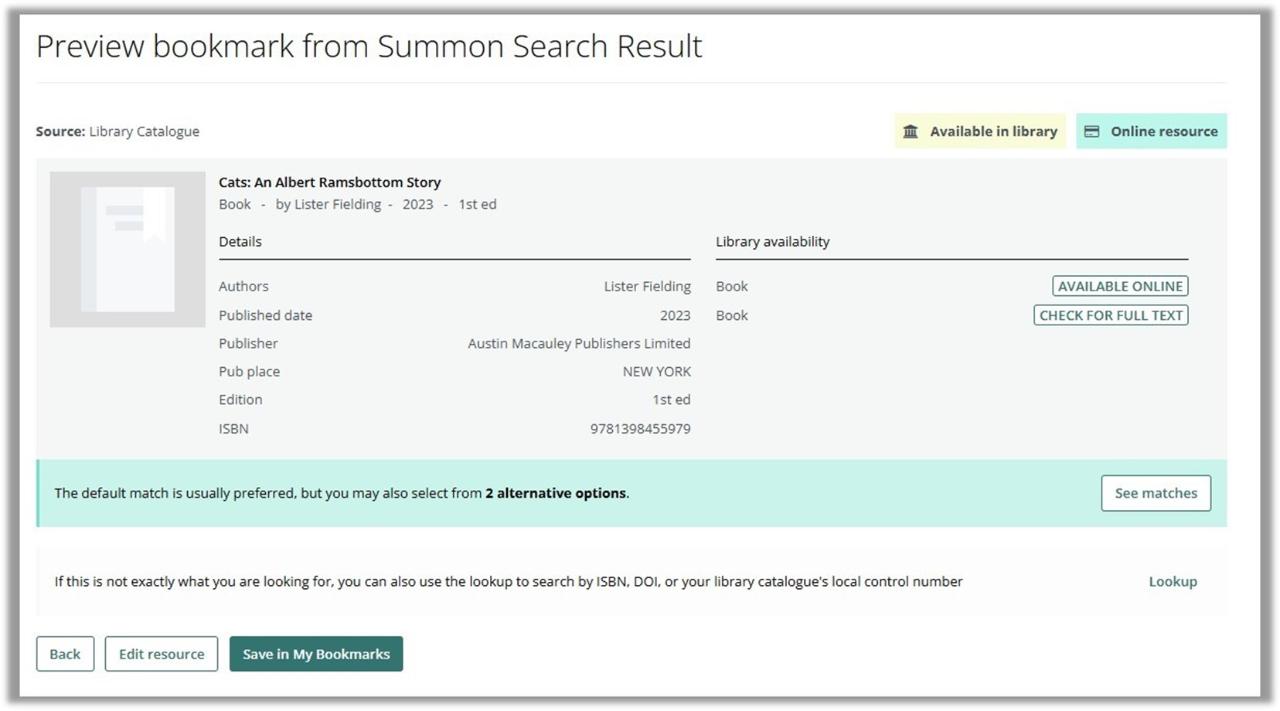
- Users can then Save in My Bookmarks or Edit resource (via the usual edit metadata view), if needed.
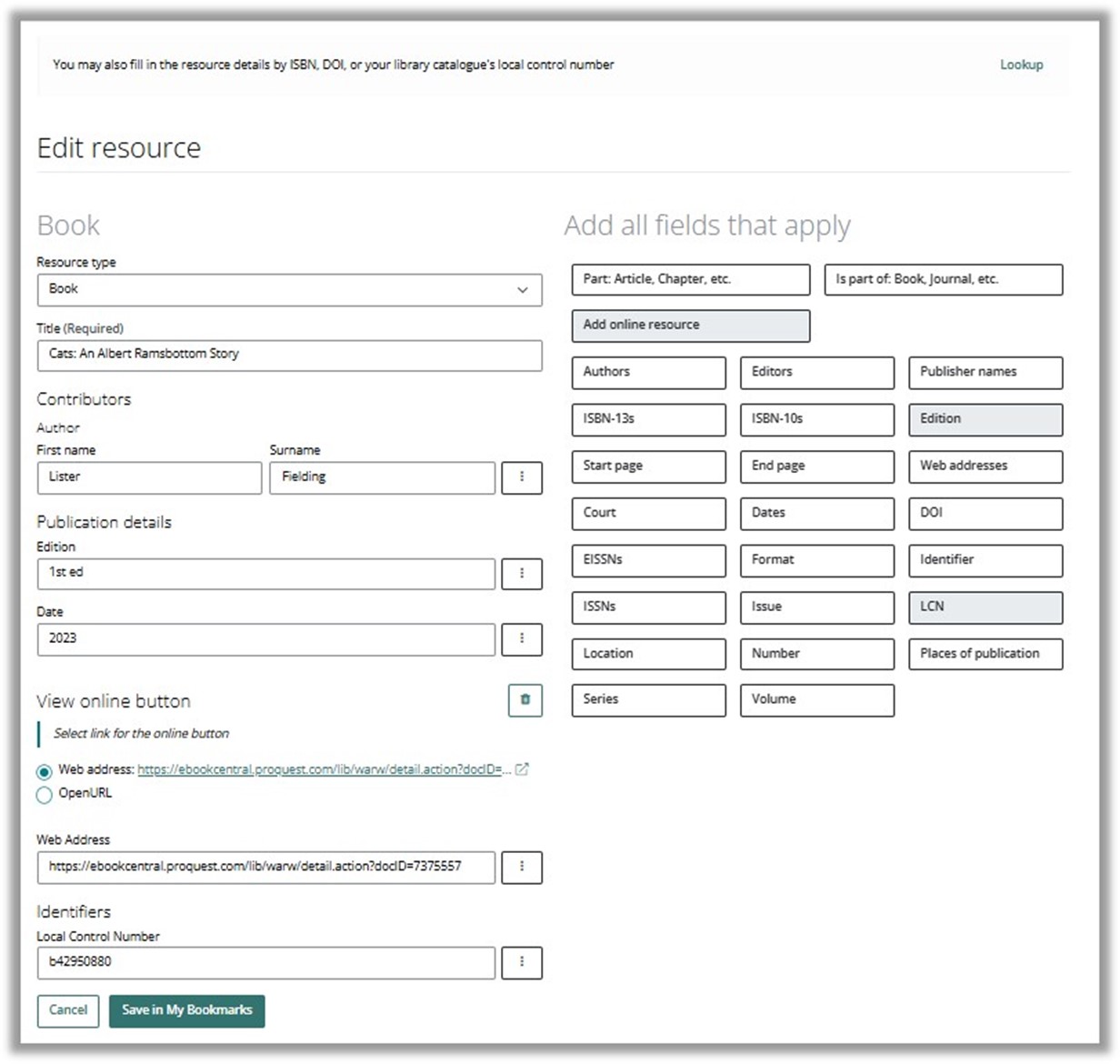
- The edit metadata view has also had a refurb with the option to use the Lookup feature now in a banner along the very top and with all the different fields users can add to the metadata appearing as buttons on the right-hand side of the screen.
- The different categories of fields within the metadata now appear grouped together nicely (for example “Contributors”, “Identifiers”, in the image below):
- Now when users press Save to My Bookmarks, they are then shown a confirmation that the bookmark has successfully been created, as well as the option to add the bookmark to one of their saved lists on the right side of the screen.
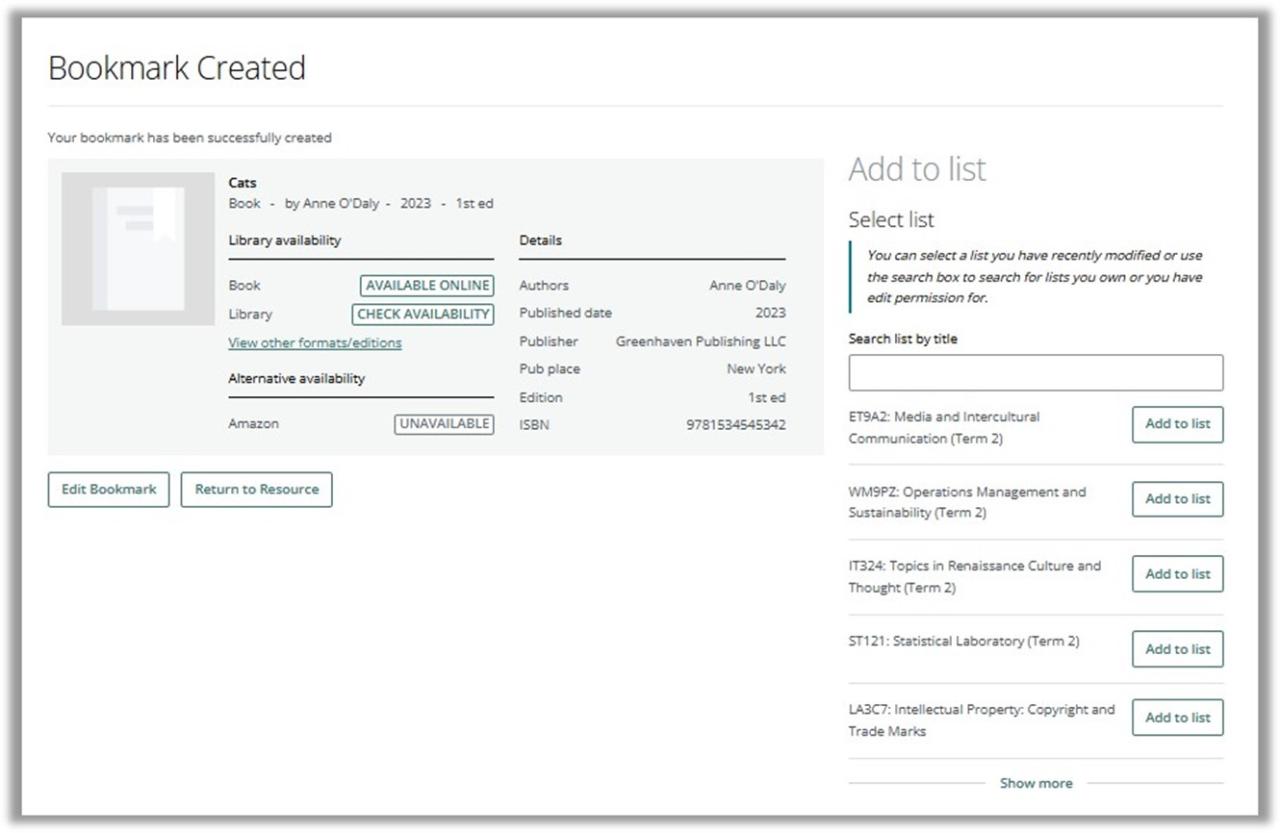
- Once a list has been selected onto which to add the bookmark, users are shown the usual options regarding reading importance and positioning on the list.
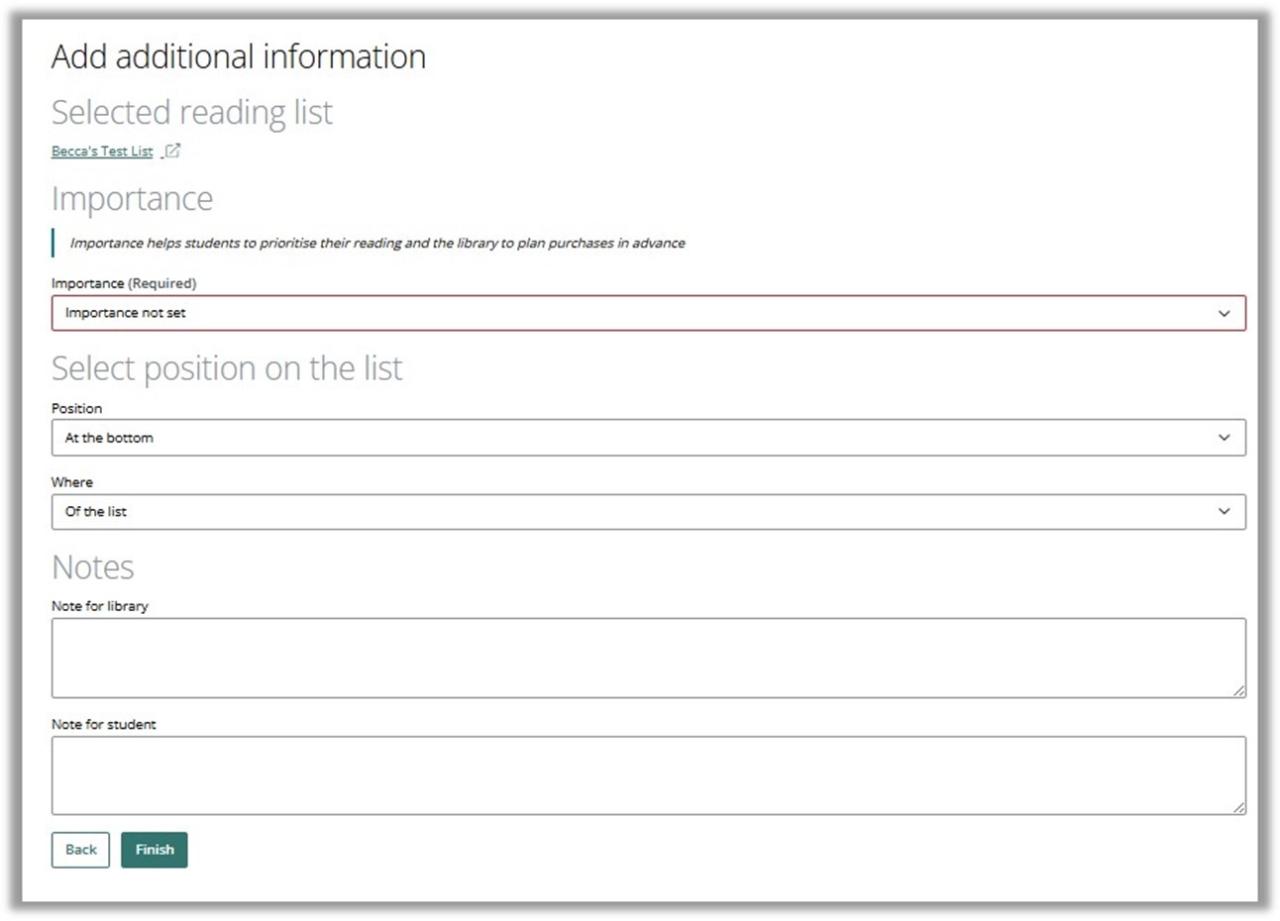
- As before, once the bookmark is saved, users still have the option of adding it to their lists manually in the desired location at a later time.
If you’d like to know more, Talis has written a useful support article about the new workflow. If you have any questions, please do not hesitate to contact the Library Reading List Team.
- Assist with the setup of your Reading Lists on Aspire
- Check for availability of e-books and most recent editions of key readings
- Digitise book chapters or journal articles as required
- Provide full training and ongoing support
- Support with list inputting in certain circumstances
For more information on how the Library can help you with your reading lists, please click here.
Coming soon! A collection of short videos aimed at guiding users through the basics of using Talis Aspire for their reading lists

Getting Started
This video explains how to login and setup your profile on the Talis Aspire platform.
Finding or Creating a Reading List
This video explains how to search for an existing reading list or set up a new draft.
Installing the bookmarking extension
This video explains how to download and install the Talis Aspire bookmarking extension on your browser of choice. The bookmarking extension makes creating bookmarks for your reading lists easy with just a few clicks!
Bookmarking Whole Books and Chapters
This video explains how to bookmark entire books or select chapters to your reading list to ensure your students read the most relevant content.
Bookmarking Articles, Journals and Websites
This video explains how to bookmark other popular resource types to your reading list.
Bookmarking Items not in Library Holdings
This video explains how you can create bookmarks for resources not in stock in the Library. The easiest way to request that the Library acquire new material to support your teaching is to bookmark them to your reading list!
Designing Your List Layout
This video explores the different formatting options available to help structure your list and make it easy to navigate.
Requesting Digitistions (Scans)
This video explains the straight-forward process for requesting scans of items on your reading list.
Linking your List to the VLE (Moodle & MyWBS)
This video explains how you can integrate your reading list into your module VLE either by linking the list or embedding it within the page.
Publishing and Maintaining Your Reading List
This video offers advice on how and when to publish your reading list, how to edit it at any time, as well as best practices to maintain it moving forward.
Annual Rollover and the Reading List Lifecycle
This video explains the annual rollover process and outlines the important dates and deadlines to be aware of across the academic cycle.
Are there any other Reading List topics that you would like to see covered in the Quick Start videos? Let us know at
Contact us at to arrange 1:1 or group/departmental training - either in person in the Library, in your office/department, or via Microsoft Teams call. Alternately, your Research & Academic Support Librarian can also offer further help and advice.
For more information on how the Library can help you with your reading lists, please click here.
A large proportion of peer universities have already adopted Talis for all reading lists and just over 60% of module leaders here at Warwick already use it. We also know that many students prefer using Talis Aspire to support their learning experience.
Benefits for academic staff
- One port of call to notify the Library and request reading list items, including scanned material
- Simple to create, manage and edit your list
- Flexibility in your list structure
- Allows you to link to any type of resource
- Share your list easily with students
- Reading list dashboard allows you to track engagement with your list
- Integrates with Moodle or your module website
Benefits for your students
- Provides them with direct links to reading material
- Clear guidance on reading expectations and importance
- Ability to add their own notes and prioritise reading
- Consistent experience across modules
- Frees time for independent searching
- Readings are available in the right quantities
Reading Lists Timeline and Lifecycle
Scans for Reading Lists
How we communicate with you
Need Inspiration?